> ## Documentation Index
> Fetch the complete documentation index at: https://docs.salescaptain.com/llms.txt
> Use this file to discover all available pages before exploring further.
# Automation Builder
> Automations in SalesCaptain let you build workflows that perform tasks automatically based on specific triggers. By combining flow controls and actions, you can respond to new events, route messages, follow up with leads, or update contact records.
Each automation runs in real time whenever its trigger conditions are met. This helps you save time, maintain consistency, and deliver faster responses to your customers.
To learn about setting up triggers, see [**Automation Triggers**](/Core-Features/Automations/Automation-Triggers).
## **Flow Controls**
Flow controls determine how your automation behaves — when to act, who to include, and how long to wait between steps.
### **If / Else**
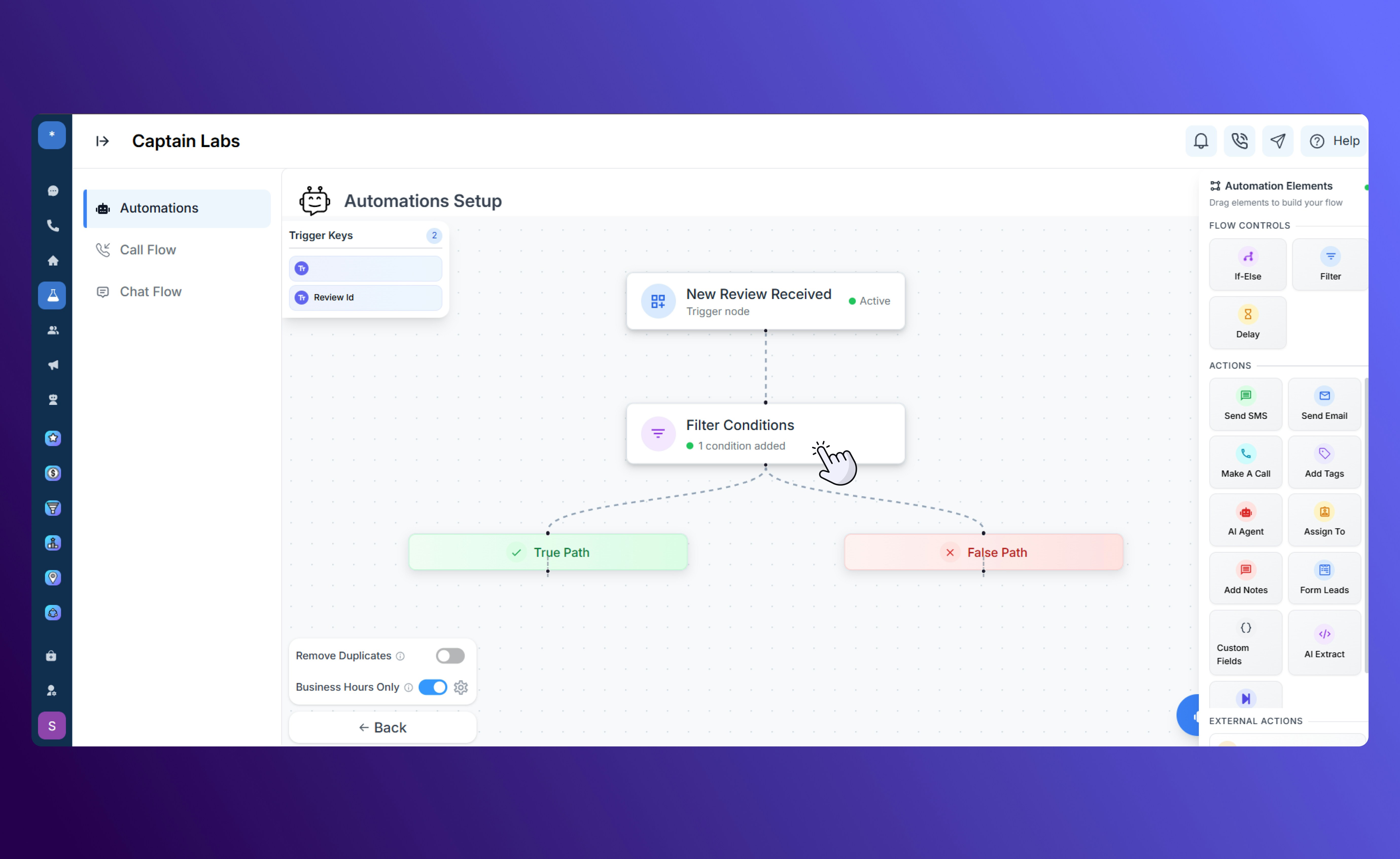
The **If/Else** element checks a condition and splits your automation path based on whether it’s true or false.Specify your conditions using the drop-down menus and select **Add**. Once all relevant conditions are set, select **Apply Filters**.
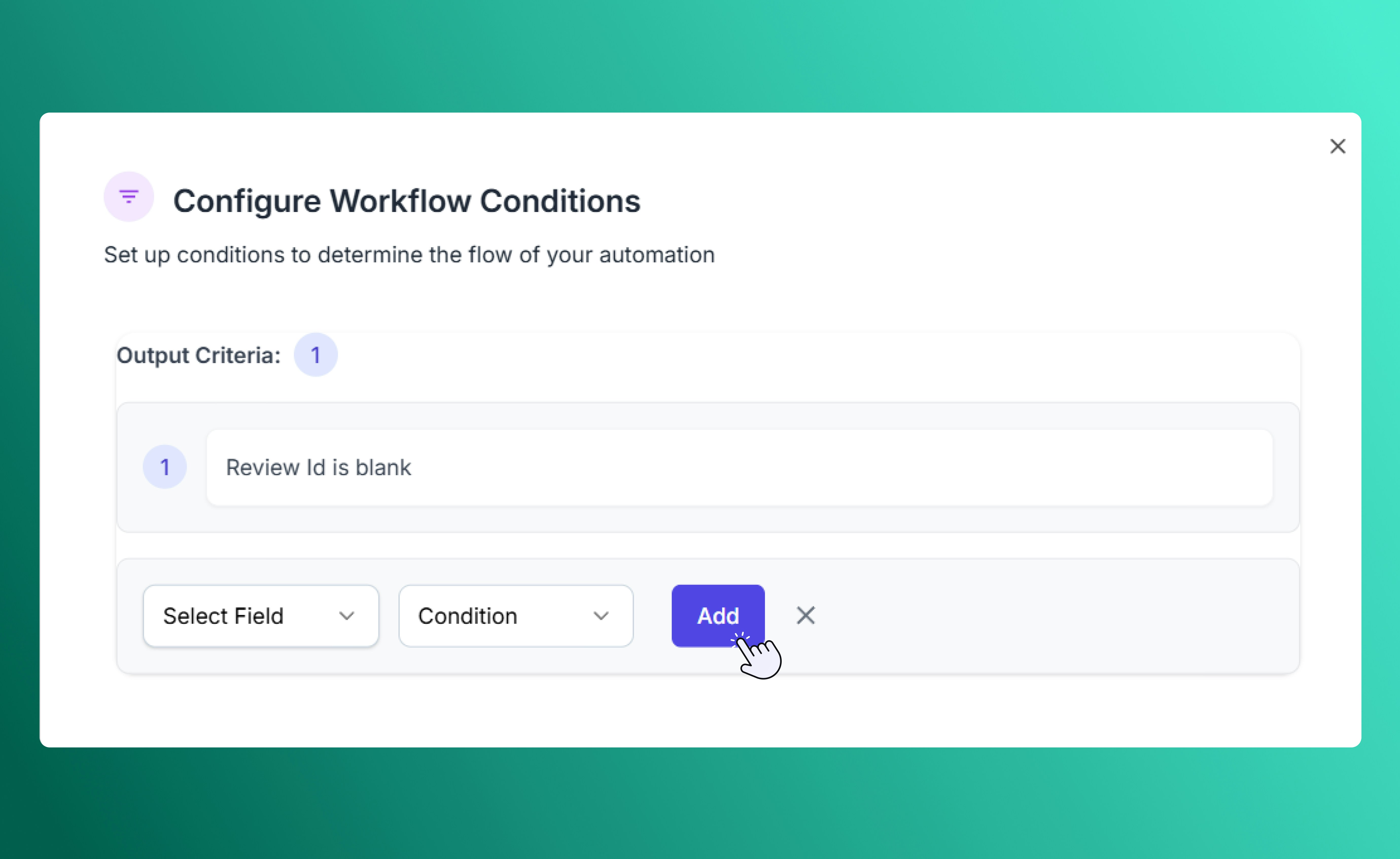 This creates two branches in your workflow: one **IF** the contact meets all conditions, and **ELSE** if they do not. Use this to personalize your workflows, such as sending unique messages or routing leads based on tags or location.
 ### **Filter**
The **Filter** element narrows your audience using tags, contact attributes, or custom fields. You can use it to include only specific groups of contacts, such as new leads, customers in a certain region, or those inactive for a set period.
### **Filter**
The **Filter** element narrows your audience using tags, contact attributes, or custom fields. You can use it to include only specific groups of contacts, such as new leads, customers in a certain region, or those inactive for a set period.
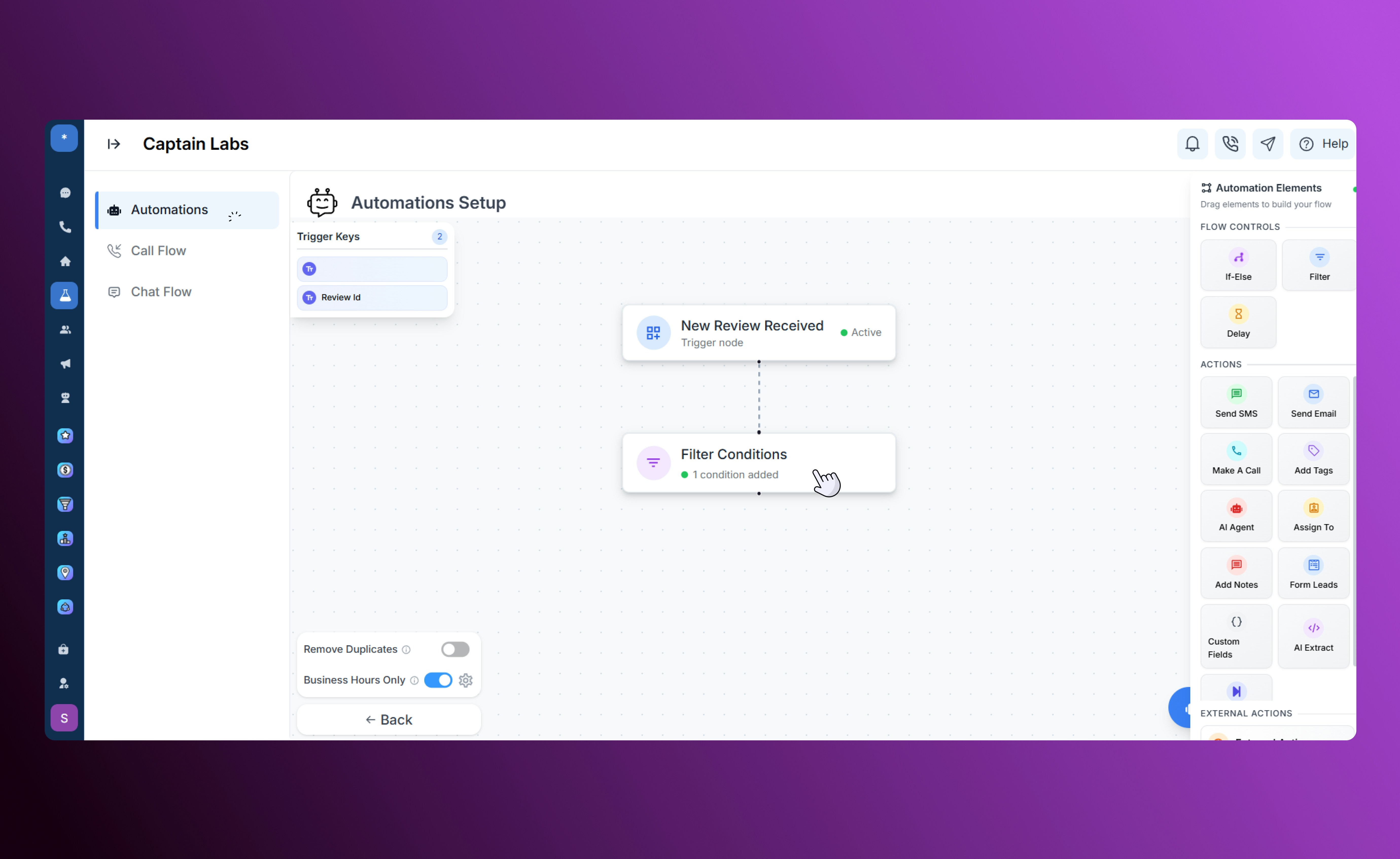
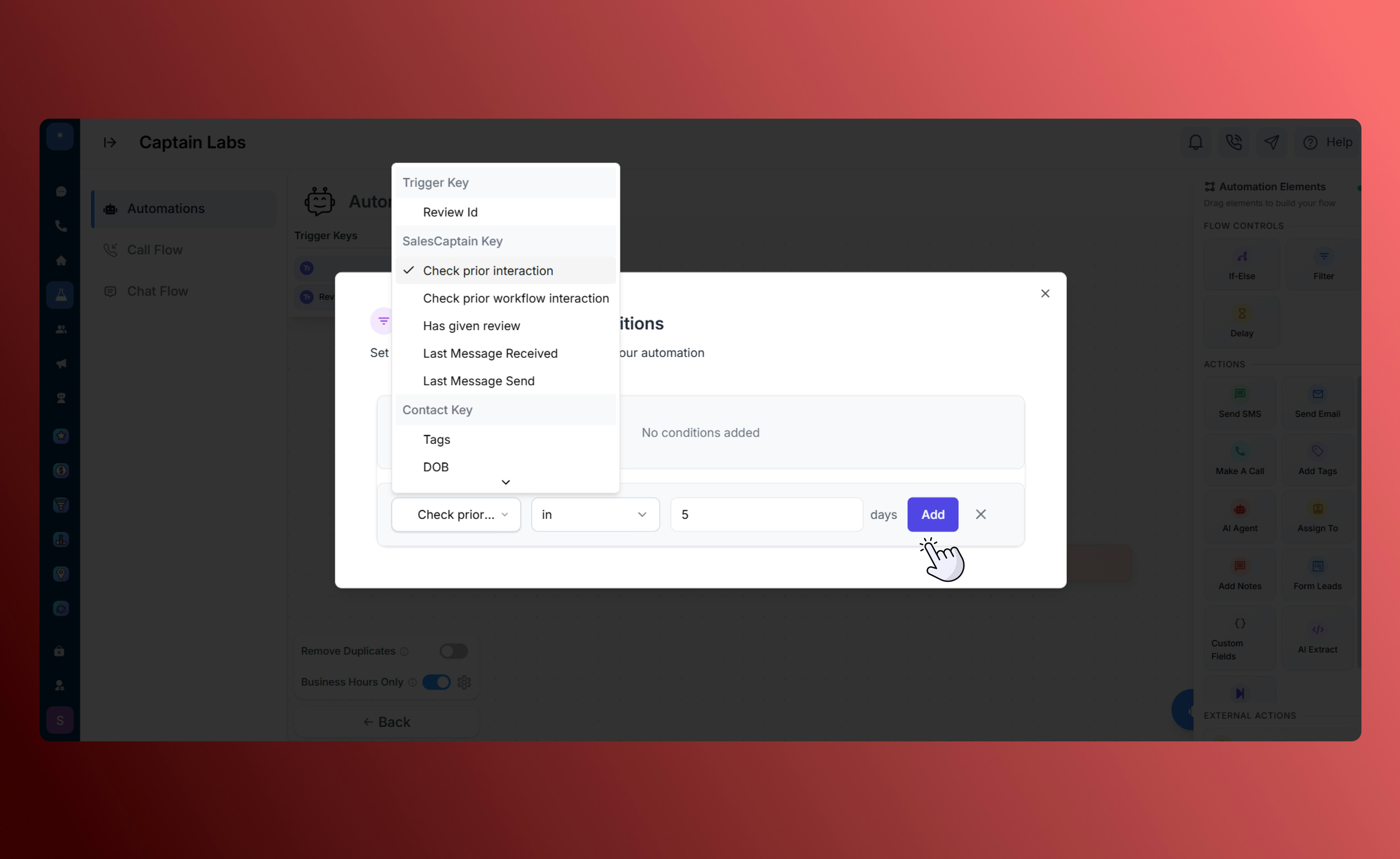 When you apply filters, only contacts who meet all the specified conditions continue through the workflow. Unlike **If/Else**, this does not create a secondary path — it simply excludes contacts who don’t qualify.
 ### **Delay**
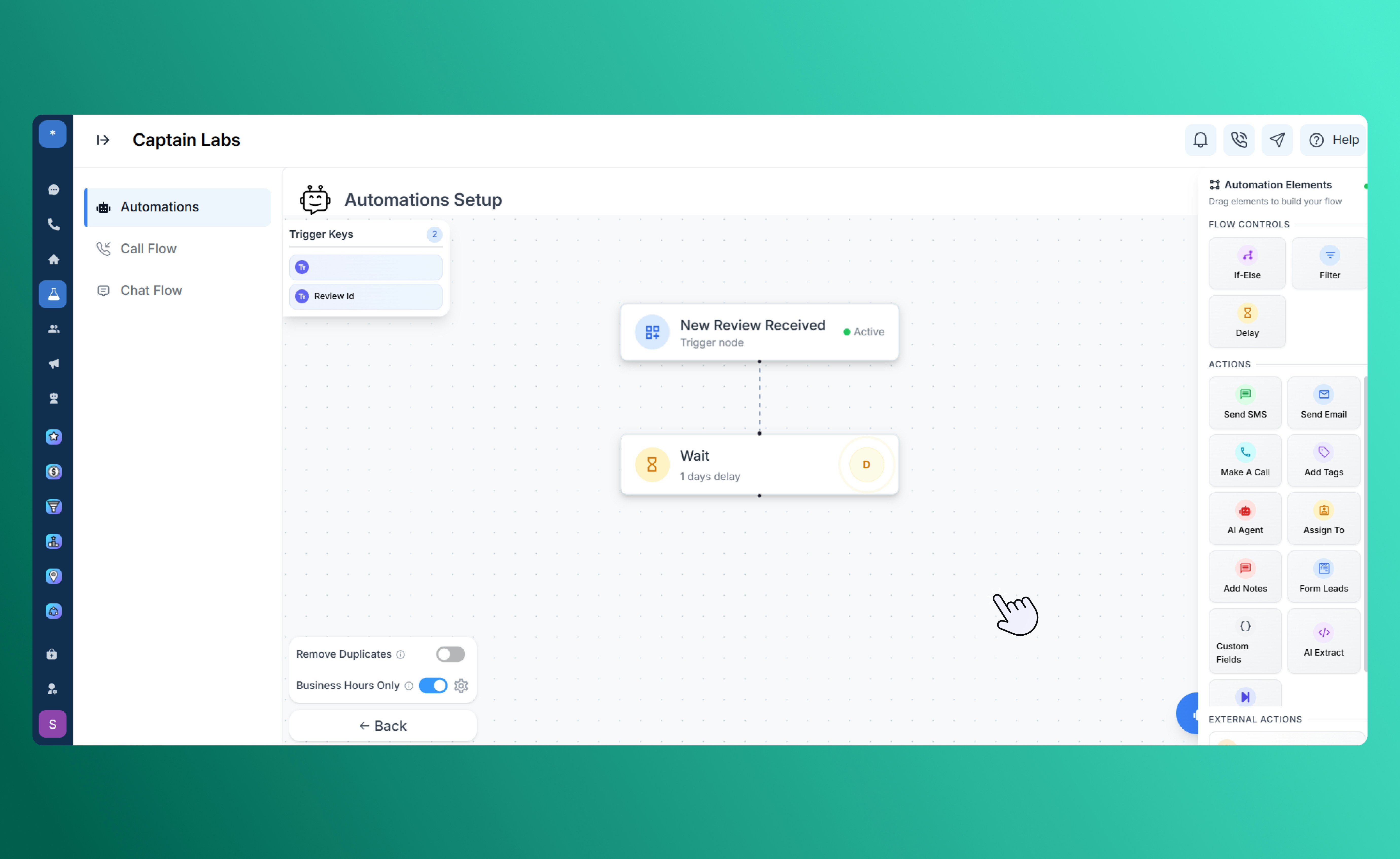
The **Delay** element adds a waiting period between steps in your automation. You can delay by minutes, hours, or days, or schedule an exact time for the next action. Delays help space out communication naturally and maintain consistent timing between messages.
### **Delay**
The **Delay** element adds a waiting period between steps in your automation. You can delay by minutes, hours, or days, or schedule an exact time for the next action. Delays help space out communication naturally and maintain consistent timing between messages.
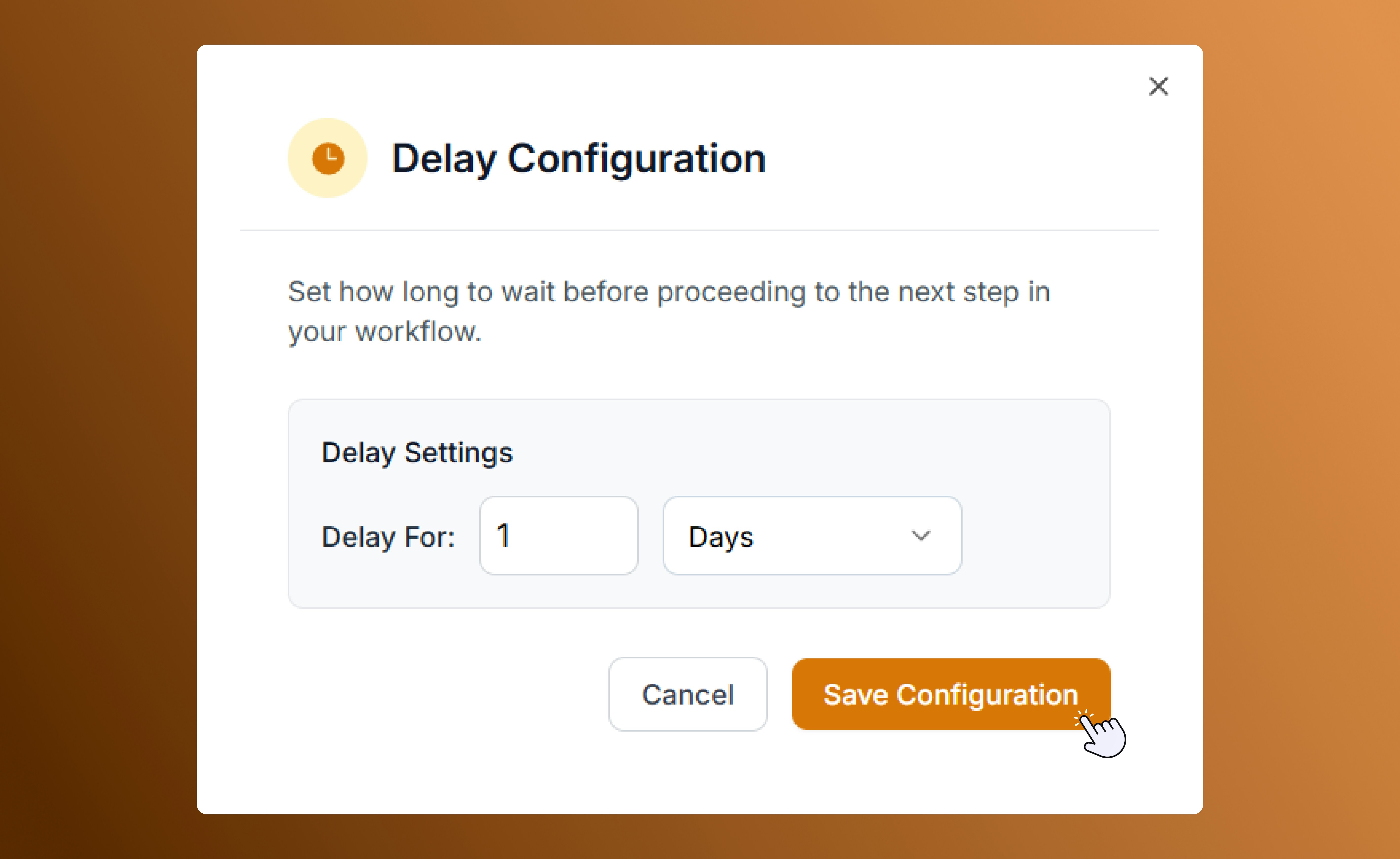 For example, send a follow-up 24 hours after a form submission or a reminder one day before an appointment.
 ## **Actions**
Actions are the tasks your automation performs after a condition is met. You can add one or multiple actions to create your desired workflow.
### **Send SMS**
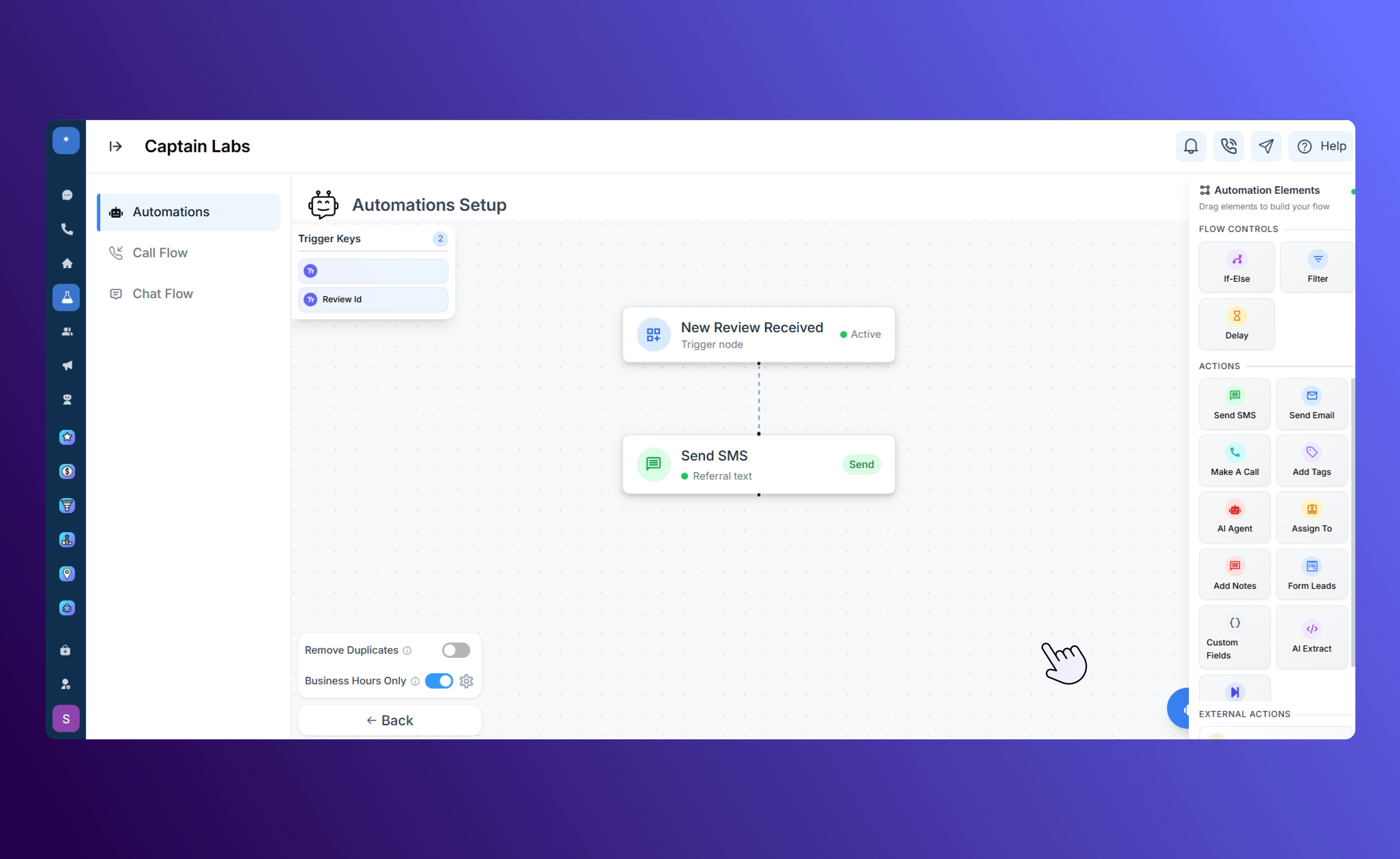
Automatically send a personalized text message to a contact when the trigger occurs. Use this for instant confirmations, reminders, or promotional follow-ups without leaving the platform.
## **Actions**
Actions are the tasks your automation performs after a condition is met. You can add one or multiple actions to create your desired workflow.
### **Send SMS**
Automatically send a personalized text message to a contact when the trigger occurs. Use this for instant confirmations, reminders, or promotional follow-ups without leaving the platform.
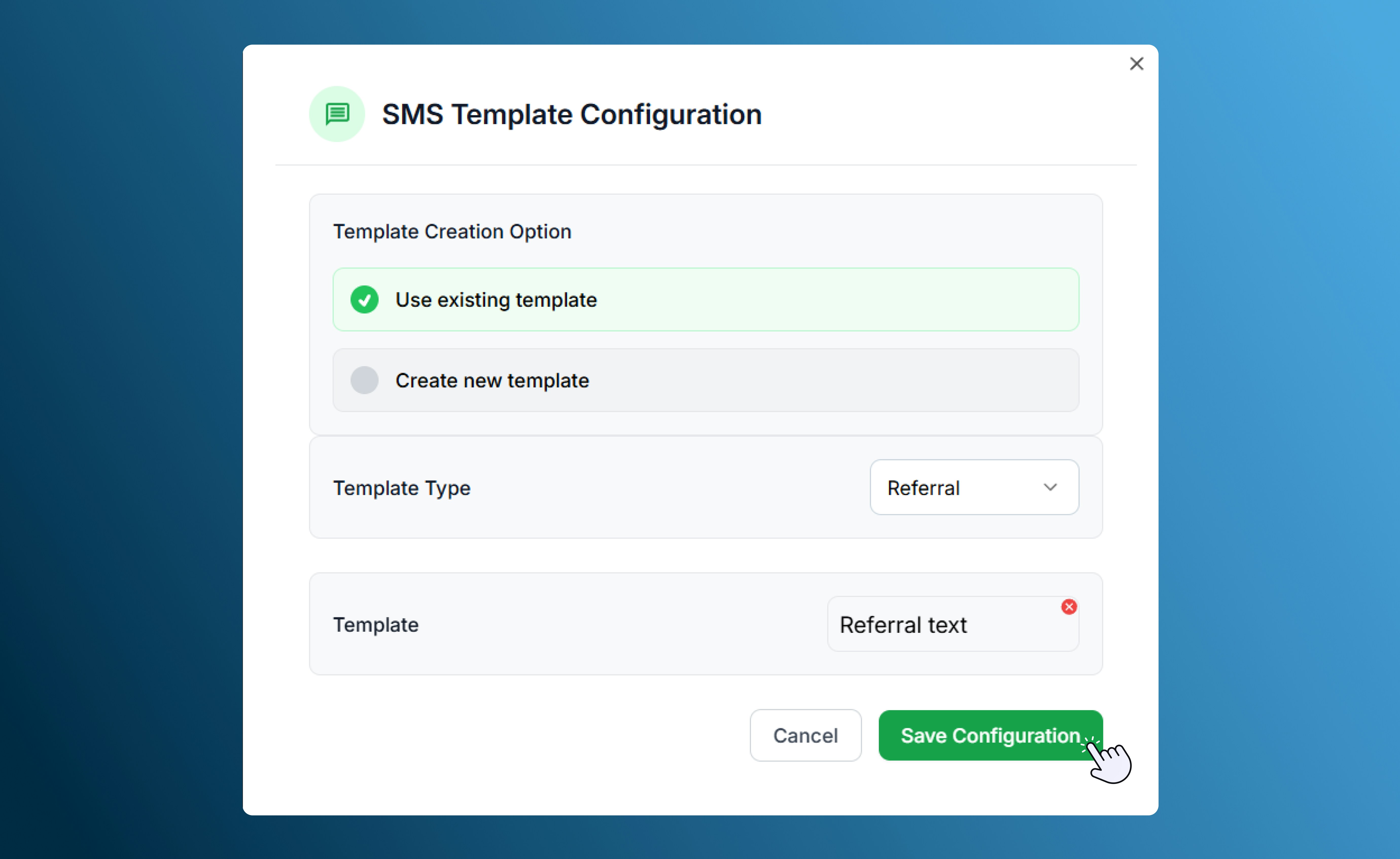 You can use templates, merge fields, and timing options to fit your workflow needs.
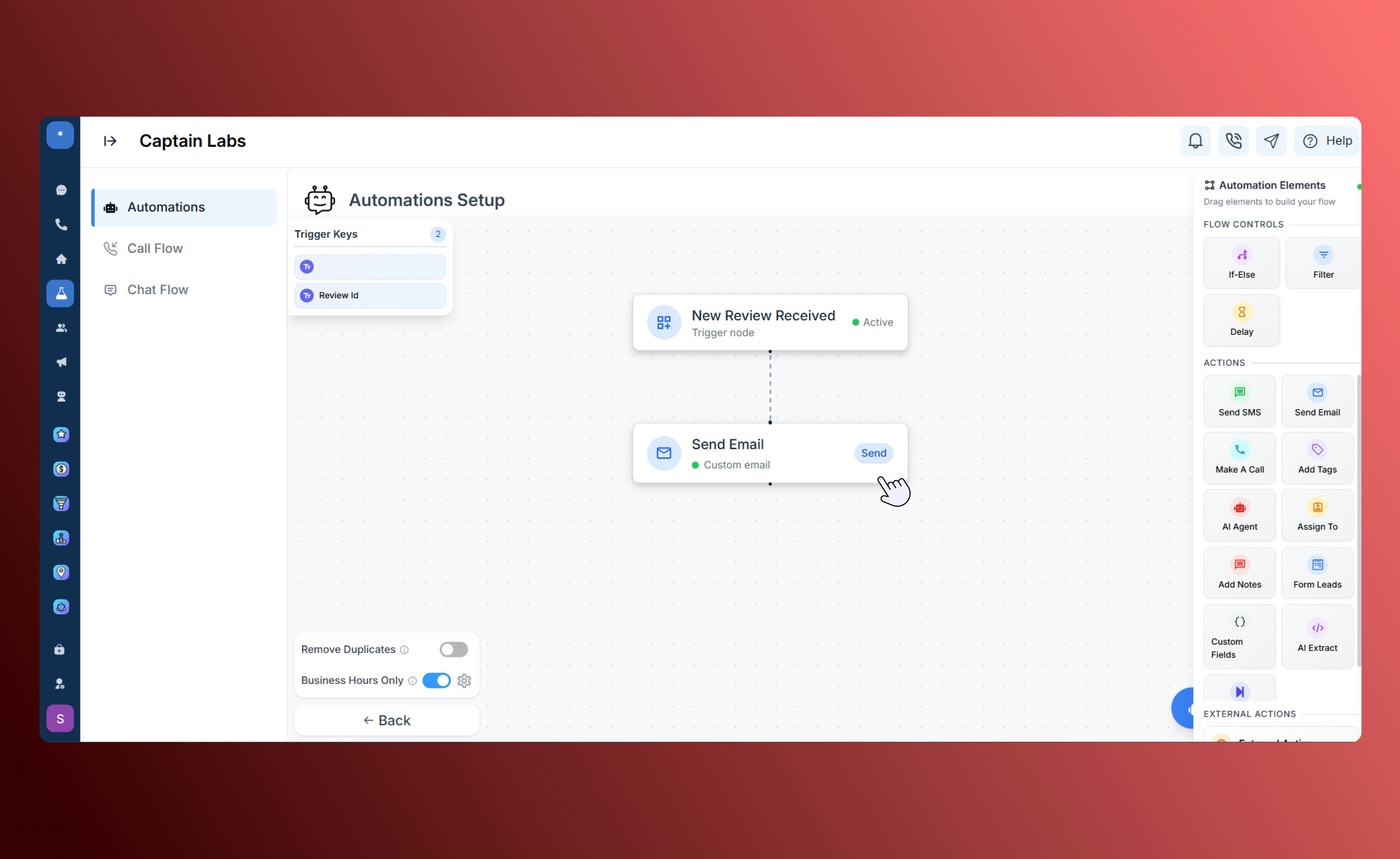
 ### **Send Email**
Send a pre-written or templated email directly to a contact or team member. This action is ideal for sending appointment confirmations, thank-you messages, or regular follow-ups.
### **Send Email**
Send a pre-written or templated email directly to a contact or team member. This action is ideal for sending appointment confirmations, thank-you messages, or regular follow-ups.
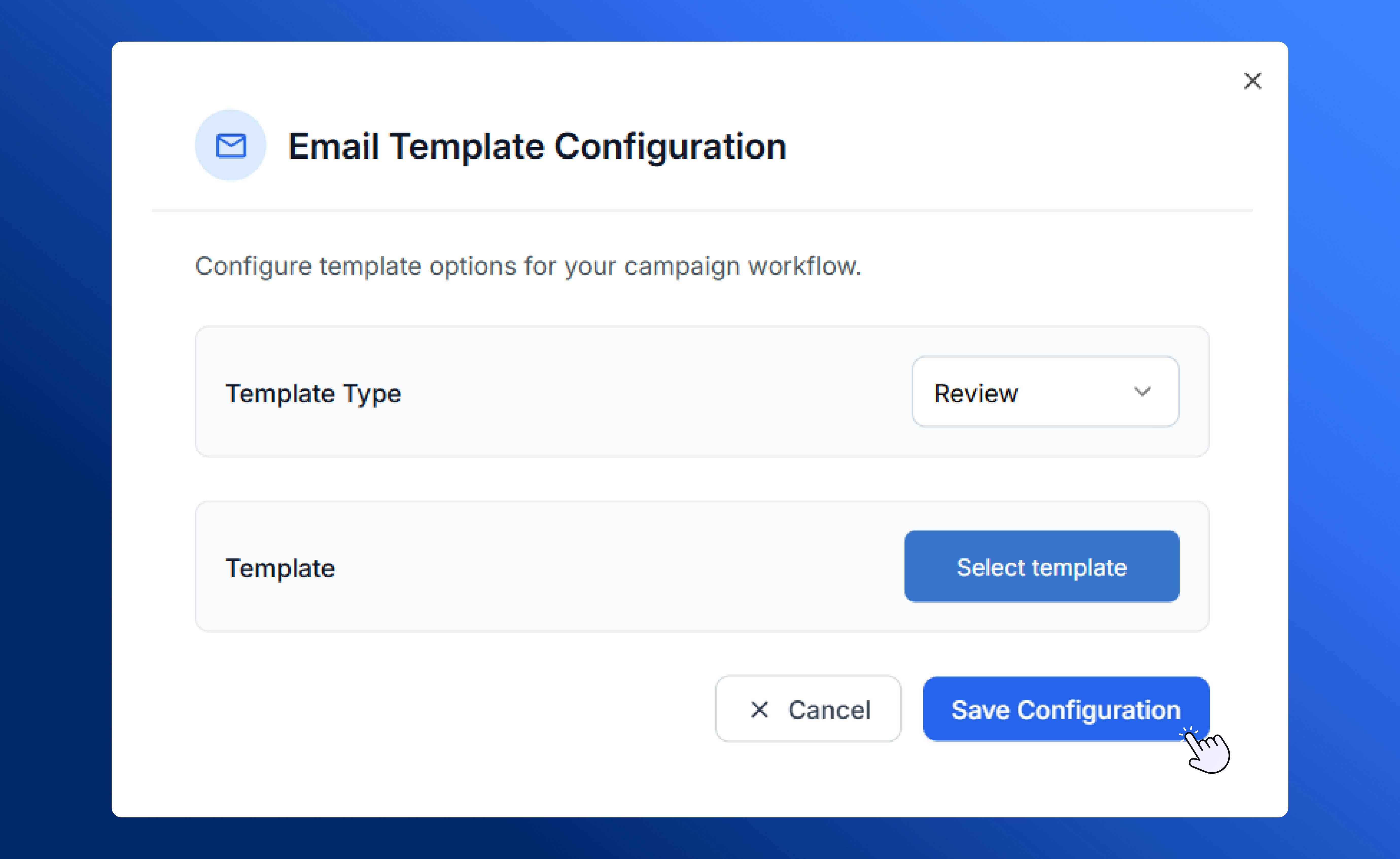 Emails can include dynamic content and personalization tokens for a more tailored experience.
 ### **Make a Call**
Automatically initiate a phone call through your connected SalesCaptain phone system. Use it to trigger reminders, connect sales calls, or re-engage with customers after a specific event.
### **Make a Call**
Automatically initiate a phone call through your connected SalesCaptain phone system. Use it to trigger reminders, connect sales calls, or re-engage with customers after a specific event.
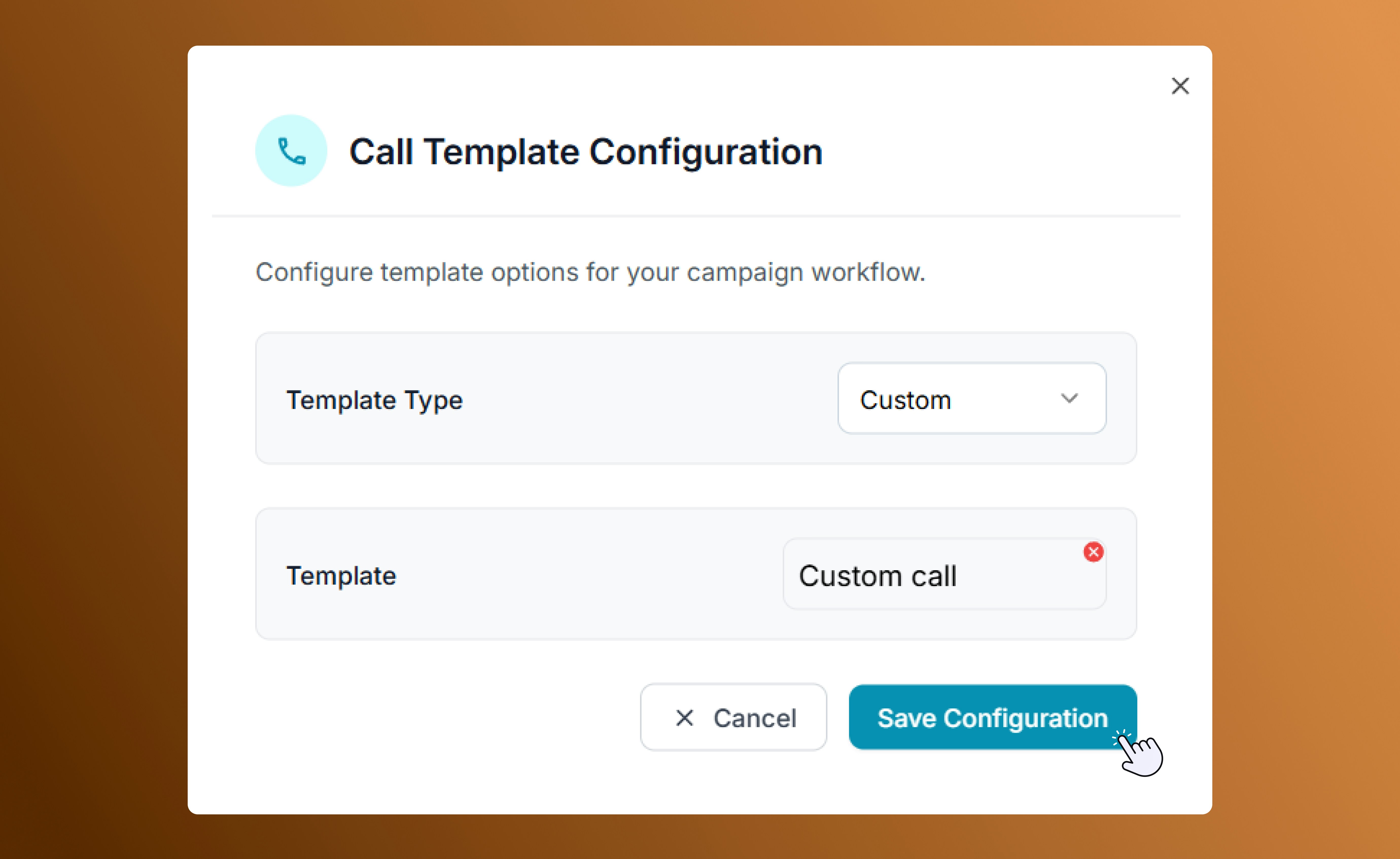 Choose from your pre-built list of [call templates](/Core-Features/Marketing/Call-Templates), or schedule calls as part of a multi-step follow-up.
### **Add Tags**
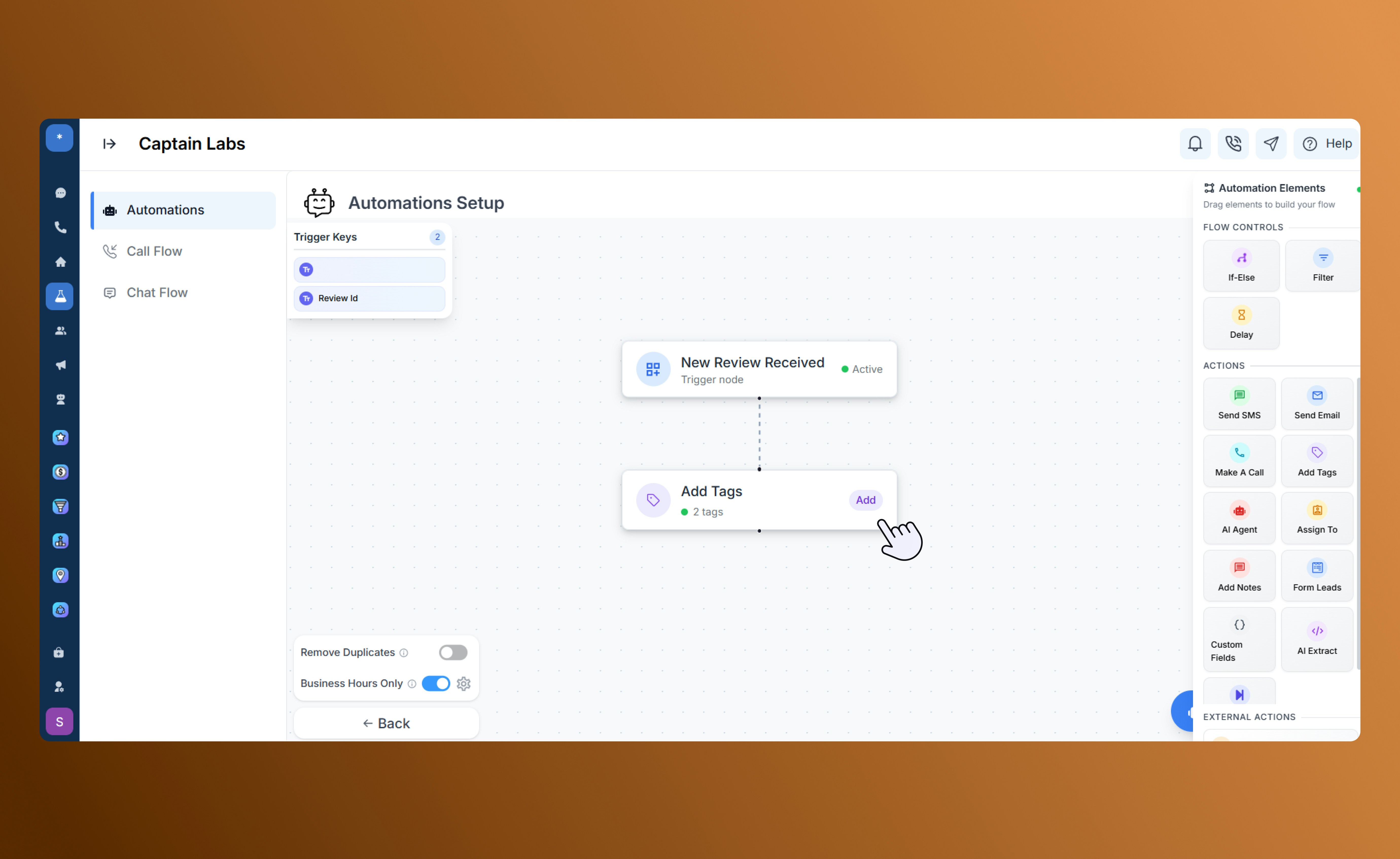
Apply tags to contacts for easy tracking and segmentation in future workflows. Tags help categorize leads by behavior, interest, or source for better automation control.
Choose from your pre-built list of [call templates](/Core-Features/Marketing/Call-Templates), or schedule calls as part of a multi-step follow-up.
### **Add Tags**
Apply tags to contacts for easy tracking and segmentation in future workflows. Tags help categorize leads by behavior, interest, or source for better automation control.
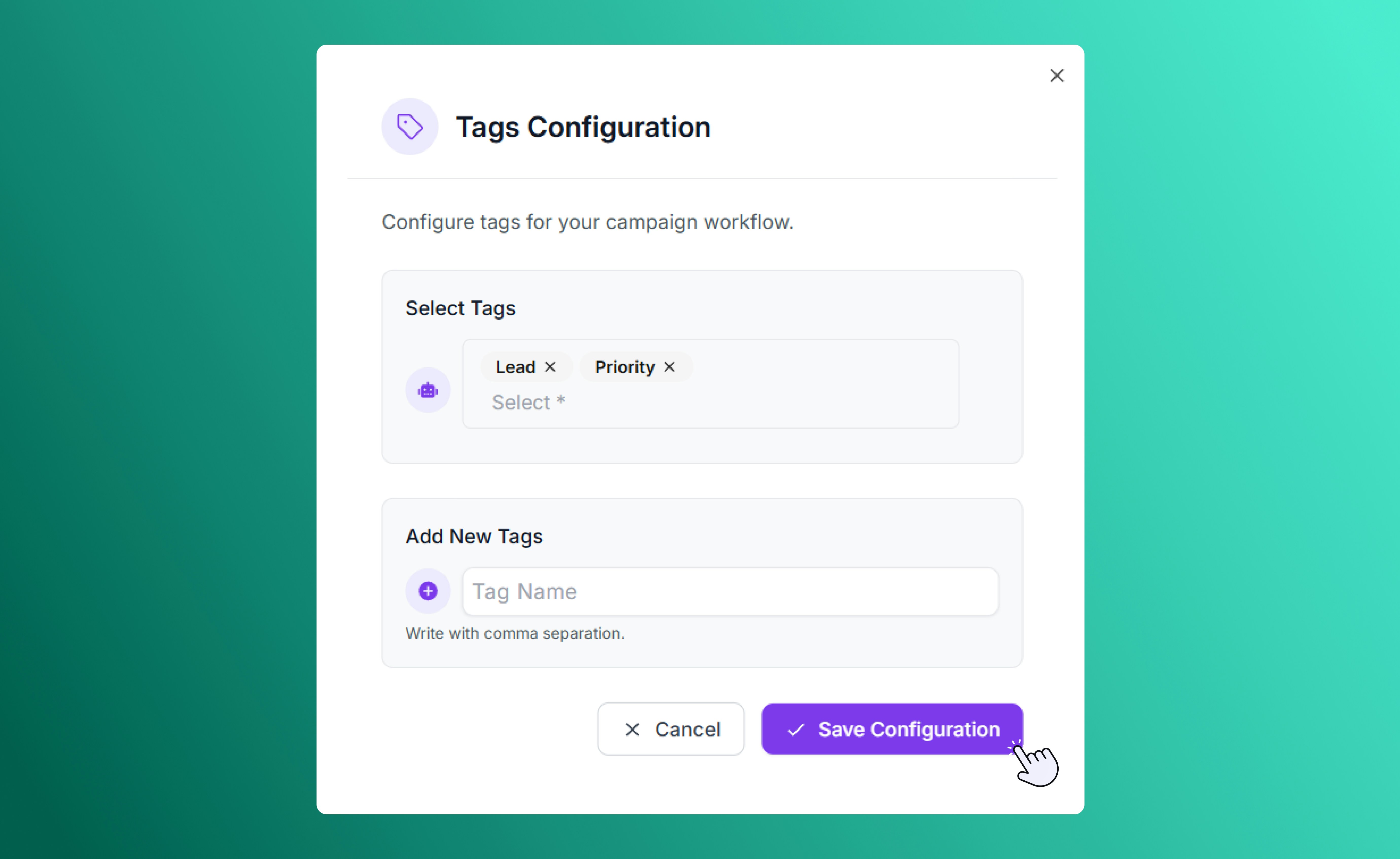 This keeps your contact list organized and makes targeting specific audiences simple.
 ### **AI Agent**
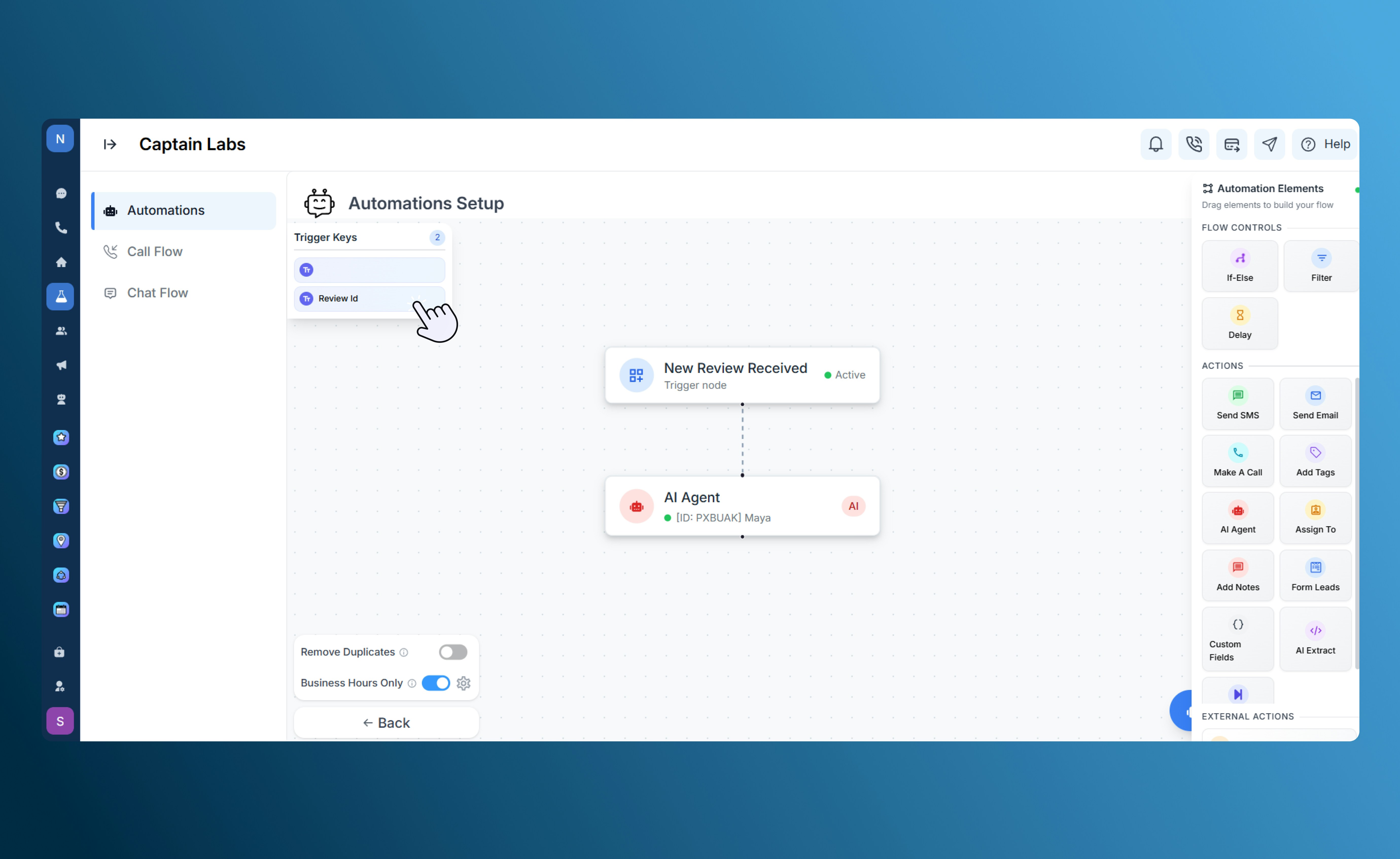
Activate your AI assistant using voice or test to send automated replies, qualify leads, or continue conversations.
### **AI Agent**
Activate your AI assistant using voice or test to send automated replies, qualify leads, or continue conversations.
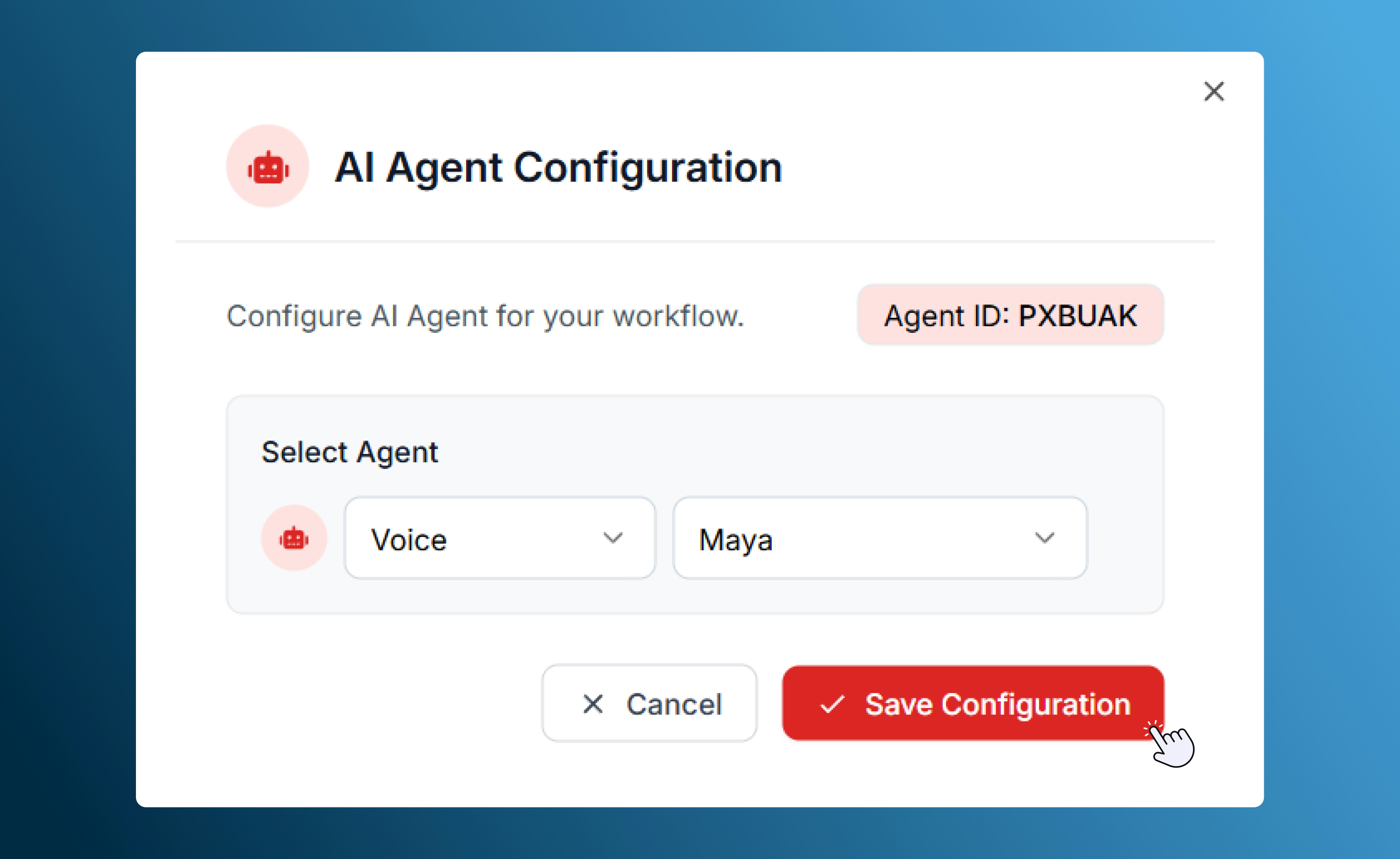 This action helps handle inquiries outside of business hours or maintain engagement during high volume. The AI agent can respond intelligently based on previous messages and your documentation.
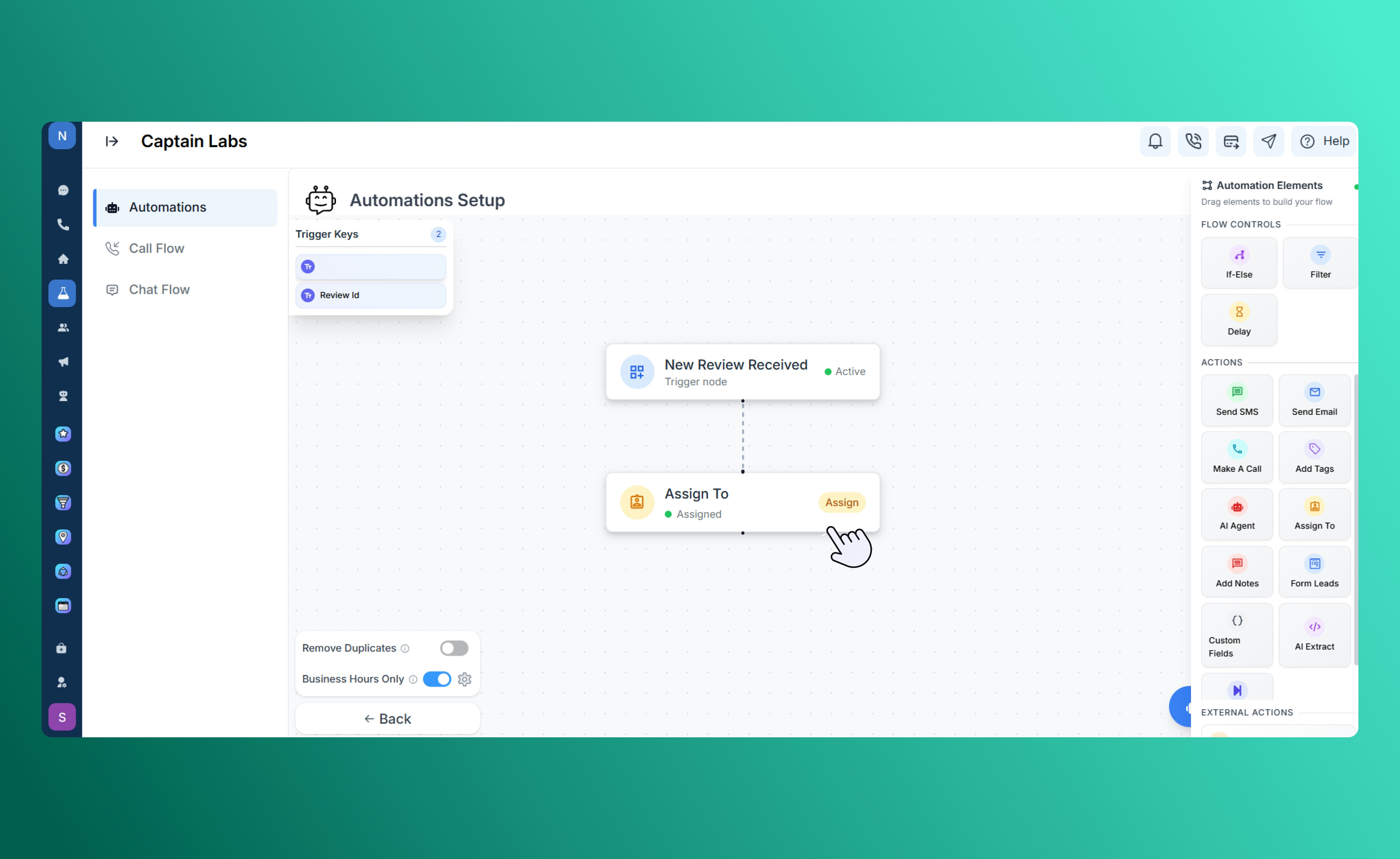
 ### **Assign To**
Automatically assign a contact or conversation to a specific user, team, or stage. Use this to route new leads, incoming messages, or support requests to the right person.
### **Assign To**
Automatically assign a contact or conversation to a specific user, team, or stage. Use this to route new leads, incoming messages, or support requests to the right person.
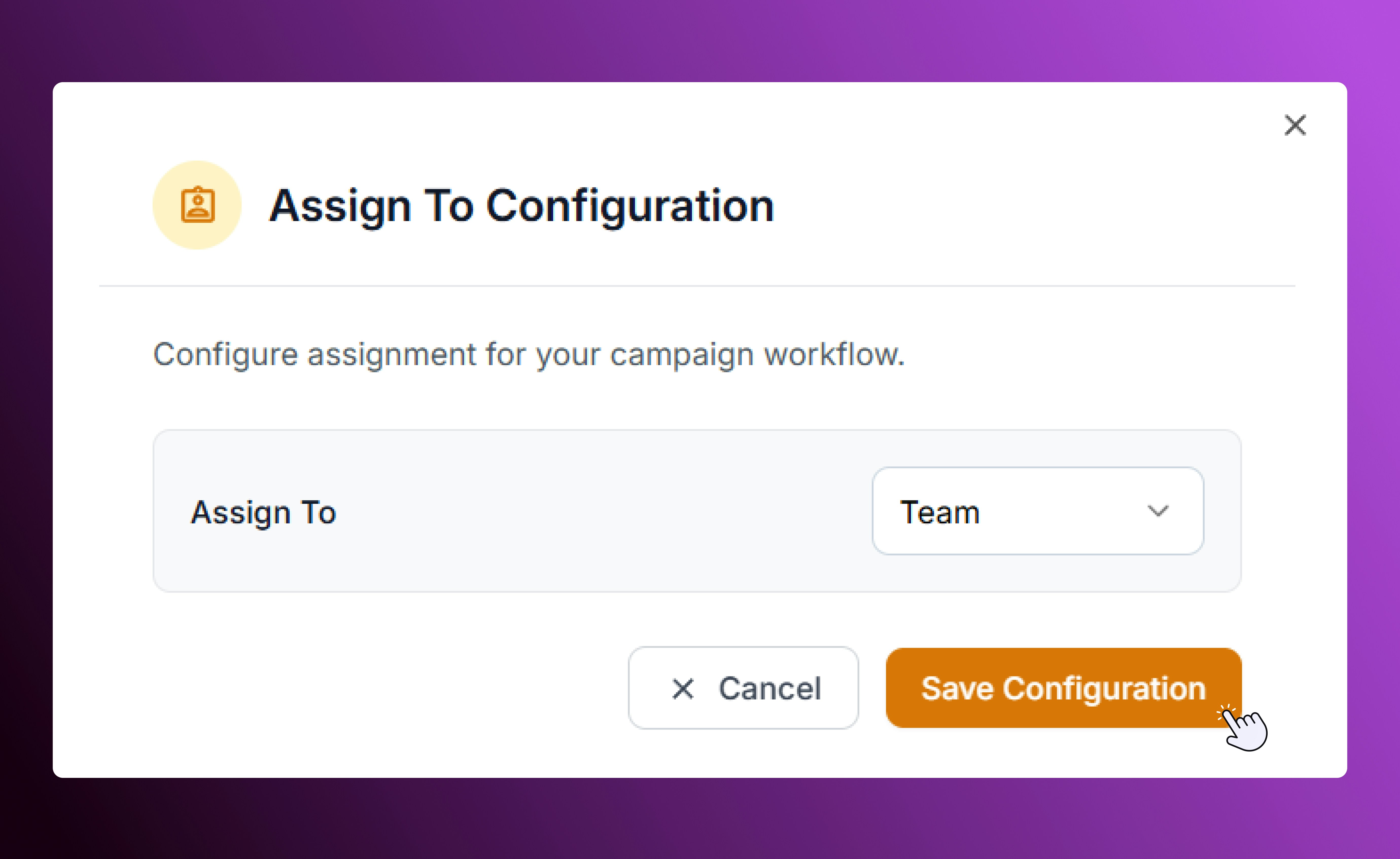 Assignments help ensure that every contact receives prompt attention from your team.
 ### **Add Notes**
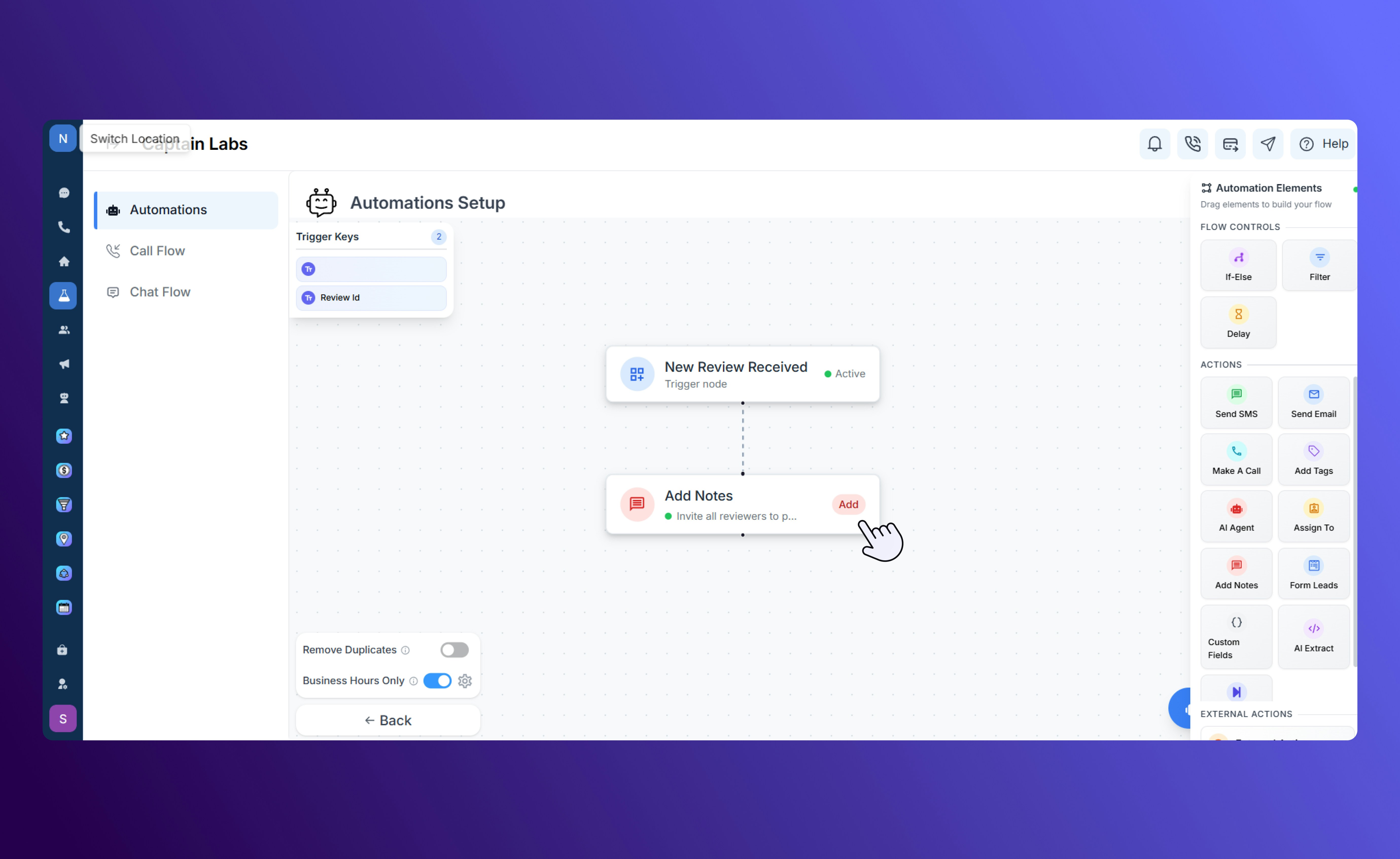
Add an internal note to a contact record for future reference or team visibility. Notes can include details about a conversation, next steps, or lead qualification info.
### **Add Notes**
Add an internal note to a contact record for future reference or team visibility. Notes can include details about a conversation, next steps, or lead qualification info.
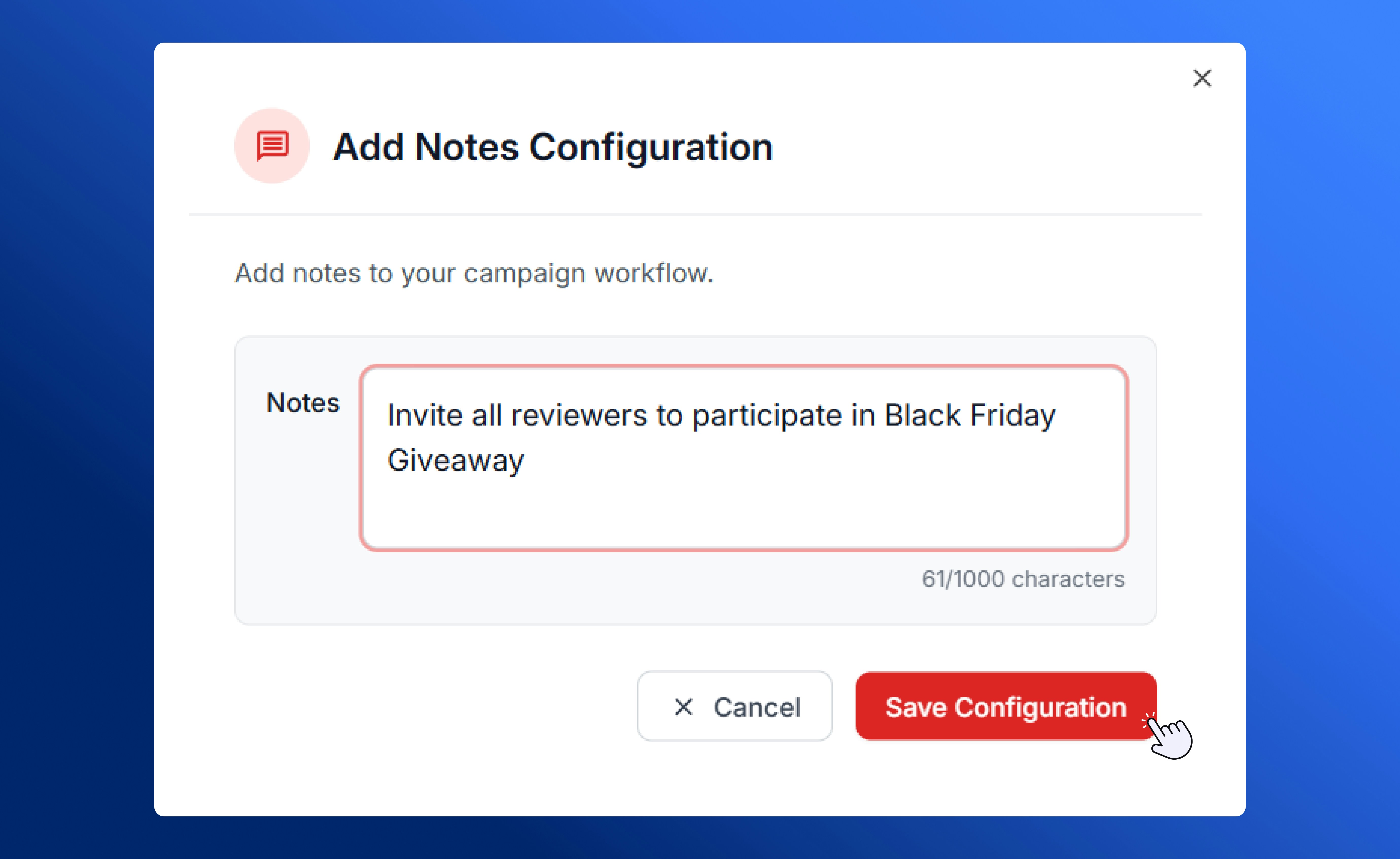 They appear within the contact’s activity history for easy access by your team.
 ### **Form Leads**
The **Form Leads** action creates or updates a contact record using data collected from a form submission. You can configure up to 20 form fields, using either static values or dynamic data pulled from trigger keys.
### **Form Leads**
The **Form Leads** action creates or updates a contact record using data collected from a form submission. You can configure up to 20 form fields, using either static values or dynamic data pulled from trigger keys.
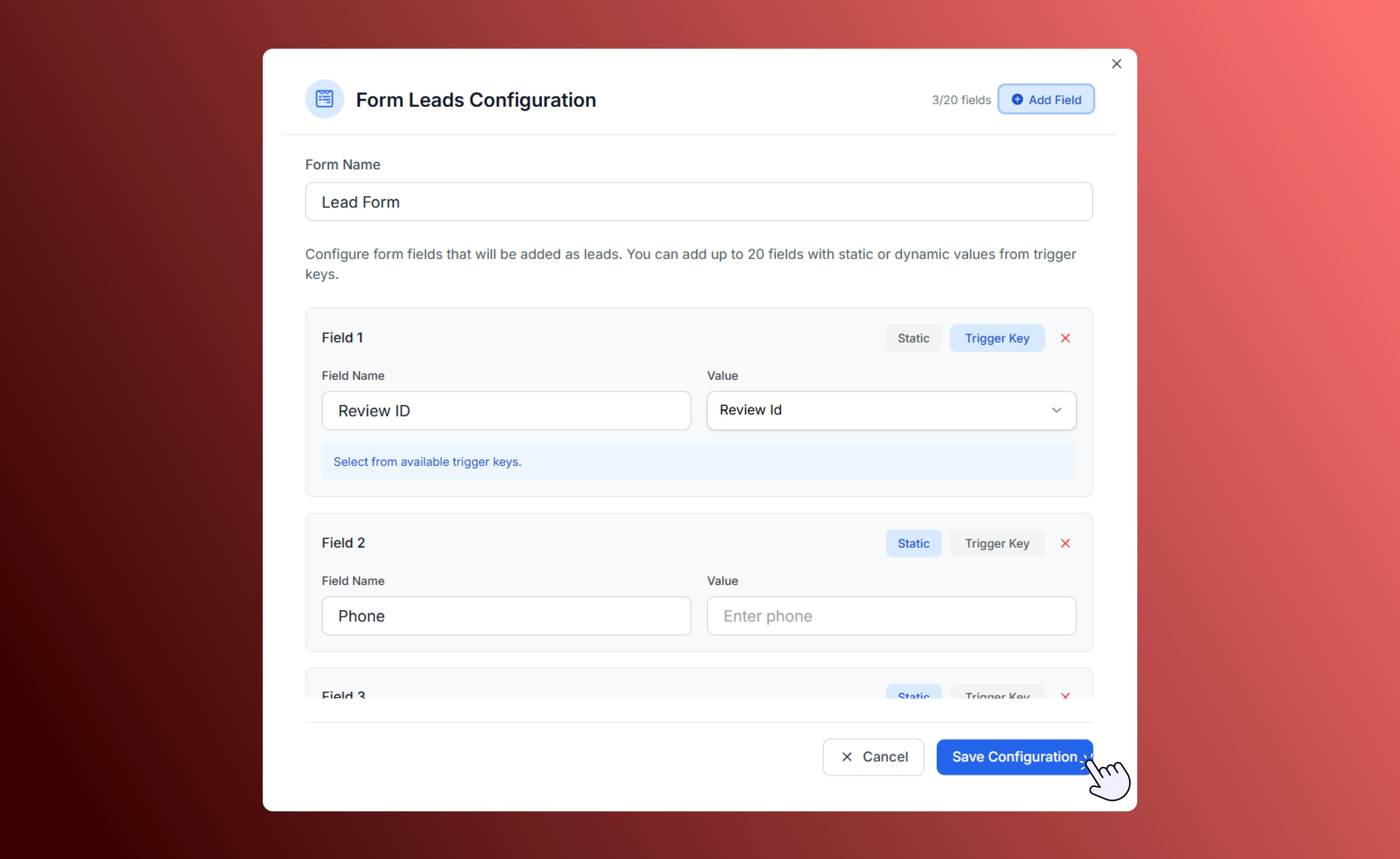 This is useful when your automation needs to generate new leads directly from incoming form data or webhook events.
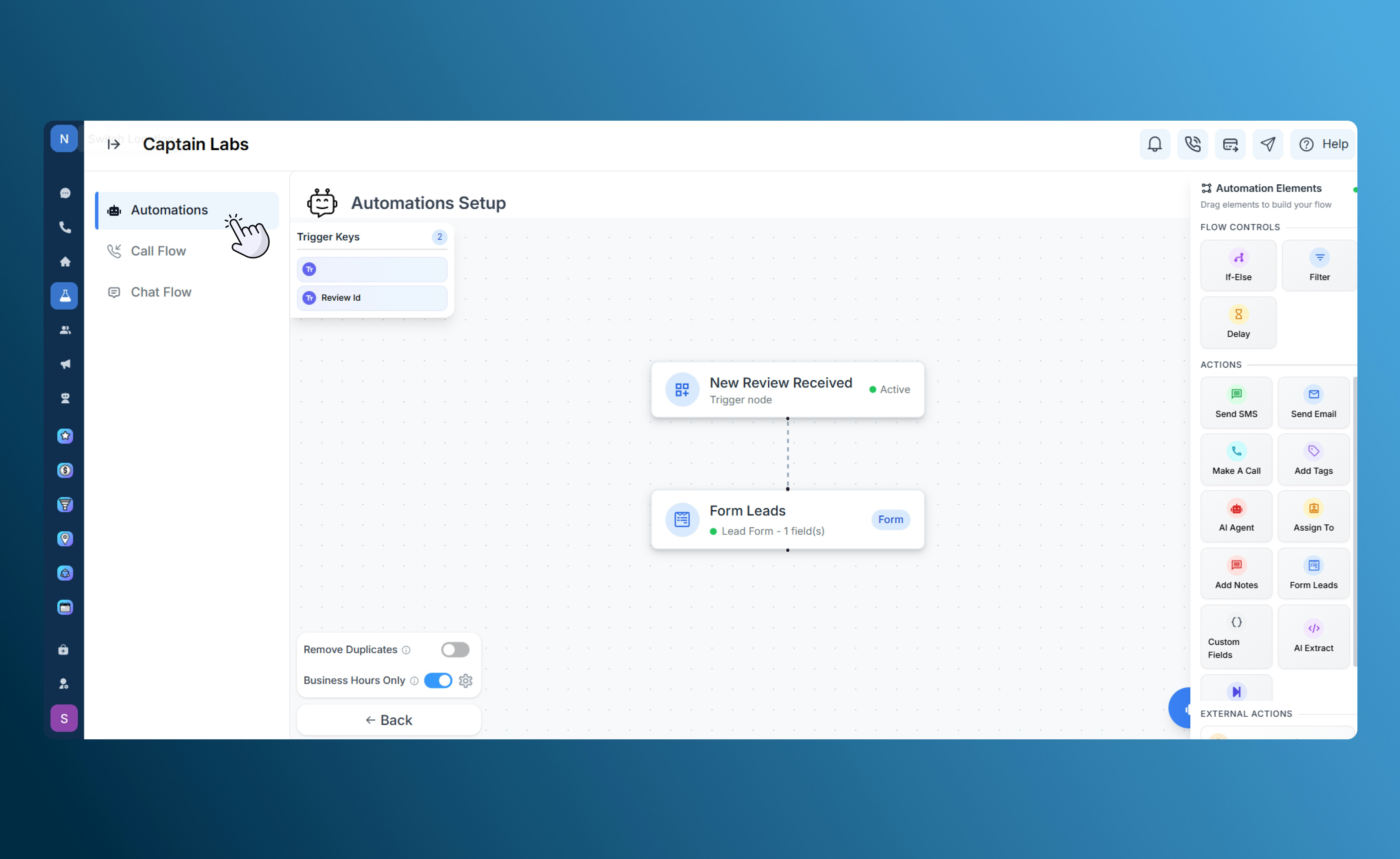 For example:
* Create a new contact when someone fills out a “Book a Demo” form.
* Add a tag or source label automatically (like “Website Form Lead”).
### **Change Stage**
The **Change Stage** action updates the contact’s current stage in your CRM pipeline. Use it to move leads from “Prospect” to “Customer” after a purchase, or from “Lead” to “Inactive” if you haven’t heard from them for a while.
This ensures your stages always reflect the most recent progress in your customer journey.
### **Custom Fields**
The **Custom Fields** action allows you to set or update data stored in a contact’s custom fields. You can map these to dynamic values from previous automation steps, form inputs, or trigger data.
For example:
* Create a new contact when someone fills out a “Book a Demo” form.
* Add a tag or source label automatically (like “Website Form Lead”).
### **Change Stage**
The **Change Stage** action updates the contact’s current stage in your CRM pipeline. Use it to move leads from “Prospect” to “Customer” after a purchase, or from “Lead” to “Inactive” if you haven’t heard from them for a while.
This ensures your stages always reflect the most recent progress in your customer journey.
### **Custom Fields**
The **Custom Fields** action allows you to set or update data stored in a contact’s custom fields. You can map these to dynamic values from previous automation steps, form inputs, or trigger data.
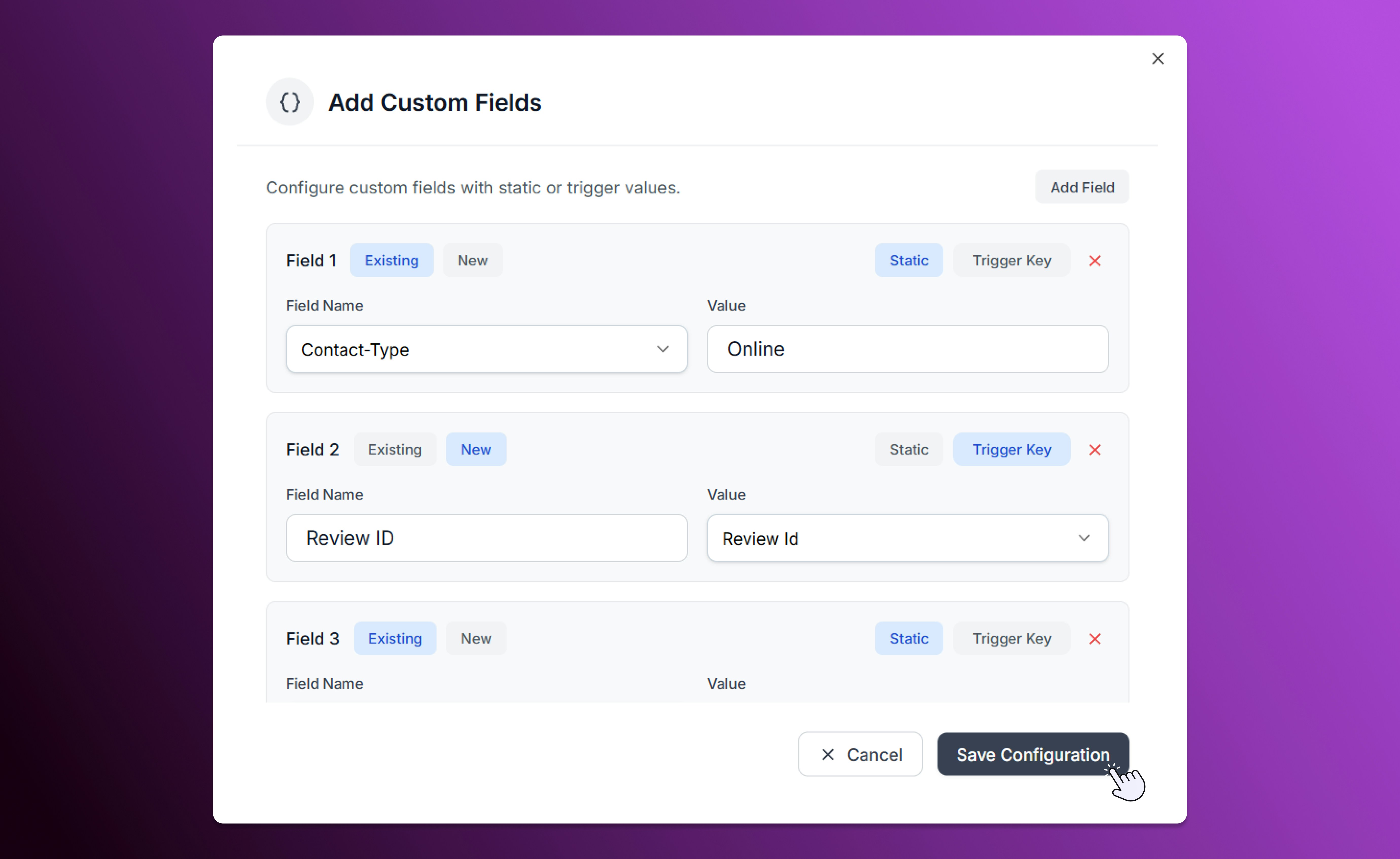 For example, record a contact’s “Preferred Service,” “Appointment Date,” or “Lead Source” automatically during a workflow.
### **AI Extract**
The **AI Extract** action uses artificial intelligence to identify, extract, and structure data from previous steps in your workflow. This helps convert unstructured text — such as a message, transcript, or note — into organized fields or tags.
For example, record a contact’s “Preferred Service,” “Appointment Date,” or “Lead Source” automatically during a workflow.
### **AI Extract**
The **AI Extract** action uses artificial intelligence to identify, extract, and structure data from previous steps in your workflow. This helps convert unstructured text — such as a message, transcript, or note — into organized fields or tags.
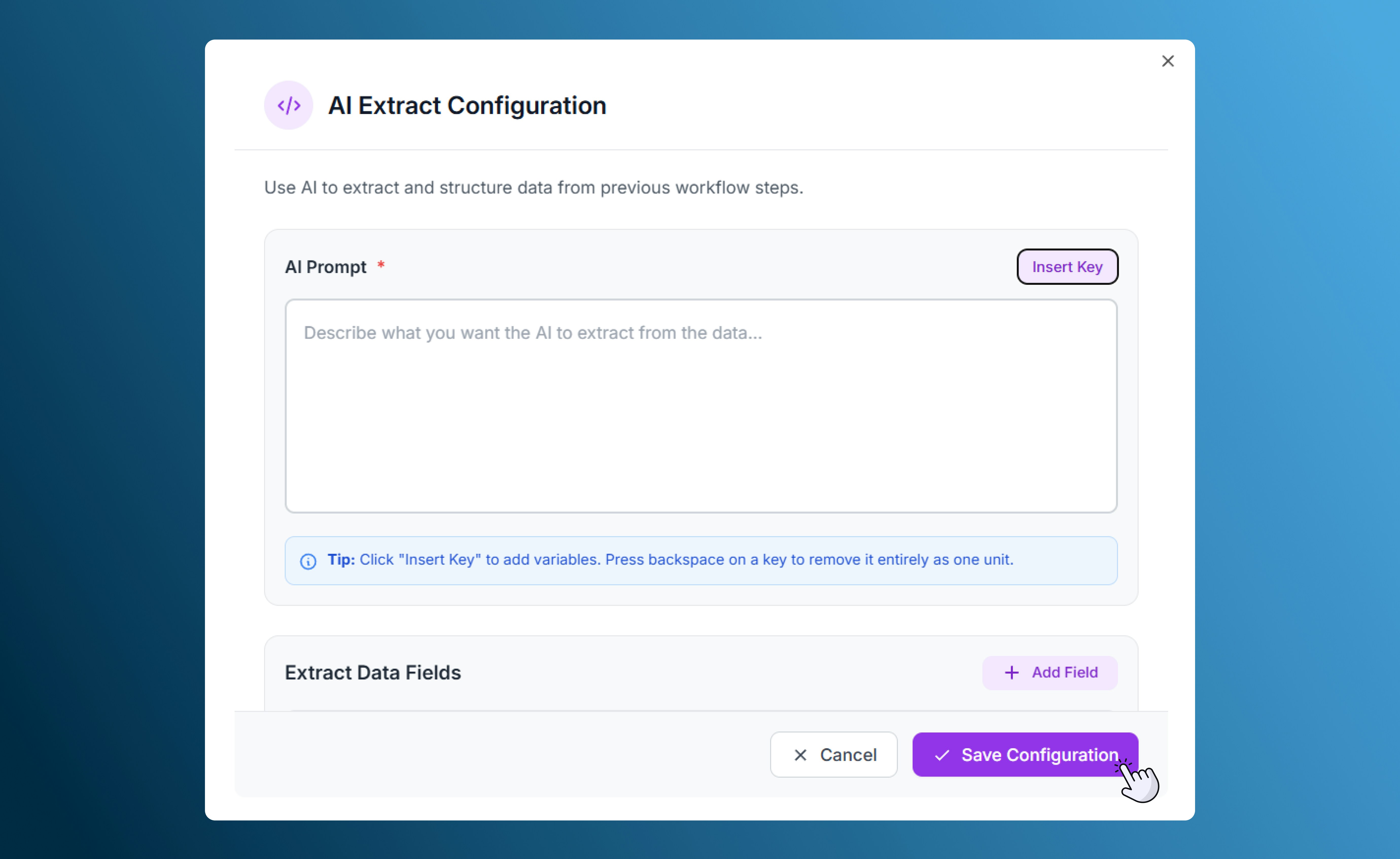 You can specify the prompt that defines what to extract (for example, “Extract the customer’s name, appointment date, and service type from the message”). The extracted data can then be stored in custom fields or used in later automation steps for personalization or reporting.
## **Best Practices**
* **Start with a clear goal.** Plan what your automation should achieve before adding steps.
* **Keep flows simple.** Limit unnecessary branches or delays to keep workflows efficient.
* **Use consistent naming.** Label all actions and controls clearly to make maintenance easier.
* **Test before activating.** Run test data through the flow to ensure every action works correctly.
* **Review regularly.** Update messages, conditions, and timing as your business processes evolve.
You can specify the prompt that defines what to extract (for example, “Extract the customer’s name, appointment date, and service type from the message”). The extracted data can then be stored in custom fields or used in later automation steps for personalization or reporting.
## **Best Practices**
* **Start with a clear goal.** Plan what your automation should achieve before adding steps.
* **Keep flows simple.** Limit unnecessary branches or delays to keep workflows efficient.
* **Use consistent naming.** Label all actions and controls clearly to make maintenance easier.
* **Test before activating.** Run test data through the flow to ensure every action works correctly.
* **Review regularly.** Update messages, conditions, and timing as your business processes evolve.