> ## Documentation Index
> Fetch the complete documentation index at: https://docs.salescaptain.com/llms.txt
> Use this file to discover all available pages before exploring further.
# Automation Triggers
> SalesCaptain Automations let you create workflows that run automatically based on specific triggers, saving time and ensuring your customers always get the right message at the right moment.
You can create and manage these triggers by navigating to **Captain Labs → Automations**.
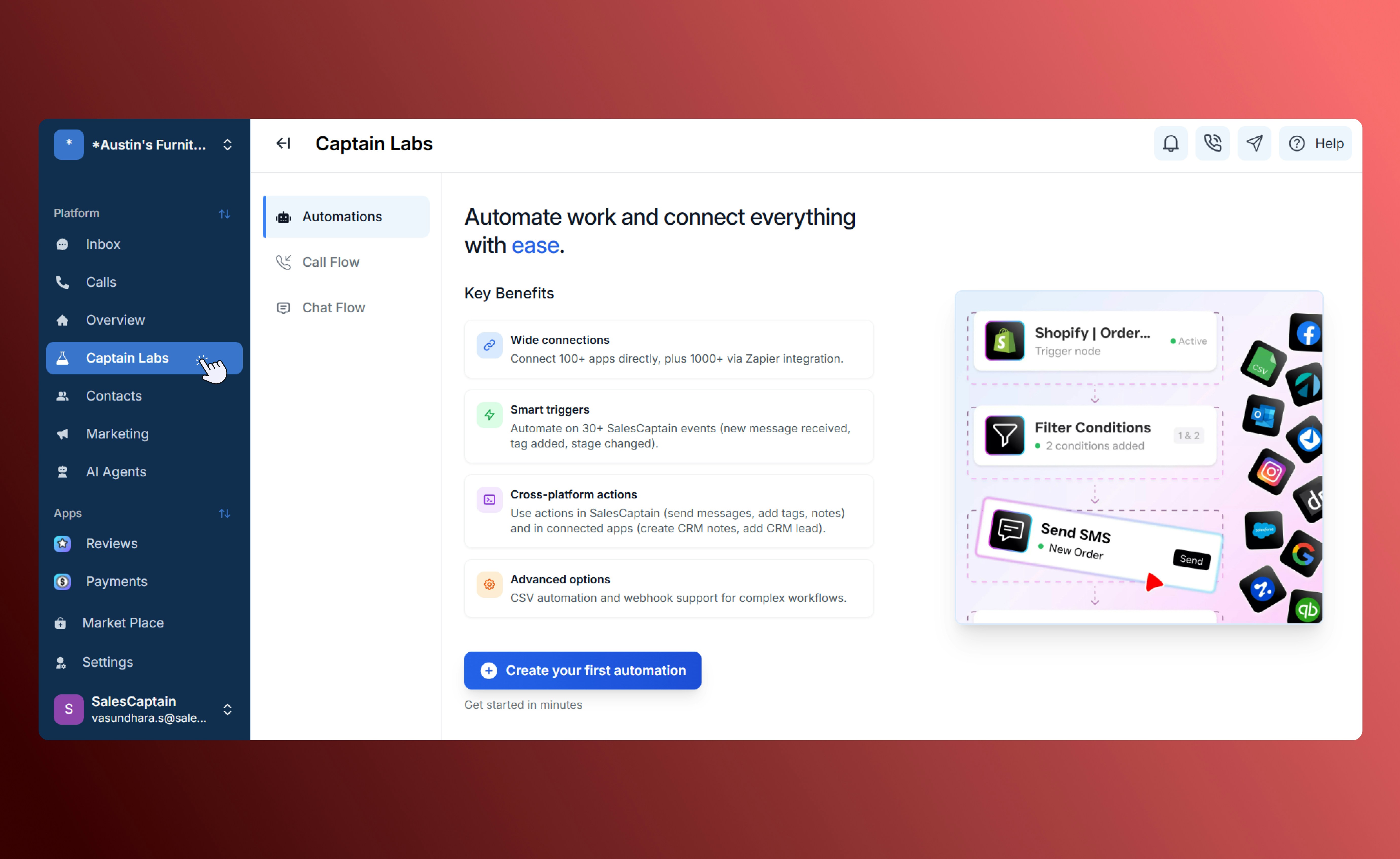 There are **four main types of triggers** you can set up:
## SalesCaptain (SC) Triggers
Internal triggers that respond to activity within your SalesCaptain account.
1. Go to **Captain Labs → Automations**.
2. Click **New Automation → SC Trigger**.
There are **four main types of triggers** you can set up:
## SalesCaptain (SC) Triggers
Internal triggers that respond to activity within your SalesCaptain account.
1. Go to **Captain Labs → Automations**.
2. Click **New Automation → SC Trigger**.
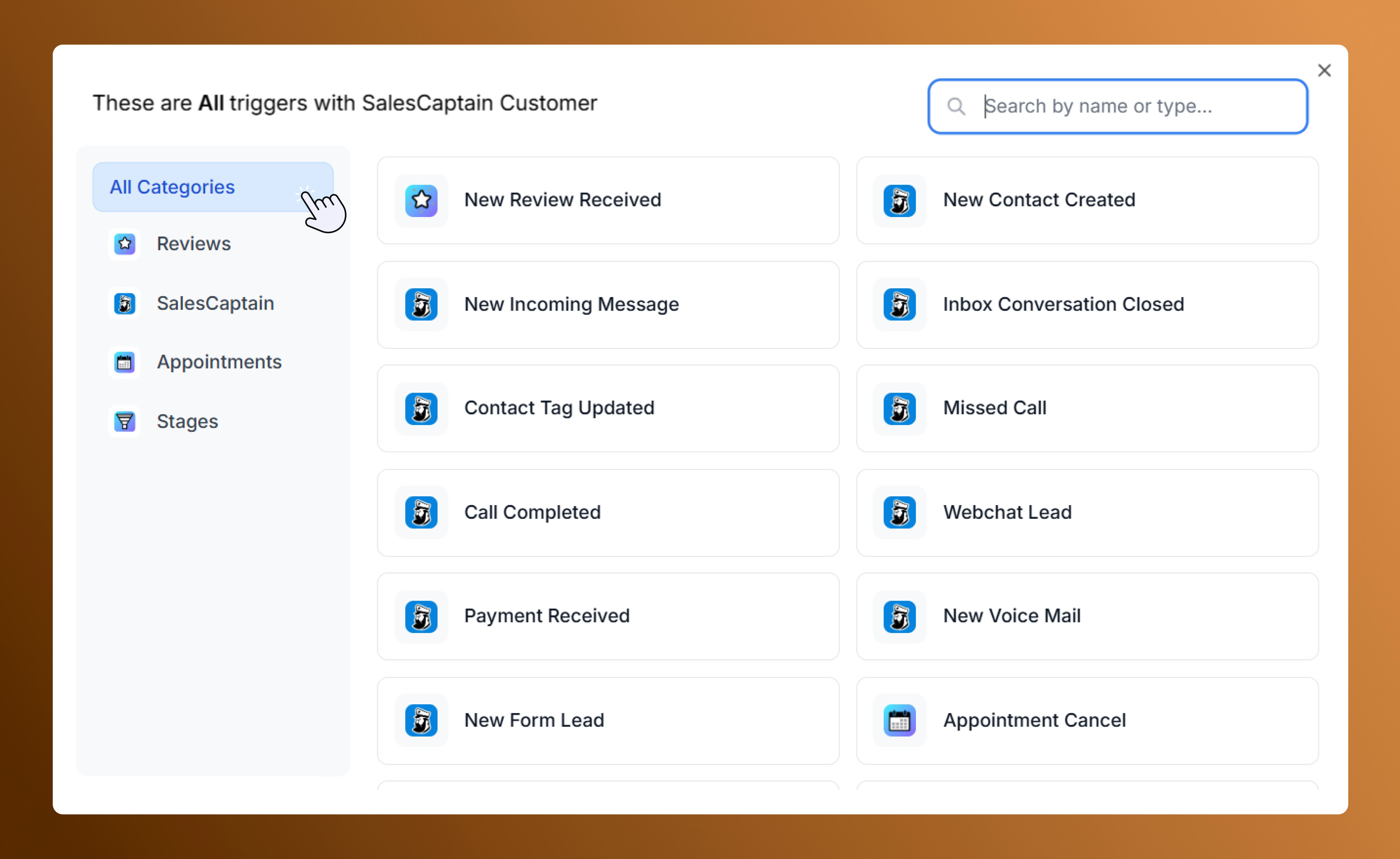
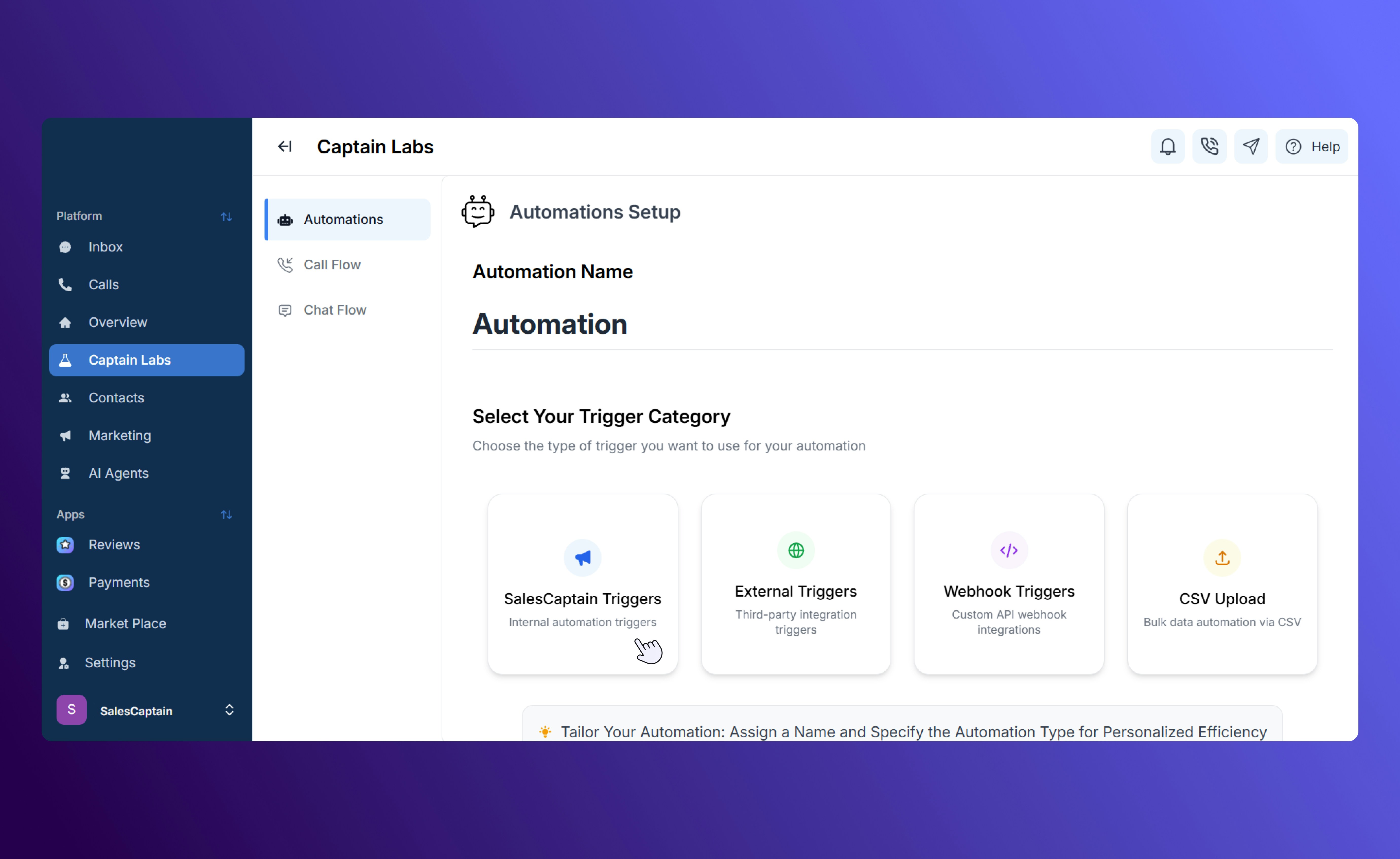 3. Choose a trigger event (e.g. *New Review Received, Incoming Message, Appointment Canceled, Stage Updated*).
4. Add actions like **Send Email/SMS**, **Assign Conversation**, or **Move to Stage**.
3. Choose a trigger event (e.g. *New Review Received, Incoming Message, Appointment Canceled, Stage Updated*).
4. Add actions like **Send Email/SMS**, **Assign Conversation**, or **Move to Stage**.
 **Note:**
* SC Triggers are **fixed event-based triggers**.
* Each trigger type has its own **keys** depending on the event.
## External Triggers
Start automations from third-party apps integrated with SalesCaptain, such as **DrChrono**, **Clio**, or **Zoho**.
**Example:**
When a new contact is added in Zoho, it syncs with SalesCaptain and sends a welcome SMS.
1. Go to **Captain Labs → Automations → New Automation**.
2. Select **External Trigger**.
**Note:**
* SC Triggers are **fixed event-based triggers**.
* Each trigger type has its own **keys** depending on the event.
## External Triggers
Start automations from third-party apps integrated with SalesCaptain, such as **DrChrono**, **Clio**, or **Zoho**.
**Example:**
When a new contact is added in Zoho, it syncs with SalesCaptain and sends a welcome SMS.
1. Go to **Captain Labs → Automations → New Automation**.
2. Select **External Trigger**.
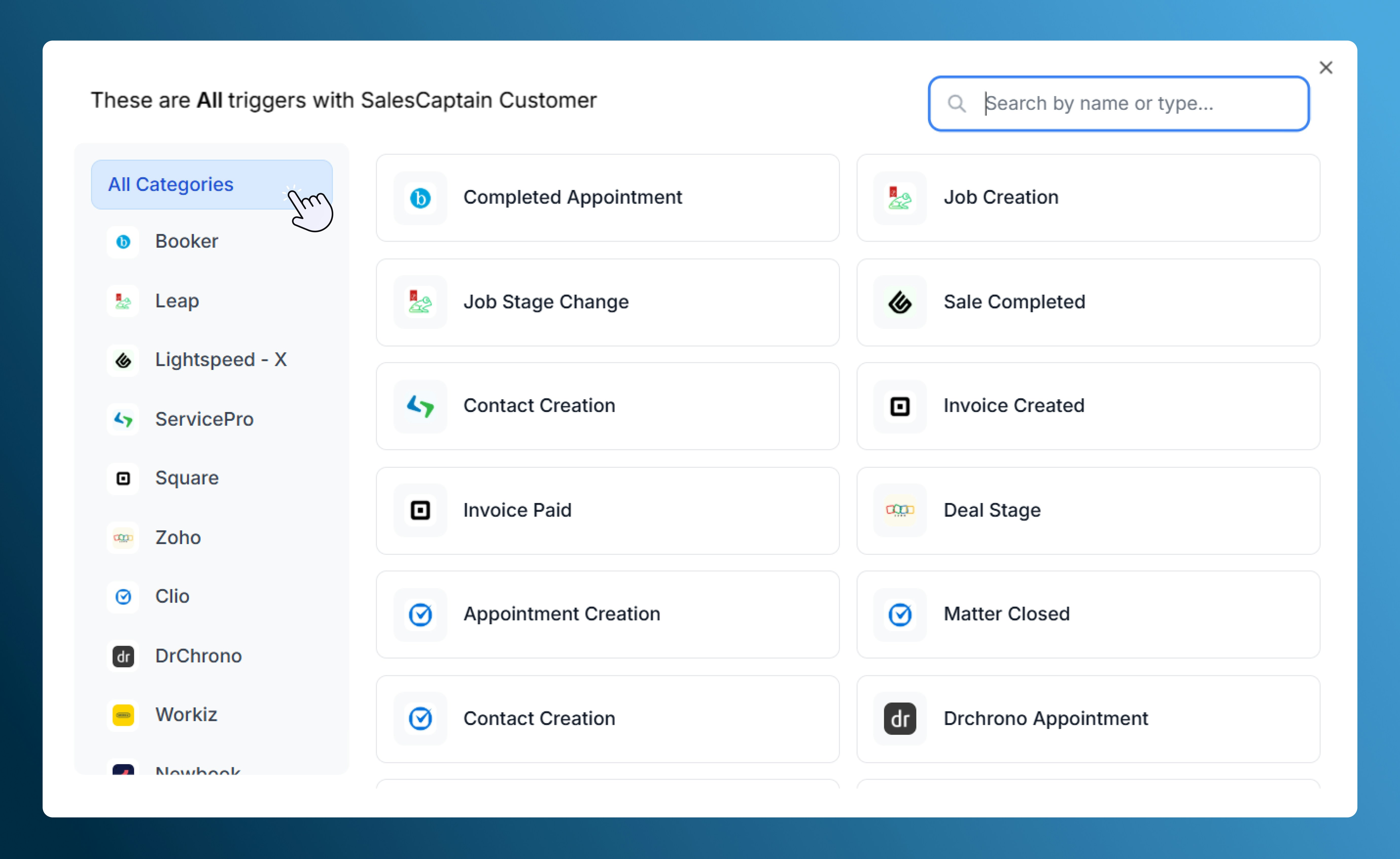 Choose the app, map incoming data fields, and add your follow-up actions.
## Webhook Triggers
For custom API connections between systems. Webhooks send or receive data instantly when events occur.
1. Go to **Captain Labs → Automations → New Automation**.
2. Select **Webhook Trigger**.
3. Configure the webhook:
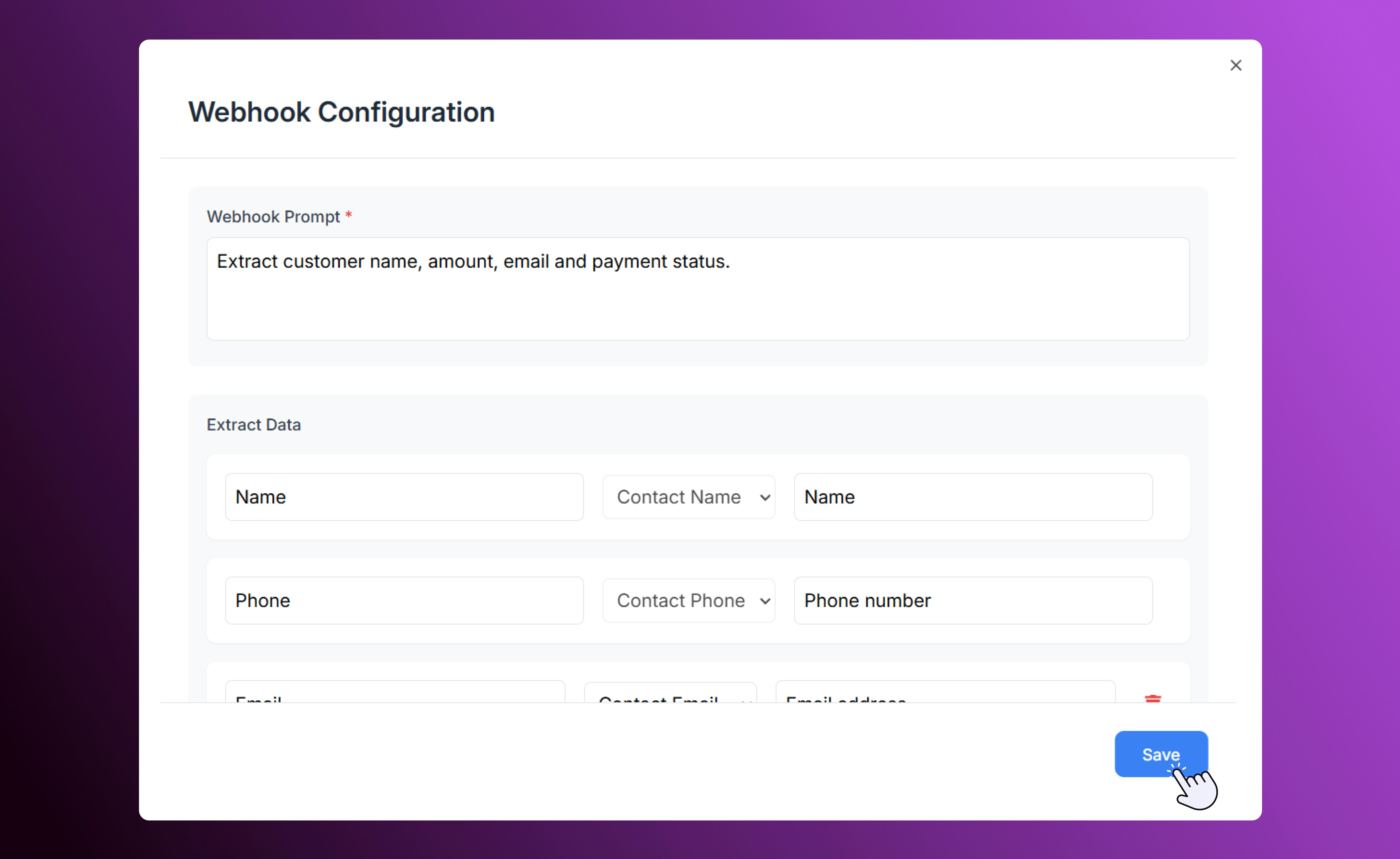
* **Set Prompt** and **Label Extracted Data**.
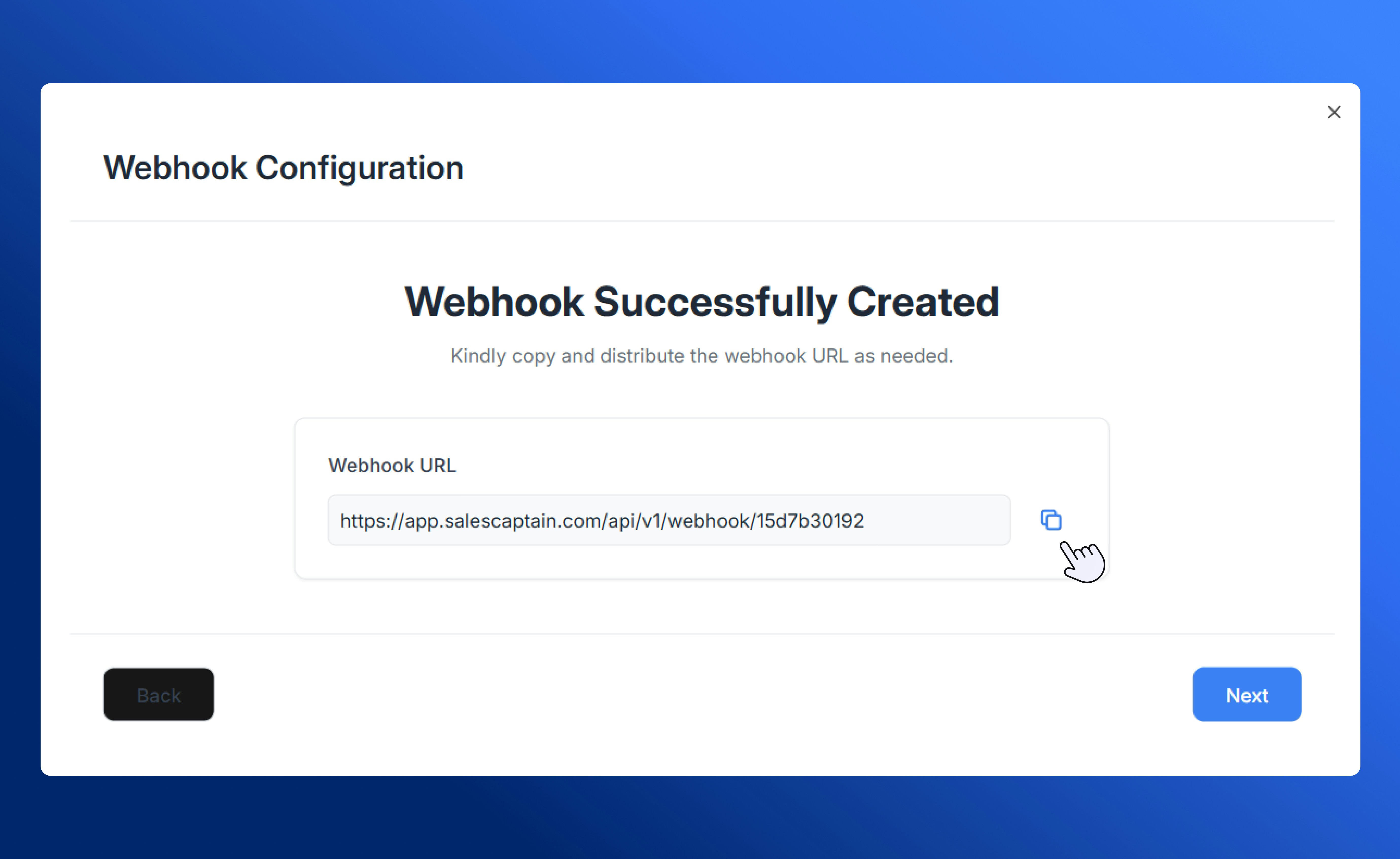
* Copy the **generated URL** and share it with the external system.
Choose the app, map incoming data fields, and add your follow-up actions.
## Webhook Triggers
For custom API connections between systems. Webhooks send or receive data instantly when events occur.
1. Go to **Captain Labs → Automations → New Automation**.
2. Select **Webhook Trigger**.
3. Configure the webhook:
* **Set Prompt** and **Label Extracted Data**.
* Copy the **generated URL** and share it with the external system.
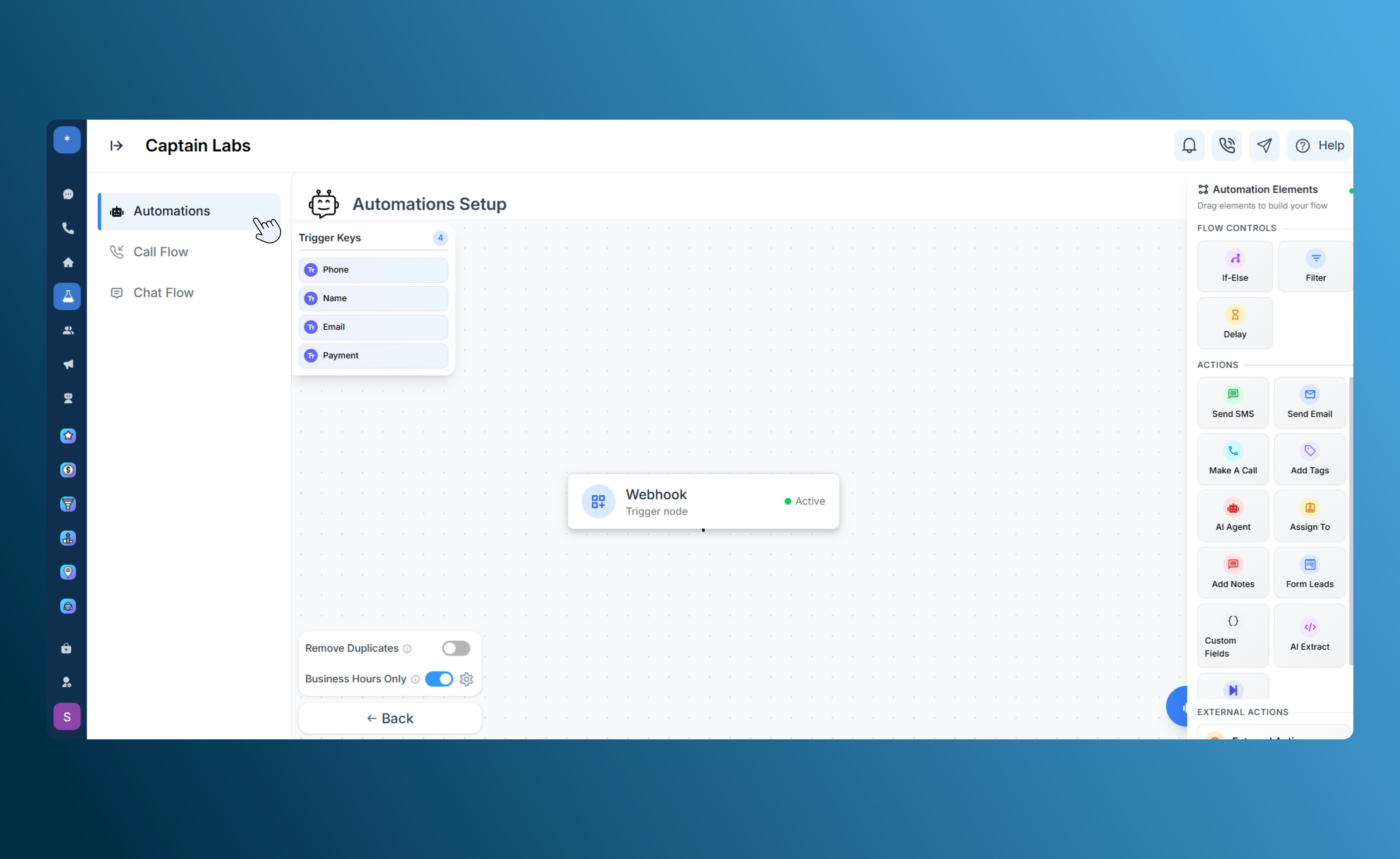
 4. The trigger and its associated keys will then be displayed on the **Canvas.**
5. Drag and drop the flow controls and actions to build your custom automation flow.
4. The trigger and its associated keys will then be displayed on the **Canvas.**
5. Drag and drop the flow controls and actions to build your custom automation flow.
 ## CSV Upload Triggers
Automate bulk workflows when uploading contact lists or data files.
1. Go to **Captain Labs → Automations → New Automation**.\
Select **CSV Upload**.
2. Upload a **sample CSV** and **map fields** to SalesCaptain contact data.
## CSV Upload Triggers
Automate bulk workflows when uploading contact lists or data files.
1. Go to **Captain Labs → Automations → New Automation**.\
Select **CSV Upload**.
2. Upload a **sample CSV** and **map fields** to SalesCaptain contact data.
 3. Save the configuration for quick reuse.
4. Upload new files to trigger automations automatically.
**Example:**
Upload a new customer list → automatically assign to Sales team.
## Use Cases
* **Instant Follow-Ups:** When a lead sends a new message, trigger an automated “We’ll get back to you soon” SMS.
* **Customer Retention:** When a stage is updated to “Lost Lead,” schedule a win-back campaign.
* **Third-Party Sync:** When a new appointment is created in DrChrono, add it to SalesCaptain and notify your team.
* **Custom Web Integrations:** Use webhooks to push form submissions or CRM updates directly into your SalesCaptain Inbox.
* **Bulk Campaigns:** Upload a CSV of customers who made recent purchases and trigger thank-you or review request messages.
For detailed information on the **available actions** and **flow controls** you can trigger, see our page: [**Automation Builder**](/Core-Features/Automations/Automation-Builder)**.**
3. Save the configuration for quick reuse.
4. Upload new files to trigger automations automatically.
**Example:**
Upload a new customer list → automatically assign to Sales team.
## Use Cases
* **Instant Follow-Ups:** When a lead sends a new message, trigger an automated “We’ll get back to you soon” SMS.
* **Customer Retention:** When a stage is updated to “Lost Lead,” schedule a win-back campaign.
* **Third-Party Sync:** When a new appointment is created in DrChrono, add it to SalesCaptain and notify your team.
* **Custom Web Integrations:** Use webhooks to push form submissions or CRM updates directly into your SalesCaptain Inbox.
* **Bulk Campaigns:** Upload a CSV of customers who made recent purchases and trigger thank-you or review request messages.
For detailed information on the **available actions** and **flow controls** you can trigger, see our page: [**Automation Builder**](/Core-Features/Automations/Automation-Builder)**.**