> ## Documentation Index
> Fetch the complete documentation index at: https://docs.salescaptain.com/llms.txt
> Use this file to discover all available pages before exploring further.
# After-hours Routing
> “After-Hours” refers to times outside your defined business hours (for example, evenings, weekends, or holidays). SalesCaptain uses Time Rules to identify when a call arrives during those periods. Handling after-hours correctly ensures callers get the information they need and you capture leads even when live support isn’t available.
### **After-Hours Routing Options in SalesCaptain**
When a call comes in after your business hours, you can decide how it should be handled:
* **Voicemail**: Route after-hours calls directly to voicemail. A custom greeting can let callers know you’re closed and when to expect a callback.
 * **Audio Message**: Play a message that explains your after-hours status, office hours, or alternate contact information before routing the call further.
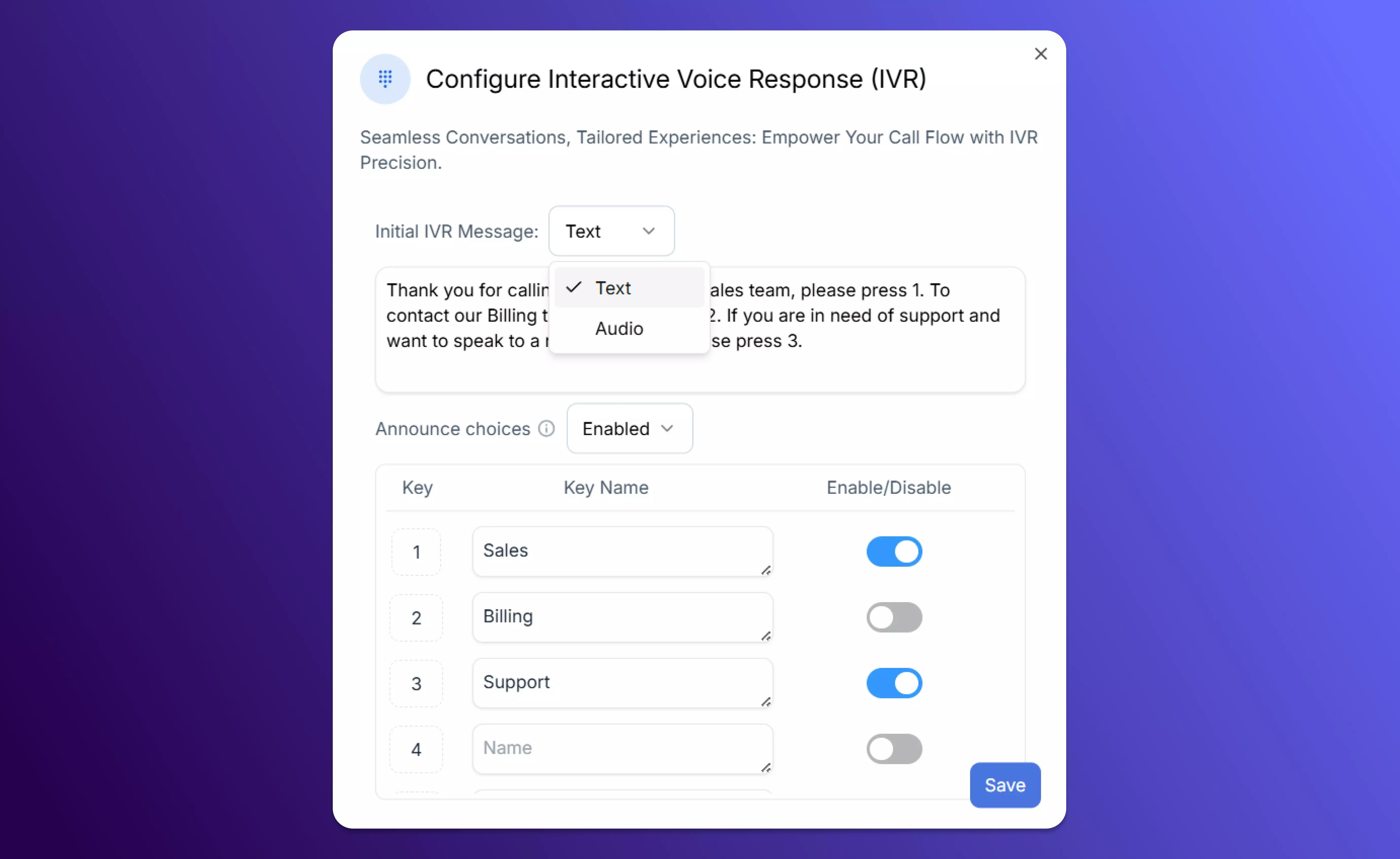
 * **IVR**: Continue offering menu options even outside business hours if needed (for example, “Press 1 for Emergency Support”). This gives flexibility while limiting unnecessary routing.
 * **AI Agent**: Use an AI-powered voice agent to greet callers, answer FAQs, or collect important information while your team is unavailable. This helps capture leads or handle urgent cases.
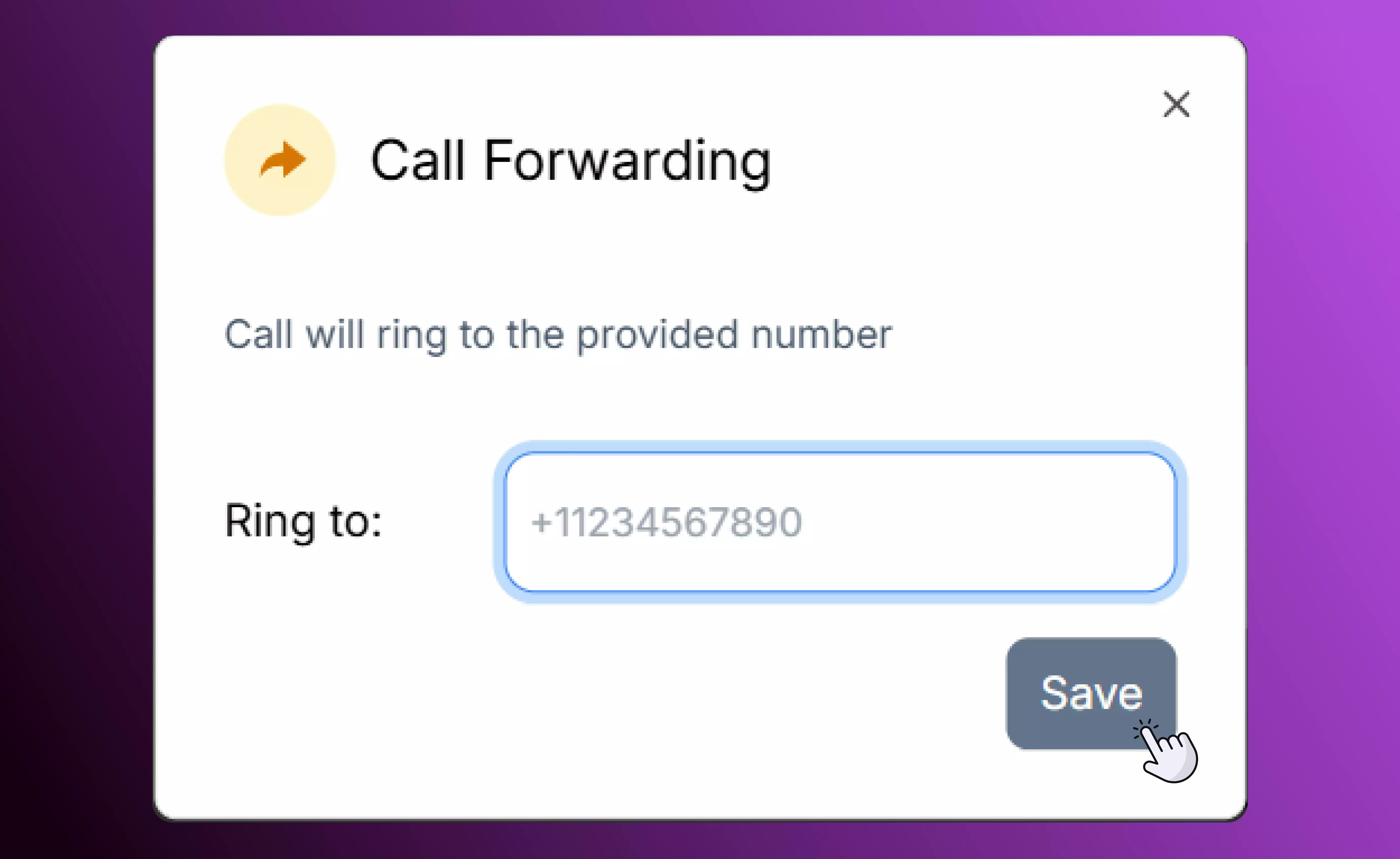
 * **Forwarding**: Forward after-hours calls to an on-call team member, backup number, or alternate user if someone is available to respond outside business hours.
 * **Custom Time Rules**: Define special schedules for weekends, holidays, or unique scenarios so after-hours handling is tailored to your business needs.
 ### **How to Set Up After-Hours Handling in a Call Flow**
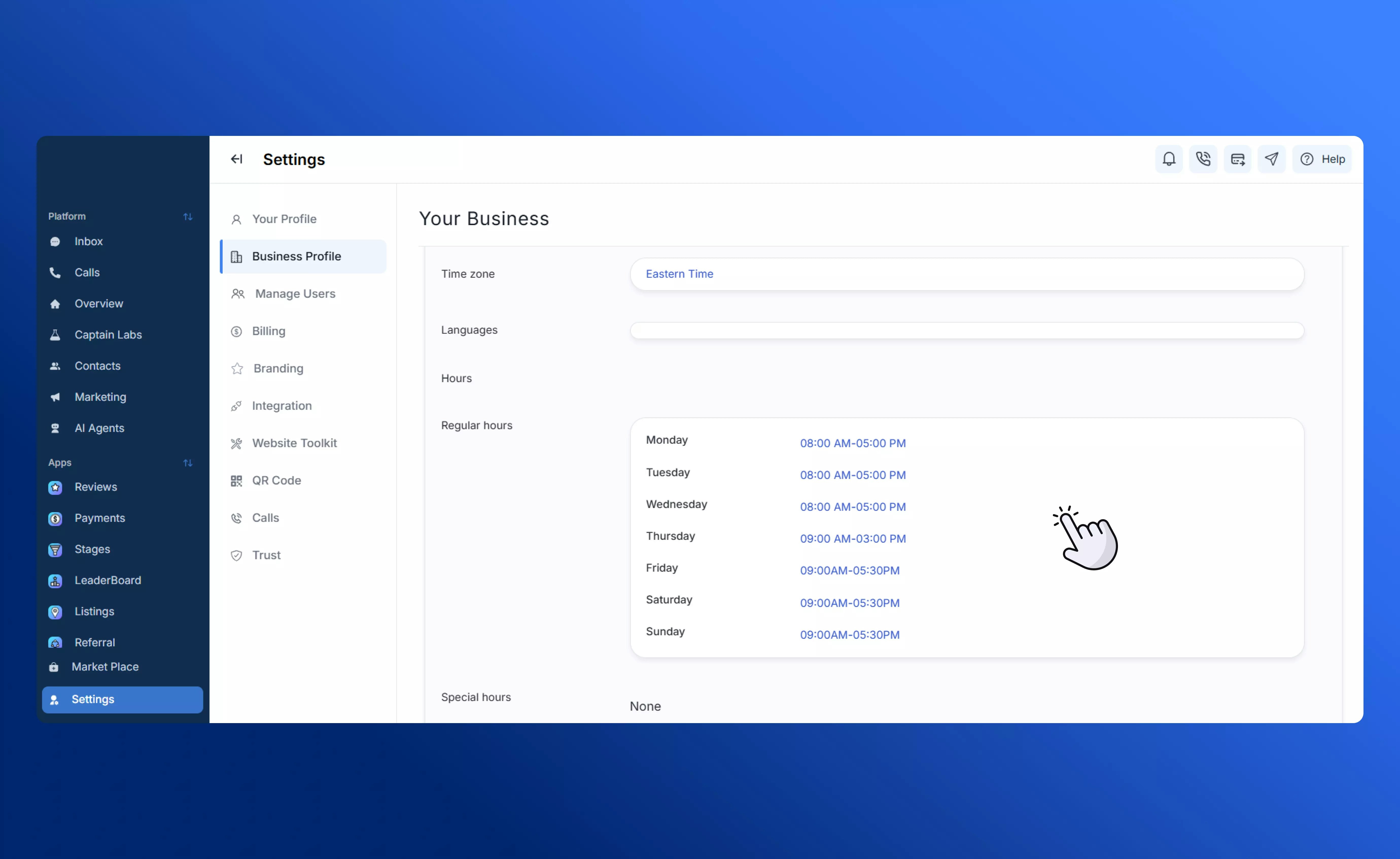
1. **Define business hours** using Profile Time Rules in Settings → Business Profile → Business Hours.
### **How to Set Up After-Hours Handling in a Call Flow**
1. **Define business hours** using Profile Time Rules in Settings → Business Profile → Business Hours.
 2. **Add a Time Rule element** to your Call Flow. This splits calls between “in-hours” and “after-hours.”
 3. **Design separate branches**:
* The In-Hours branch can follow your normal path (IVR → Ring to Team/User → fallback to voicemail).
* The After-Hours branch can play a greeting, then route to voicemail, AI Agent, or forwarding options.
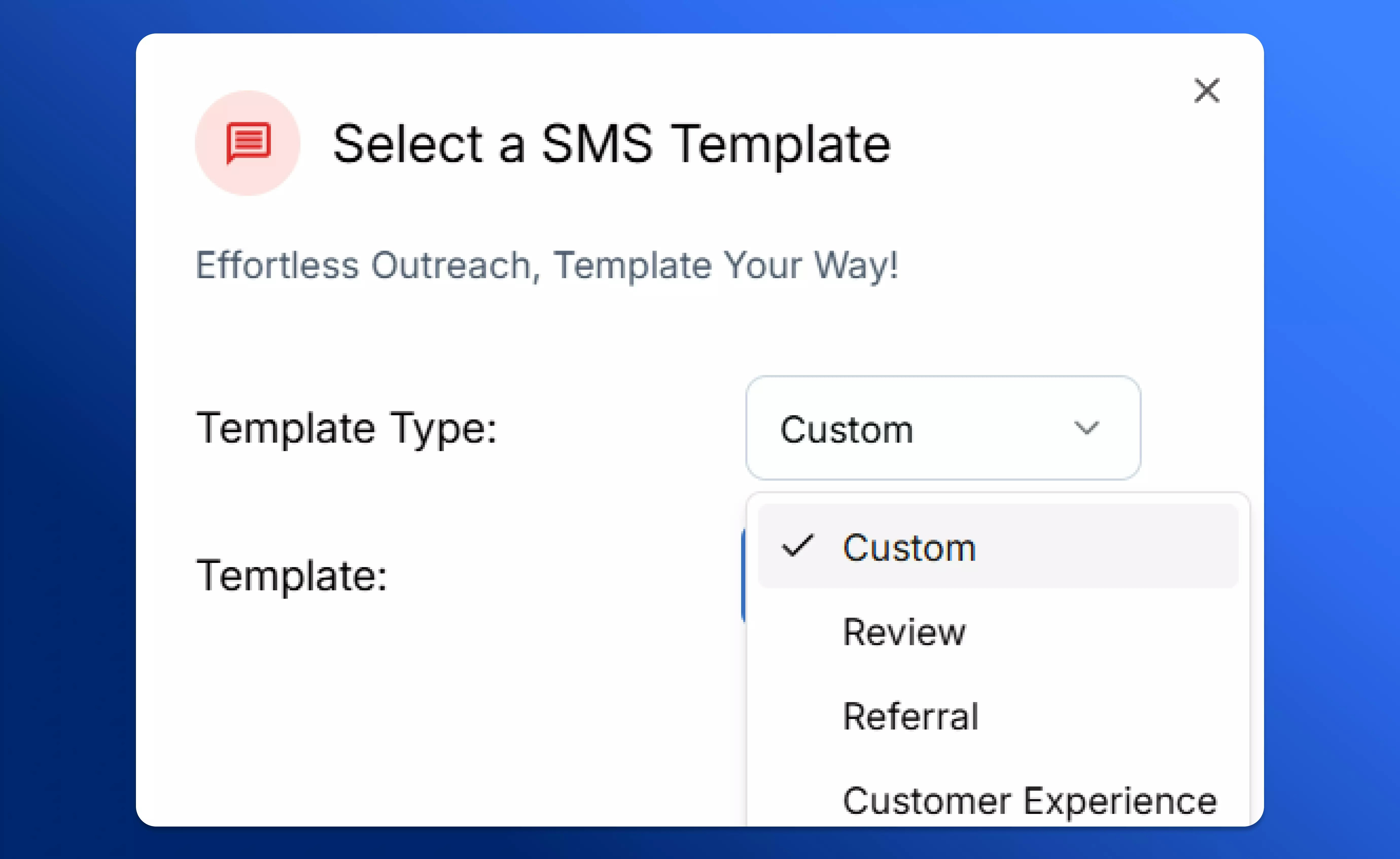
4. **Configure greetings and follow-ups**: Use clear messages to let callers know they’ve reached you after hours. Add voicemail prompts or automated SMS follow-ups.
3. **Design separate branches**:
* The In-Hours branch can follow your normal path (IVR → Ring to Team/User → fallback to voicemail).
* The After-Hours branch can play a greeting, then route to voicemail, AI Agent, or forwarding options.
4. **Configure greetings and follow-ups**: Use clear messages to let callers know they’ve reached you after hours. Add voicemail prompts or automated SMS follow-ups.
 5. **Test the flow**: Save and activate. Simulate calls during in-hours and after-hours to confirm everything works as expected. Visit our step-by-step breakdown on setting up [call flows](Creating-Call-Flows) in SalesCaptain.
### **Best Practices**
* Keep after-hours greetings clear and professional. Tell callers when you’ll return their call.
* If using AI Agents, train them with data from your knowledge base so they can provide the most accurate and up-to-date information.
* Use fallback routing to ensure urgent cases don’t slip through.
* Add SMS or callback workflows so callers feel acknowledged even without live staff.
Regularly review your after-hours call metrics (voicemails, missed calls, follow-ups) and adjust your flow as needed.
5. **Test the flow**: Save and activate. Simulate calls during in-hours and after-hours to confirm everything works as expected. Visit our step-by-step breakdown on setting up [call flows](Creating-Call-Flows) in SalesCaptain.
### **Best Practices**
* Keep after-hours greetings clear and professional. Tell callers when you’ll return their call.
* If using AI Agents, train them with data from your knowledge base so they can provide the most accurate and up-to-date information.
* Use fallback routing to ensure urgent cases don’t slip through.
* Add SMS or callback workflows so callers feel acknowledged even without live staff.
Regularly review your after-hours call metrics (voicemails, missed calls, follow-ups) and adjust your flow as needed.