> ## Documentation Index
> Fetch the complete documentation index at: https://docs.salescaptain.com/llms.txt
> Use this file to discover all available pages before exploring further.
# IVR
> Interactive Voice Response (IVR) menus let you greet callers with a menu of options they can navigate with the keypad, and automatically route them to the right team or information. With IVR in SalesCaptain, you can create a smooth, self-service experience for customers and reduce wait times for your staff. IVR menus are one of the key elements available when creating call flows.
## Why IVR Menus Matter
An IVR menu is often the first interaction your caller has with your business. A clear, professional menu:
* Lets callers quickly choose the right department or service
* Reduces the need for manual call transfers
* Filters out spam and unwanted calls
* Keeps after-hours or high-volume periods manageable
## Adding IVR Menus to a Call Flow
Setting up an IVR menu in SalesCaptain is simple:
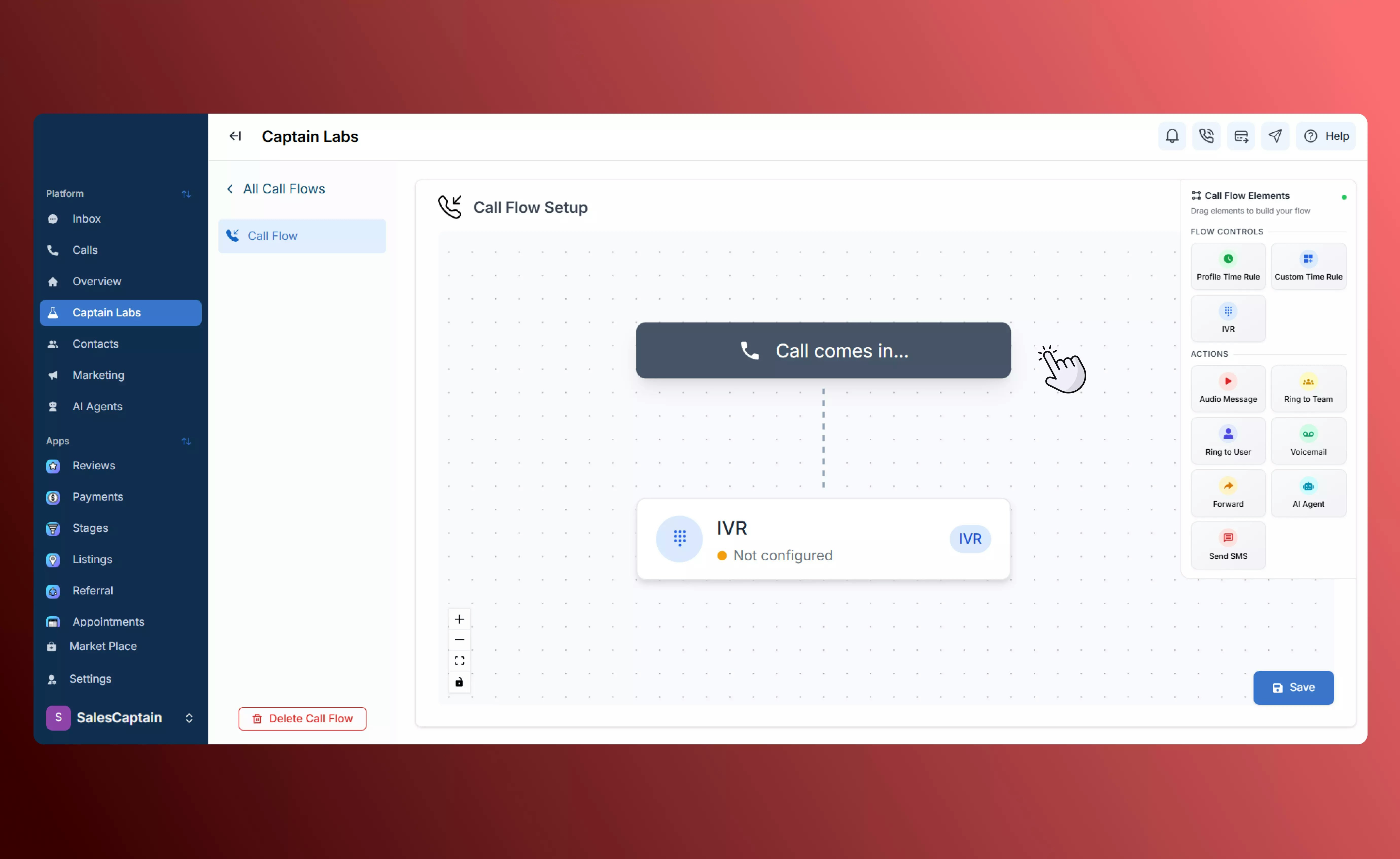
1. In the **Call Flows** editor, drag the **IVR Menu** element from the right-hand panel into your workspace.
 2. Add a greeting or menu prompt. For example: “Press 1 for Sales, Press 2 for Support.” You can upload a prerecorded message or type text for our text-to-speech engine.
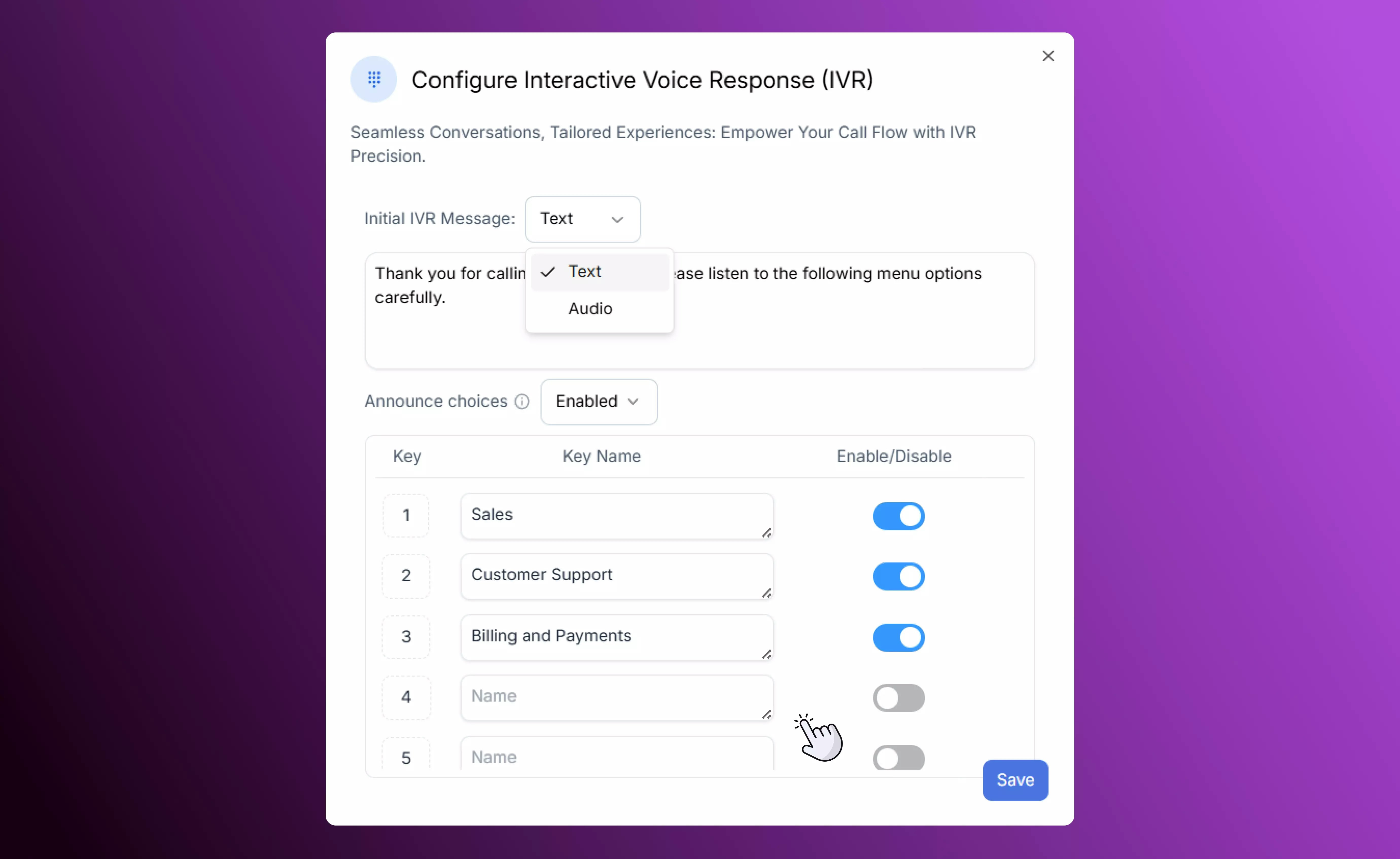 You can also enable automatic announcement of the menu options, or disable it if your audio or text already includes them.
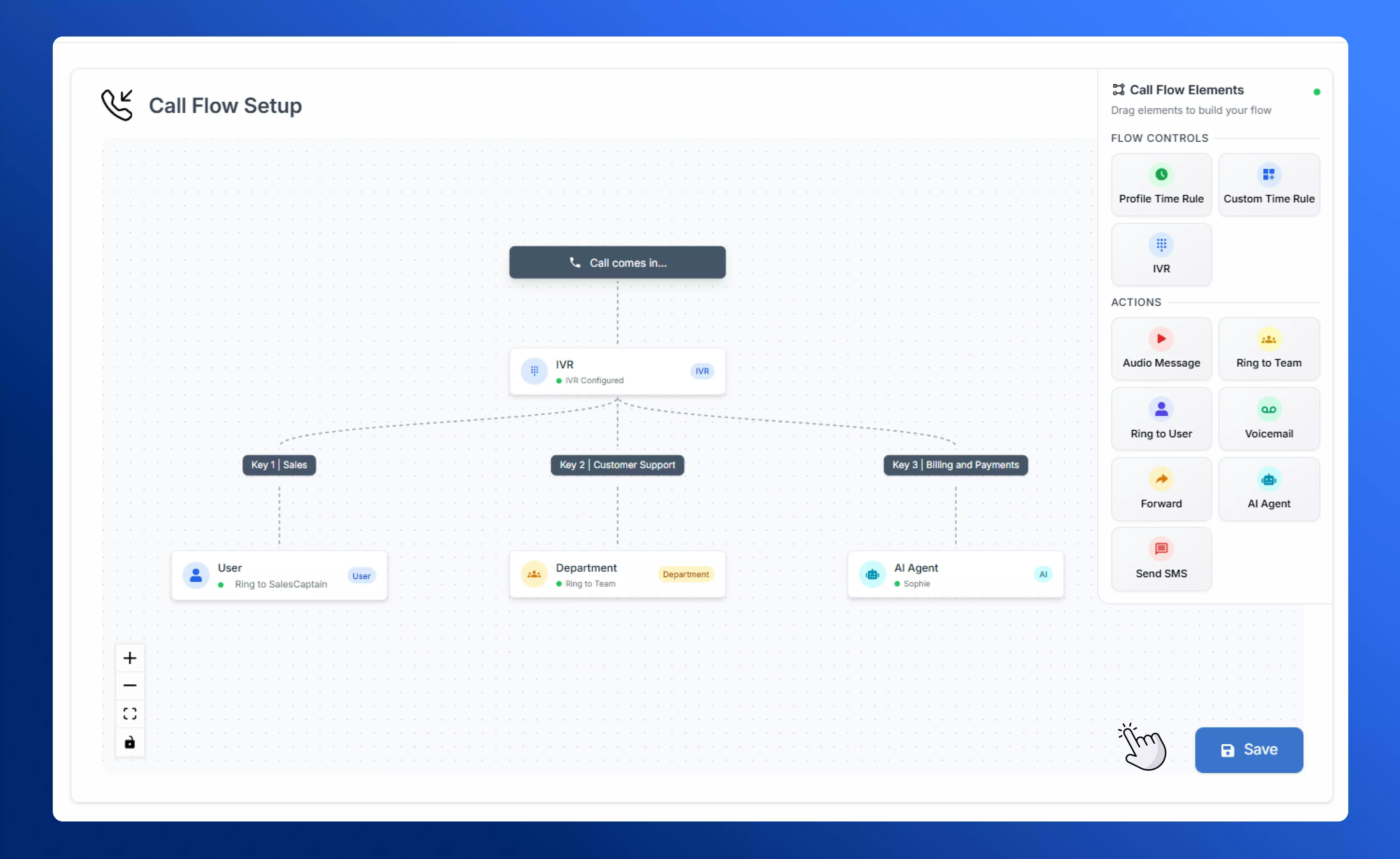
3. Define your menu options. For each number pressed, you can route the caller to another branch in your flow, a specific agent or team, voicemail, or even an AI Agent.
You can also enable automatic announcement of the menu options, or disable it if your audio or text already includes them.
3. Define your menu options. For each number pressed, you can route the caller to another branch in your flow, a specific agent or team, voicemail, or even an AI Agent.
 ## Best Practices
* **Keep menus short and clear.** Too many options can confuse callers. Keeping the choices simple still allows for filtering callers and directing them to the right place without overwhelming them.
* **Use IVR to pre-qualify or filter.** For example, send “Press 9” to reach an AI Agent or voicemail after hours.
* **Combine with Time Rules.** Route menu options differently during business hours vs. after hours for a seamless experience.
## Putting It All Together
By using IVR menus in your call flows, you give customers a clear path to the right person or information while freeing your team from unnecessary transfers. Visit our step-by-step breakdown on setting up [call flows](Creating-Call-Flows) in SalesCaptain.
## Best Practices
* **Keep menus short and clear.** Too many options can confuse callers. Keeping the choices simple still allows for filtering callers and directing them to the right place without overwhelming them.
* **Use IVR to pre-qualify or filter.** For example, send “Press 9” to reach an AI Agent or voicemail after hours.
* **Combine with Time Rules.** Route menu options differently during business hours vs. after hours for a seamless experience.
## Putting It All Together
By using IVR menus in your call flows, you give customers a clear path to the right person or information while freeing your team from unnecessary transfers. Visit our step-by-step breakdown on setting up [call flows](Creating-Call-Flows) in SalesCaptain.