> ## Documentation Index
> Fetch the complete documentation index at: https://docs.salescaptain.com/llms.txt
> Use this file to discover all available pages before exploring further.
# Time Rules
> Time rules in SalesCaptain let you automatically route calls based on the day and time they come in. This ensures customers always reach the right person or team—whether you’re open, closed, or working limited hours. Time rules are part of your Call Flows toolkit, so you can design flexible schedules without manual intervention. our new file.
## Why Time Rules Matter
Not every business keeps the same schedule every day. Time rules make it easy to adapt call routing to your hours—whether you’re operating on regular business hours, extended weekends, or special holiday times. By using time rules, you can:
* Send calls to one destination during business hours and another after hours
* Set up special routing for weekends or holidays
* Ensure calls never go unanswered during off-hours
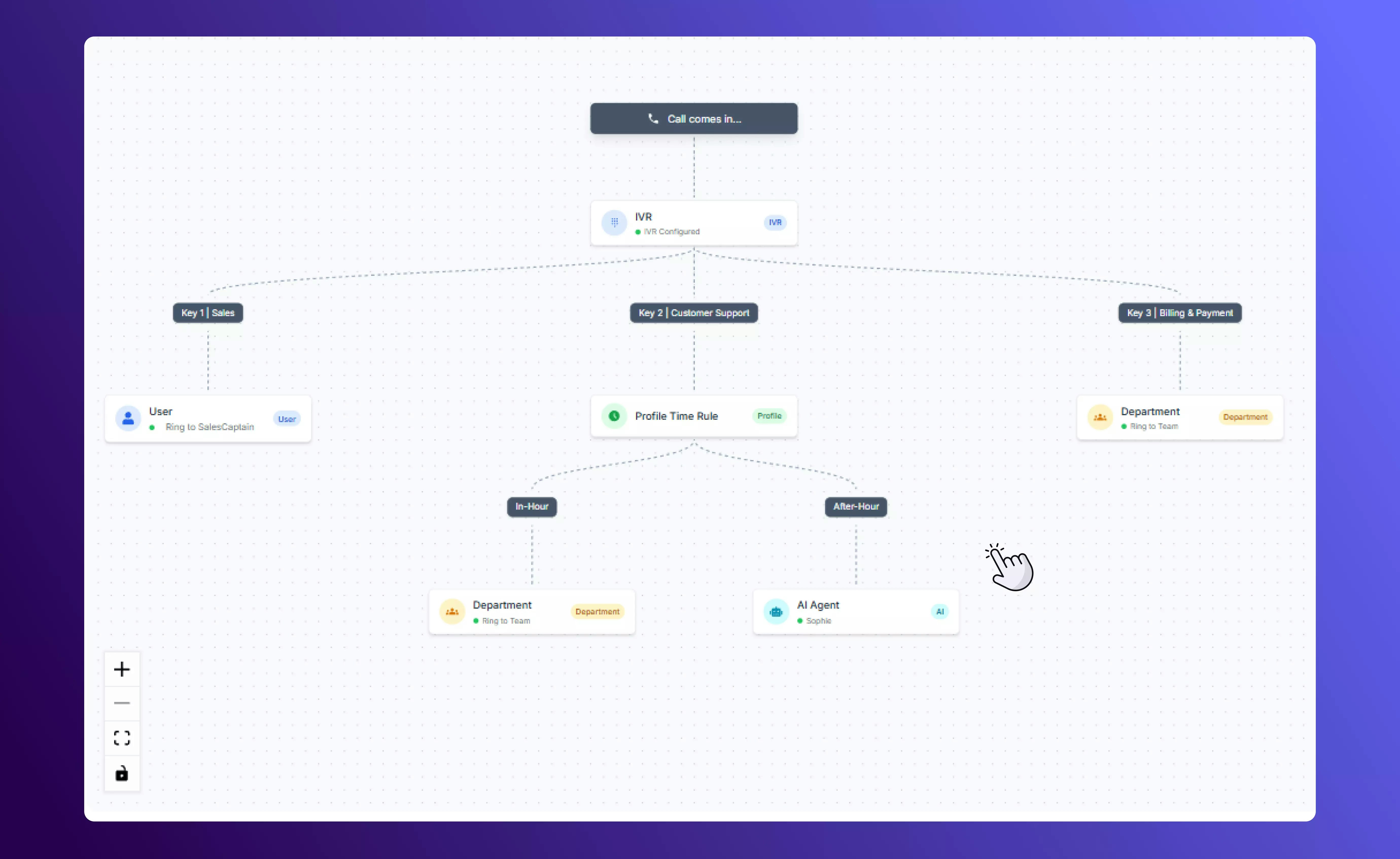 ## Types of Time Rules
SalesCaptain gives you two ways to handle time-based routing inside your call flows.
### 1. Profile Time Rules
Profile time rules pull directly from your **Business Profile** settings.
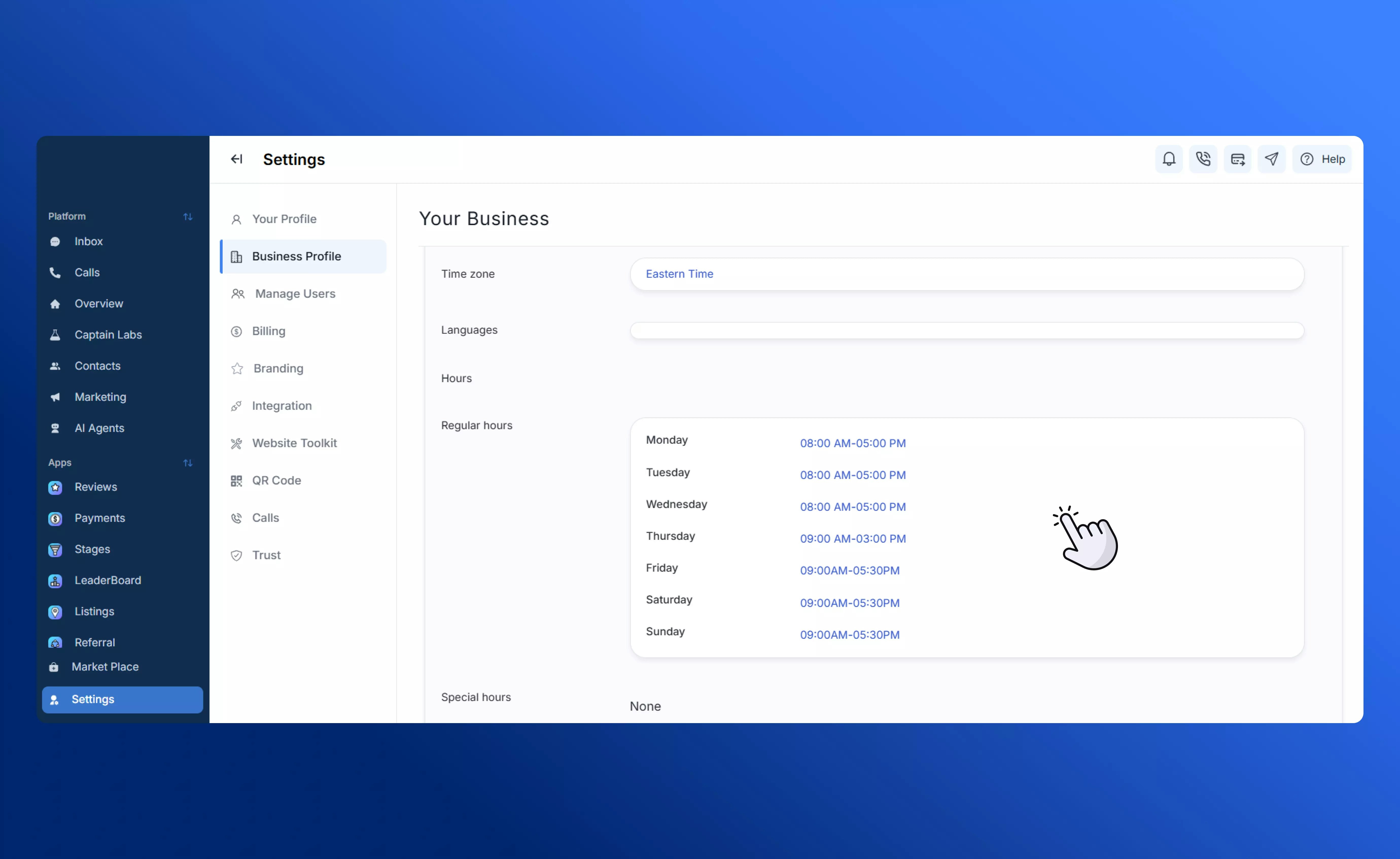
* Go to **Settings → Business Profile → Business Hours** to set your standard working hours and any special hours (weekends, holidays, etc.).
## Types of Time Rules
SalesCaptain gives you two ways to handle time-based routing inside your call flows.
### 1. Profile Time Rules
Profile time rules pull directly from your **Business Profile** settings.
* Go to **Settings → Business Profile → Business Hours** to set your standard working hours and any special hours (weekends, holidays, etc.).
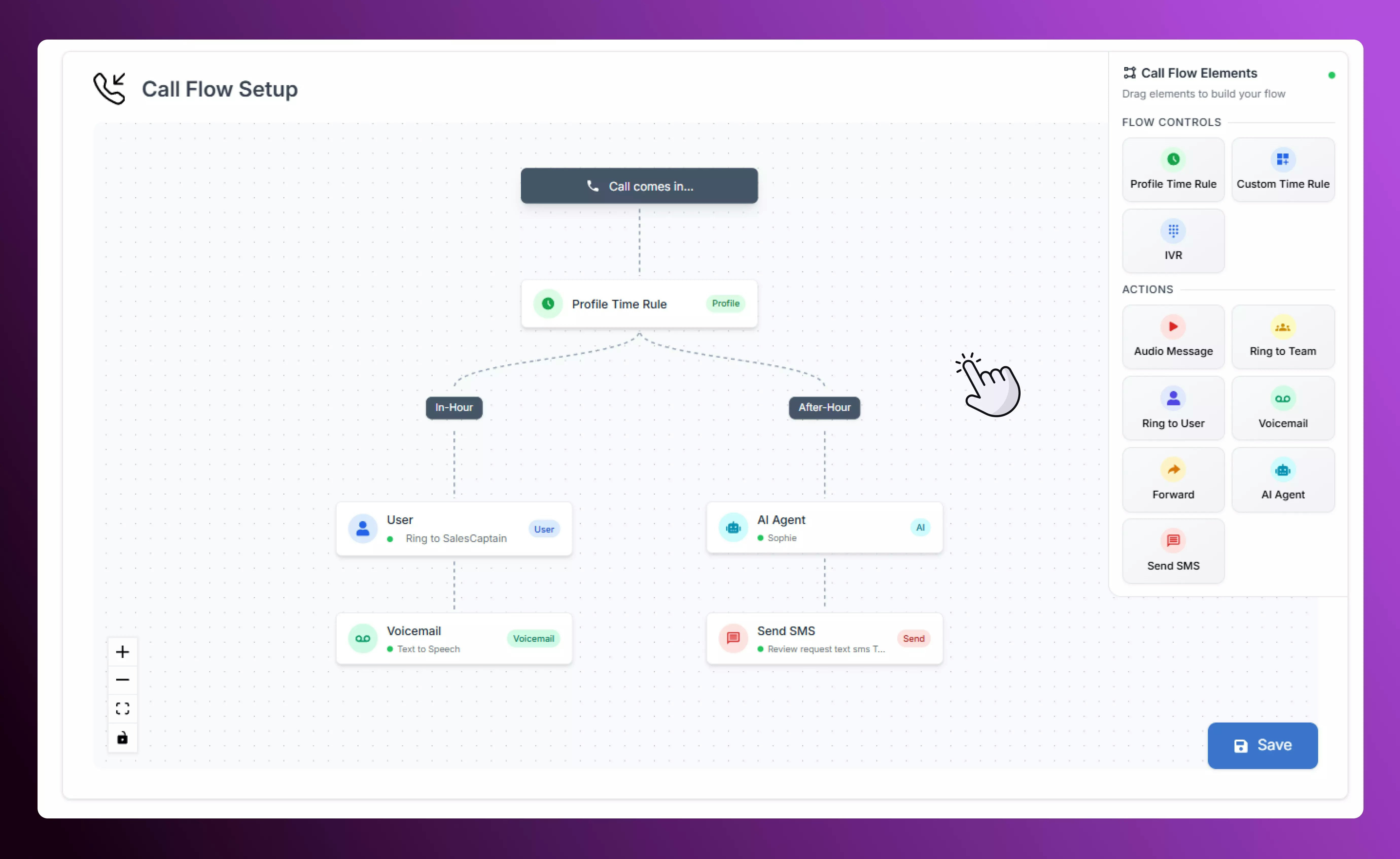
 * When building a call flow, drag the **Profile Time Rule** element into your canvas.
 * Route calls to one branch during the hours you’ve set, and to a different branch outside of those hours.
**Example:**
* Business hours: 9:00 AM – 6:00 PM
* Special weekend hours: 10:00 AM – 4:00 PM\
All other times: after hours routing
* Route calls to one branch during the hours you’ve set, and to a different branch outside of those hours.
**Example:**
* Business hours: 9:00 AM – 6:00 PM
* Special weekend hours: 10:00 AM – 4:00 PM\
All other times: after hours routing
 ### 2. Custom Time Rules
Custom time rules give you full control over scheduling directly in the call flow editor.
* Drag the **Custom Time Rule** element into your canvas.
### 2. Custom Time Rules
Custom time rules give you full control over scheduling directly in the call flow editor.
* Drag the **Custom Time Rule** element into your canvas.
 * Specify the days of the week and time ranges you want this rule to apply.
 * Add as many specific time windows as you need.
**Example:**
* First rule: Mondays, Wednesdays and Fridays from 9:00AM to 4:00PM
* Second rule: Tuesdays and Thursdays from 9:00AM to 4:00PM
* Third rule: Weekdays from 4:00PM to 6:00PM
* Add as many specific time windows as you need.
**Example:**
* First rule: Mondays, Wednesdays and Fridays from 9:00AM to 4:00PM
* Second rule: Tuesdays and Thursdays from 9:00AM to 4:00PM
* Third rule: Weekdays from 4:00PM to 6:00PM
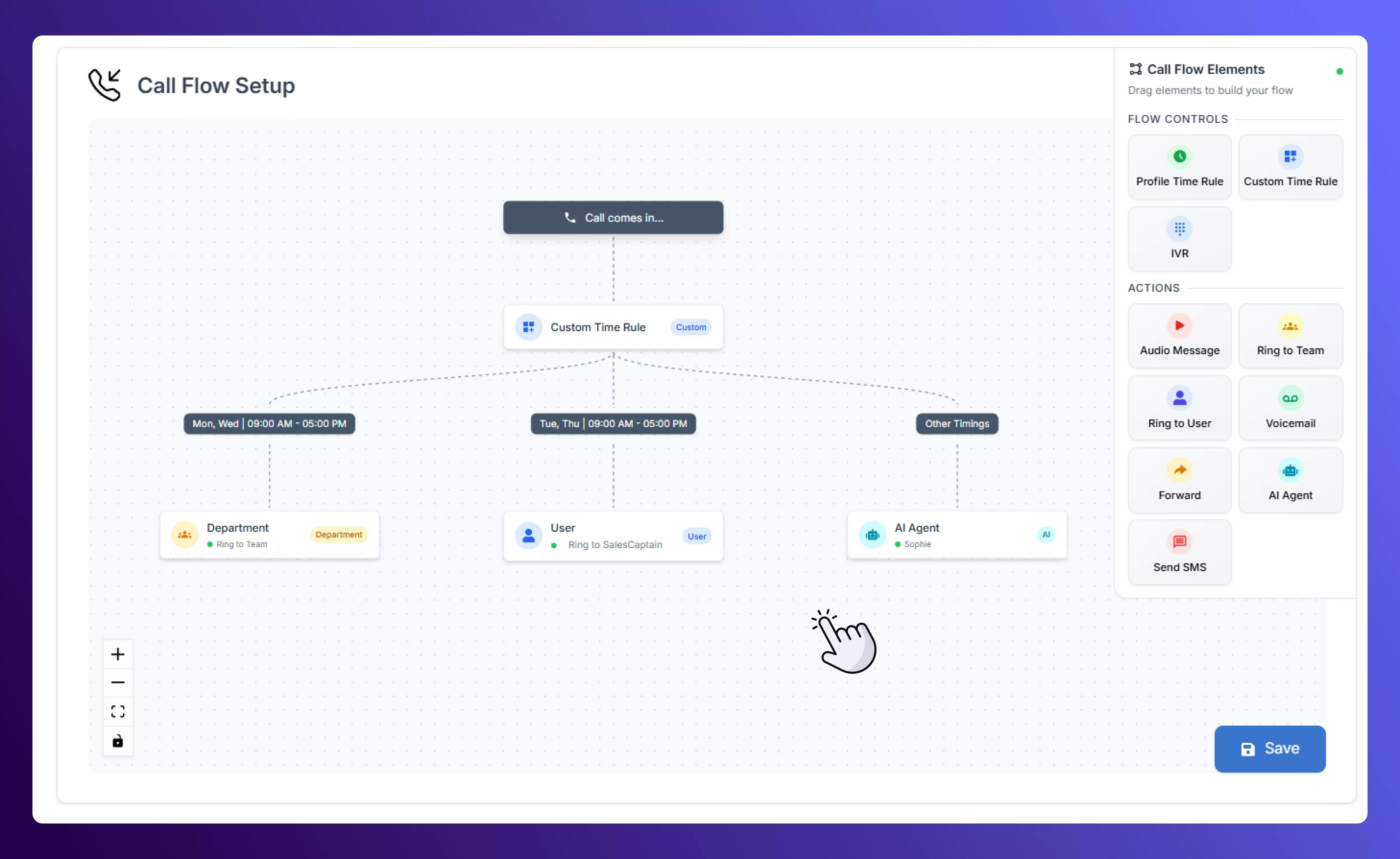 When you’re done, the canvas will show one branch for each custom time window you’ve created—and one “Other Timings” branch for anything not covered by your rules.
## Putting It All Together
By combining Profile and Custom Time Rules, you can create call flows that perfectly match your operating schedule. Customers reach the right destination automatically, and your team can focus on what matters most. Visit our step-by-step breakdown on setting up [call flows](Creating-Call-Flows) in SalesCaptain.
When you’re done, the canvas will show one branch for each custom time window you’ve created—and one “Other Timings” branch for anything not covered by your rules.
## Putting It All Together
By combining Profile and Custom Time Rules, you can create call flows that perfectly match your operating schedule. Customers reach the right destination automatically, and your team can focus on what matters most. Visit our step-by-step breakdown on setting up [call flows](Creating-Call-Flows) in SalesCaptain.