> ## Documentation Index
> Fetch the complete documentation index at: https://docs.salescaptain.com/llms.txt
> Use this file to discover all available pages before exploring further.
# AI Transcription
> With summarization and transcription in SalesCaptain, every call becomes more than just a conversation—it becomes a record full of insights. These features help you capture what was said, who said it, and what needs follow-up, so your team can focus on building connections, and know that they can always refer back to this conversation. Summaries & transcriptions integrate into your calling flow, and are especially useful for training, quality control, and follow-ups.
## **How Can They Help Me?**
### **Transcription**
Transcription means converting the entire call audio into text, usually in real time or shortly after the call. This gives you:
* A complete record of everything said, reducing miscommunication or forgotten details
* An easily accessible text log to quickly find the moment something was mentioned
* Clear distinction of speakers (agent vs customer) to help with clarity
* Reference for coaching, compliance, or legal needs
### **Summary**
A summary pulls out the key parts of the transcription: what was important, what action items came up, what next steps are. It helps you:
* Save time by avoiding having to listen to the entire call recording or skip back and forth to find the information that you need.
* Capture the essentials: decisions, next steps, customer concerns or objections
* Share concise notes internally or with customer
* Ensure follow-ups happen based on what was discussed
## **How Call Summaries & Transcriptions Work in SalesCaptain**
1. **Call Begins**\
When you make or receive a call, the system starts recording automatically.
2. **Transcription Generation**\
During the call, the audio is transcribed into text in real time. This text is accessible any time from the call details in your inbox or the call log.
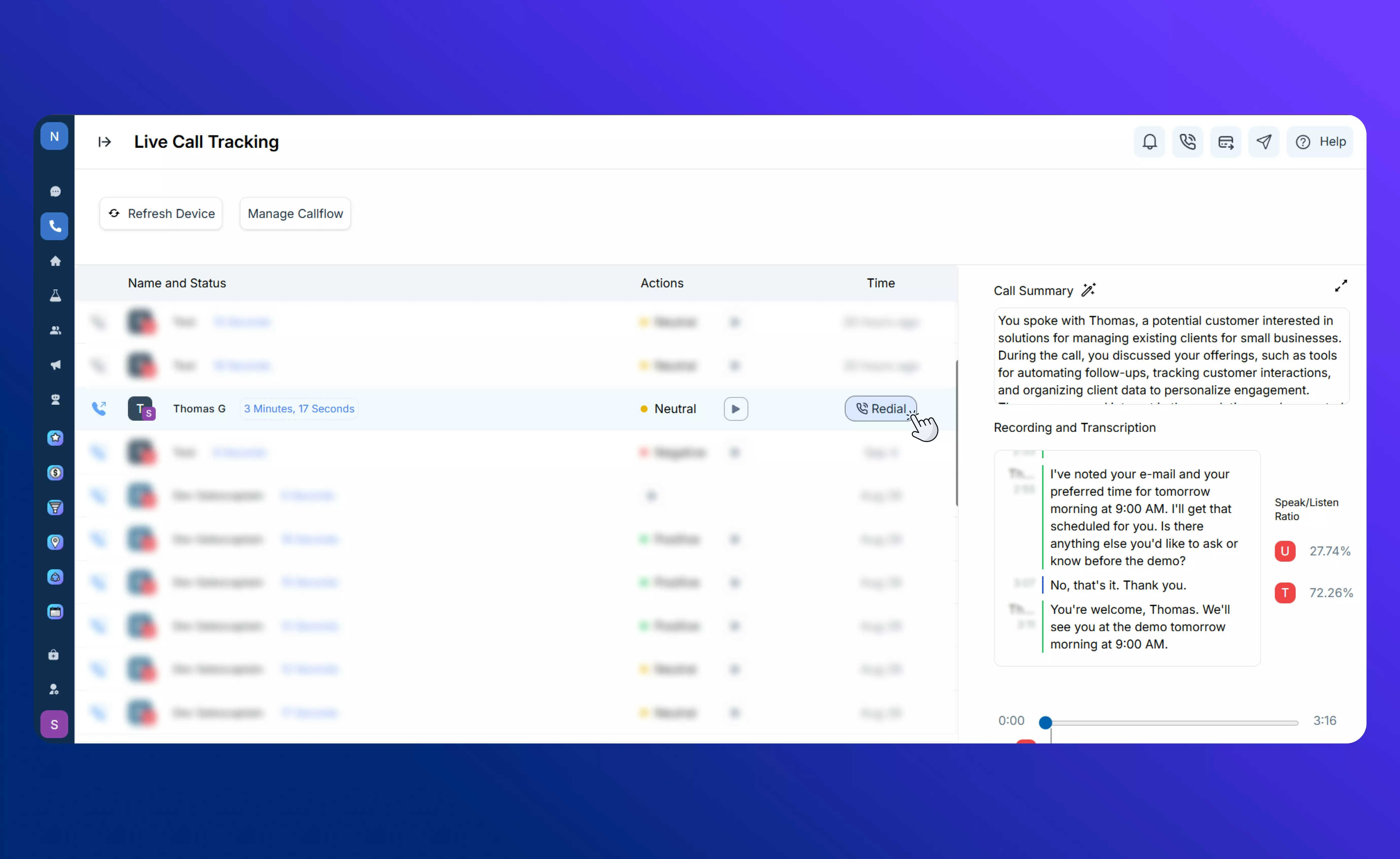 3. **Summary Creation**\
Once transcription is ready, a summary is generated from the data. It highlights:
* Key discussion points
* Customer concerns or objections
* Any commitments made (e.g. “Send pricing”, “Schedule a demo”)
* Next steps for both sides
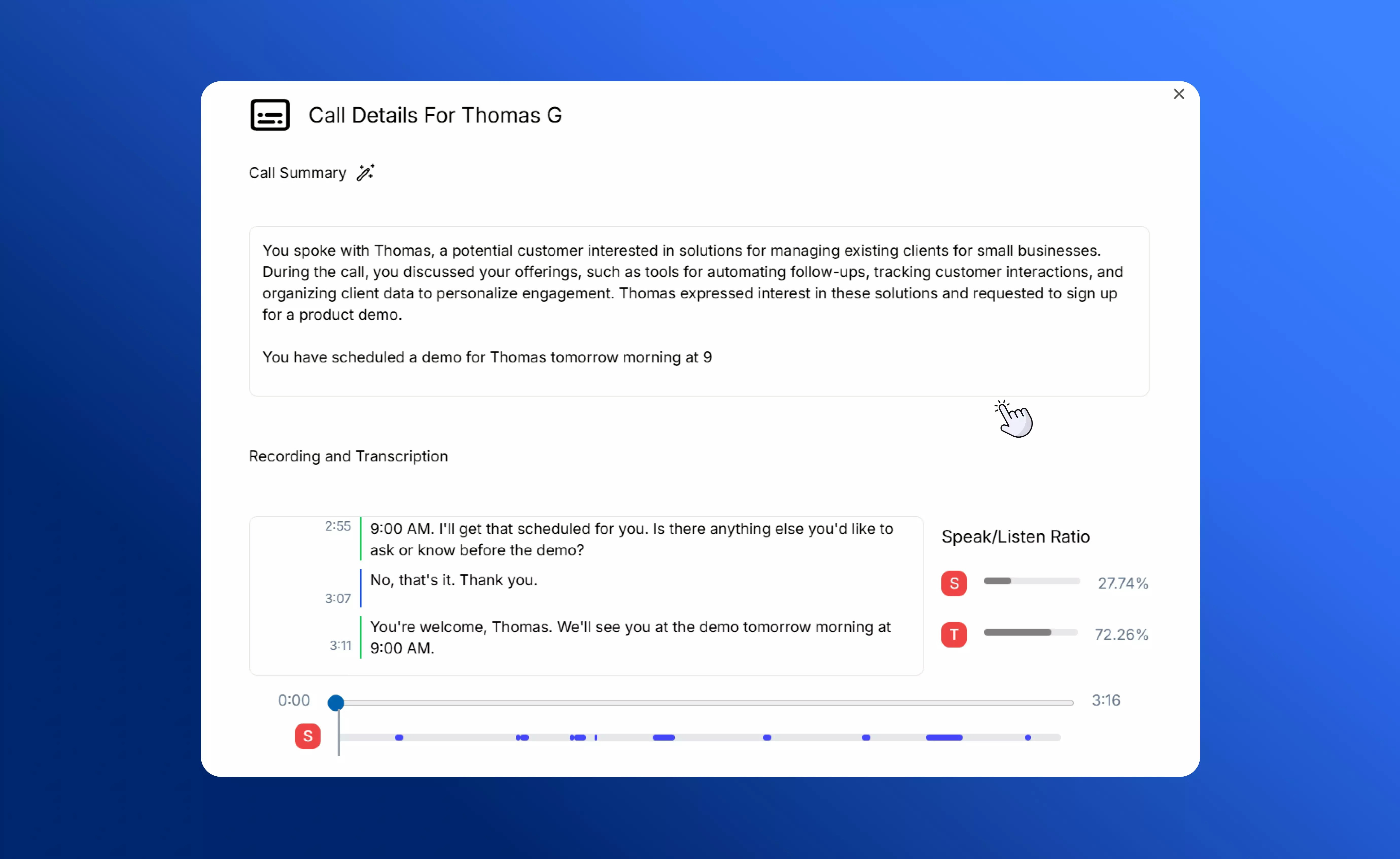
3. **Summary Creation**\
Once transcription is ready, a summary is generated from the data. It highlights:
* Key discussion points
* Customer concerns or objections
* Any commitments made (e.g. “Send pricing”, “Schedule a demo”)
* Next steps for both sides
 4. **Use in Follow-up & Analytics**
* Using the transcript & summary to plan follow-ups (emails, tasks)
* Managers reviewing several summaries to spot recurring issues or training needs
* Use data for improving messaging, scripts or product feedback
## **Best Practices & Tips**
* Always ensure you inform the caller (if required) before recording/transcribing.
* Train agents to speak clearly and identify themselves to help with speaker separation.
* Use the summary to assign clear next steps immediately after each call.
* Regularly review summaries to look for patterns in objections or customer feedback—it can help refine product or messaging.
* For long calls, it may help to mark “key moments” (e.g. “pricing discussed”, “next meeting scheduled”) manually or via UI to make navigation easier.
Find out more about [making](Making-Calls) and [receiving](Core-Features/Calls/Calling/Receiving-Calls) calls in SalesCaptain.
4. **Use in Follow-up & Analytics**
* Using the transcript & summary to plan follow-ups (emails, tasks)
* Managers reviewing several summaries to spot recurring issues or training needs
* Use data for improving messaging, scripts or product feedback
## **Best Practices & Tips**
* Always ensure you inform the caller (if required) before recording/transcribing.
* Train agents to speak clearly and identify themselves to help with speaker separation.
* Use the summary to assign clear next steps immediately after each call.
* Regularly review summaries to look for patterns in objections or customer feedback—it can help refine product or messaging.
* For long calls, it may help to mark “key moments” (e.g. “pricing discussed”, “next meeting scheduled”) manually or via UI to make navigation easier.
Find out more about [making](Making-Calls) and [receiving](Core-Features/Calls/Calling/Receiving-Calls) calls in SalesCaptain.