> ## Documentation Index
> Fetch the complete documentation index at: https://docs.salescaptain.com/llms.txt
> Use this file to discover all available pages before exploring further.
# Making Calls
> With SalesCaptain’s desktop application, you can reach customers directly from anywhere in the platform. Whether you’re inside the unified inbox, using the call bar, or browsing recent history, starting a call only takes a click. Outgoing calls can also be made from the SalesCaptain mobile app, as well as SIP phones connected to SalesCaptain.
### **1. From the Unified Inbox**
The unified inbox is the easiest place to call someone you’ve already been in touch with.
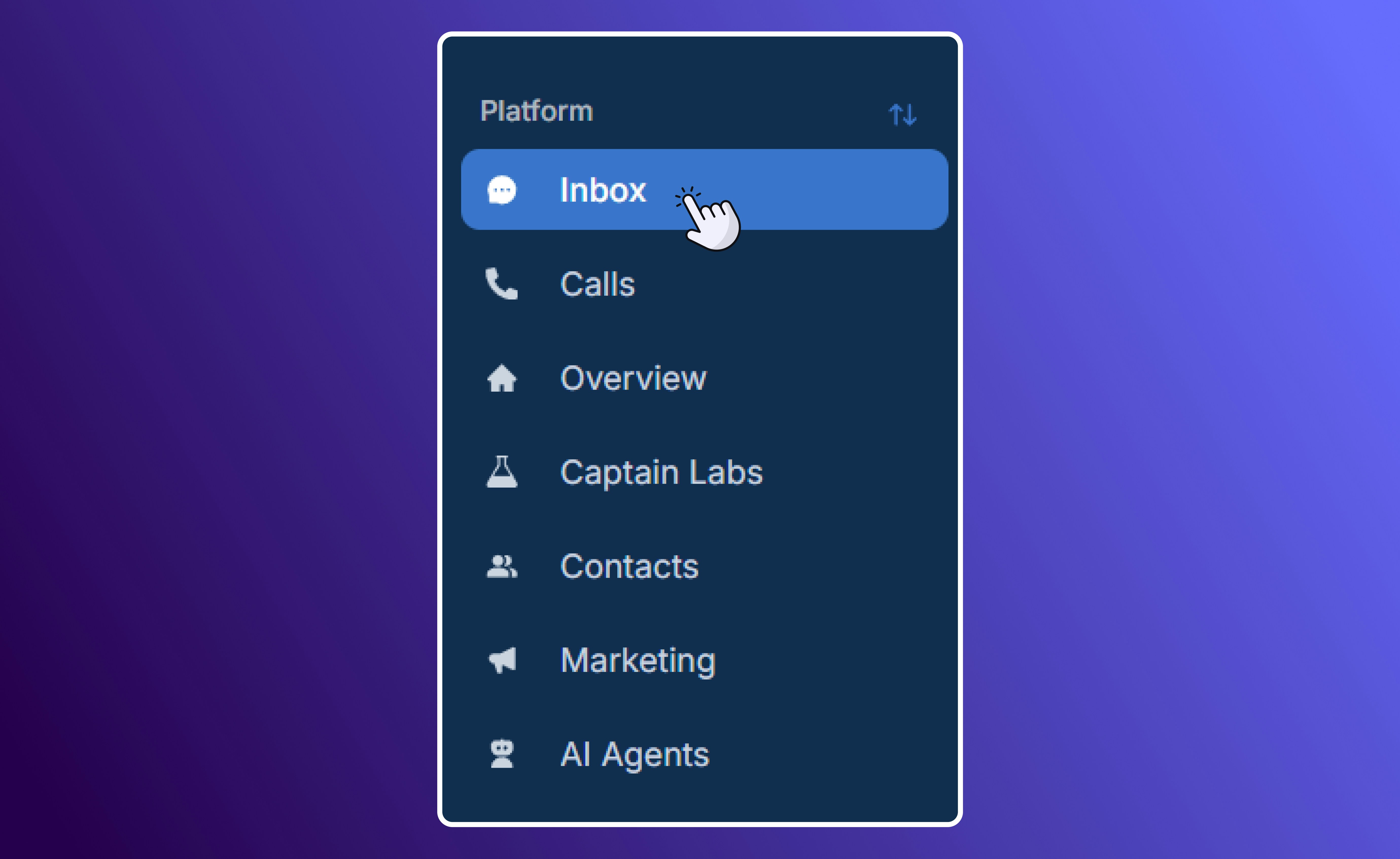
* Navigate to the 'Inbox' tab on your sidebar, where you can access the primary unified inbox.
 * Open any customer conversation to see your full communication history with them (calls, texts, emails, notes).
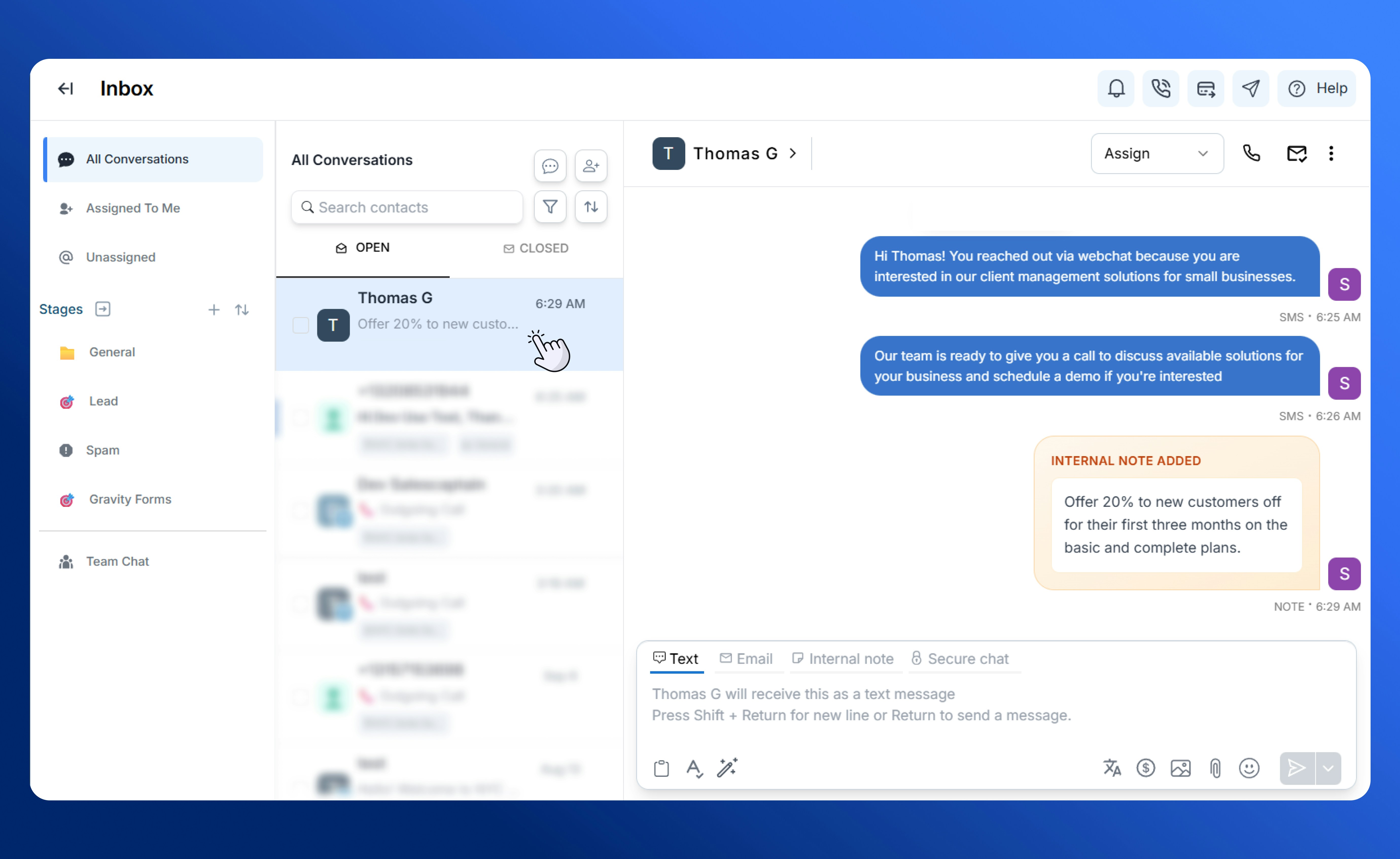 * Click the **call icon** at the top of the thread to start a call immediately.
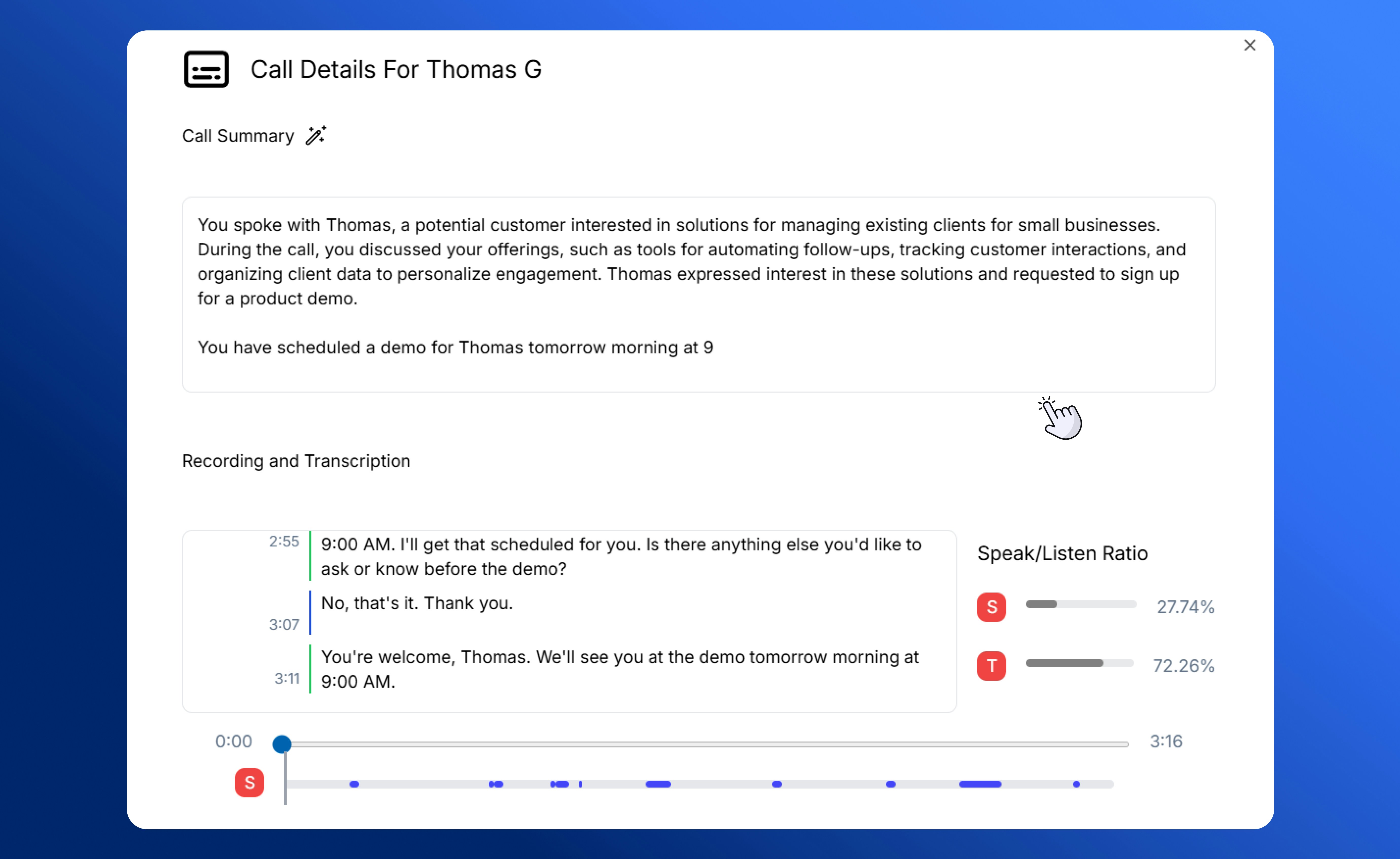
* Since calls placed here automatically log to the same thread, you never lose context. Every voicemail, transcript, and AI sentiment summary will appear right alongside your past interactions with that customer. These are accessible through the 'Call Details' option.
* Click the **call icon** at the top of the thread to start a call immediately.
* Since calls placed here automatically log to the same thread, you never lose context. Every voicemail, transcript, and AI sentiment summary will appear right alongside your past interactions with that customer. These are accessible through the 'Call Details' option.
 * This method of making outgoing calls is especially helpful if you’re following up after a message or continuing an ongoing conversation.
### **2. Using the Call Bar**
The call bar is a feature you can access from anywhere in SalesCaptain.
* Located at the top of your workspace, the call bar lets you dial out without navigating away from what you’re working on.
* This method of making outgoing calls is especially helpful if you’re following up after a message or continuing an ongoing conversation.
### **2. Using the Call Bar**
The call bar is a feature you can access from anywhere in SalesCaptain.
* Located at the top of your workspace, the call bar lets you dial out without navigating away from what you’re working on.
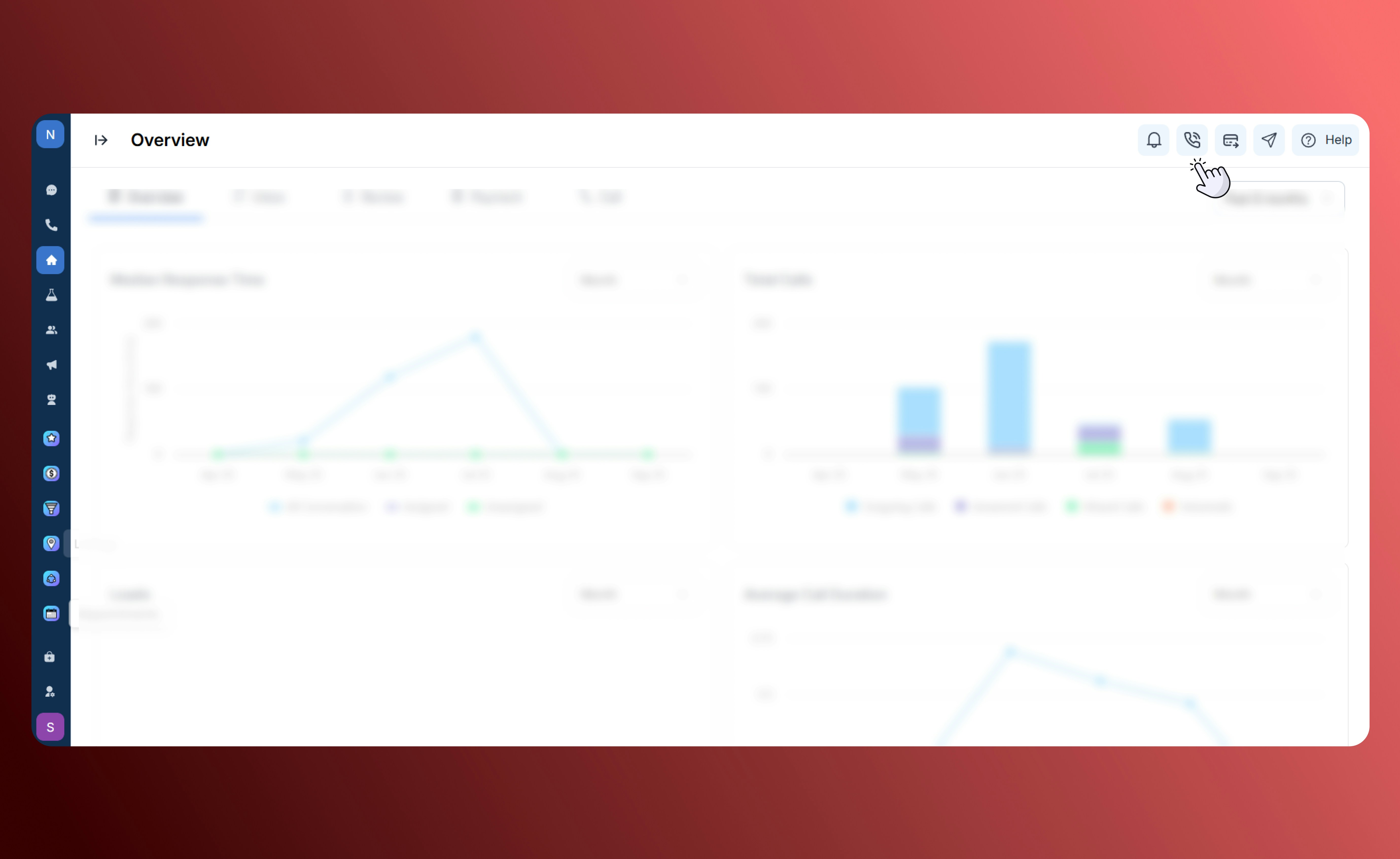 * Simply type in a name (from your contacts) or manually enter a phone number to place the call.
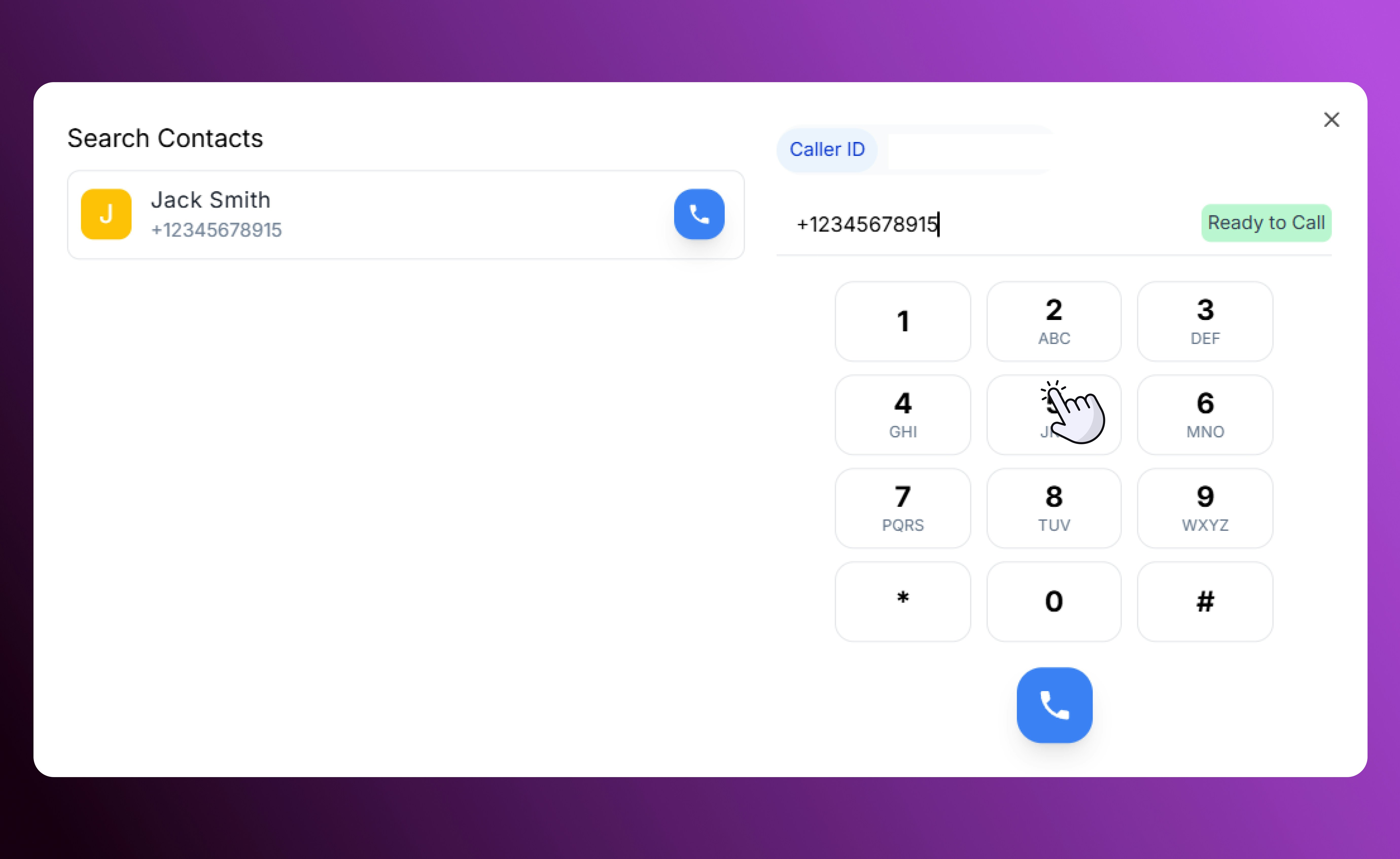 * This method is ideal when you want to quickly reach a customer who hasn’t messaged you yet, or when you don’t need to open their full conversation thread.
### **3. Redialing Recent Calls**
For contact that you have recently been in touch with, the redial feature makes reconnecting effortless.
* Head to the **Calls** tab on your sidebar, where every outbound and inbound call is logged.
* This method is ideal when you want to quickly reach a customer who hasn’t messaged you yet, or when you don’t need to open their full conversation thread.
### **3. Redialing Recent Calls**
For contact that you have recently been in touch with, the redial feature makes reconnecting effortless.
* Head to the **Calls** tab on your sidebar, where every outbound and inbound call is logged.
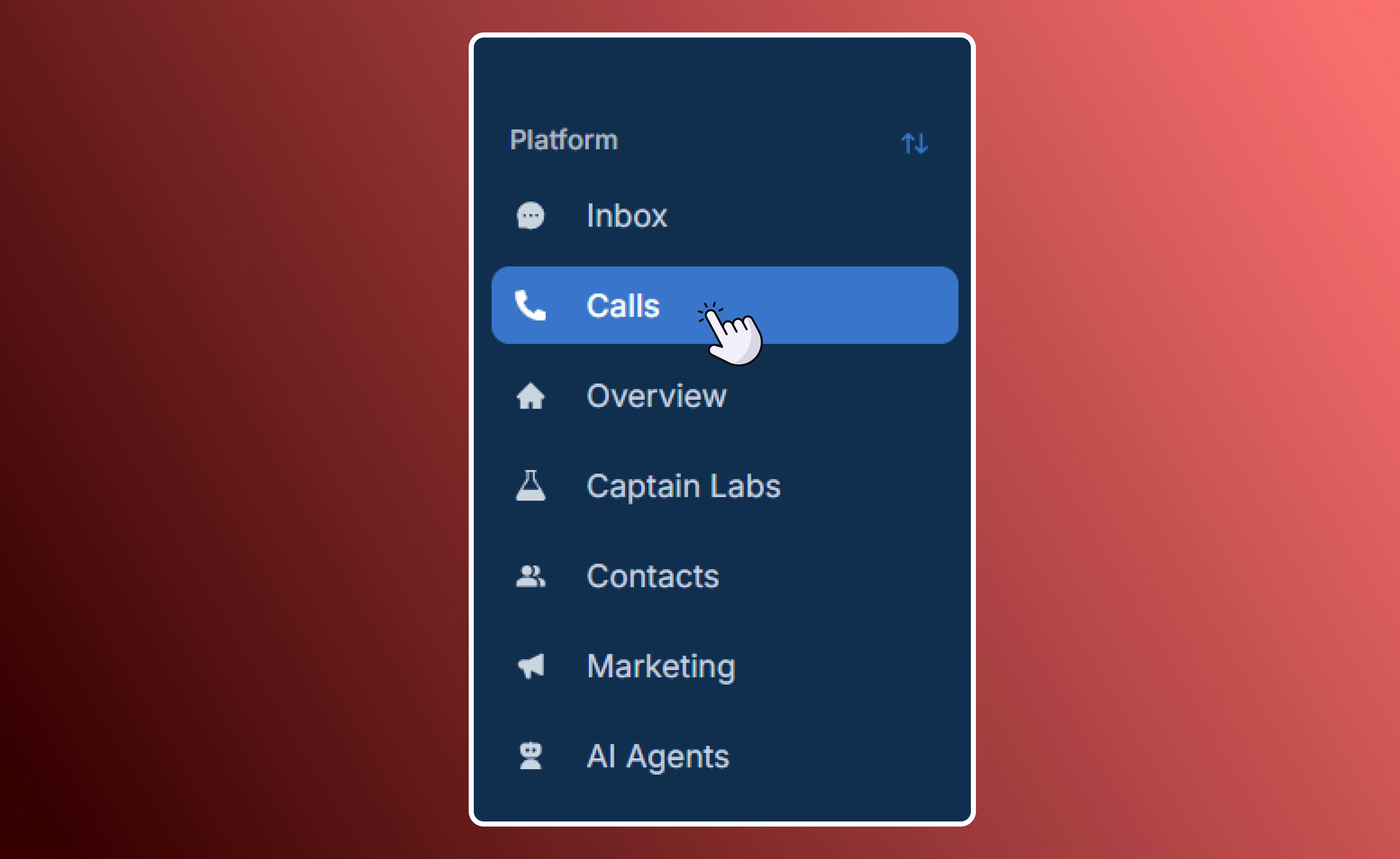 * Select any entry to instantly redial the number without needing to retype or search.
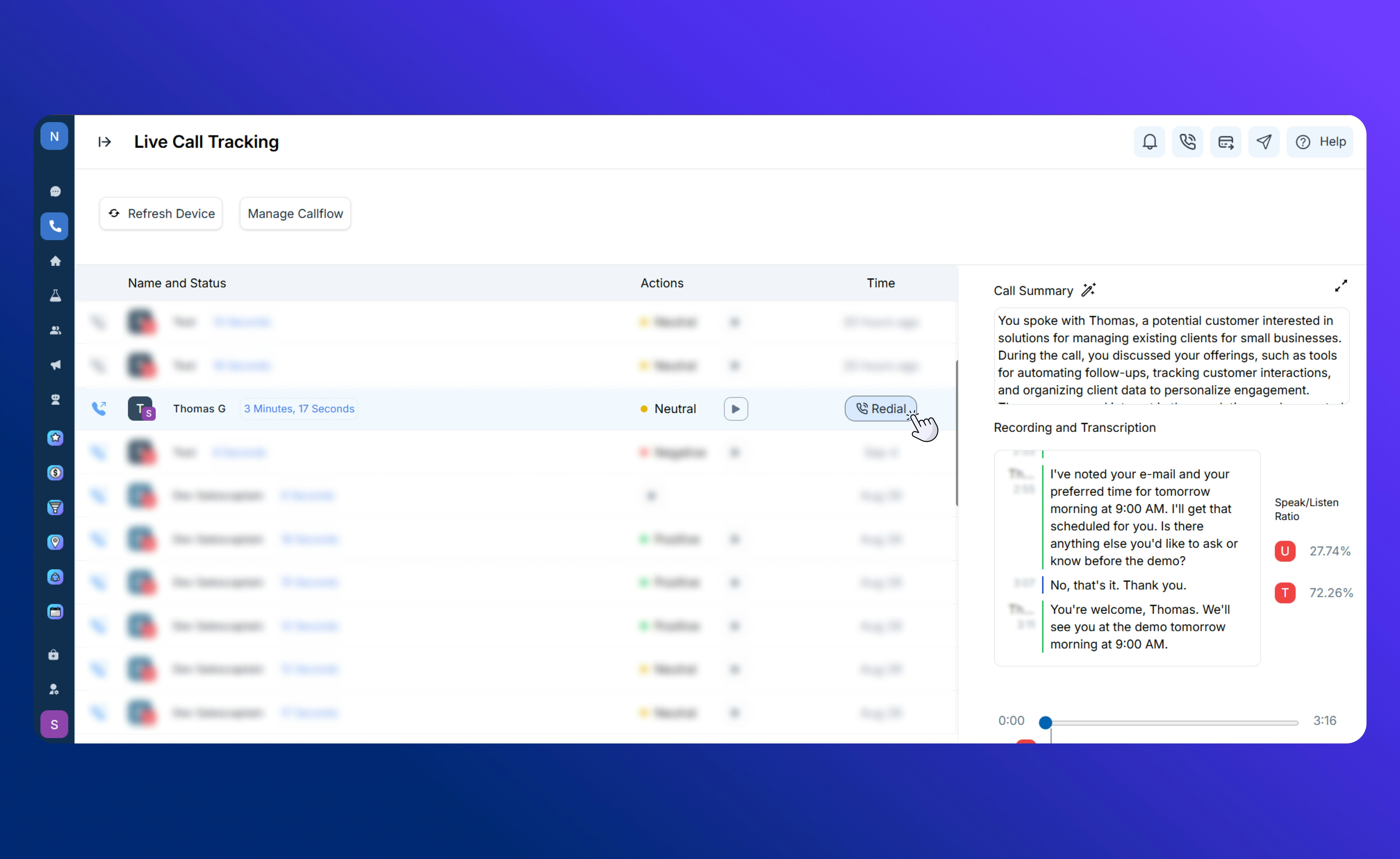 * Perfect for quick follow-ups, checking back on missed connections, or continuing an earlier conversation.
Before placing outgoing calls, we suggest you [import your contacts](Core-Features/Contacts/Importing-Contacts) into SalesCaptain, and set up your [incoming call flow,](/Core-Features/Calls/Call-Flows/Creating-Call-Flows) so you never miss a beat.
* Perfect for quick follow-ups, checking back on missed connections, or continuing an earlier conversation.
Before placing outgoing calls, we suggest you [import your contacts](Core-Features/Contacts/Importing-Contacts) into SalesCaptain, and set up your [incoming call flow,](/Core-Features/Calls/Call-Flows/Creating-Call-Flows) so you never miss a beat.