> ## Documentation Index
> Fetch the complete documentation index at: https://docs.salescaptain.com/llms.txt
> Use this file to discover all available pages before exploring further.
# Adding Contacts
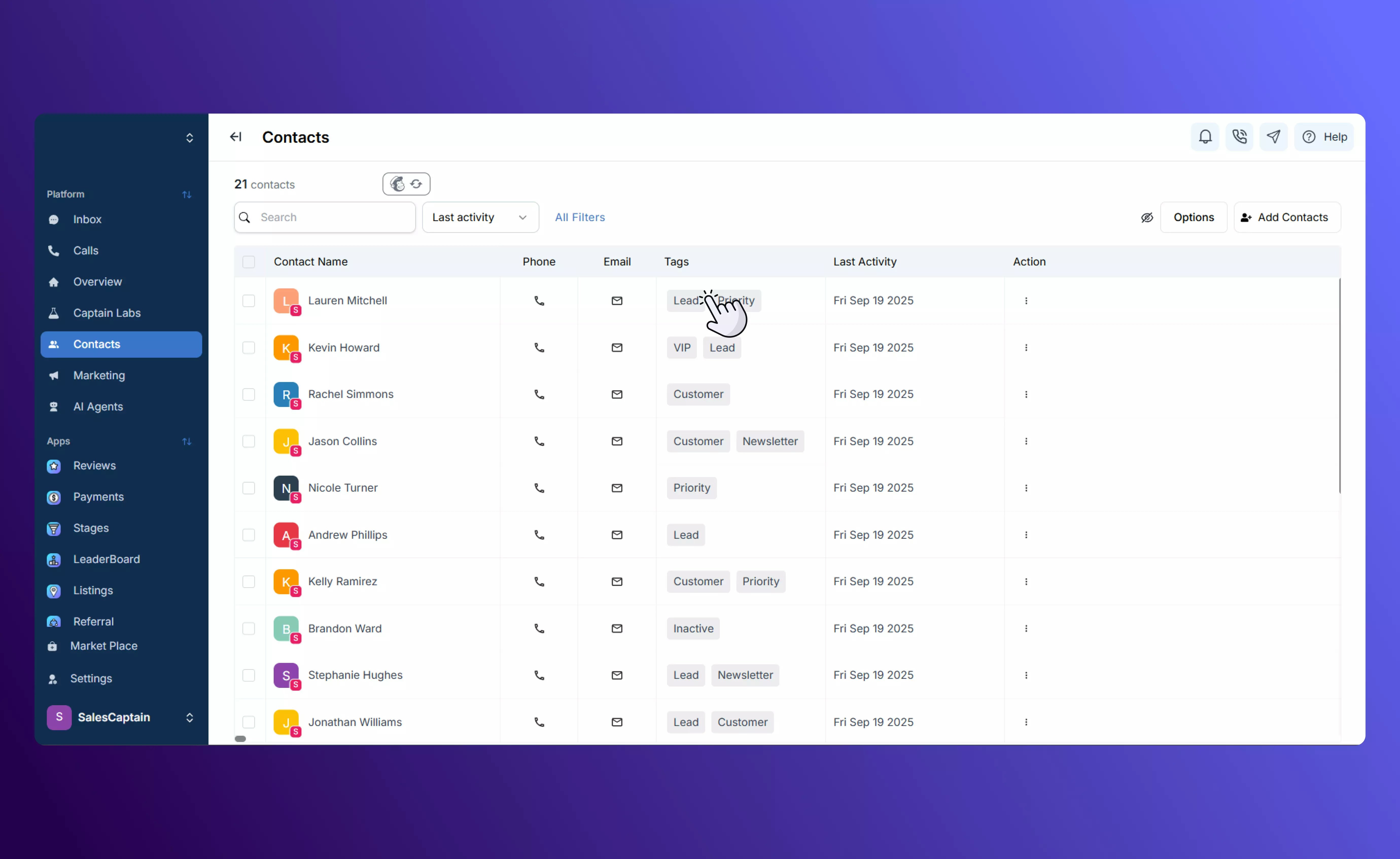
> SalesCaptain makes it simple to grow and manage your contact database. Whether you’re adding a single customer or importing a segmented list, you can do it directly from the Contacts tab, the Universal Inbox, or even while messaging someone. This flexibility means you can capture leads and customers wherever you’re working, without breaking your flow.
 ## **How to Add Contacts in SalesCaptain**
### **1. Manually Adding a Contact**
For adding information one individual at a time:
* Go to the **Contacts** tab in your sidebar.
* Click **Add Contact**.
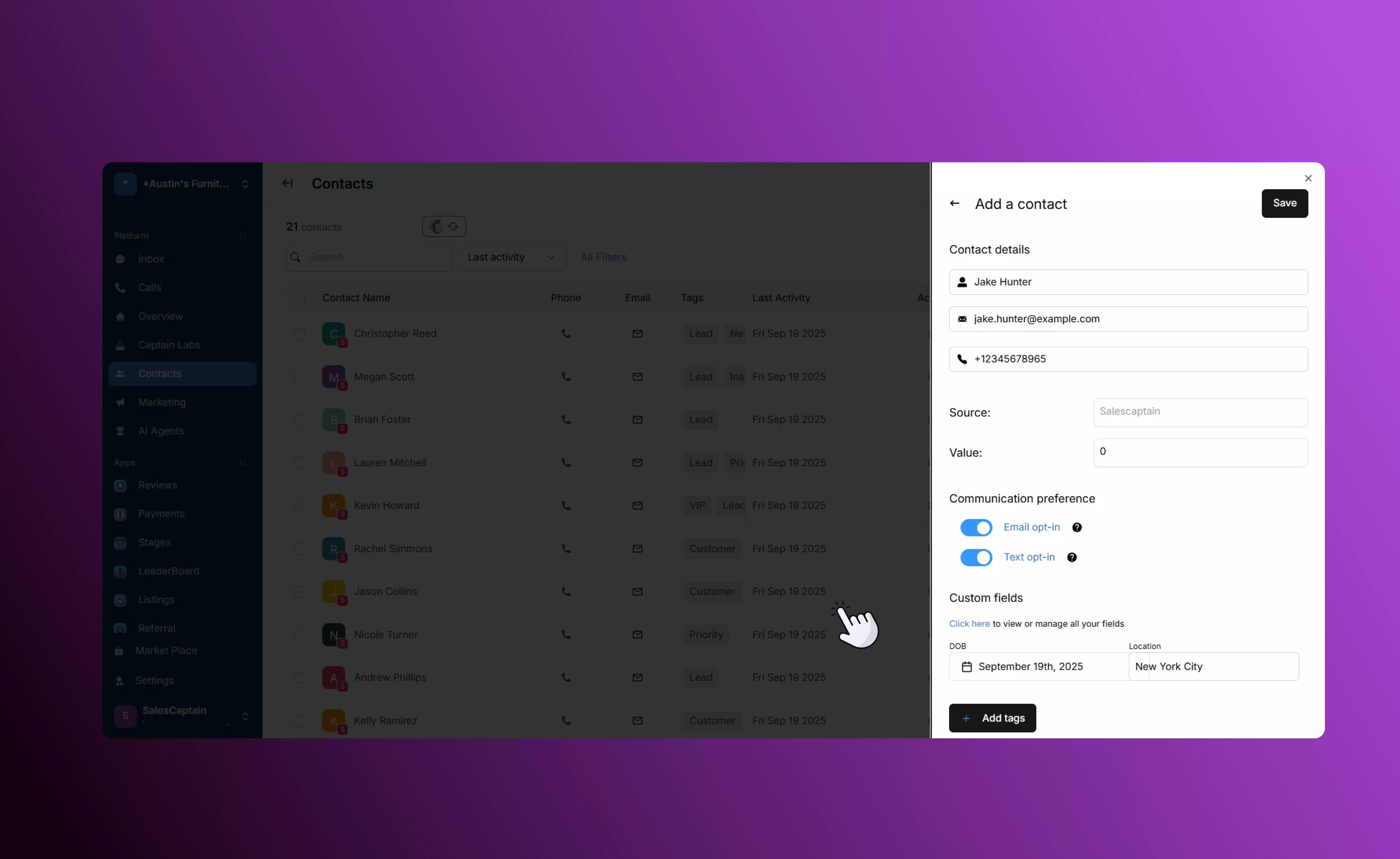
* Enter the contact’s **Name**, **Number**, and **Email**. *(SalesCaptain treats the name as a single field, so enter first and last name together.)*
* Toggle **Email Opt-In** and **Text Opt-In** as needed to ensure compliance.
* While typing, SalesCaptain automatically checks if the contact already exists to prevent duplicates.
* Add **Custom Fields** (e.g. vehicle type, purchase date, or purchase amount) to better segment campaigns. You can define the field type (date, number, currency, etc.) when creating it.
* Apply **Tags** to identify special attributes such as “Customers redirected from another platform.” Each contact can hold multiple tags.
## **How to Add Contacts in SalesCaptain**
### **1. Manually Adding a Contact**
For adding information one individual at a time:
* Go to the **Contacts** tab in your sidebar.
* Click **Add Contact**.
* Enter the contact’s **Name**, **Number**, and **Email**. *(SalesCaptain treats the name as a single field, so enter first and last name together.)*
* Toggle **Email Opt-In** and **Text Opt-In** as needed to ensure compliance.
* While typing, SalesCaptain automatically checks if the contact already exists to prevent duplicates.
* Add **Custom Fields** (e.g. vehicle type, purchase date, or purchase amount) to better segment campaigns. You can define the field type (date, number, currency, etc.) when creating it.
* Apply **Tags** to identify special attributes such as “Customers redirected from another platform.” Each contact can hold multiple tags.
 ### **Other Quick-Add Options**
* **Universal Inbox:** Add a contact directly from a conversation thread in one click.
* **Quick Send Bar:** Instantly create a contact when sending an SMS from anywhere in the app.
### **Other Quick-Add Options**
* **Universal Inbox:** Add a contact directly from a conversation thread in one click.
* **Quick Send Bar:** Instantly create a contact when sending an SMS from anywhere in the app.
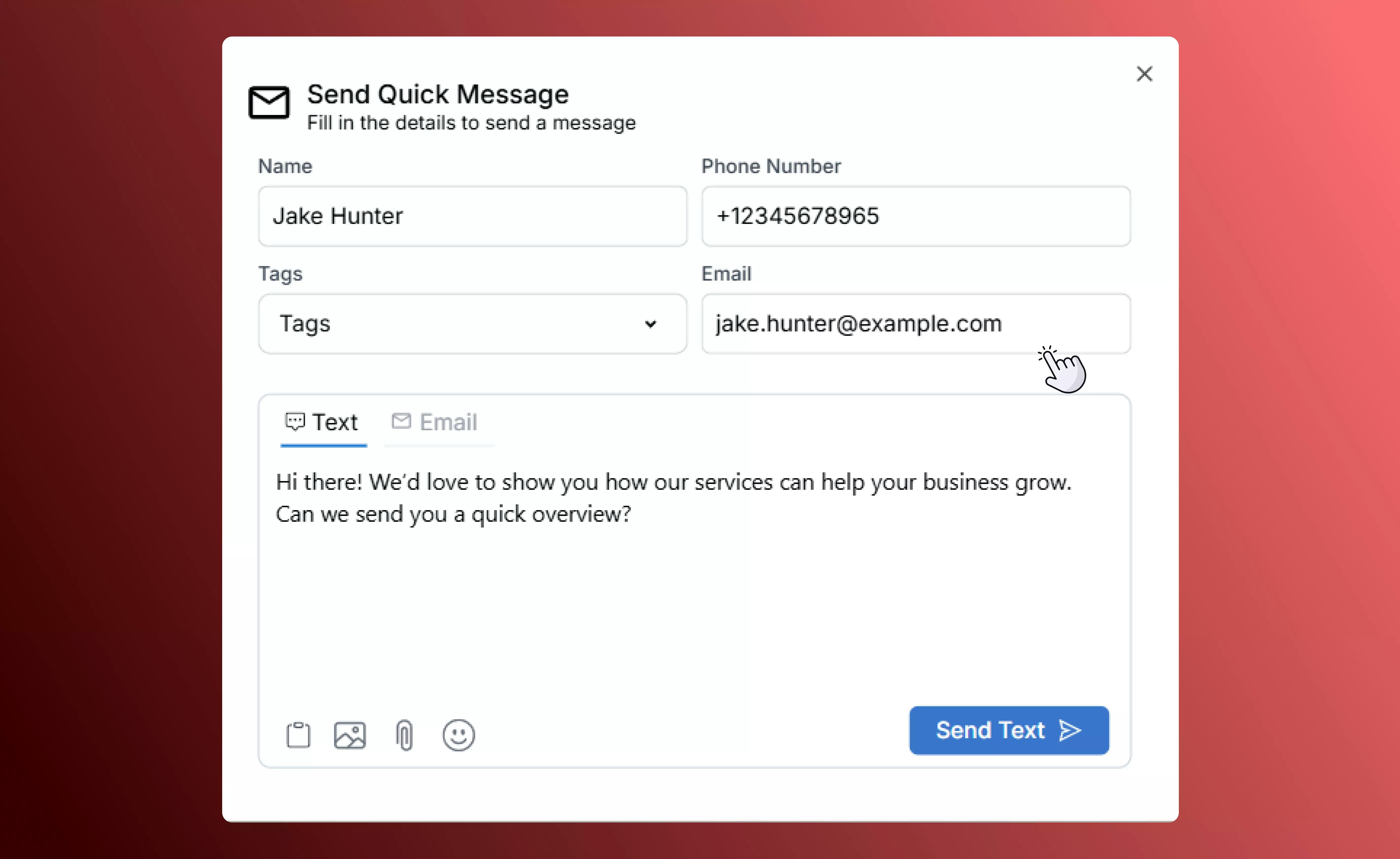 These shortcuts let you build your contact database organically while you’re already engaging with leads.
#### **2. Importing Contacts**
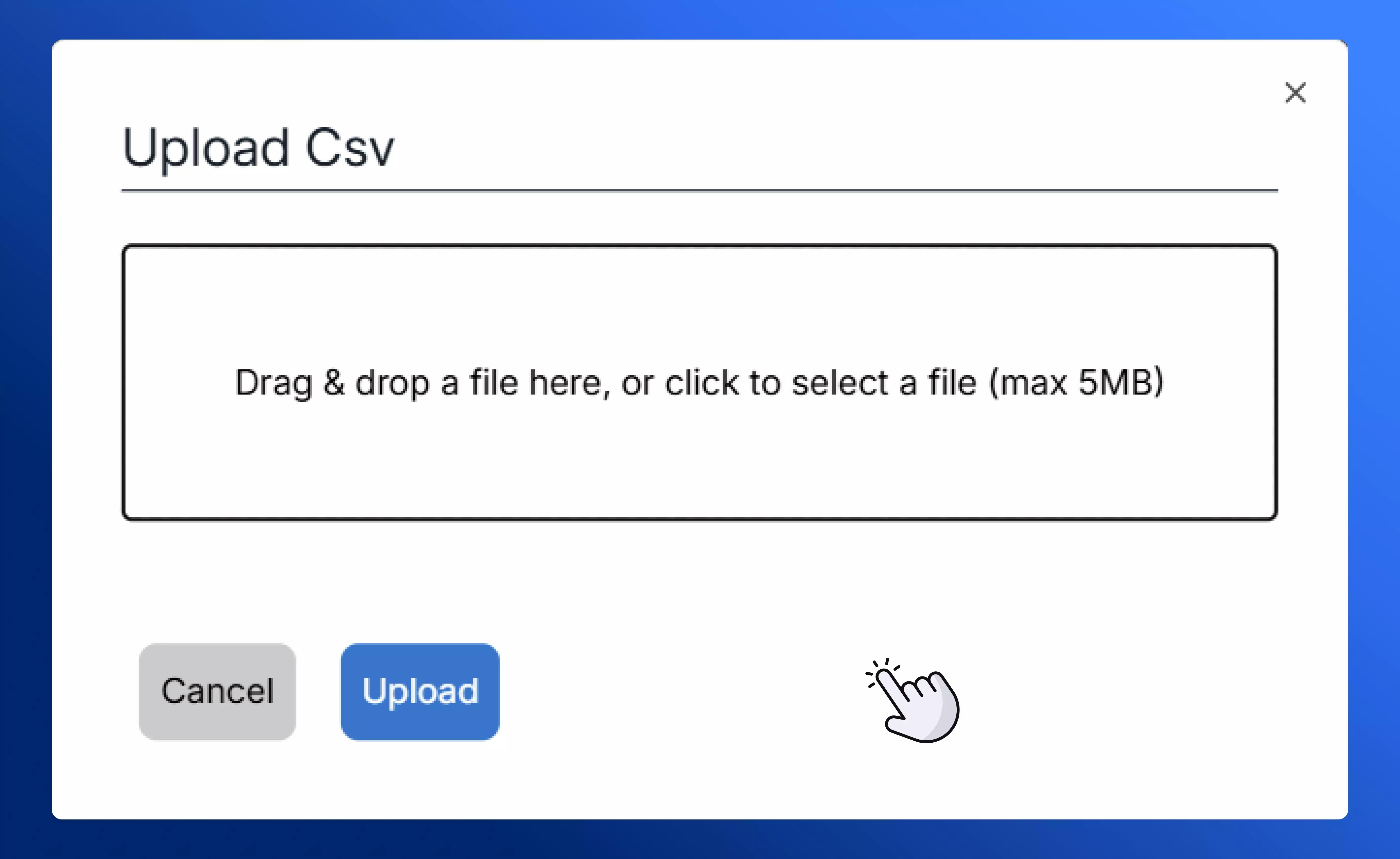
If you have a large list of contacts, import them in bulk through a CSV file:
* Make sure the required fields (Name, Email, Number) are included and consistent.
* While importing, map your columns to SalesCaptain’s fields, including any custom fields you’ve created.
* Apply tags during import to segment the list immediately.
For step-by-step instructions, visit our guide on [importing contacts.](Importing-Contacts)
These shortcuts let you build your contact database organically while you’re already engaging with leads.
#### **2. Importing Contacts**
If you have a large list of contacts, import them in bulk through a CSV file:
* Make sure the required fields (Name, Email, Number) are included and consistent.
* While importing, map your columns to SalesCaptain’s fields, including any custom fields you’ve created.
* Apply tags during import to segment the list immediately.
For step-by-step instructions, visit our guide on [importing contacts.](Importing-Contacts)
 \
Managing contacts in SalesCaptain is designed to be **efficient and flexible**. Whether you’re adding one customer or importing thousands at once, built-in duplicate detection, tags, and custom fields help keep your database organized and clean. A well-maintained contact list saves time, enables more targeted communication, and delivers a more personalized customer experience.
\
Managing contacts in SalesCaptain is designed to be **efficient and flexible**. Whether you’re adding one customer or importing thousands at once, built-in duplicate detection, tags, and custom fields help keep your database organized and clean. A well-maintained contact list saves time, enables more targeted communication, and delivers a more personalized customer experience.