> ## Documentation Index
> Fetch the complete documentation index at: https://docs.salescaptain.com/llms.txt
> Use this file to discover all available pages before exploring further.
# Importing Contacts
> Need to bring in an existing database? SalesCaptain’s CSV importing tools lets you upload thousands of contacts in minutes, while preserving your segmentation and tags.
## **Before You Upload**
Prepare your CSV file so the import goes smoothly:
* Combine **first and last name** into a single column labeled “Name” to match SalesCaptain’s field format.
* Make sure your CSV includes at least a **Name** and **Phone Number**.
* Optional: include **Email**, **Opt-in Status**, and any **Tags** as extra columns for richer data.
## **Upload & Map Fields**
Once your file is ready, importing takes just a few steps:
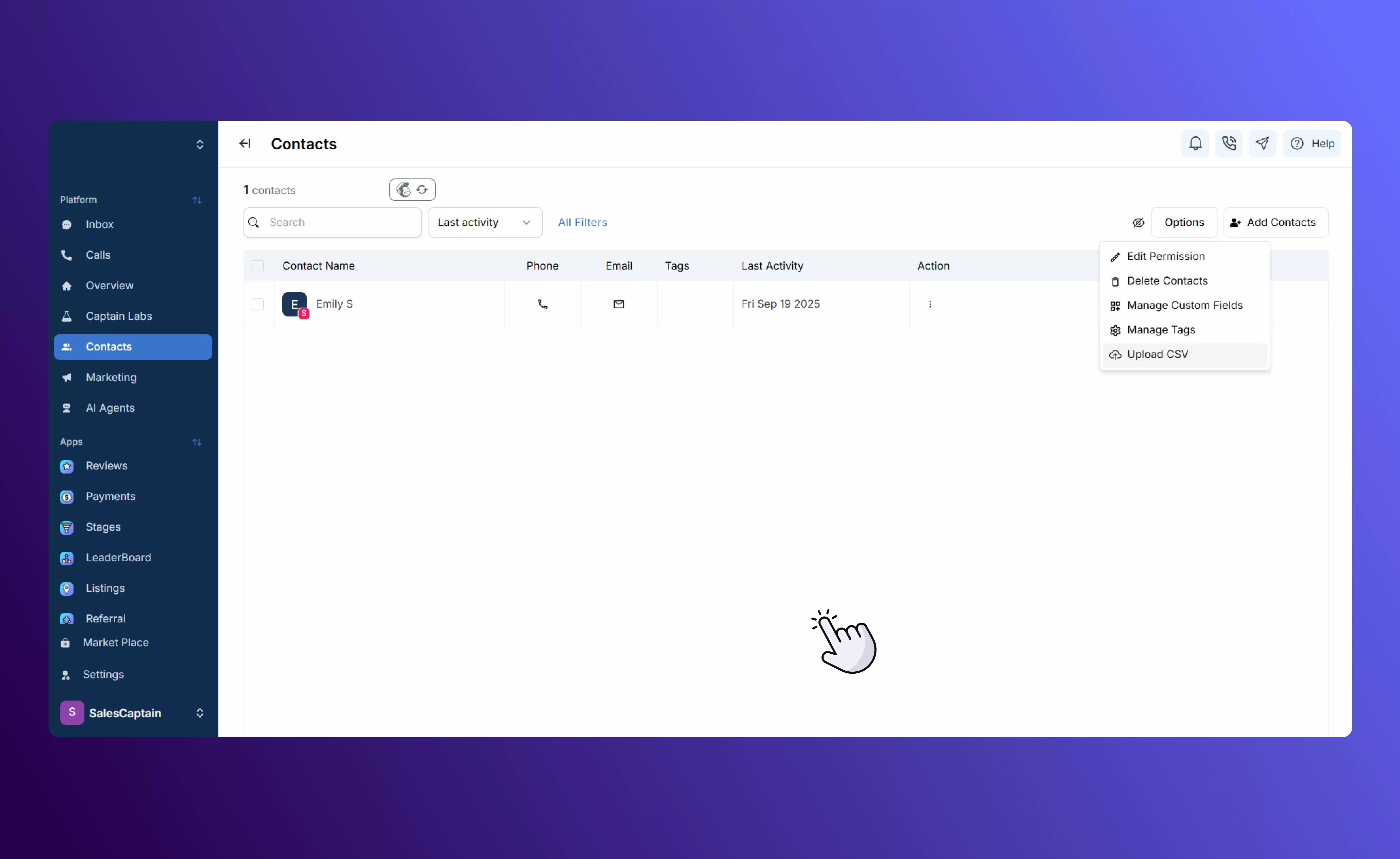
1. Go to the **Contacts** tab and select **Options** before clicking on **Upload CSV**.
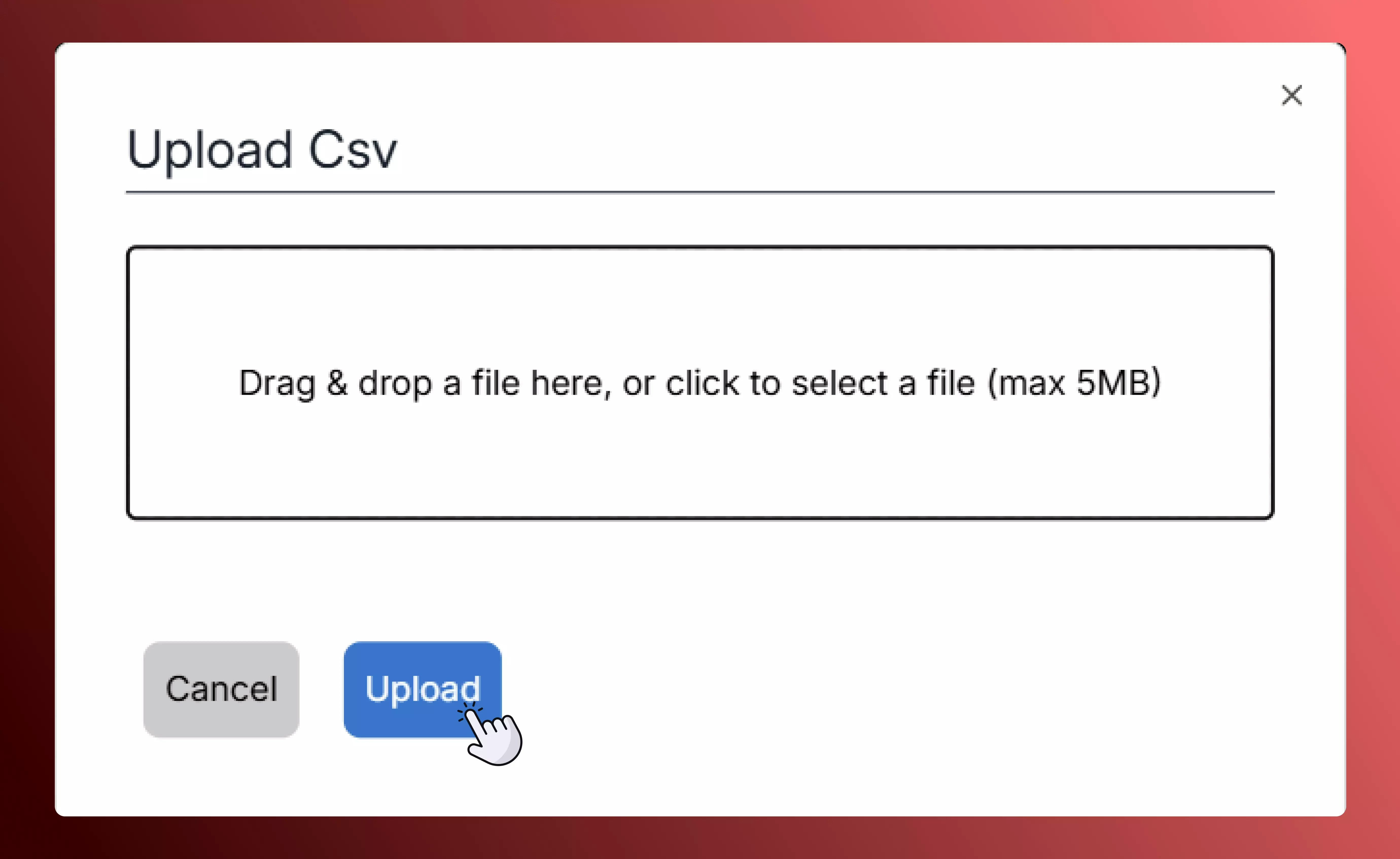
 2. Upload your CSV file.
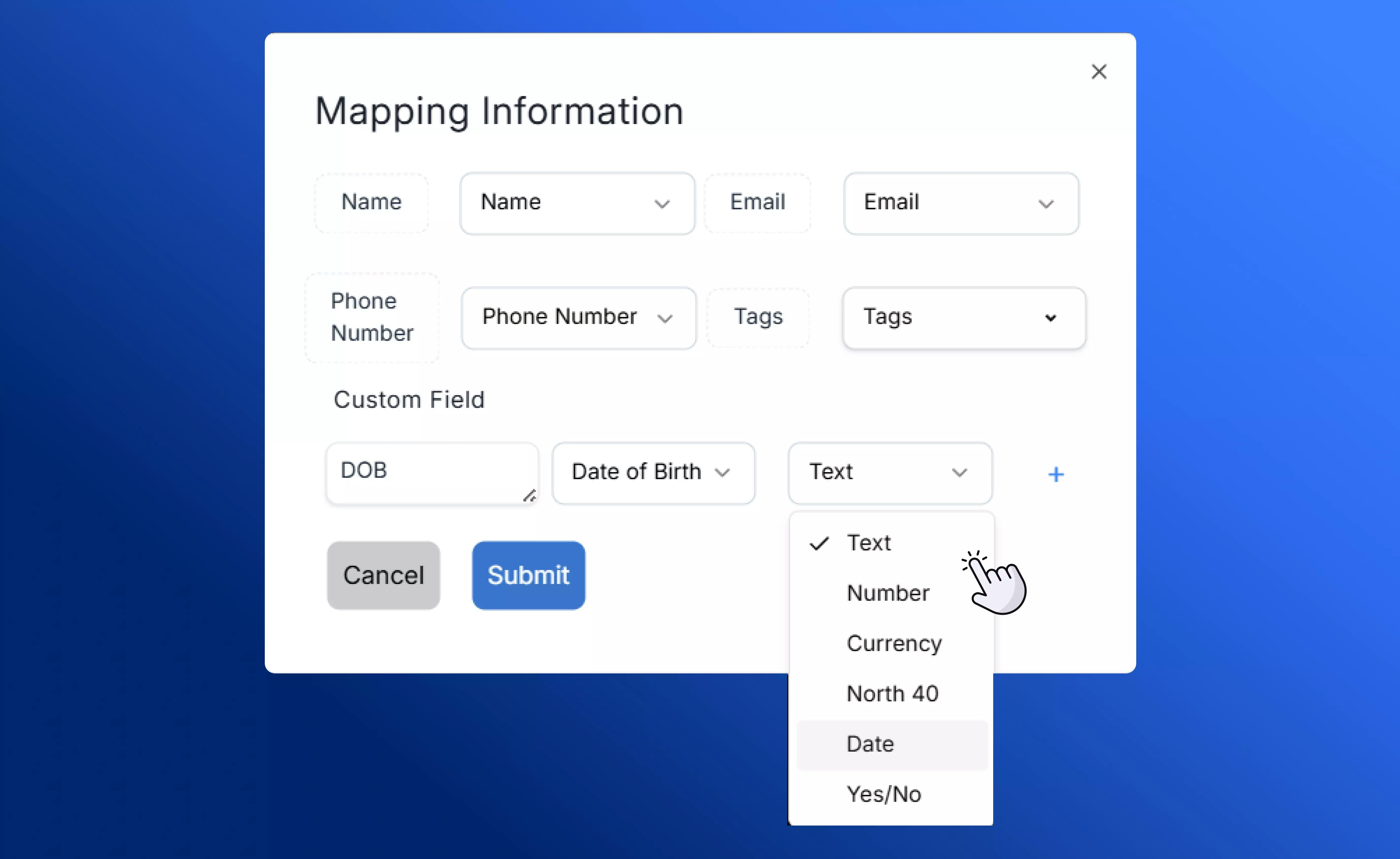
 3\. Map your column headers to the correct SalesCaptain fields (Name, Number, Email, etc.).
4\. If your file contains unique data, you can \*\*create new custom fields on the spot. \*\*Learn more about [managing custom fields](Custom-Fields).
5\. Review your mapping and click **Import**.
3\. Map your column headers to the correct SalesCaptain fields (Name, Number, Email, etc.).
4\. If your file contains unique data, you can \*\*create new custom fields on the spot. \*\*Learn more about [managing custom fields](Custom-Fields).
5\. Review your mapping and click **Import**.
 ## **After the Import**
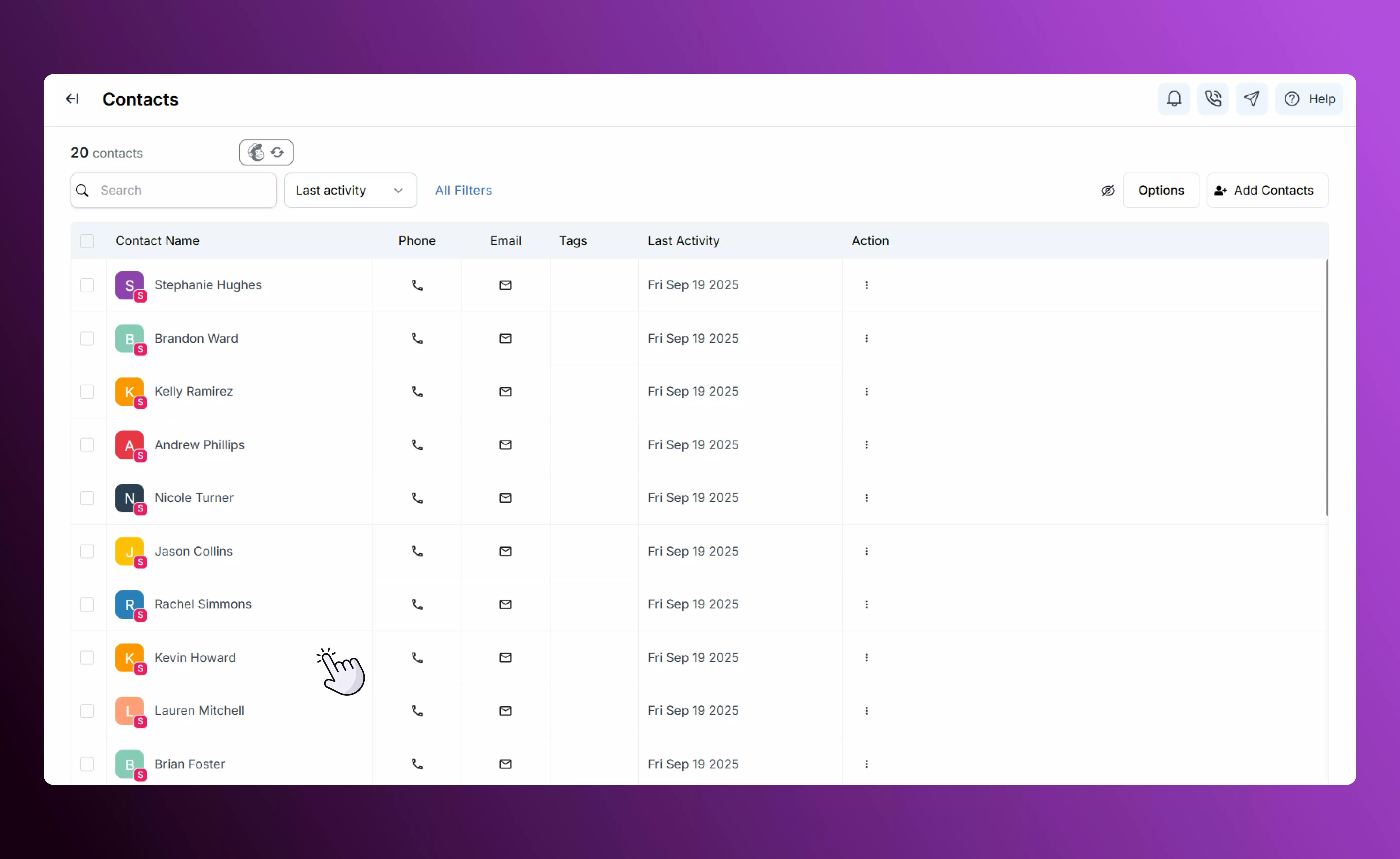
Your contacts appear instantly in your Contacts list, ready to use:
* Apply tags or start a campaign right away.
* Filter, edit, or export them just like manually added contacts.
* Enjoy seamless integration — imported contacts behave exactly like native SalesCaptain contacts.
## **After the Import**
Your contacts appear instantly in your Contacts list, ready to use:
* Apply tags or start a campaign right away.
* Filter, edit, or export them just like manually added contacts.
* Enjoy seamless integration — imported contacts behave exactly like native SalesCaptain contacts.
 ## **Best Practices**
* Double-check your CSV formatting before uploading to avoid errors.
* Pre-create any custom fields you know you’ll need.
* Use tags during import to track the source or group of each list.
* Test with a small file first if you’re unsure about your mapping.
## **Best Practices**
* Double-check your CSV formatting before uploading to avoid errors.
* Pre-create any custom fields you know you’ll need.
* Use tags during import to track the source or group of each list.
* Test with a small file first if you’re unsure about your mapping.