> ## Documentation Index
> Fetch the complete documentation index at: https://docs.salescaptain.com/llms.txt
> Use this file to discover all available pages before exploring further.
# Managing Contacts
> Managing Contacts in SalesCaptain gives you full control over your contact database. It lets you filter, tag, sync, and communicate with groups of contacts—all from one place. Whether you’ve added contacts manually, imported them, or synced from another platform, this section is where you keep everything organized, actionable, and up-to-date.
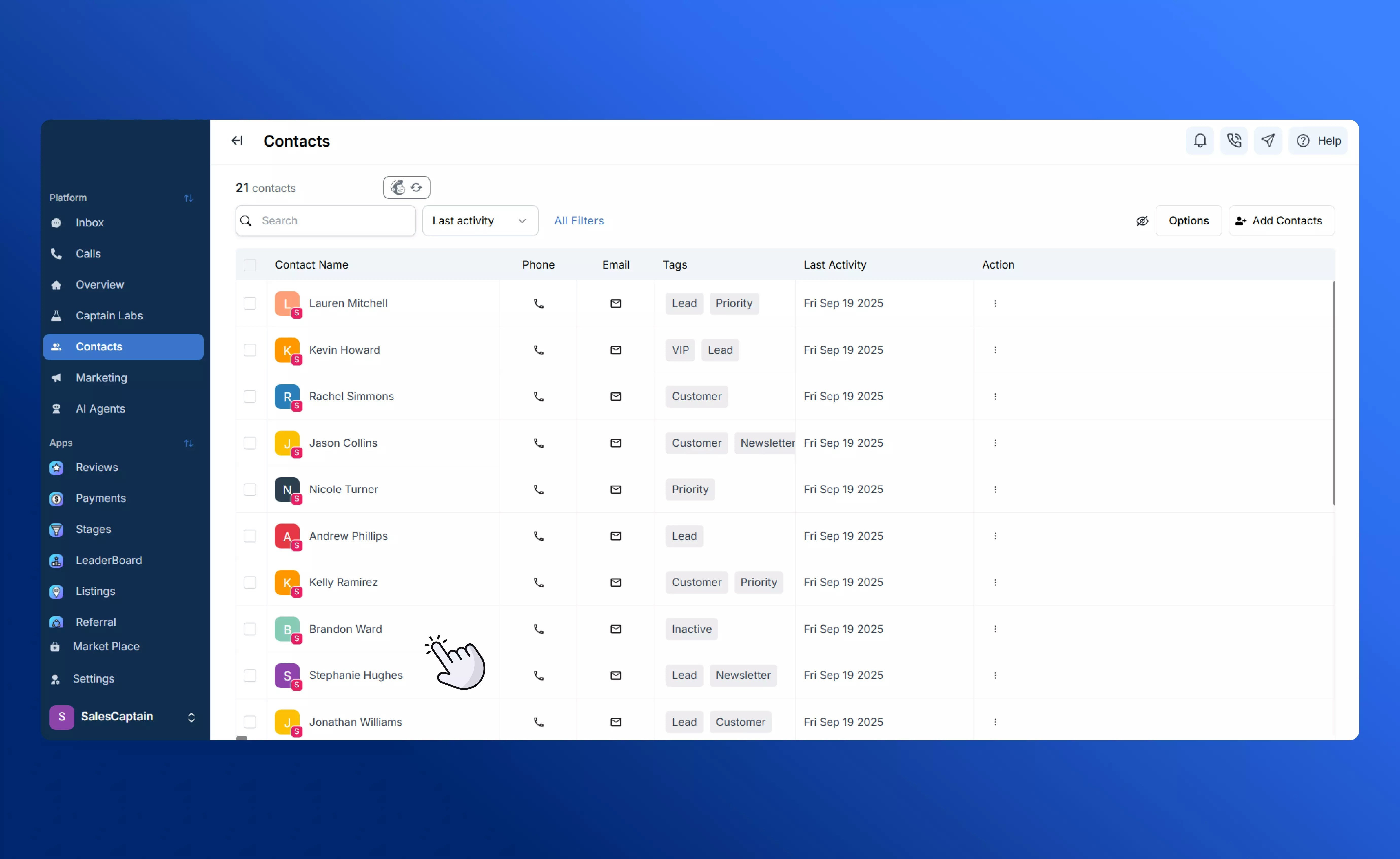 ## **Filtering & Viewing Contacts**
The **Filters panel** helps you zero in on the exact audience you need without scrolling through long lists. Use it to segment contacts by:
* **Date created**: Find all contacts added during a specific campaign or time period.
* **Team member assigned**: View only contacts owned by a particular rep.
* **Actions**: Such as whether they’ve left a review, received an email or SMS, or completed a workflow.
* **Communication opt-in status**: Make sure you’re only seeing people who have opted in to receive marketing messages.
* **Tags**: Combine tag filters to build precise lists (“VIP” + “Active Customer”). Learn more about [managing tags.](Using-Tags)
* **Custom fields**: For example, “Membership Level = Gold” or “Renewal Date before 2024-12-31.” Learn how to add and delete [custom fields](Custom-Fields).
## **Filtering & Viewing Contacts**
The **Filters panel** helps you zero in on the exact audience you need without scrolling through long lists. Use it to segment contacts by:
* **Date created**: Find all contacts added during a specific campaign or time period.
* **Team member assigned**: View only contacts owned by a particular rep.
* **Actions**: Such as whether they’ve left a review, received an email or SMS, or completed a workflow.
* **Communication opt-in status**: Make sure you’re only seeing people who have opted in to receive marketing messages.
* **Tags**: Combine tag filters to build precise lists (“VIP” + “Active Customer”). Learn more about [managing tags.](Using-Tags)
* **Custom fields**: For example, “Membership Level = Gold” or “Renewal Date before 2024-12-31.” Learn how to add and delete [custom fields](Custom-Fields).
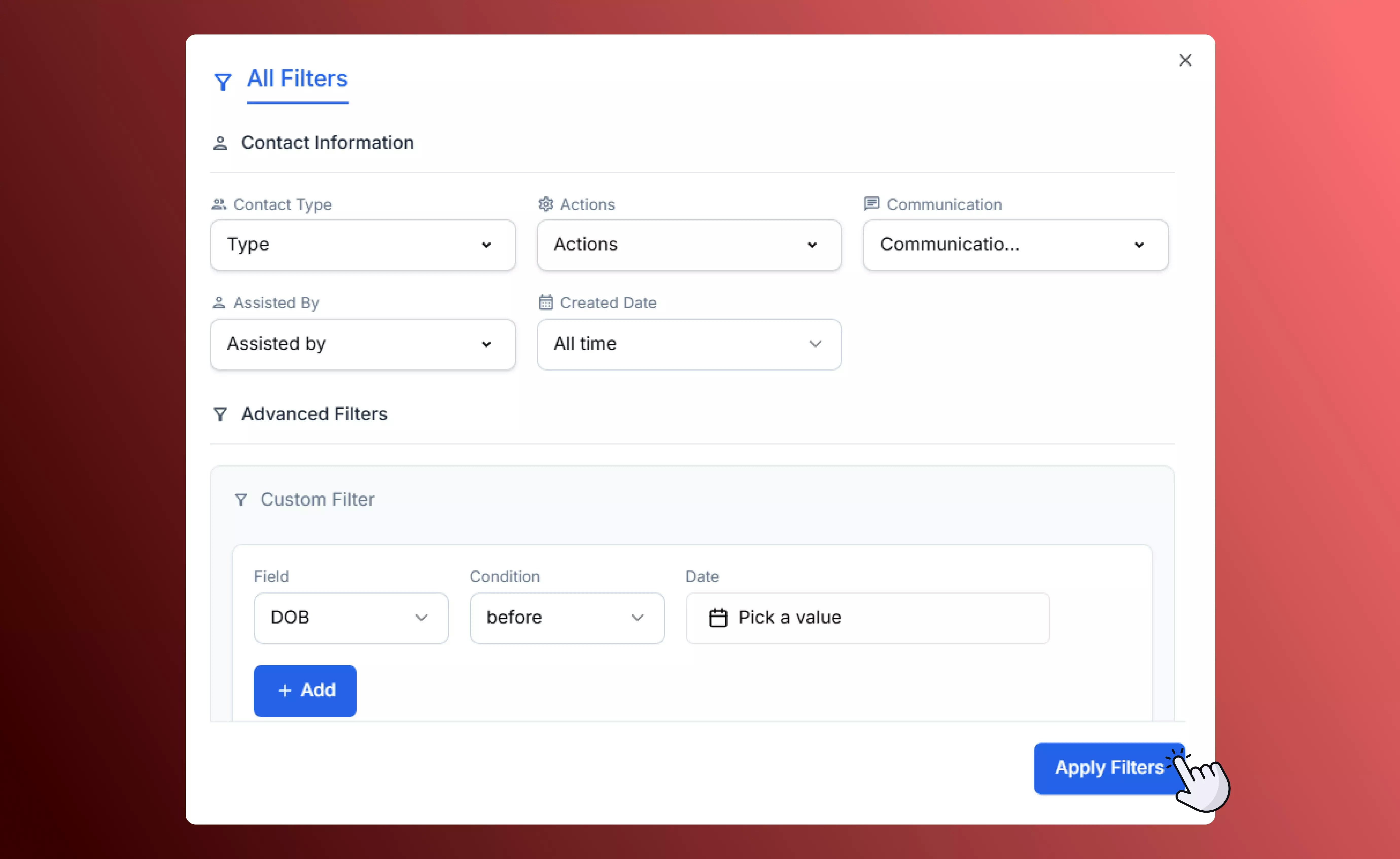 You can add multiple filters at once by clicking **+Add**, and then hit **Apply Filters** to update your list instantly. You’ll see exactly which contacts match your criteria and can save time by acting on them in bulk.
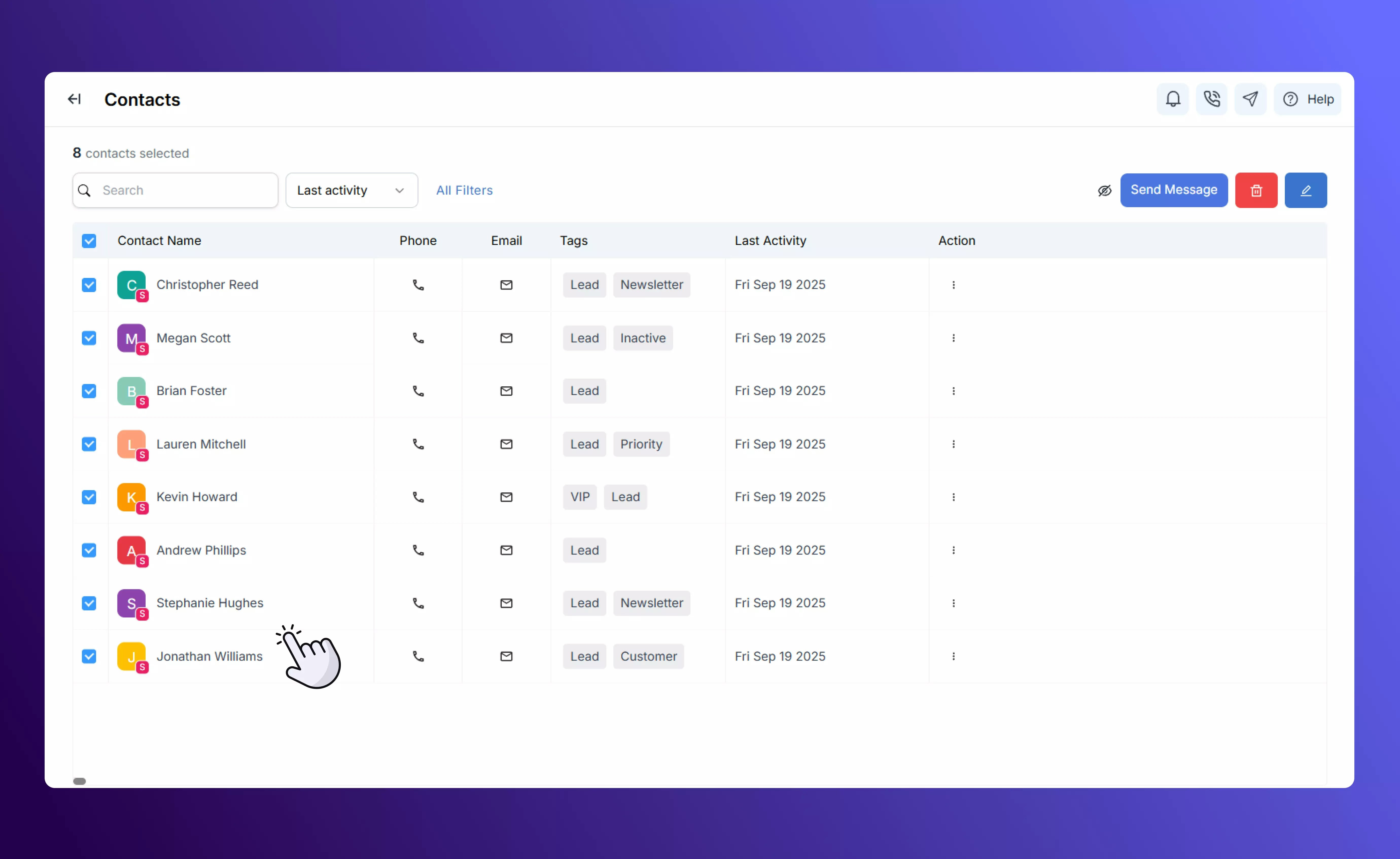 ## **Syncing with External Platforms**
SalesCaptain integrates with tools like **Mailchimp** so your contact data stays consistent everywhere:
* New contacts, edits, tags, and custom field values update automatically across both platforms.
* Changes you make in Mailchimp are reflected in SalesCaptain (and vice versa) without manual imports.
* This prevents duplicate records and ensures your marketing lists are always accurate and compliant.
This is especially powerful if you’re running email campaigns, newsletters, or marketing automations alongside your SalesCaptain workflows.
### **Bulk Operations**
After you’ve filtered your list down, you can take action on many contacts at once:
* **Send SMS or Email campaigns** to a targeted segment.
## **Syncing with External Platforms**
SalesCaptain integrates with tools like **Mailchimp** so your contact data stays consistent everywhere:
* New contacts, edits, tags, and custom field values update automatically across both platforms.
* Changes you make in Mailchimp are reflected in SalesCaptain (and vice versa) without manual imports.
* This prevents duplicate records and ensures your marketing lists are always accurate and compliant.
This is especially powerful if you’re running email campaigns, newsletters, or marketing automations alongside your SalesCaptain workflows.
### **Bulk Operations**
After you’ve filtered your list down, you can take action on many contacts at once:
* **Send SMS or Email campaigns** to a targeted segment.
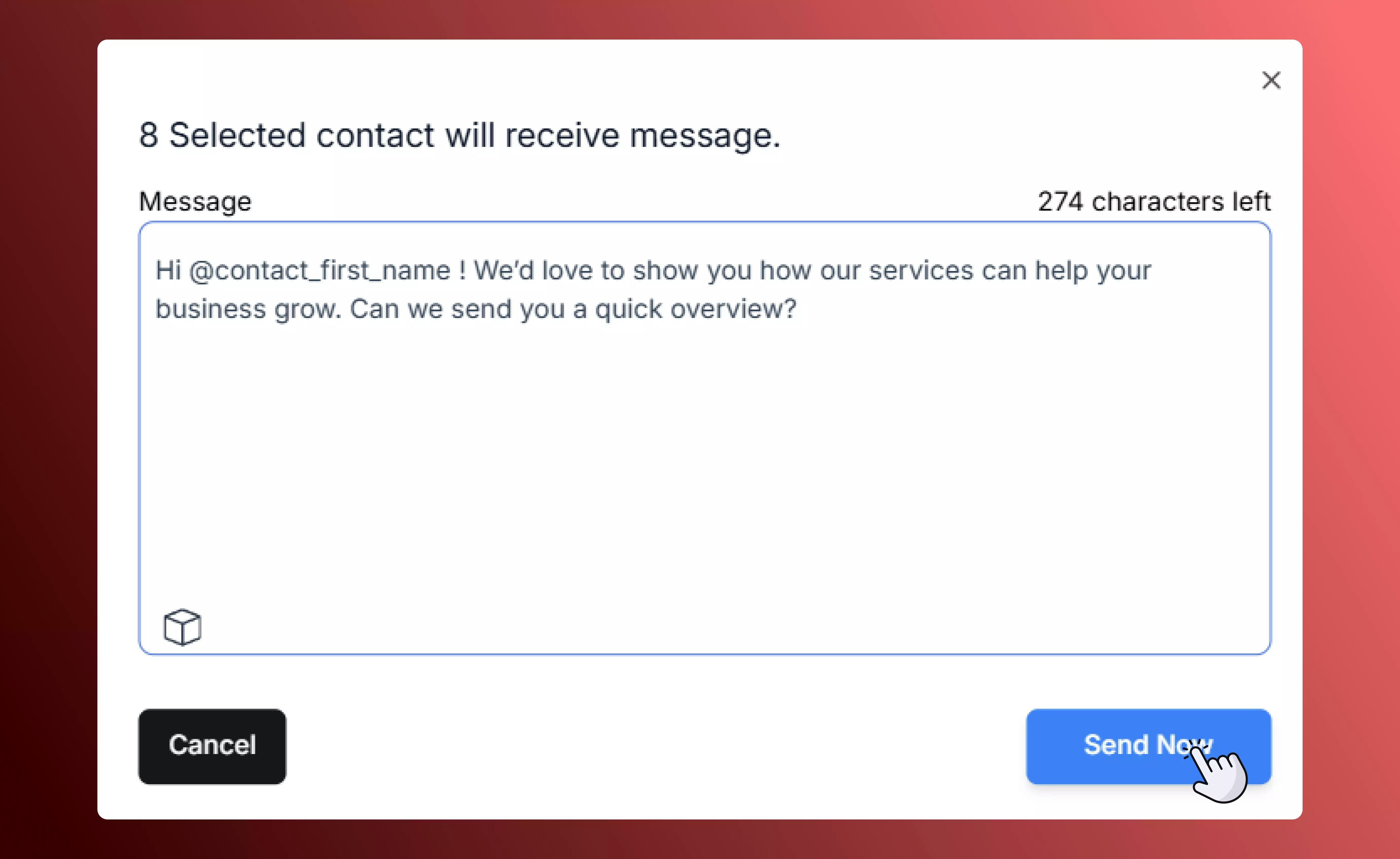 * **Apply or remove tags in bulk** to keep segmentation up to date.
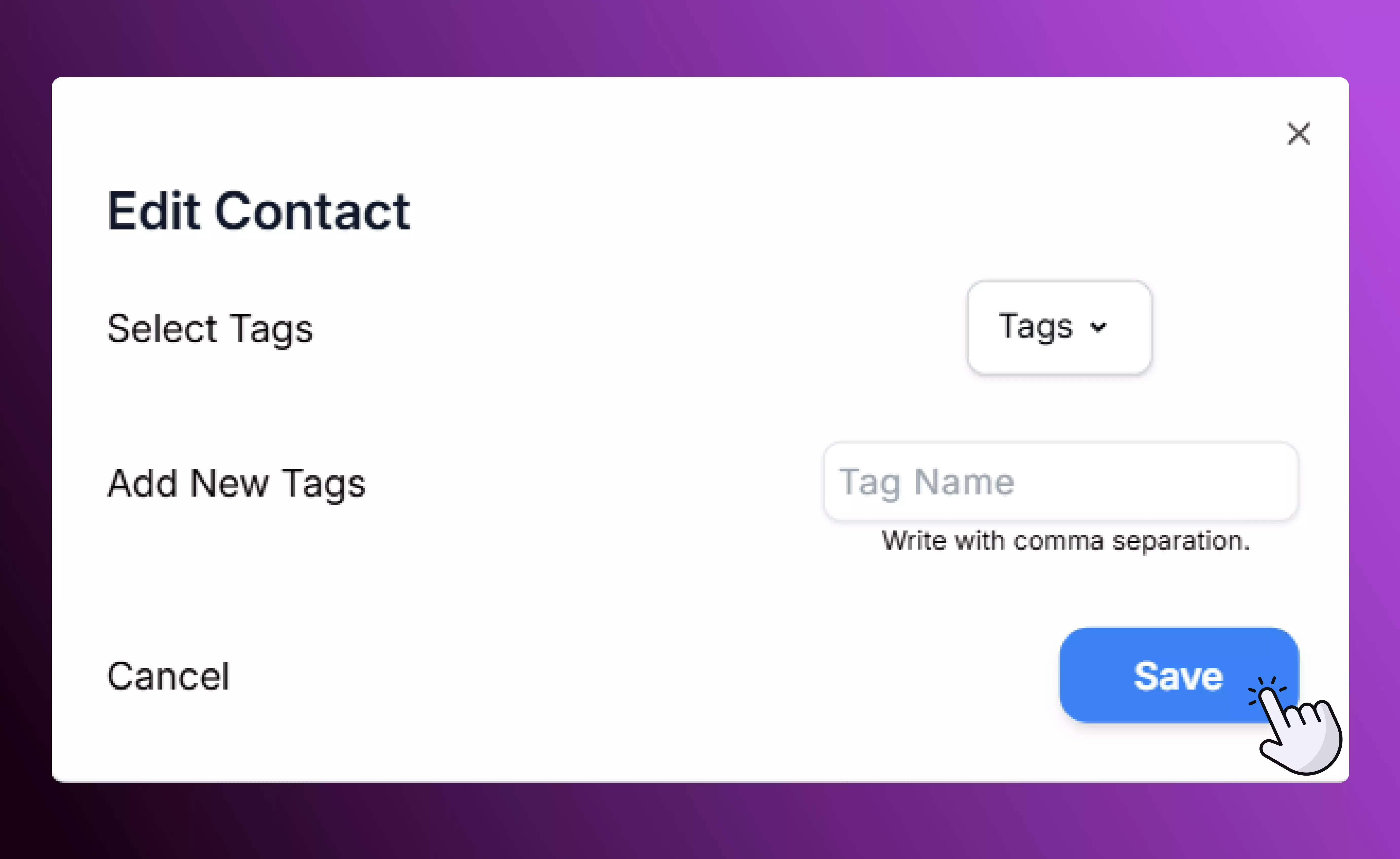 * **Delete** contacts in bulk if they are no longer part of your database.
Bulk actions save time but also require care. Always make sure the contacts you’re selecting are the right ones and that opt-in statuses are respected before sending messages.
### **Best Practices**
* **Clean and review regularly**: check for old phone numbers, invalid emails, or duplicates.
* **Plan before you act**: test your filters and fields with a small sample before sending a big campaign.
* **Respect opt-in status**: only contacts who have opted in should receive communications.
* **Use tags and custom fields together**: combining them makes your filters more powerful and your campaigns more precise.
* **Delete** contacts in bulk if they are no longer part of your database.
Bulk actions save time but also require care. Always make sure the contacts you’re selecting are the right ones and that opt-in statuses are respected before sending messages.
### **Best Practices**
* **Clean and review regularly**: check for old phone numbers, invalid emails, or duplicates.
* **Plan before you act**: test your filters and fields with a small sample before sending a big campaign.
* **Respect opt-in status**: only contacts who have opted in should receive communications.
* **Use tags and custom fields together**: combining them makes your filters more powerful and your campaigns more precise.