> ## Documentation Index
> Fetch the complete documentation index at: https://docs.salescaptain.com/llms.txt
> Use this file to discover all available pages before exploring further.
# Call Templates
> Call Templates allow users to automate outbound calls with customizable interactive keypad (DTMF) inputs and messages. They streamline customer communication for common scenarios such as appointment confirmations, review requests, feedback collection, and payment reminders. These templates help businesses maintain a personalized, efficient, and professional experience without the need for manual dialing.
## **Navigating to Call Templates**
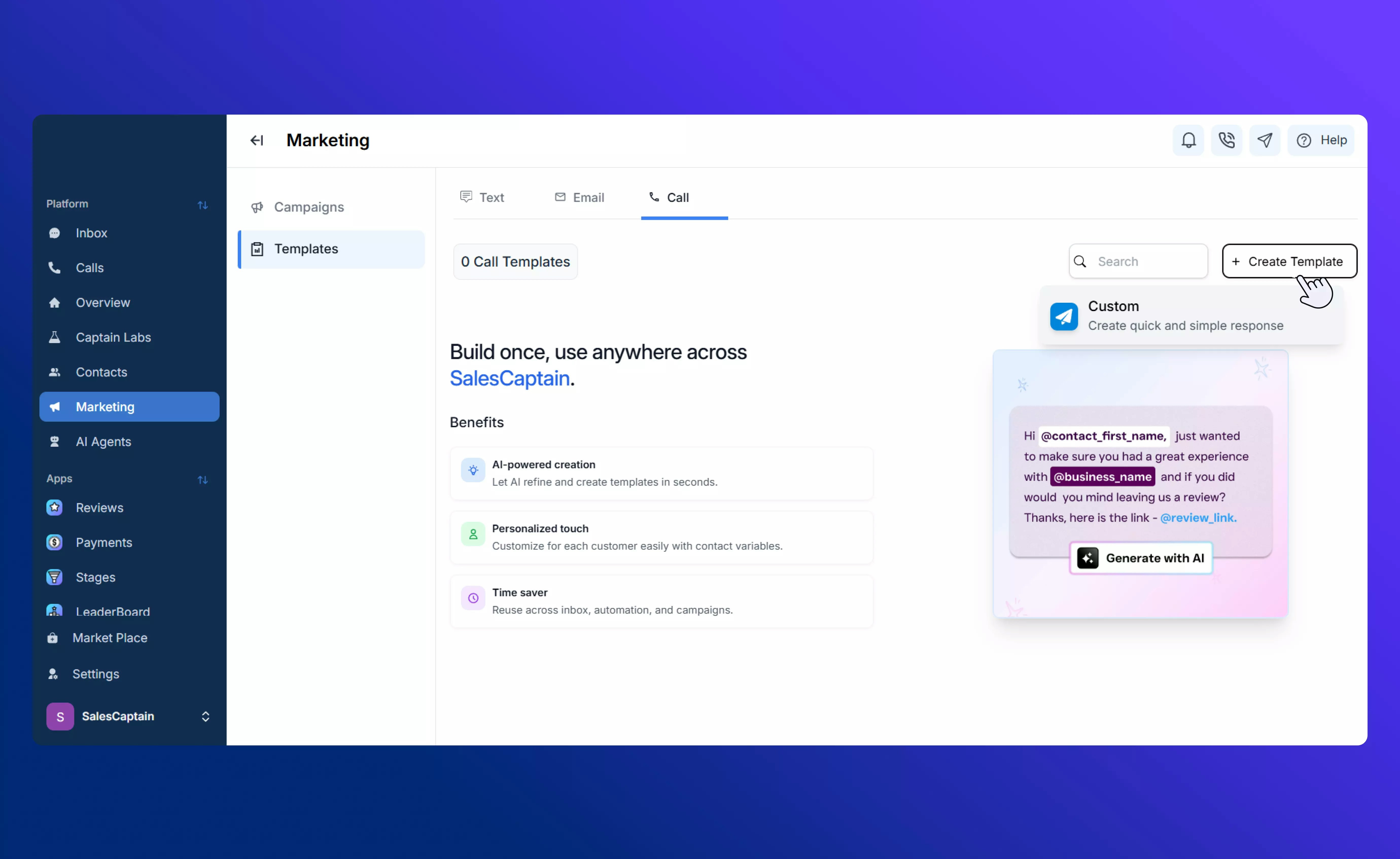
1. From the sidebar, go to **Marketing → Templates**.
2. Click **Create Template**.
3. Select **Call** as the template type.
4. Choose **Custom** to begin building your call.
 ## **Overview**
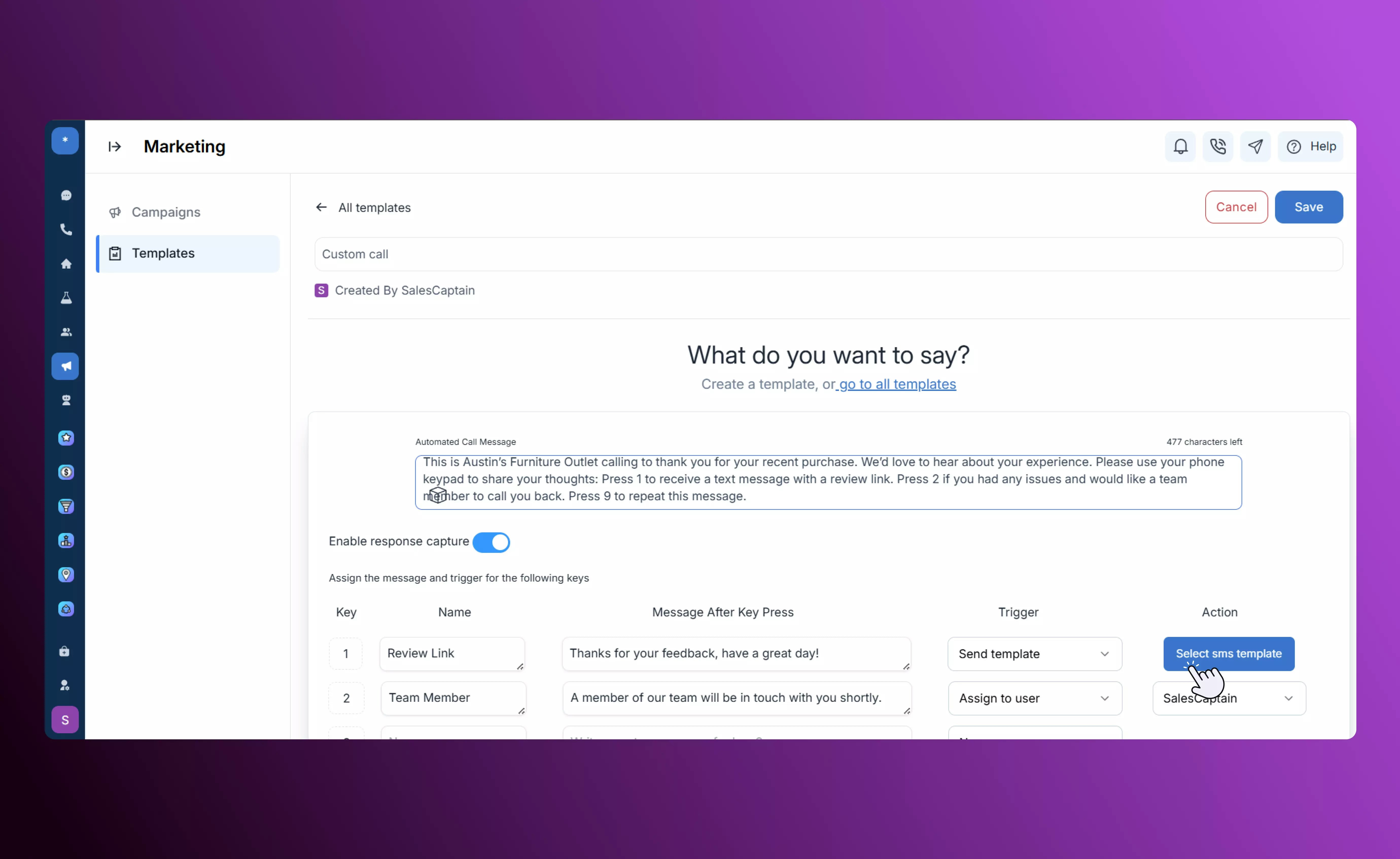
The **Custom Call Template** lets you create automated voice calls that play a personalized message and capture customer responses through keypad inputs.
You can either **upload your own audio recording** or use the built-in **Text-to-Speech (TTS)** feature to generate messages from text.
Each keypress (DTMF) can be assigned to a specific action, such as recording feedback, sending an SMS, or transferring the caller to a live agent.
This flexibility makes it ideal for automating interactions like **feedback collection, payment reminders, review requests, and appointment confirmations**, saving time while ensuring consistent and professional communication.
### **Call Setup**
* Enter a descriptive **title** for your Call Template so it’s easy to identify later.
* Choose the **Caller ID**, which determines the number shown on the recipient’s phone.
* For the **Audio Message**, type your message using TTS.
### **Writing the Message**
* Keep your message short, friendly, and clear — ideally under 30 seconds.
* Use **personalization tokens** such as @first\_name or @business\_name to make each call feel natural and relevant.
* Maintain a conversational tone that reflects your brand voice.
## **Overview**
The **Custom Call Template** lets you create automated voice calls that play a personalized message and capture customer responses through keypad inputs.
You can either **upload your own audio recording** or use the built-in **Text-to-Speech (TTS)** feature to generate messages from text.
Each keypress (DTMF) can be assigned to a specific action, such as recording feedback, sending an SMS, or transferring the caller to a live agent.
This flexibility makes it ideal for automating interactions like **feedback collection, payment reminders, review requests, and appointment confirmations**, saving time while ensuring consistent and professional communication.
### **Call Setup**
* Enter a descriptive **title** for your Call Template so it’s easy to identify later.
* Choose the **Caller ID**, which determines the number shown on the recipient’s phone.
* For the **Audio Message**, type your message using TTS.
### **Writing the Message**
* Keep your message short, friendly, and clear — ideally under 30 seconds.
* Use **personalization tokens** such as @first\_name or @business\_name to make each call feel natural and relevant.
* Maintain a conversational tone that reflects your brand voice.
 ### **Assigning Key Inputs (DTMF)**
Upon enabling response capture, you may define what happens when a customer presses each key during the call.
These inputs ensure smooth, guided interactions and provide convenience for both your team and customers.
## **Example Use Cases**
### **Review Request Call**
* Use this to automatically gather customer reviews and feedback.
* Positive responses can trigger a review link, while negative ones can collect private feedback for follow-up.
* Ideal for improving reputation management and customer satisfaction.
### **Appointment Confirmation**
* Automate confirmations, reschedules, and cancellations without manual follow-ups.
* Helps service-based businesses reduce no-shows and maintain organized schedules.
### **Payment Reminder**
* Send polite automated payment reminders for upcoming or overdue invoices.
* Helps ensure timely payments and reduces manual collection efforts.
Each of these can be saved as a separate **Custom Call Template**, allowing quick reuse for future campaigns.
## **Testing & Activation**
* **Test** your template before using it in a live campaign.
* Send a **test call** to verify that the audio plays correctly and that all key inputs trigger the intended actions.
* Check **audio clarity** and confirm that each keypress is mapped properly.
* **Save and publish** the template for future use.
Templates can be attached to **marketing campaigns** or triggered alongside **emails and SMS** from the [unified inbox](/Core-Features/Messaging-and-Inbox/Inbox/Inbox-Overview) for seamless multi-channel communication.
## **Tips & Best Practices**
* Keep calls **short, friendly, and conversational**.
* State your **business name** at the start of each call.
* Always include a clear **call-to-action** (e.g., “Press 1 to confirm”).
* **Test before activation** to ensure correct key routing and playback quality.
### **Assigning Key Inputs (DTMF)**
Upon enabling response capture, you may define what happens when a customer presses each key during the call.
These inputs ensure smooth, guided interactions and provide convenience for both your team and customers.
## **Example Use Cases**
### **Review Request Call**
* Use this to automatically gather customer reviews and feedback.
* Positive responses can trigger a review link, while negative ones can collect private feedback for follow-up.
* Ideal for improving reputation management and customer satisfaction.
### **Appointment Confirmation**
* Automate confirmations, reschedules, and cancellations without manual follow-ups.
* Helps service-based businesses reduce no-shows and maintain organized schedules.
### **Payment Reminder**
* Send polite automated payment reminders for upcoming or overdue invoices.
* Helps ensure timely payments and reduces manual collection efforts.
Each of these can be saved as a separate **Custom Call Template**, allowing quick reuse for future campaigns.
## **Testing & Activation**
* **Test** your template before using it in a live campaign.
* Send a **test call** to verify that the audio plays correctly and that all key inputs trigger the intended actions.
* Check **audio clarity** and confirm that each keypress is mapped properly.
* **Save and publish** the template for future use.
Templates can be attached to **marketing campaigns** or triggered alongside **emails and SMS** from the [unified inbox](/Core-Features/Messaging-and-Inbox/Inbox/Inbox-Overview) for seamless multi-channel communication.
## **Tips & Best Practices**
* Keep calls **short, friendly, and conversational**.
* State your **business name** at the start of each call.
* Always include a clear **call-to-action** (e.g., “Press 1 to confirm”).
* **Test before activation** to ensure correct key routing and playback quality.