> ## Documentation Index
> Fetch the complete documentation index at: https://docs.salescaptain.com/llms.txt
> Use this file to discover all available pages before exploring further.
# Campaigns
> SalesCaptain’s Campaigns tool lets you create, schedule, and automate text message marketing campaigns — helping you reach the right audience at the right time. With flexible filters, message templates, and performance tracking, you can run personalized SMS campaigns that drive engagement and results.
## **Creating a New Campaign**
To start a campaign:
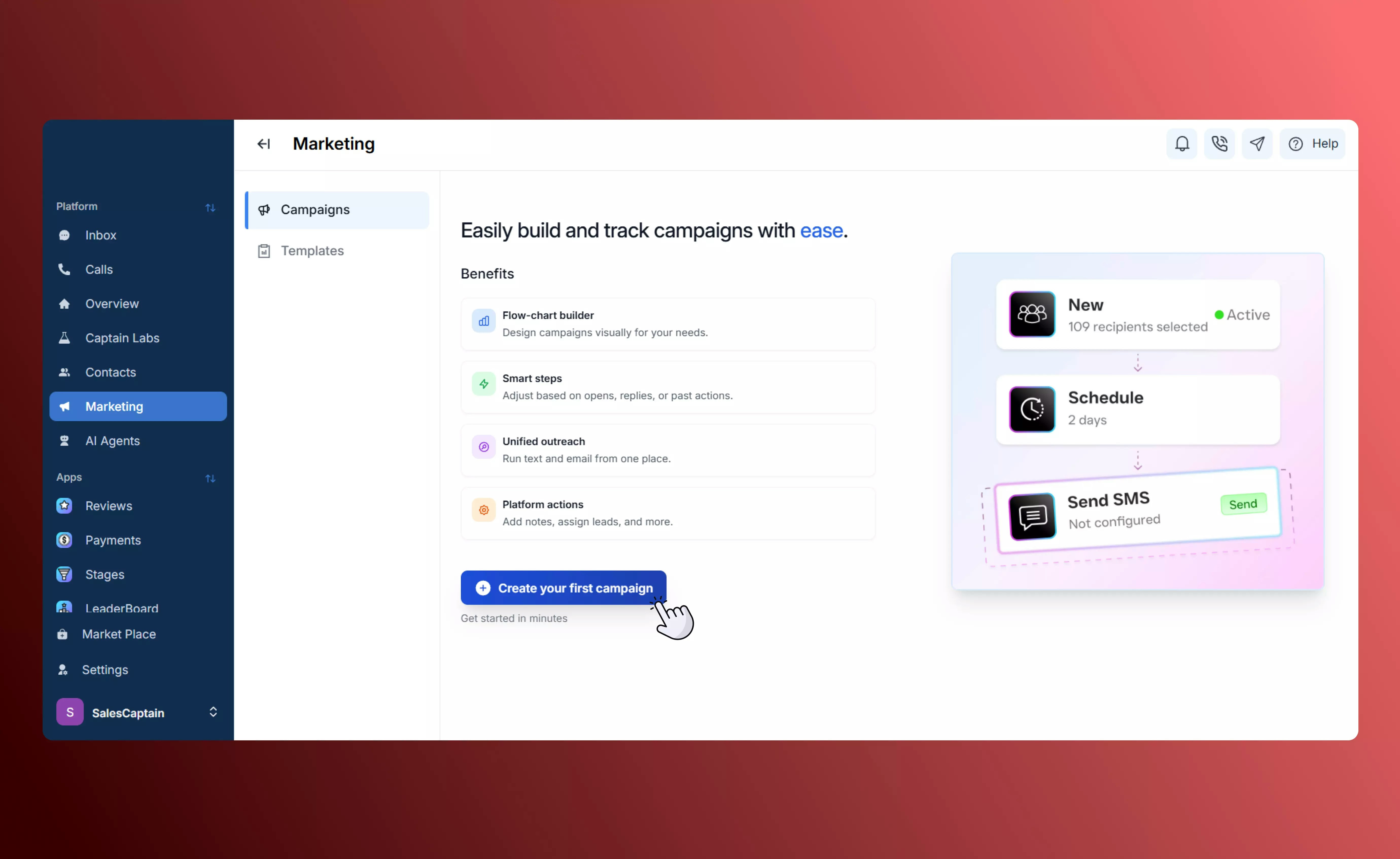
1. Navigate to**Marketing - Campaigns** tab in your SalesCaptain dashboard.
2. Click **Create New Campaign**.
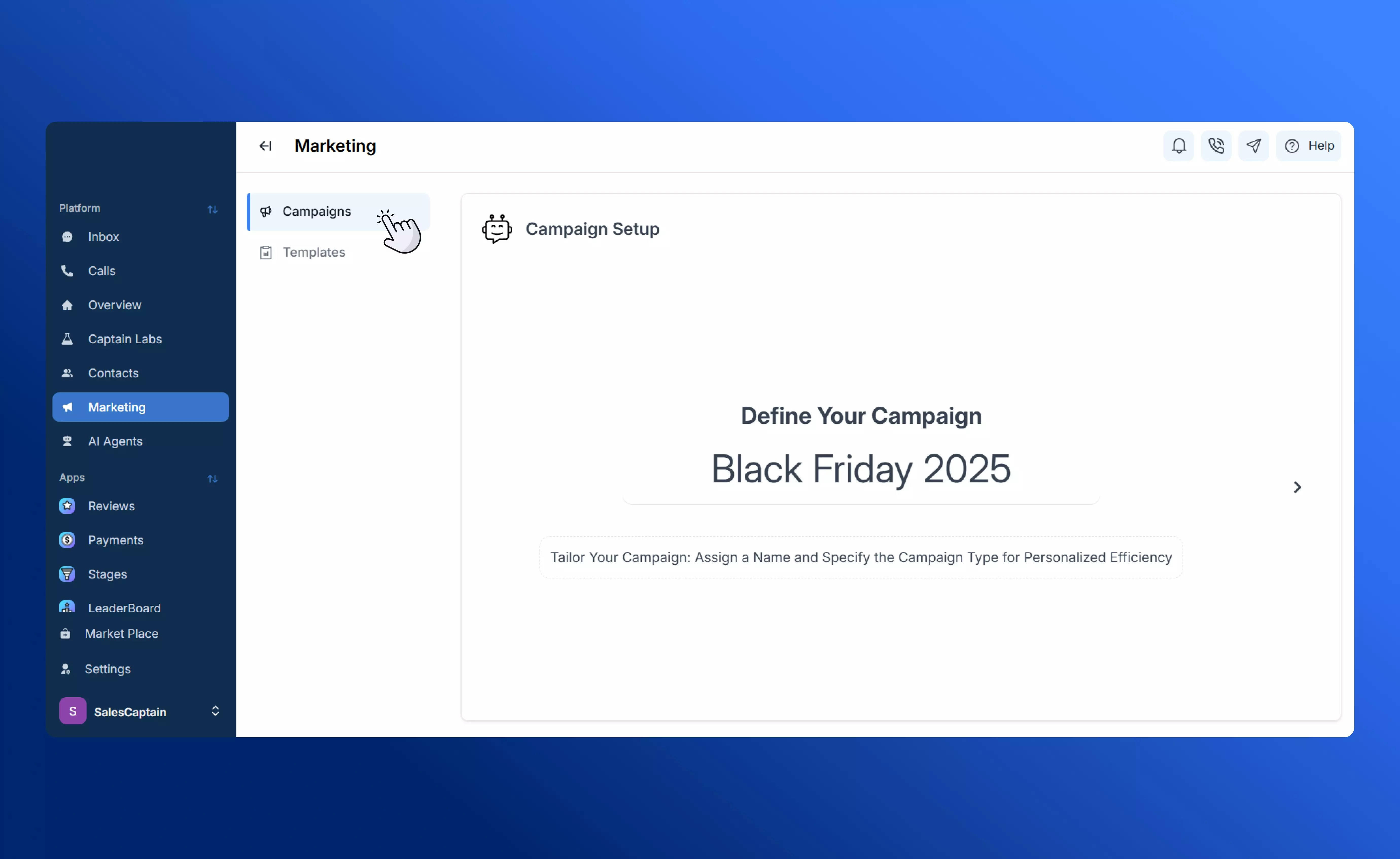
 3. Define the name and use case for your campaign, to keep them organized.
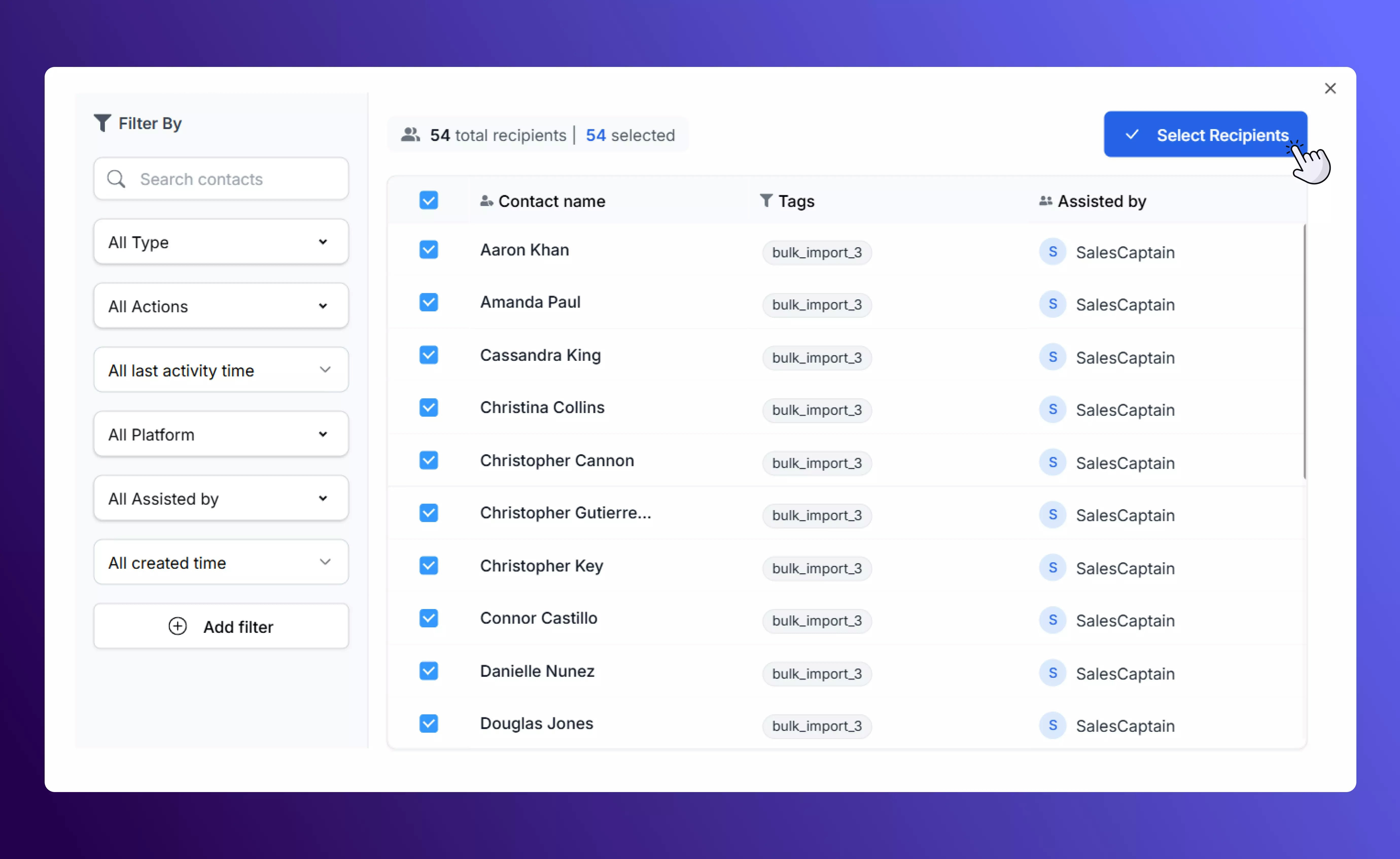
 4. Select your recipients — you can choose from saved contact lists, apply filters, or use tags to segment your audience.
 A campaign always starts with a \*\*Schedule \*\*node after the recipients block. Refer to the built-in \*\*Campaign Guide \*\*if you get stuck.
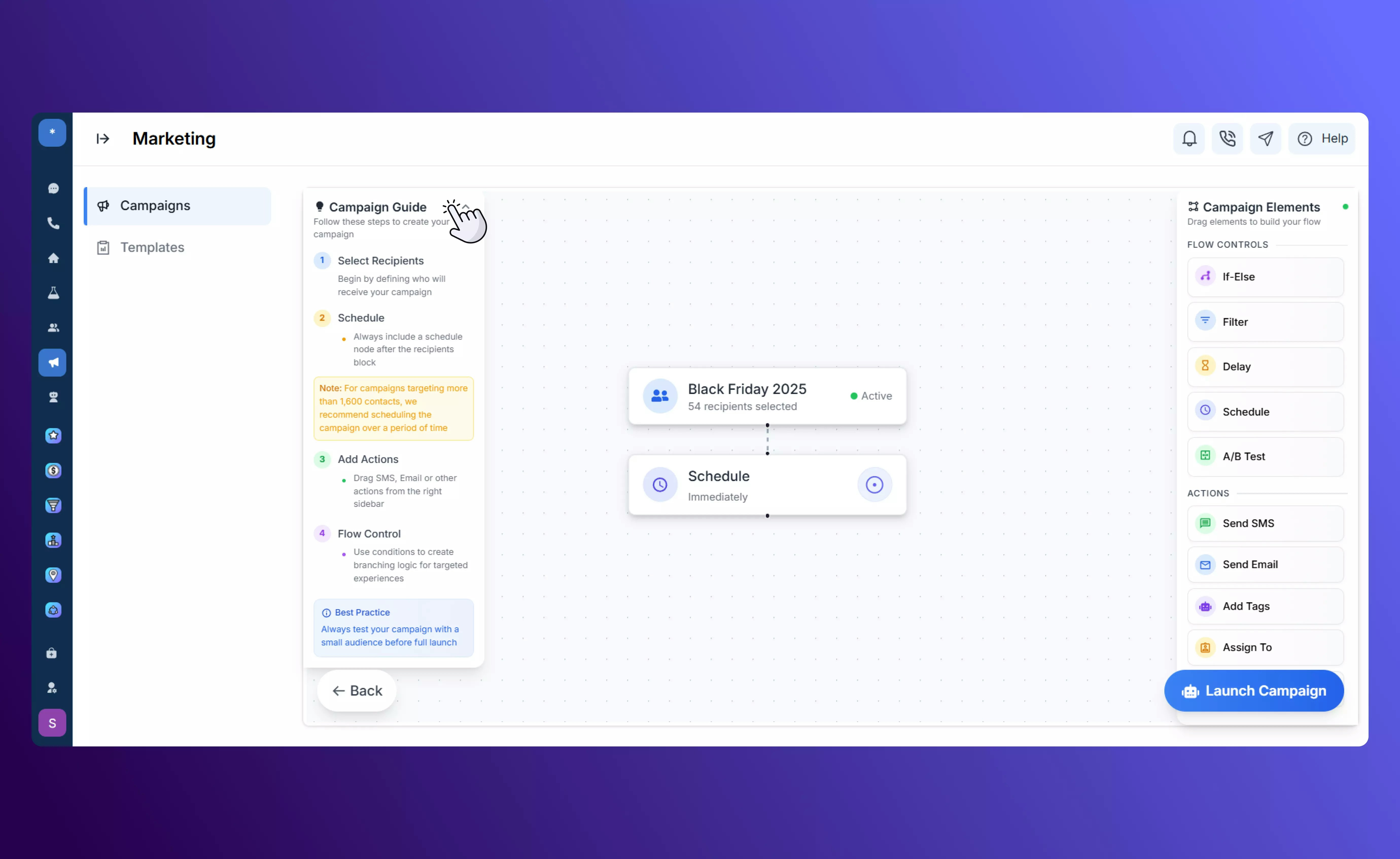 There are two main types of elements in every campaign:
* **Flow Controls** – define the logic and timing of your campaign
* **Actions** – define what the campaign actually does (send a message, assign, tag, etc.)
## **Flow Controls**
Flow controls shape the logic of your campaign — determining when, where, and to whom messages are sent.
### **If / Else**
The **If/Else** element checks a condition and splits your campaign path based on whether it’s true or false.
There are two main types of elements in every campaign:
* **Flow Controls** – define the logic and timing of your campaign
* **Actions** – define what the campaign actually does (send a message, assign, tag, etc.)
## **Flow Controls**
Flow controls shape the logic of your campaign — determining when, where, and to whom messages are sent.
### **If / Else**
The **If/Else** element checks a condition and splits your campaign path based on whether it’s true or false.
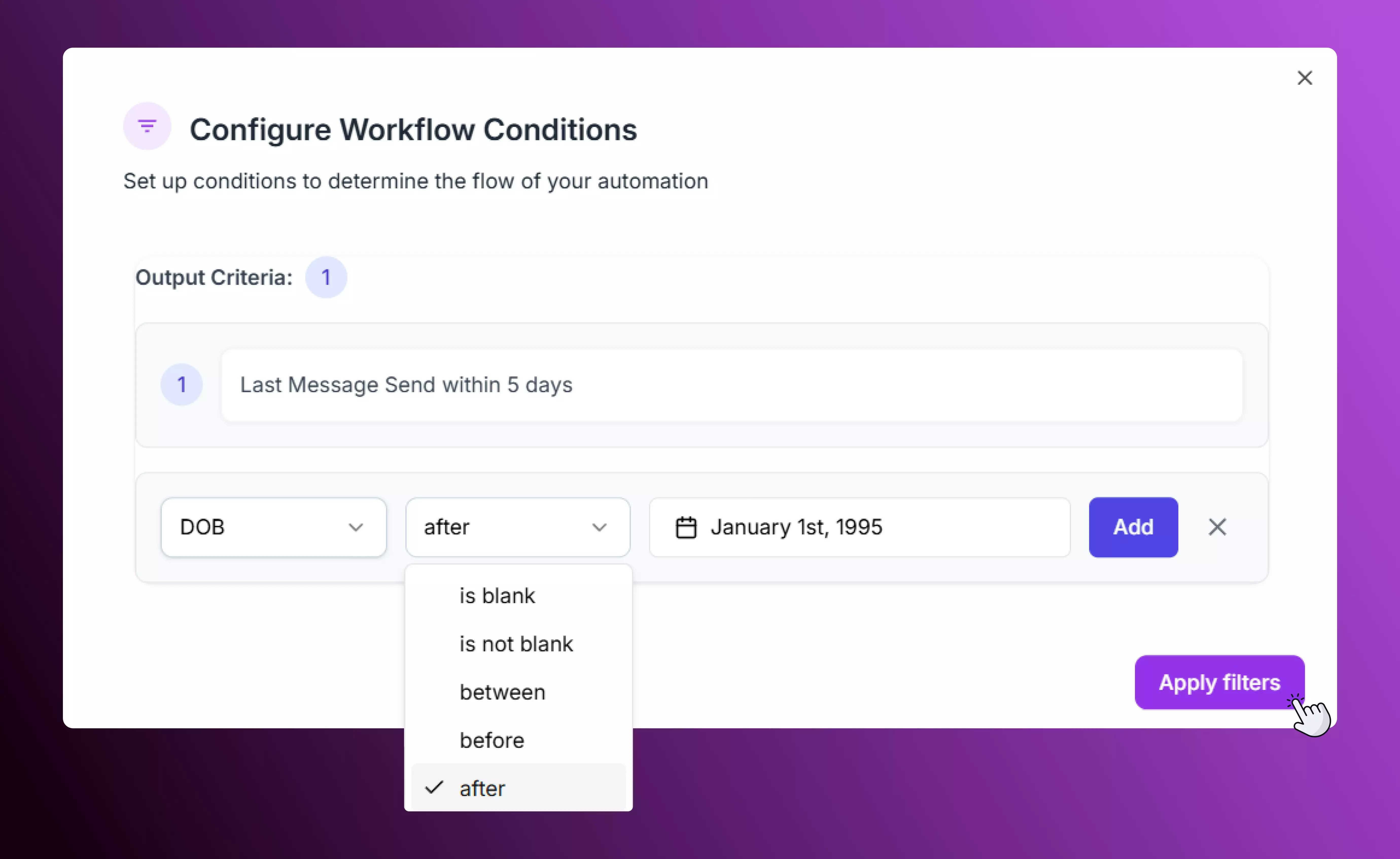 Specify your condition using the drop-down menus, and select **Add**. When you have added all relevant conditions, select **Apply Filters**. This splits the campaign into two routes; one \*\*IF \*\*the contact satisfies all conditions, or **ELSE** if they do not.
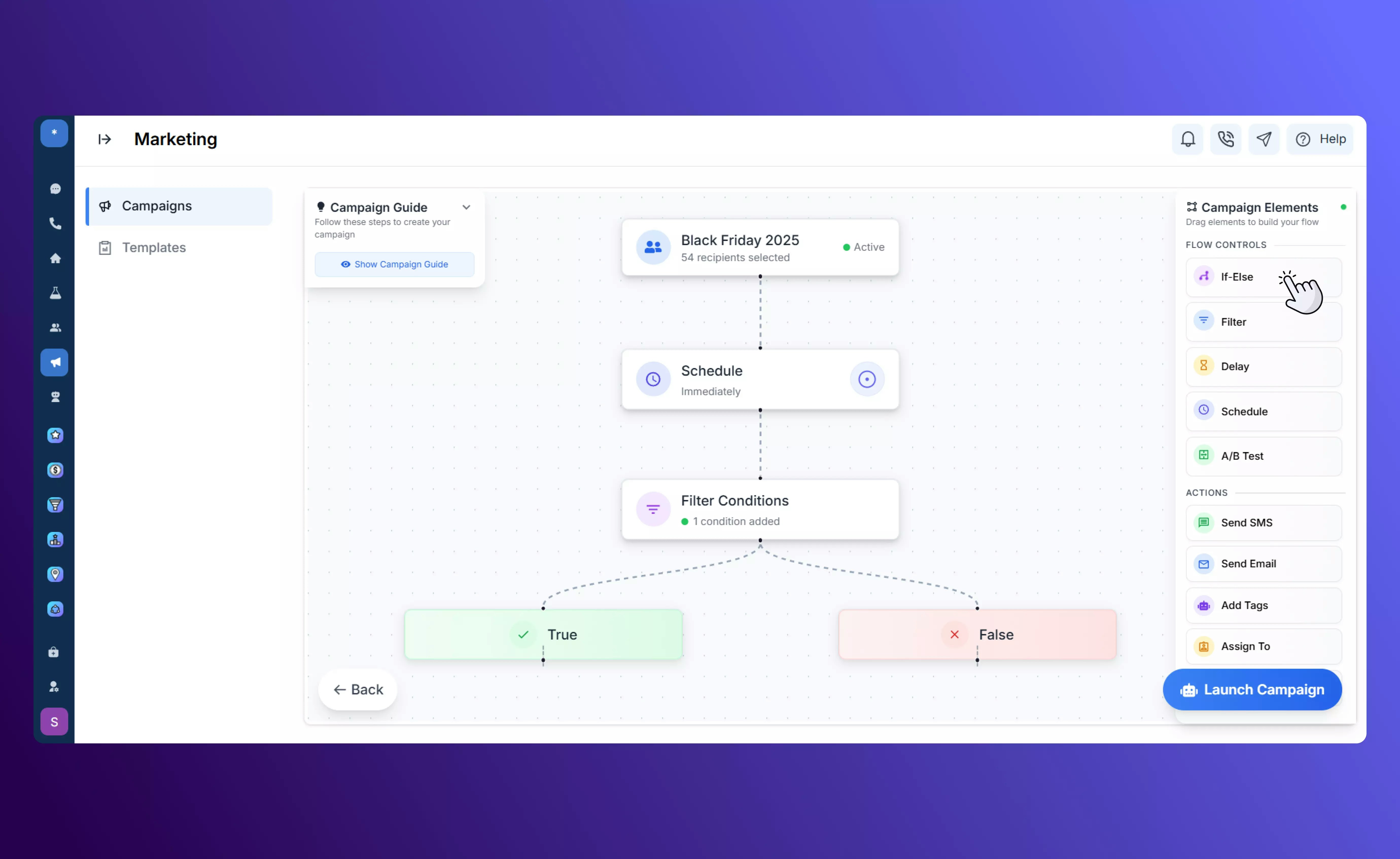 This helps personalize messages and automate decision-making inside your campaign.
### **Filter**
The **Filter** element narrows your audience using tags, contact attributes, or custom fields.\
For instance, you might send a campaign only to:
* Contacts tagged “New Leads”
* Customers in a specific region
* Those who haven’t purchased in 30 days
This helps personalize messages and automate decision-making inside your campaign.
### **Filter**
The **Filter** element narrows your audience using tags, contact attributes, or custom fields.\
For instance, you might send a campaign only to:
* Contacts tagged “New Leads”
* Customers in a specific region
* Those who haven’t purchased in 30 days
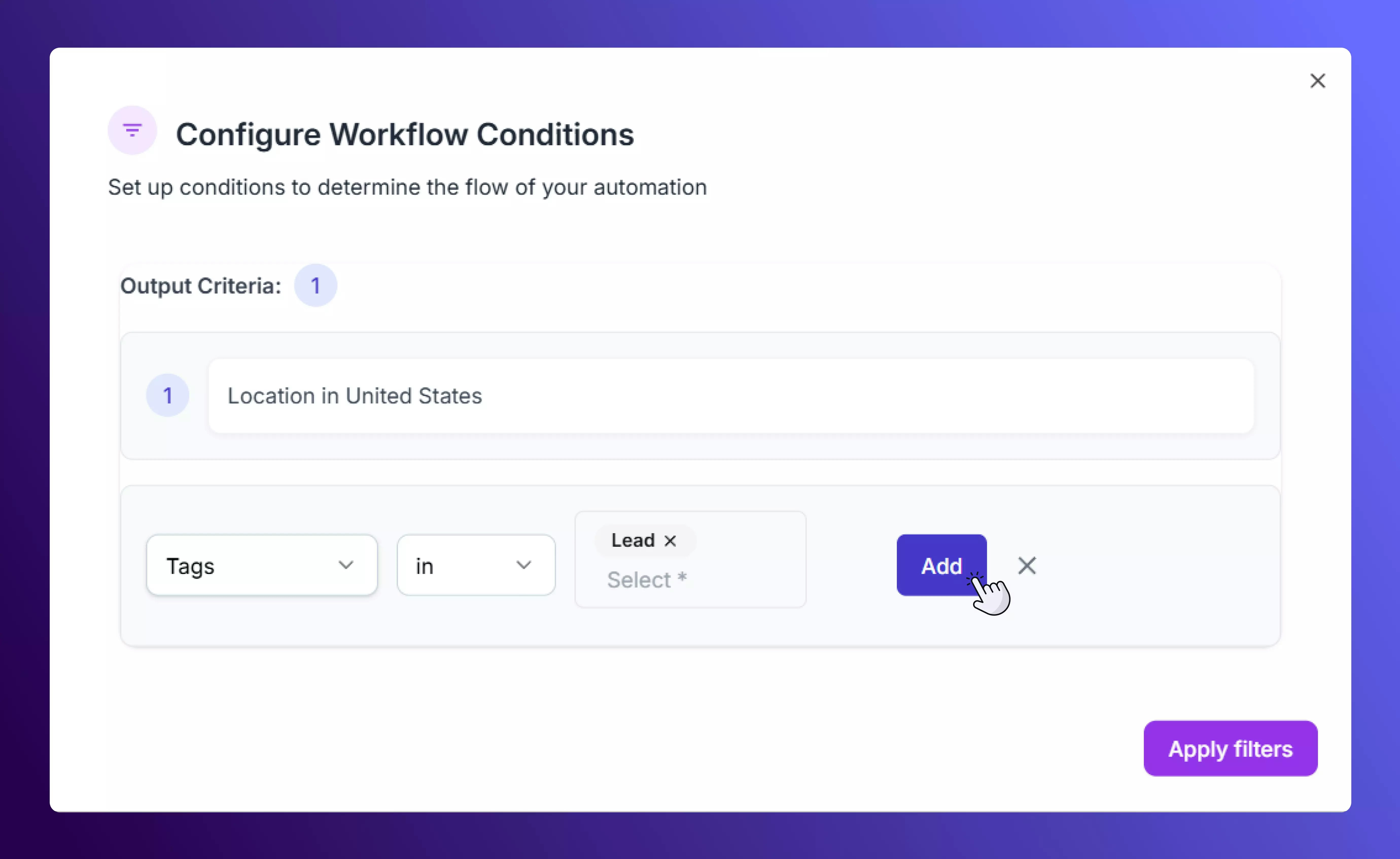 Specify your condition using the drop-down menus, and select **Add**. When you have added all relevant conditions, select **Apply Filters**.
When a contact meets the filter conditions, they continue through the flow; if not, the campaign skips them. Unlike If/Else, this **does not create an alternate route** for contacts who do not satisfy the condition, but omits them from the campaign entirely.
### **Delay**
The **Delay** element adds a waiting period between actions. You can delay by hours, days, or even specific times to space out your messages naturally.
Specify your condition using the drop-down menus, and select **Add**. When you have added all relevant conditions, select **Apply Filters**.
When a contact meets the filter conditions, they continue through the flow; if not, the campaign skips them. Unlike If/Else, this **does not create an alternate route** for contacts who do not satisfy the condition, but omits them from the campaign entirely.
### **Delay**
The **Delay** element adds a waiting period between actions. You can delay by hours, days, or even specific times to space out your messages naturally.
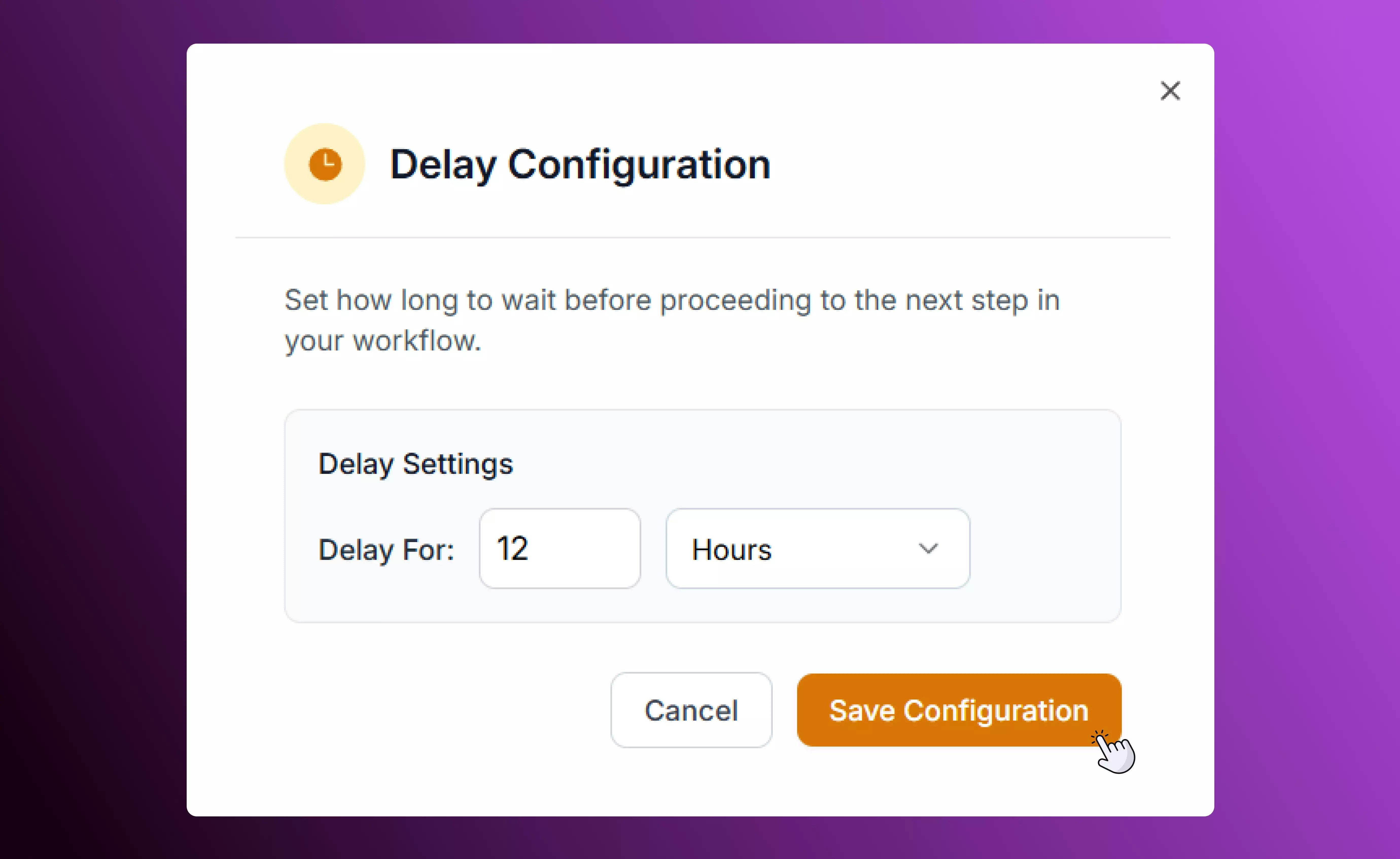 Choose the duration of delay in hours, minutes, or days, and then choose **Save Configuration.**
Example: *Wait 1 day before sending a follow-up text.*
### **Schedule**
The **Schedule** control determines when your campaign starts or when a specific message within it should go out.\
You can:
* Send messages immediately
Choose the duration of delay in hours, minutes, or days, and then choose **Save Configuration.**
Example: *Wait 1 day before sending a follow-up text.*
### **Schedule**
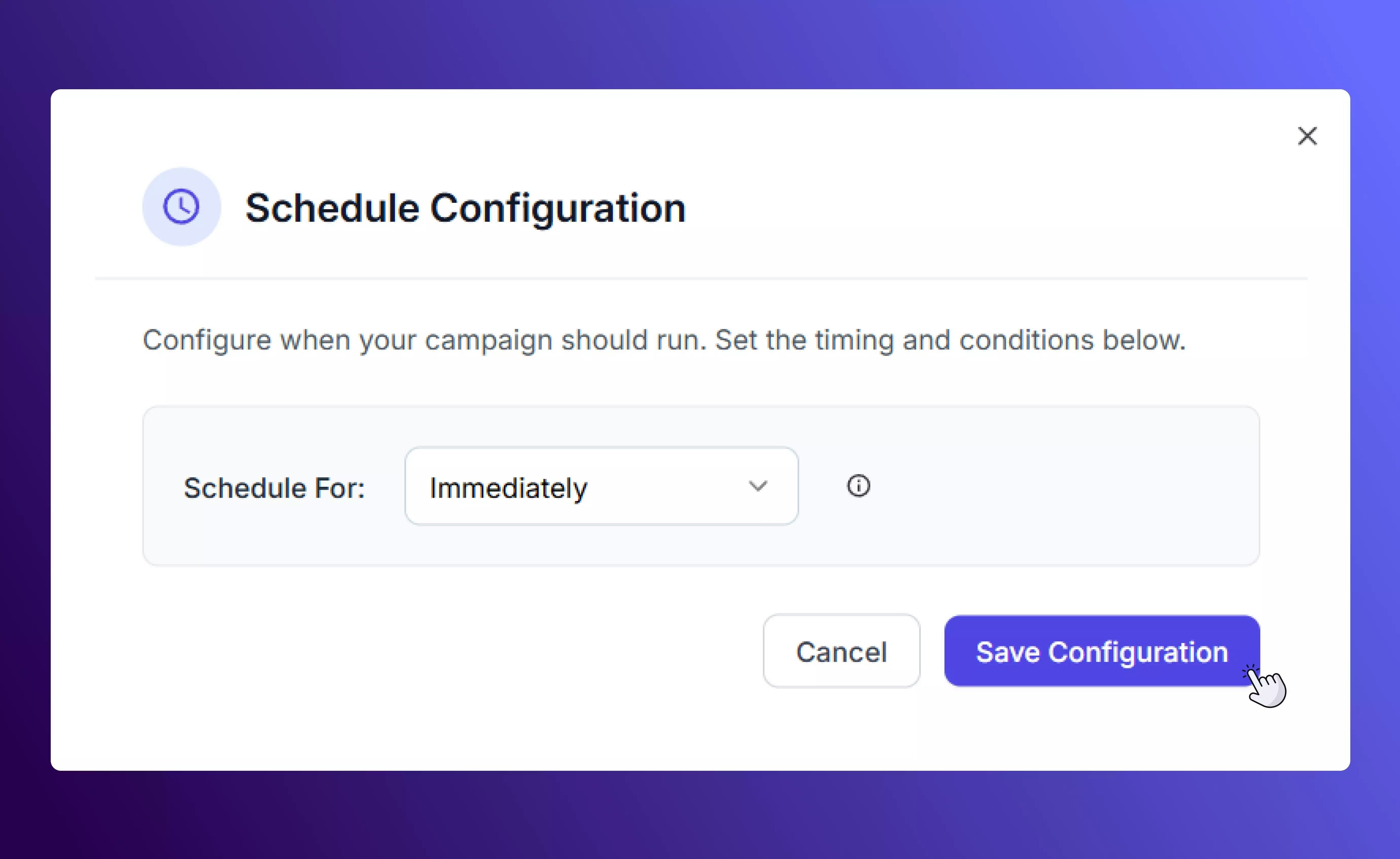
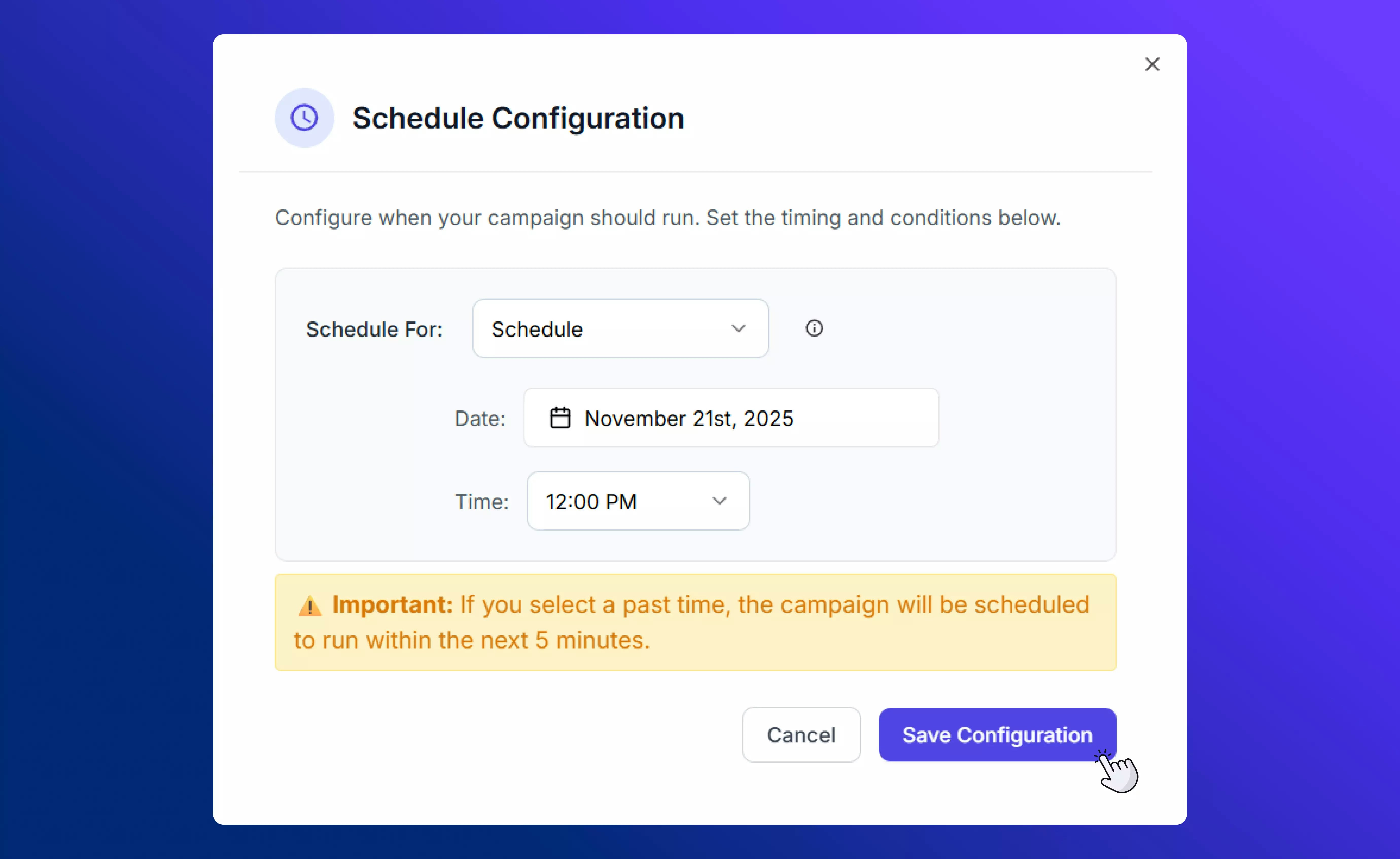
The **Schedule** control determines when your campaign starts or when a specific message within it should go out.\
You can:
* Send messages immediately
 * Schedule them for a date and time
 * Spread out delivery over a period of time
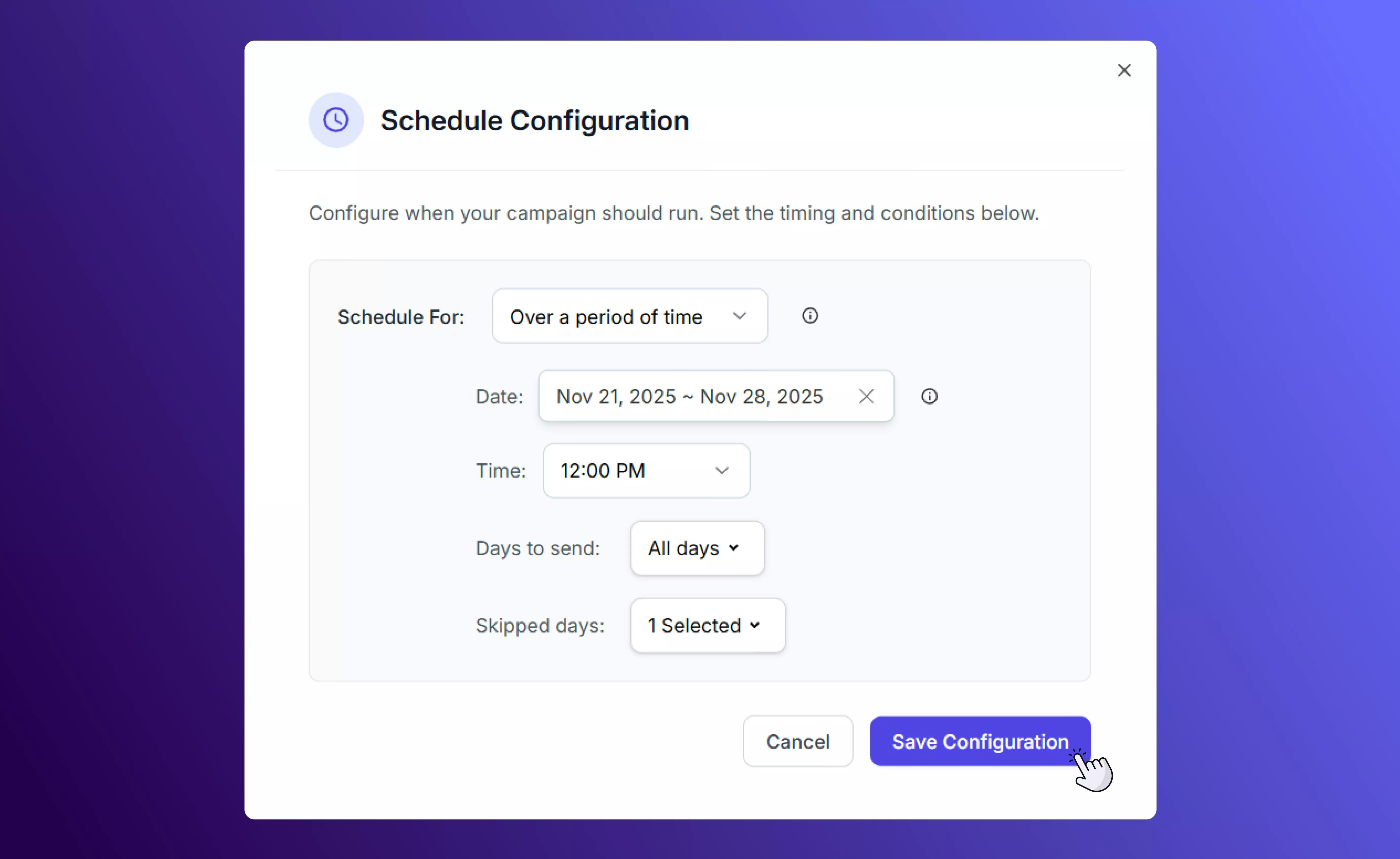 Once you have selected the time and date of the message, select **Save Configuration**. SalesCaptain will automatically spread delivery if your audience exceeds the **1,600 SMS daily limit**, ensuring consistent performance and compliance.
### **A/B Test**
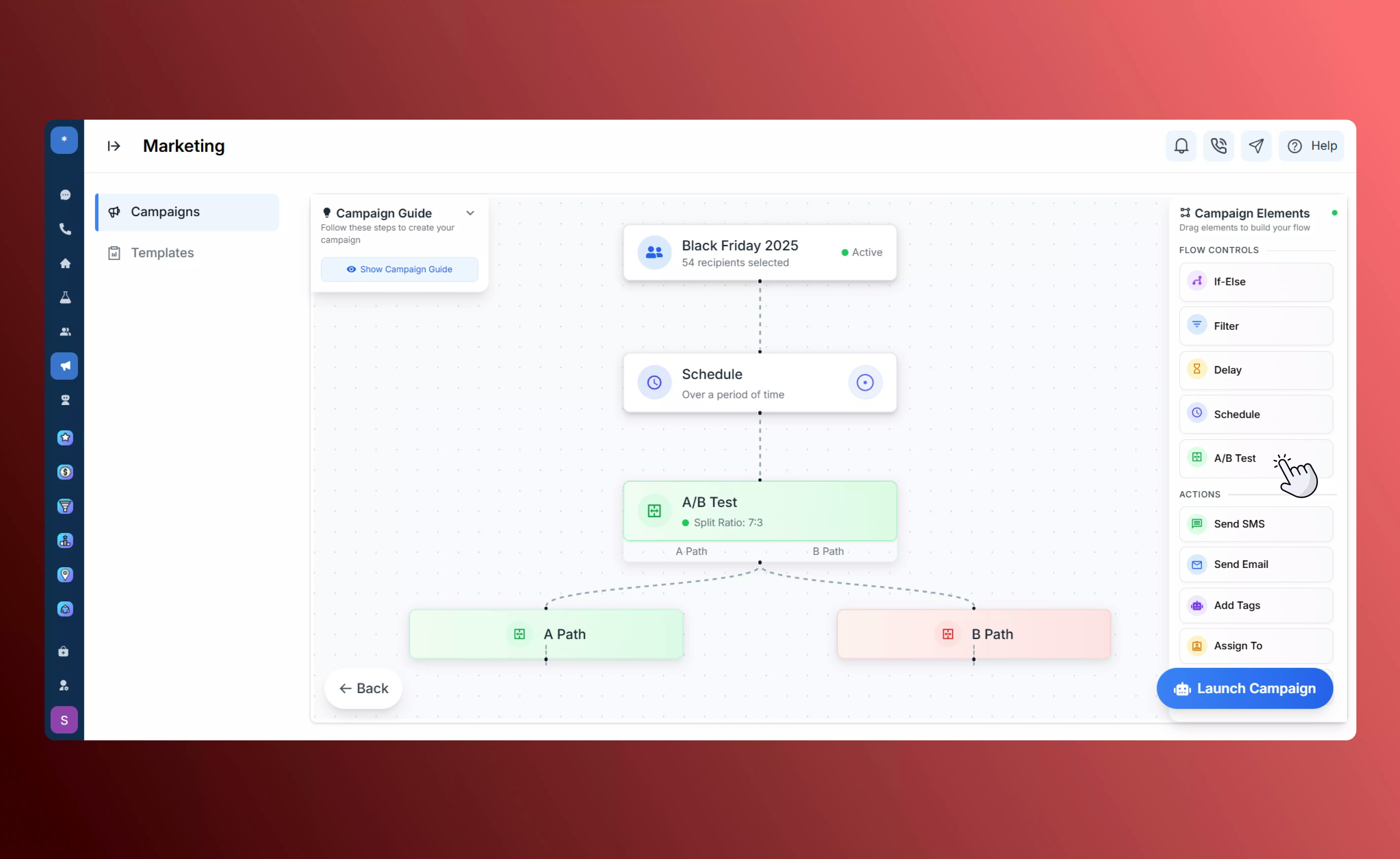
Use **A/B Testing** to split your audience into groups and test different paths or message versions. Select the percentage of your recipients to be in \*\*Group A \*\*and \*\*Group B \*\*respectively.
Once you have selected the time and date of the message, select **Save Configuration**. SalesCaptain will automatically spread delivery if your audience exceeds the **1,600 SMS daily limit**, ensuring consistent performance and compliance.
### **A/B Test**
Use **A/B Testing** to split your audience into groups and test different paths or message versions. Select the percentage of your recipients to be in \*\*Group A \*\*and \*\*Group B \*\*respectively.
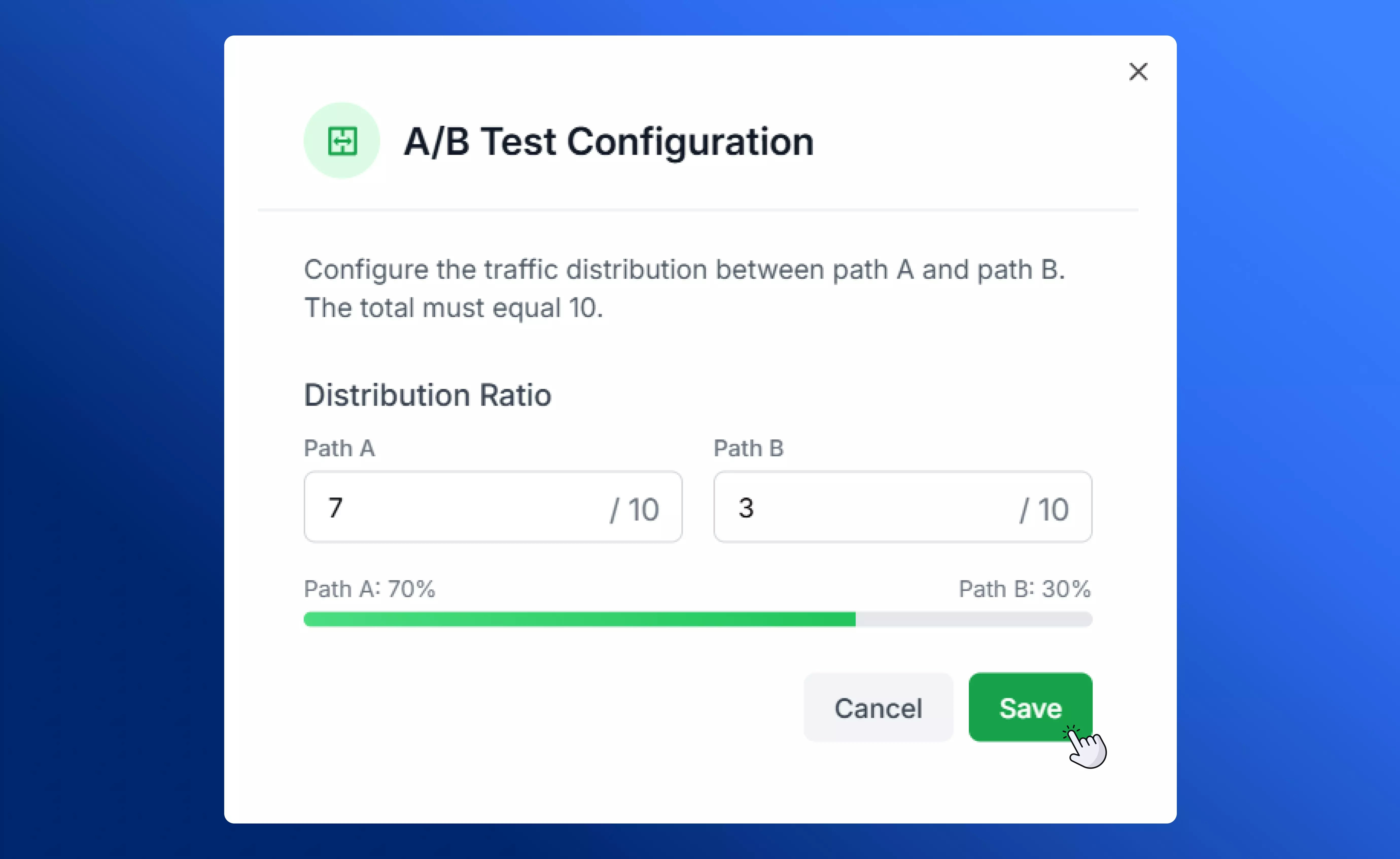 This randomly sorts all recipients into two groups with the specified ratio, and splits the campaign into two paths, one for each group. Now, you can specify different strategies or timings for your messages, and see which one your audience responds to more positively.
 \
For example, you can send:
* **Group A** → 50% of contacts (short promo text)
* \*\*Group B \*\*→ 50% of contacts (longer, more detailed message)\
You can later compare engagement to see which version performs best.
## **Actions**
Action elements define what your campaign *does* at each step. You can mix multiple actions within one campaign flow.
### **Send SMS**
Send text messages in three ways:
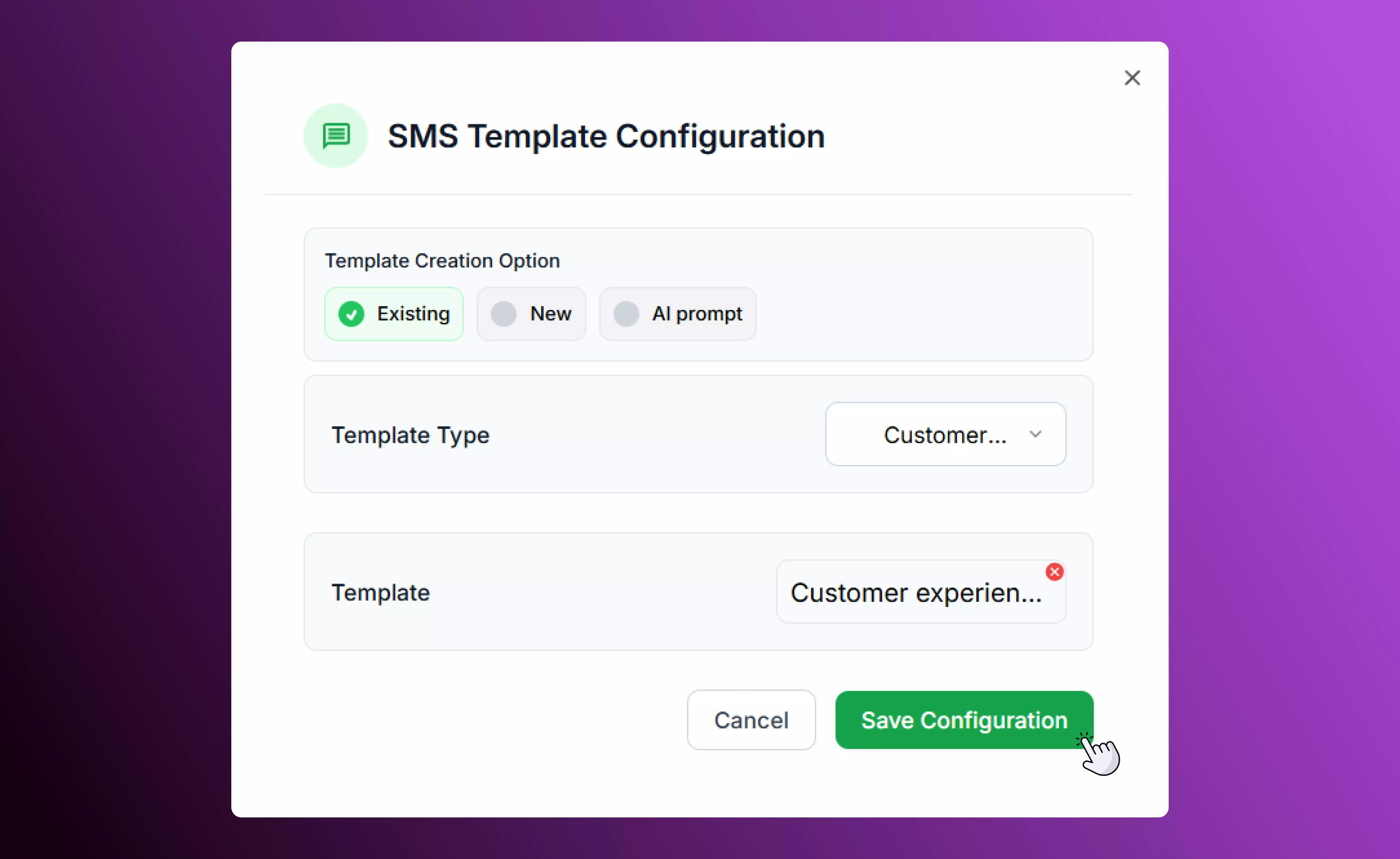
* **Existing Template:** Choose from one of your previously created SMS templates to use in this campaign..
\
For example, you can send:
* **Group A** → 50% of contacts (short promo text)
* \*\*Group B \*\*→ 50% of contacts (longer, more detailed message)\
You can later compare engagement to see which version performs best.
## **Actions**
Action elements define what your campaign *does* at each step. You can mix multiple actions within one campaign flow.
### **Send SMS**
Send text messages in three ways:
* **Existing Template:** Choose from one of your previously created SMS templates to use in this campaign..
 * \*\*New Template: \*\*Create a custom template for your campaign, which will then be added to your Marketing database. Visit our SMS Templates page for more details about different types of templates and step-by-step setup instructions.
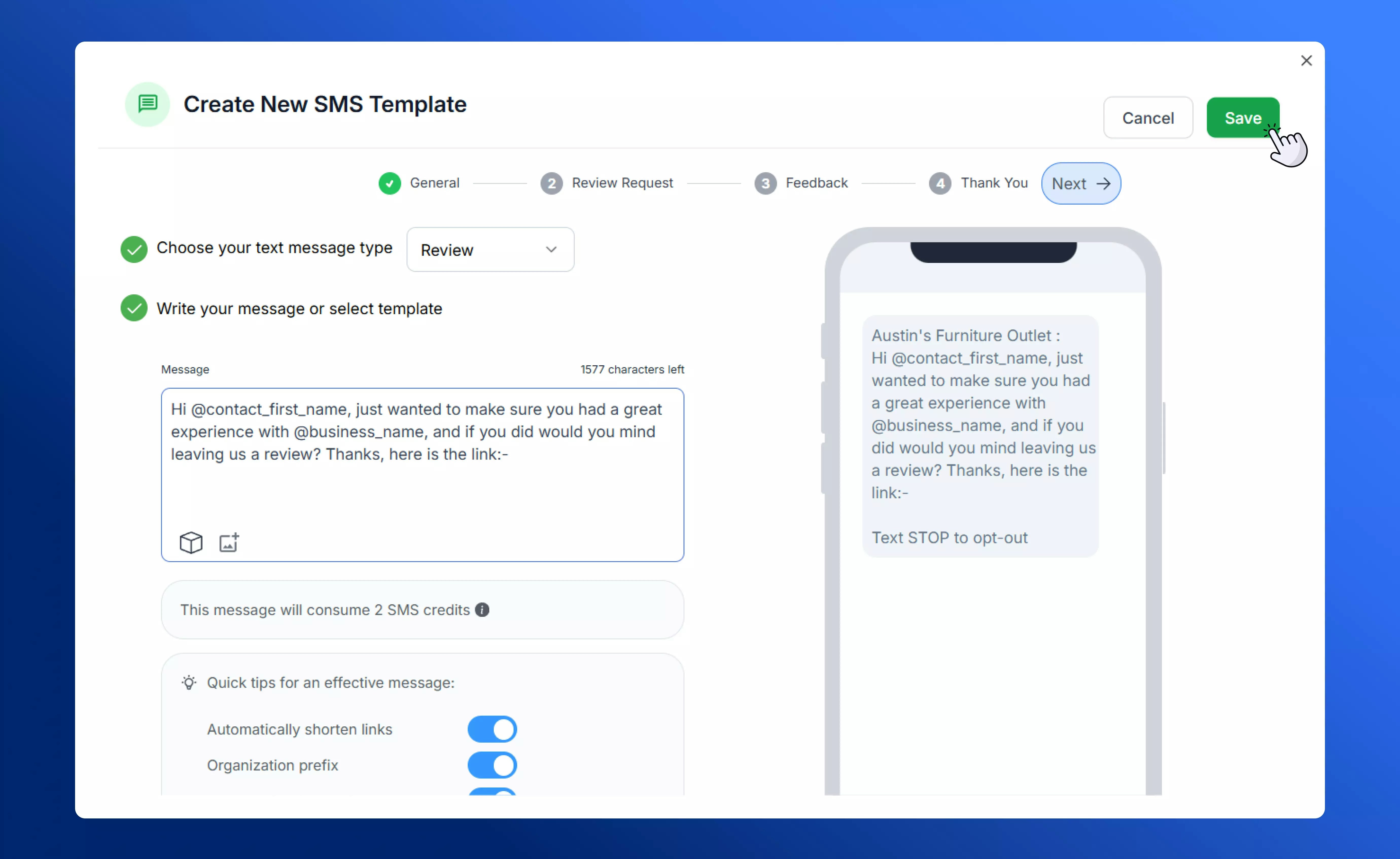 SalesCaptain automatically shortens any included links to [**scap.link**](http://scap.link), allowing you to track click data and performance metrics. You can also include your organization prefix and unsubscribe instructions.
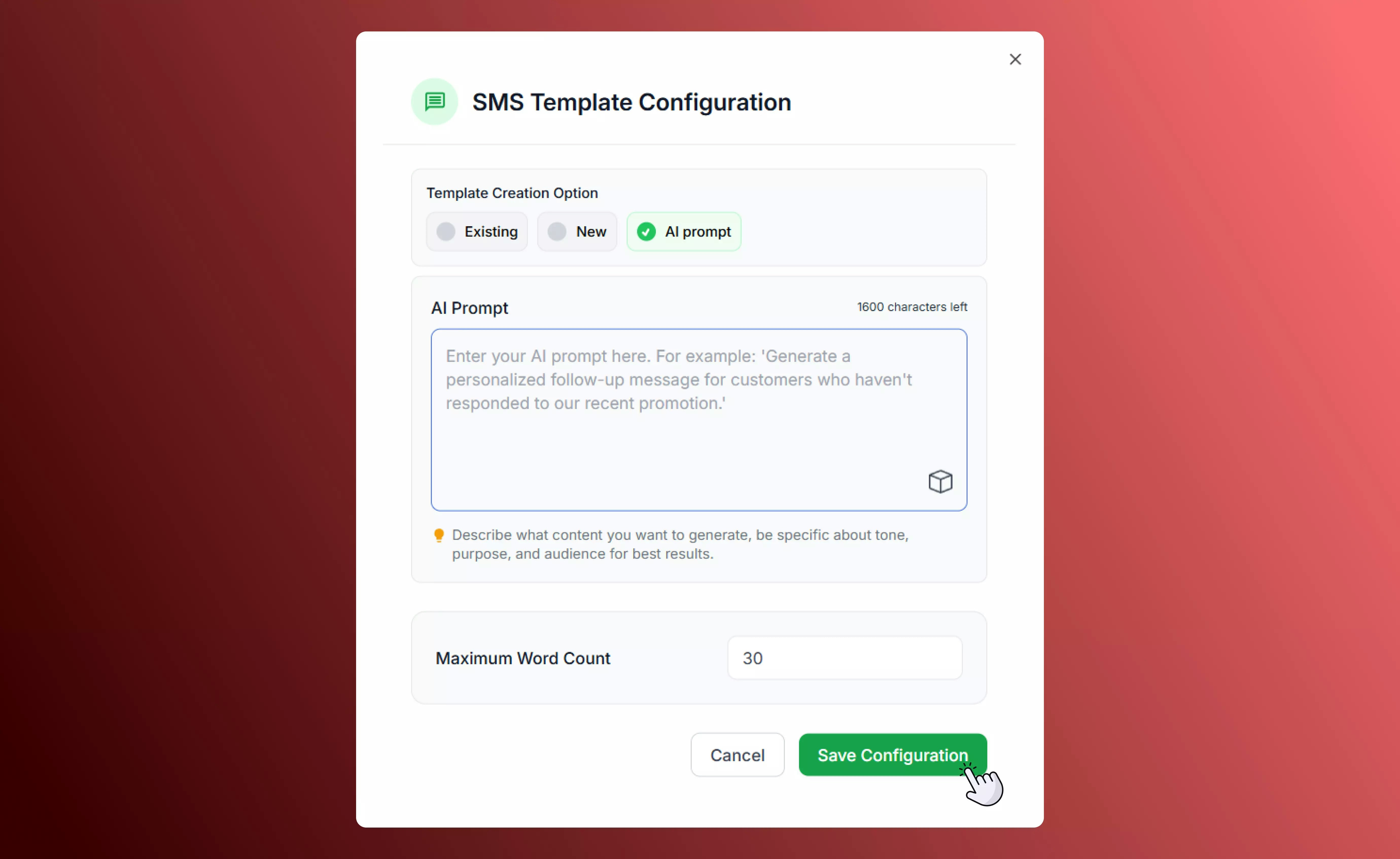
* \*\*AI Prompt: \*\*SalesCaptain AI can automatically generate message text based on a prompt entered by you. Simply specify the type of message you would like to send out, as well as the maximum word count of the output, and click **Save Configuration**.
SalesCaptain automatically shortens any included links to [**scap.link**](http://scap.link), allowing you to track click data and performance metrics. You can also include your organization prefix and unsubscribe instructions.
* \*\*AI Prompt: \*\*SalesCaptain AI can automatically generate message text based on a prompt entered by you. Simply specify the type of message you would like to send out, as well as the maximum word count of the output, and click **Save Configuration**.
 ### **Send Email**
Send a marketing email using a template from your Marketing Library.
### **Send Email**
Send a marketing email using a template from your Marketing Library.
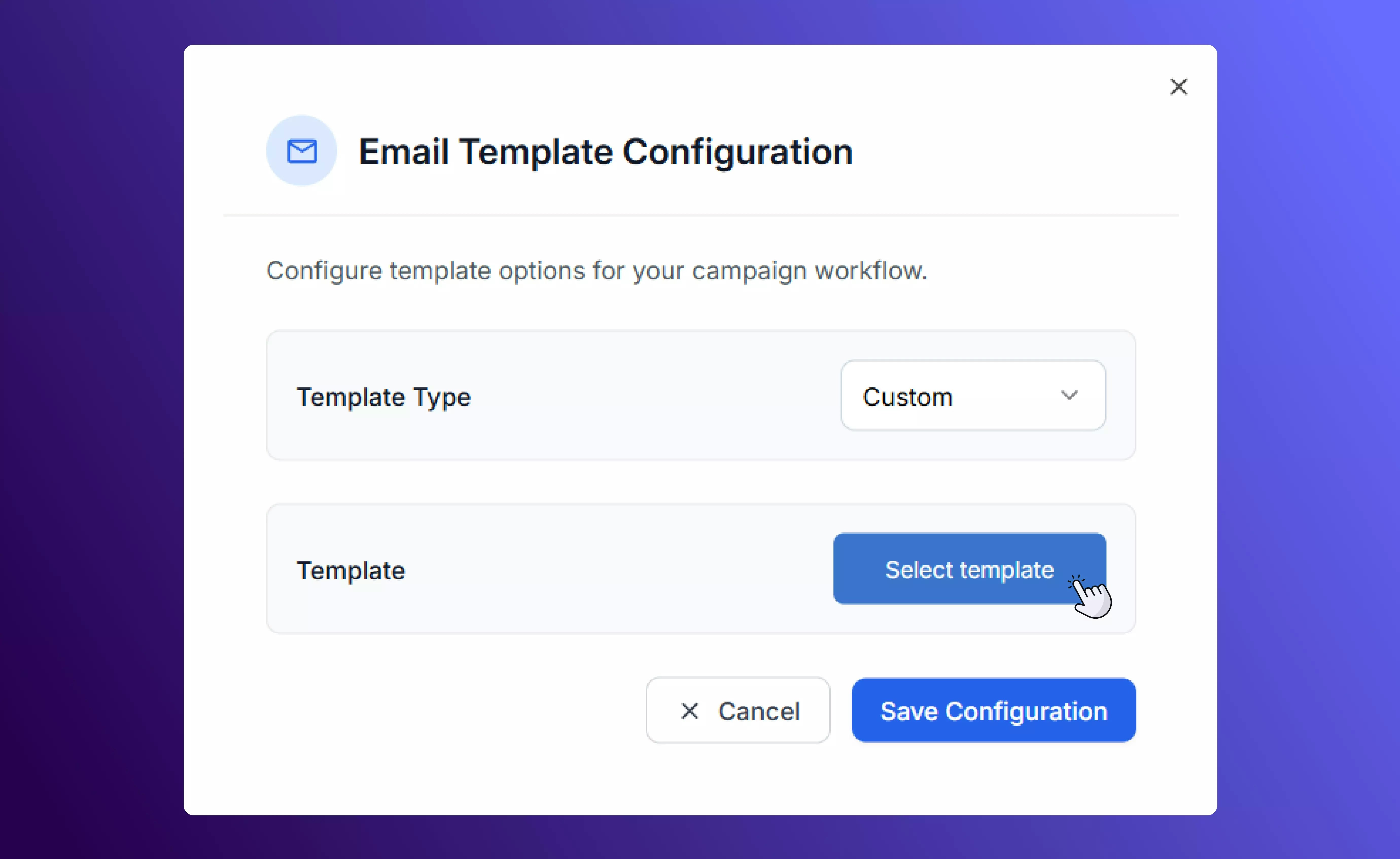 Emails can include personalization tokens, links, and dynamic content. Visit our page about Email Templates for more information on creating and managing them.
### **Assign To**
Automatically assigns the contact to a specific team member or group when they reach this step.
Emails can include personalization tokens, links, and dynamic content. Visit our page about Email Templates for more information on creating and managing them.
### **Assign To**
Automatically assigns the contact to a specific team member or group when they reach this step.
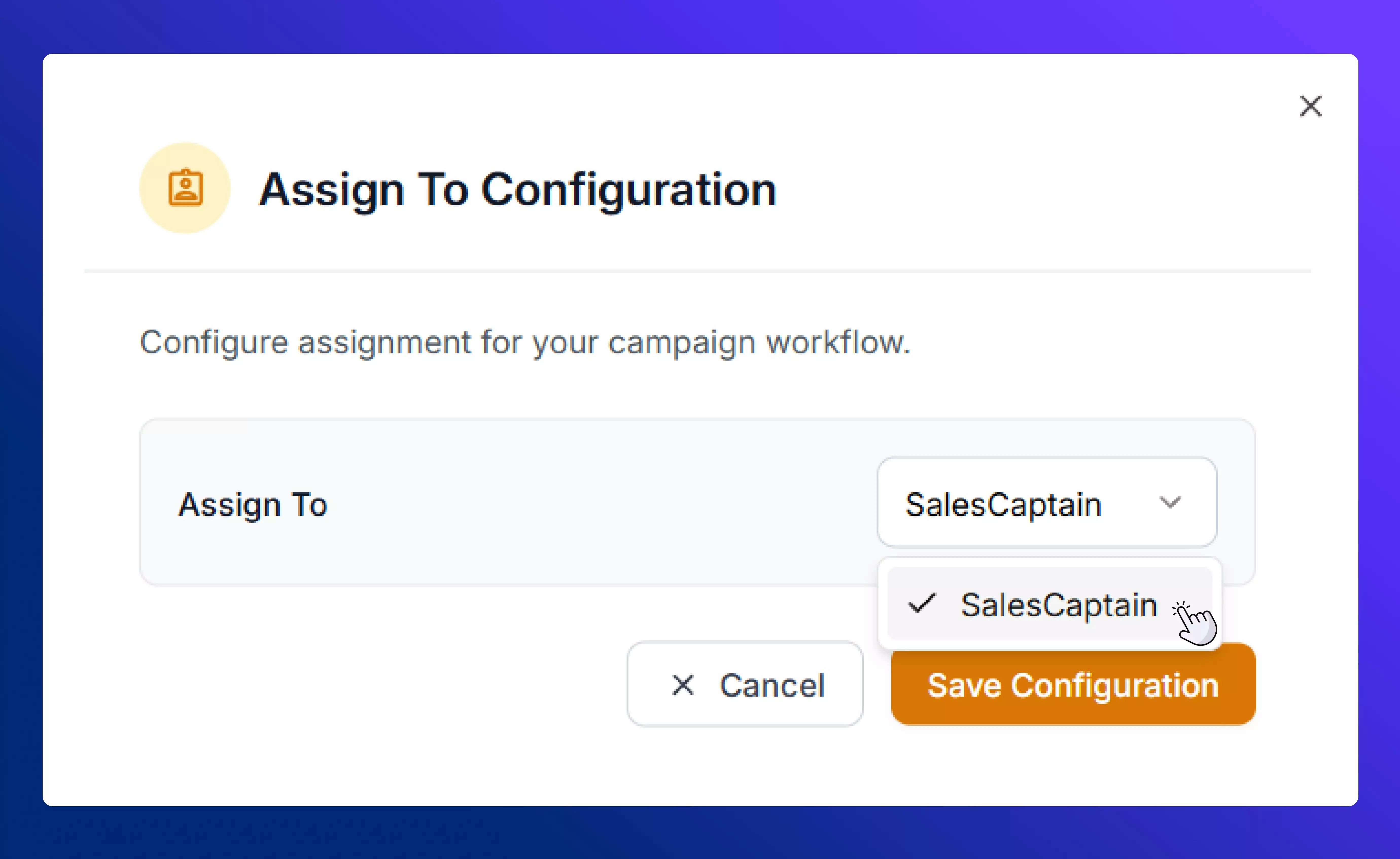 Useful for follow-ups or leads that need manual attention.
### **Add Tags**
Adds one or more tags to a contact’s profile.
Useful for follow-ups or leads that need manual attention.
### **Add Tags**
Adds one or more tags to a contact’s profile.
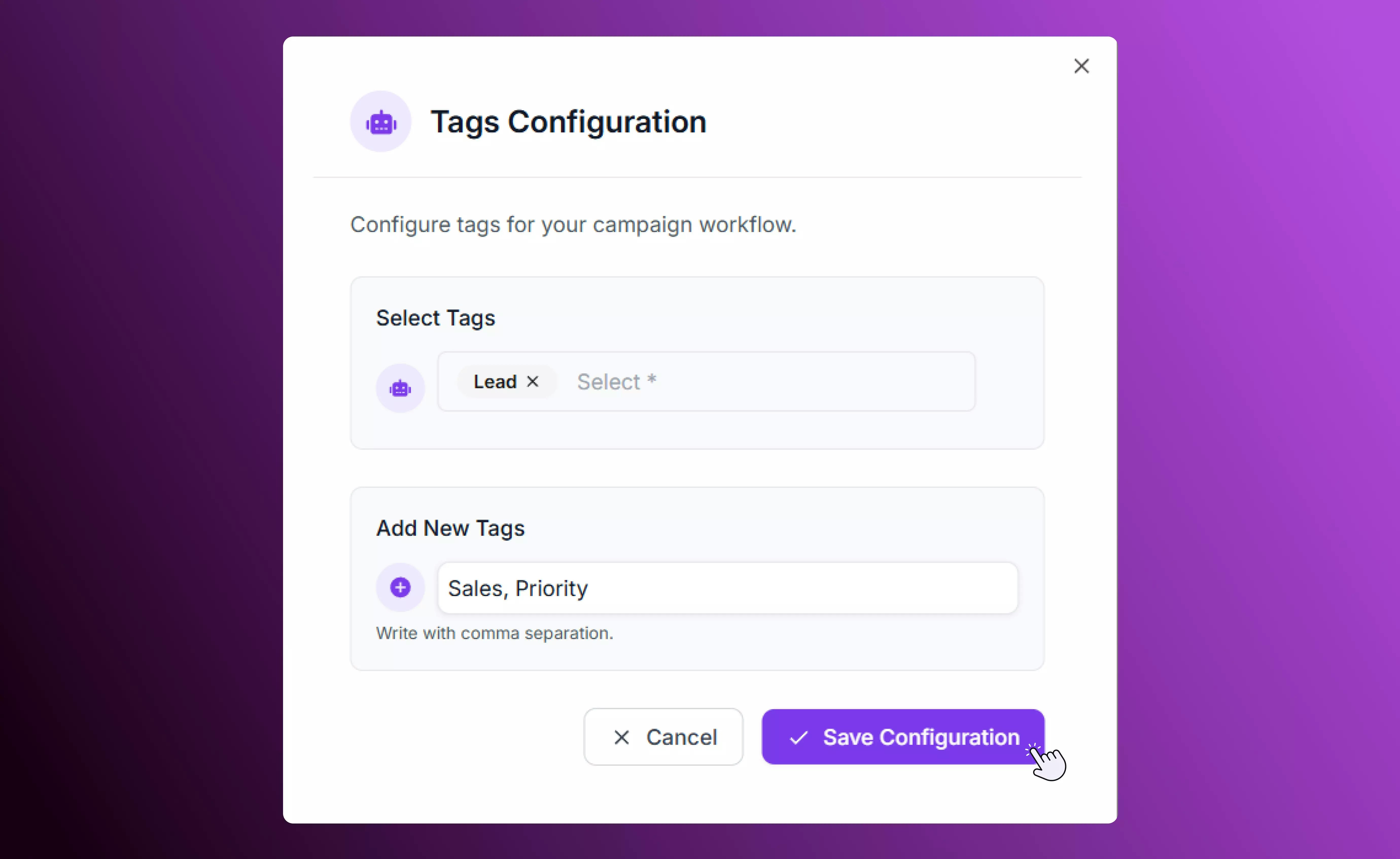 For example, after completing a purchase flow, you could automatically tag them as “Customer” or “Black Friday 2025”.
## **Launching a Campaign**
Once you are happy with the flow of your text marketing campaign, select **Launch Campaign** to save and schedule it.
Once your campaign is active, it will appear under one of three states:
* **Scheduled:** Campaign is ready to launch at the configured time.
* **In Progress / Completed:** Campaign has been sent / is currently sending to all recipients.
* **Paused or Draft:** Campaign setup saved but not yet running.
You can duplicate existing campaigns, track message credits, and view detailed reports after completion, including delivery rates, clicks, and engagement statistics.
### **Example: Black Friday Sale Campaign**
Here’s a simple example of how you might set up a Black Friday campaign:
1. **Start:** Select all contacts tagged “Subscribed”.
2. **Schedule:** Set the campaign to begin at 9:00 AM on Black Friday.
3. **Send SMS:** “Black Friday starts now! Enjoy 20% off storewide — shop today only. \[scap.link/deals]”
4. **Delay:** Wait 2 days, then
5. **Send SMS:** “Final hours! Don’t miss out on our biggest sale of the year — ends tonight. \[scap.link/sale]”
For example, after completing a purchase flow, you could automatically tag them as “Customer” or “Black Friday 2025”.
## **Launching a Campaign**
Once you are happy with the flow of your text marketing campaign, select **Launch Campaign** to save and schedule it.
Once your campaign is active, it will appear under one of three states:
* **Scheduled:** Campaign is ready to launch at the configured time.
* **In Progress / Completed:** Campaign has been sent / is currently sending to all recipients.
* **Paused or Draft:** Campaign setup saved but not yet running.
You can duplicate existing campaigns, track message credits, and view detailed reports after completion, including delivery rates, clicks, and engagement statistics.
### **Example: Black Friday Sale Campaign**
Here’s a simple example of how you might set up a Black Friday campaign:
1. **Start:** Select all contacts tagged “Subscribed”.
2. **Schedule:** Set the campaign to begin at 9:00 AM on Black Friday.
3. **Send SMS:** “Black Friday starts now! Enjoy 20% off storewide — shop today only. \[scap.link/deals]”
4. **Delay:** Wait 2 days, then
5. **Send SMS:** “Final hours! Don’t miss out on our biggest sale of the year — ends tonight. \[scap.link/sale]”
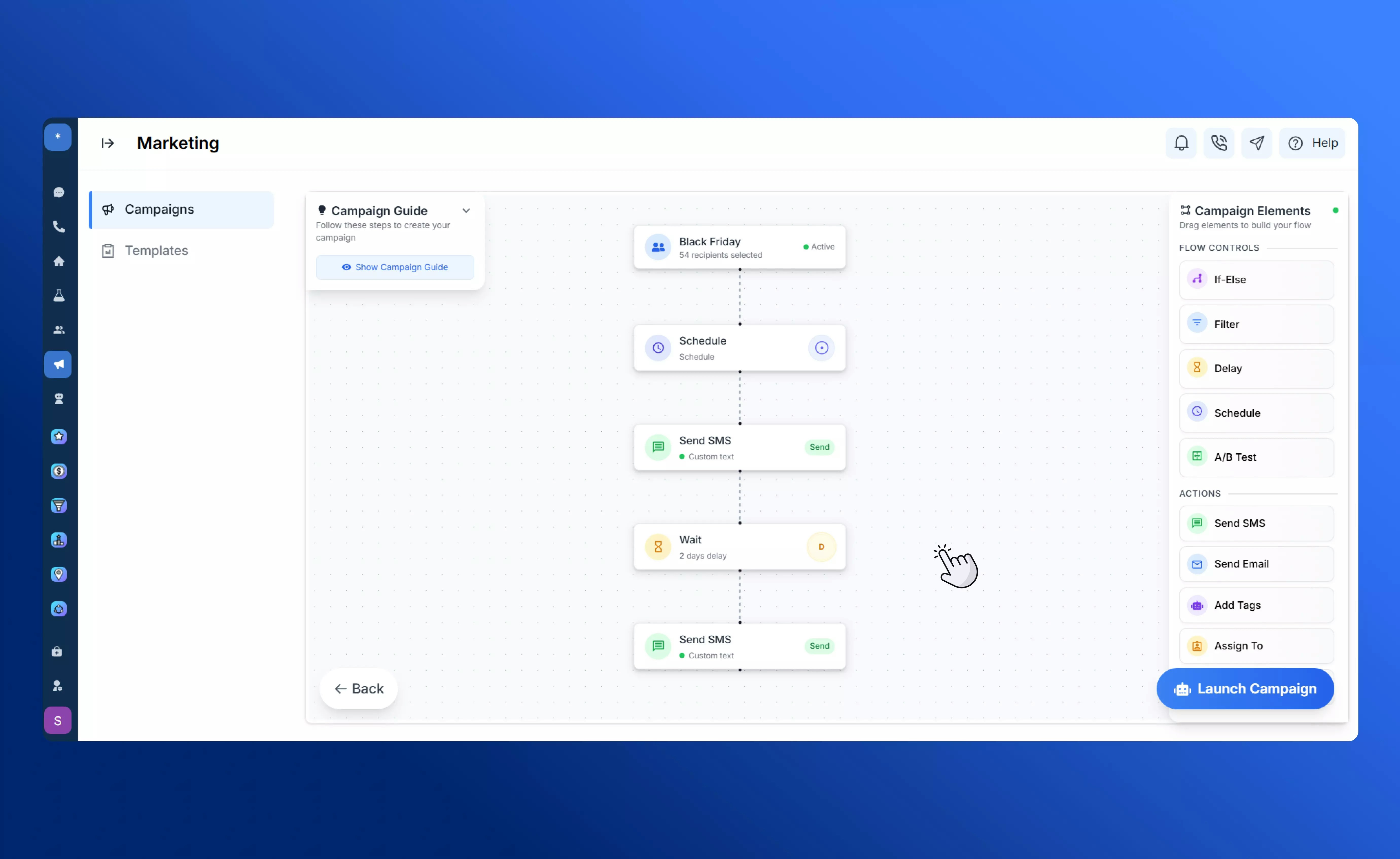 This simple flow demonstrates how you can use both logic and actions to create smart, automated campaigns that engage your audience at every step.