> ## Documentation Index
> Fetch the complete documentation index at: https://docs.salescaptain.com/llms.txt
> Use this file to discover all available pages before exploring further.
# Inbox Overview
> The SalesCaptain Inbox is your team’s command center for customer communication. It brings all of your channels — webchat, social media, SMS, and email — into a single, easy-to-manage workspace so you never miss a message or lose context.
## **All Your Channels in One Place**
Whether a customer reaches out via Facebook, Instagram, WhatsApp, Google Chat, webchat, SMS, or email, every message appears inside the same conversation thread in your Inbox. Channel icons next to each message make it clear where it came from, and you can respond without switching apps. To learn more about specific channels, see our pages about [Sending Emails](Sending-Emails) and [SMS Features](Sending-Messages).
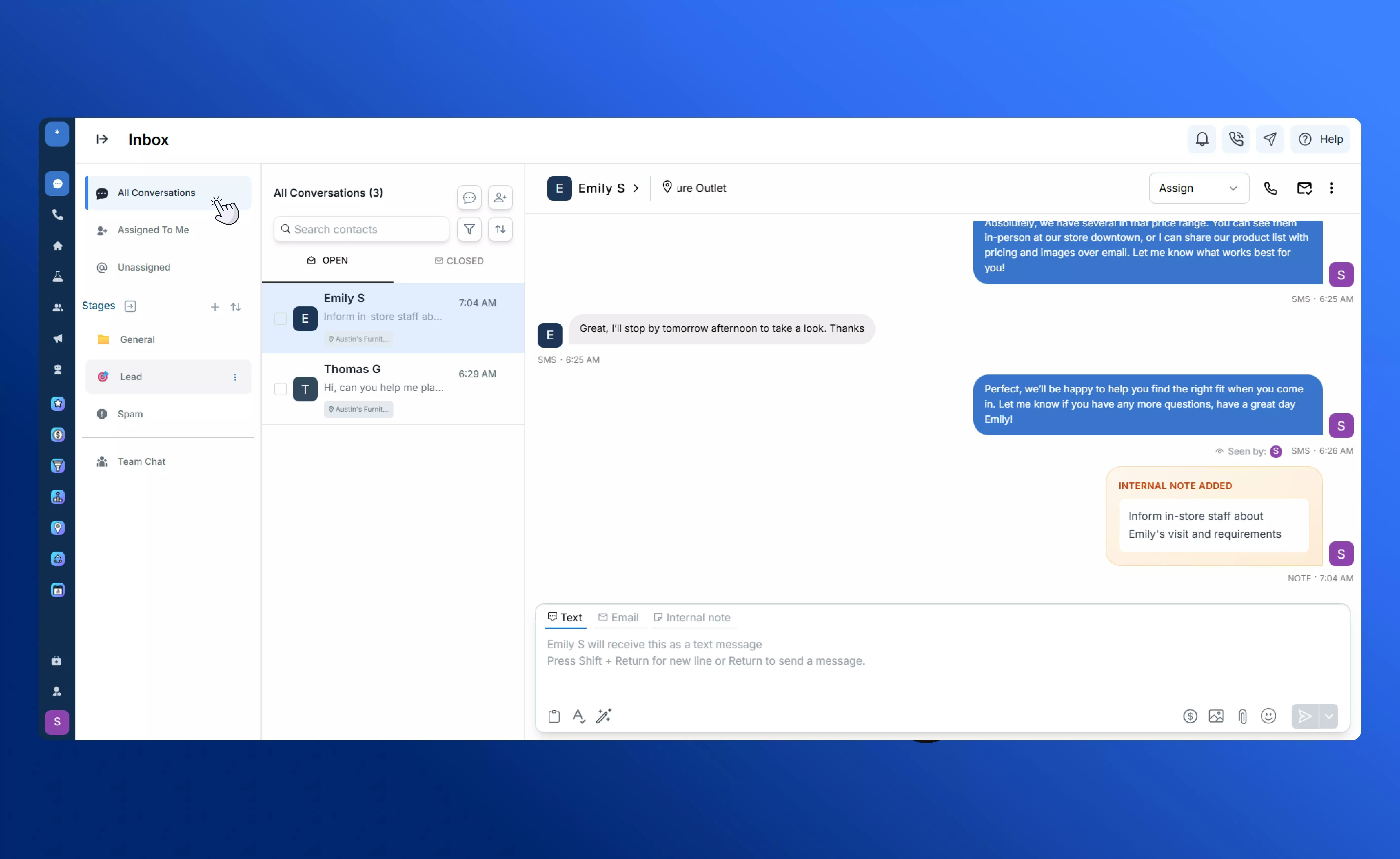
## **Assigned, Unassigned, and All Conversations**
The Inbox makes it simple to keep track of ownership:
* **Assigned to Me** shows only the conversations you’re responsible for.
* **Unassigned** displays new or unclaimed conversations that can be picked up by any team member.
* **All Conversations** gives you a full view across channels, so managers or owners can monitor everything in one place.
If you manage multiple locations, you can click the location selector to see or transfer conversations for each site.
 ## **Filter and Sort to Find What You Need**
Quickly zero in on the right thread by using filters:
* Filter by **user**, **platform**, or **time period**.
* Sort conversations by **newest** or **oldest** first.
## **Filter and Sort to Find What You Need**
Quickly zero in on the right thread by using filters:
* Filter by **user**, **platform**, or **time period**.
* Sort conversations by **newest** or **oldest** first.
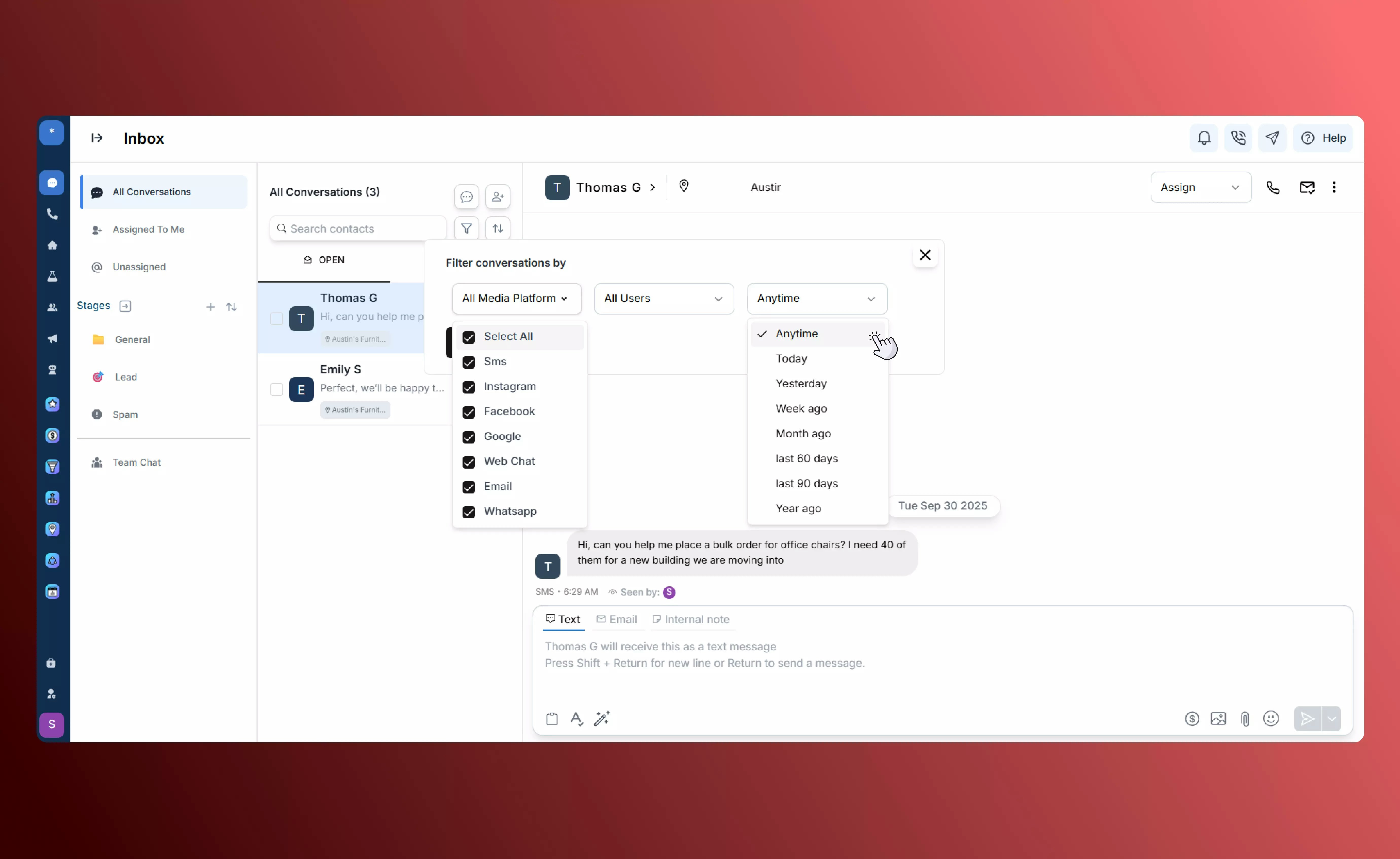 This makes it easy to focus on priority messages or review past interactions.
## **Organize Conversations with Stages**
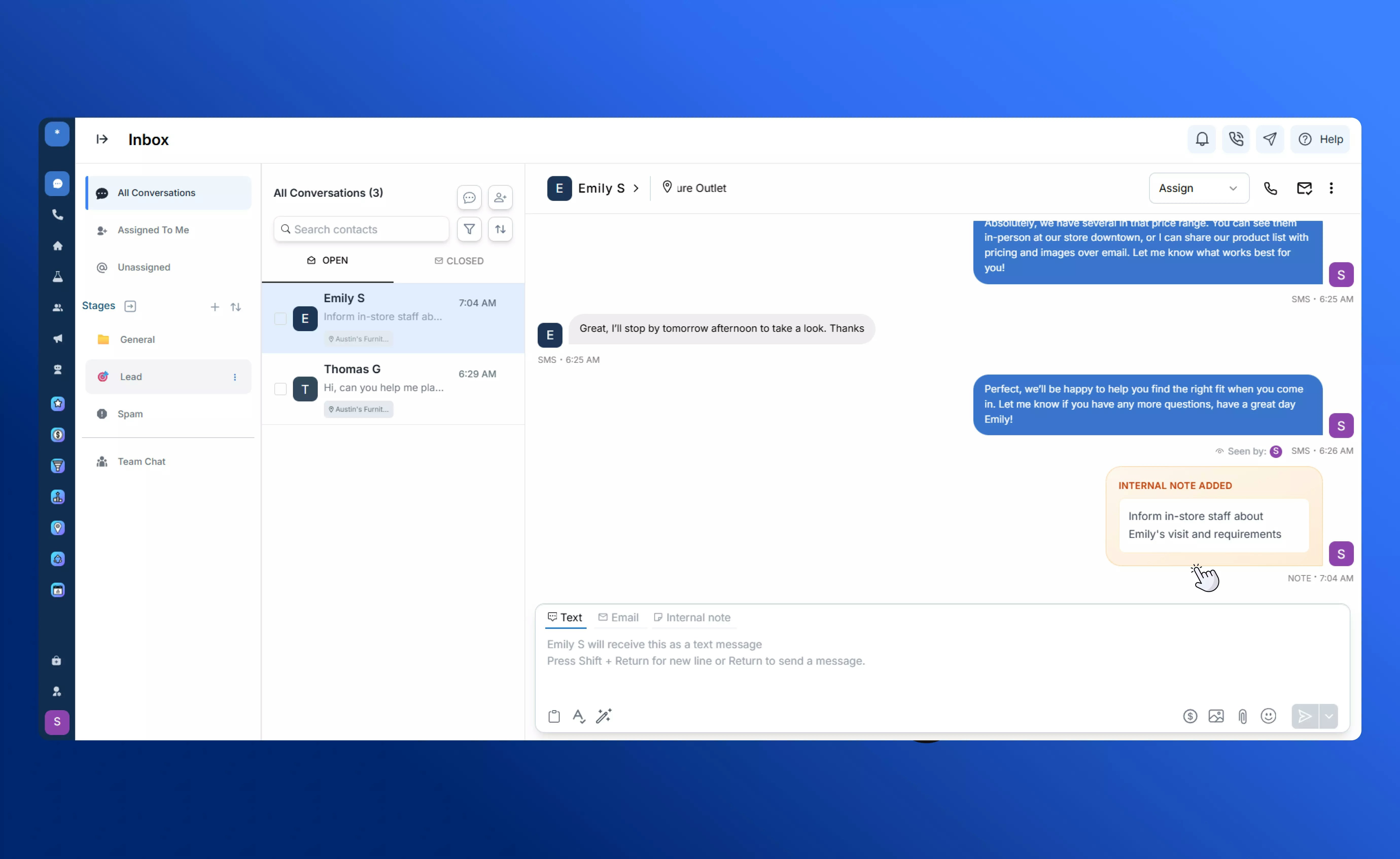
Stages let you group conversations by where they are in your pipeline or process — such as “New Lead,” “In Progress,” or “Closed.” You can:
* **Drag and drop** conversations between stages.
* **Create and reorder stages** to match your sales or support funnel.
* **Automate actions** based on stage conditions (for example, send a follow-up message if a lead hasn’t responded in two days). For more automation tools, see [Time Rules](Core-Features/Calls/Call-Flows/Time-Rules) and [IVR Call Flows](Core-Features/Calls/Call-Flows/IVR).
This makes it easy to focus on priority messages or review past interactions.
## **Organize Conversations with Stages**
Stages let you group conversations by where they are in your pipeline or process — such as “New Lead,” “In Progress,” or “Closed.” You can:
* **Drag and drop** conversations between stages.
* **Create and reorder stages** to match your sales or support funnel.
* **Automate actions** based on stage conditions (for example, send a follow-up message if a lead hasn’t responded in two days). For more automation tools, see [Time Rules](Core-Features/Calls/Call-Flows/Time-Rules) and [IVR Call Flows](Core-Features/Calls/Call-Flows/IVR).
 ## **Best Practices**
* **Monitor Channel Activity**: Regularly check assigned, unassigned, and all conversations to ensure no messages slip through the cracks.
* **Use Filters and Sorting Strategically**: Focus on priority threads or specific platforms to save time and respond faster.
* **Leverage Stages for Efficiency**: Organize conversations by status, automate follow-ups, and keep your pipeline moving smoothly.
## **Best Practices**
* **Monitor Channel Activity**: Regularly check assigned, unassigned, and all conversations to ensure no messages slip through the cracks.
* **Use Filters and Sorting Strategically**: Focus on priority threads or specific platforms to save time and respond faster.
* **Leverage Stages for Efficiency**: Organize conversations by status, automate follow-ups, and keep your pipeline moving smoothly.