> ## Documentation Index
> Fetch the complete documentation index at: https://docs.salescaptain.com/llms.txt
> Use this file to discover all available pages before exploring further.
# Sending Emails
> SalesCaptain lets you handle email like any other customer channel. From composing and sending messages to adding attachments, templates, and branded addresses, everything happens right in the Inbox. Emails are stored alongside calls, texts, and social messages, giving your team a complete view of every interaction without ever leaving the platform.
## **Send Email Directly from Any Conversation**
From any active conversation in your Inbox, click into the message composer and select **Email** as the channel. You can draft your message, add attachments, and send it just like a regular email — all without leaving the thread.
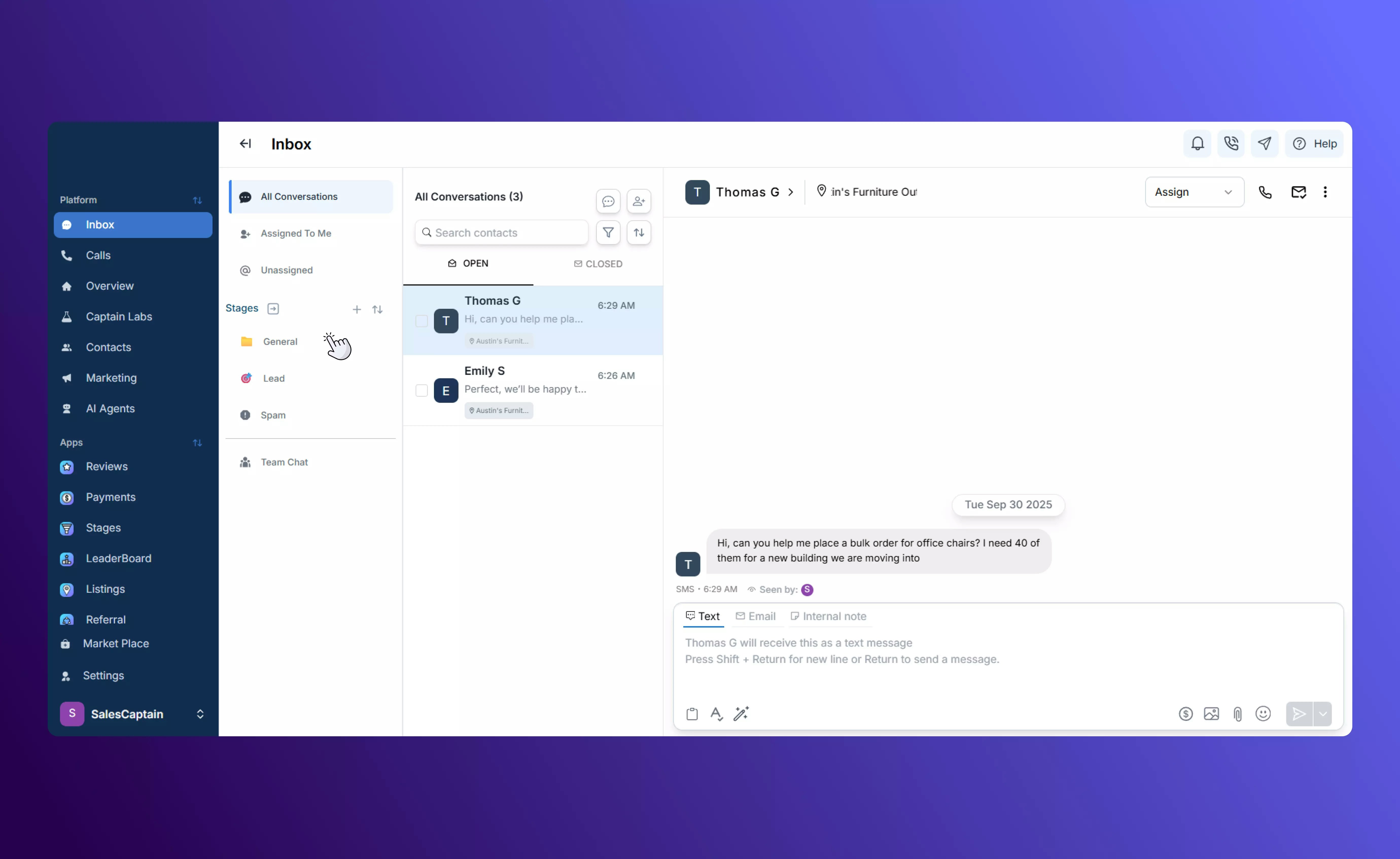 Emails sent this way automatically show up in the conversation history alongside texts, calls, and social messages, so your whole team has a single view of customer interactions.
## **Default “From” Address**
If your Outlook account isn’t connected yet, emails will be sent from your default SalesCaptain address, which uses the format:
[**businessname@scap.email**](mailto:businessname@scap.email)
Recipients can reply to these emails as normal, and their replies will flow back into the same conversation thread in your Inbox.
## **Connecting Outlook for Branded Sending**
To send emails from your own business address, simply connect your Outlook account:
1. Go to **Settings → Integrations**.
2. Find **Outlook** in the list of available integrations.
3. Click **Connect** and follow the prompts to sign in.
Emails sent this way automatically show up in the conversation history alongside texts, calls, and social messages, so your whole team has a single view of customer interactions.
## **Default “From” Address**
If your Outlook account isn’t connected yet, emails will be sent from your default SalesCaptain address, which uses the format:
[**businessname@scap.email**](mailto:businessname@scap.email)
Recipients can reply to these emails as normal, and their replies will flow back into the same conversation thread in your Inbox.
## **Connecting Outlook for Branded Sending**
To send emails from your own business address, simply connect your Outlook account:
1. Go to **Settings → Integrations**.
2. Find **Outlook** in the list of available integrations.
3. Click **Connect** and follow the prompts to sign in.
 Once connected, all emails you send from the Inbox will use your Outlook address, giving customers a fully branded experience. Visit our Integrations page to learn more about connecting your accounts with SalesCaptain.
## **Attachments and Templates**
When composing an email, you can attach files or media, insert emojis, and use any email templates you’ve created under the Marketing tab. This helps you keep your messaging fast, consistent, and on-brand.
Once connected, all emails you send from the Inbox will use your Outlook address, giving customers a fully branded experience. Visit our Integrations page to learn more about connecting your accounts with SalesCaptain.
## **Attachments and Templates**
When composing an email, you can attach files or media, insert emojis, and use any email templates you’ve created under the Marketing tab. This helps you keep your messaging fast, consistent, and on-brand.
 ## **Best Practices**
* **Personalize Your Messages**: Even when using templates, include the recipient’s name or specific details to make emails feel tailored.
* **Keep Subject Lines Clear and Actionable**: A concise, descriptive subject increases the chance your email gets opened.
* **Follow Up Strategically**: Use the Inbox history to time follow-ups based on previous replies, keeping your outreach consistent and timely.
## **Best Practices**
* **Personalize Your Messages**: Even when using templates, include the recipient’s name or specific details to make emails feel tailored.
* **Keep Subject Lines Clear and Actionable**: A concise, descriptive subject increases the chance your email gets opened.
* **Follow Up Strategically**: Use the Inbox history to time follow-ups based on previous replies, keeping your outreach consistent and timely.