> ## Documentation Index
> Fetch the complete documentation index at: https://docs.salescaptain.com/llms.txt
> Use this file to discover all available pages before exploring further.
# Conversation Profiles
> Conversation Profiles in SalesCaptain allow you to segment your communications based on teams, departments, or specific communication channels, ensuring that the right messages reach the right people without cluttering a general inbox.
## **Overview**
A Conversation Profile acts as a dedicated account for a specific function of your business. It represents a team (e.g., Sales), a department (e.g., Support), or a distinct communication channel.
Each profile houses its own:
* **Email Address:** Linked Gmail account or email routing addresses.
* **Phone number:** Profile names and colours can be modified according to the specific users and teams that would be using it.
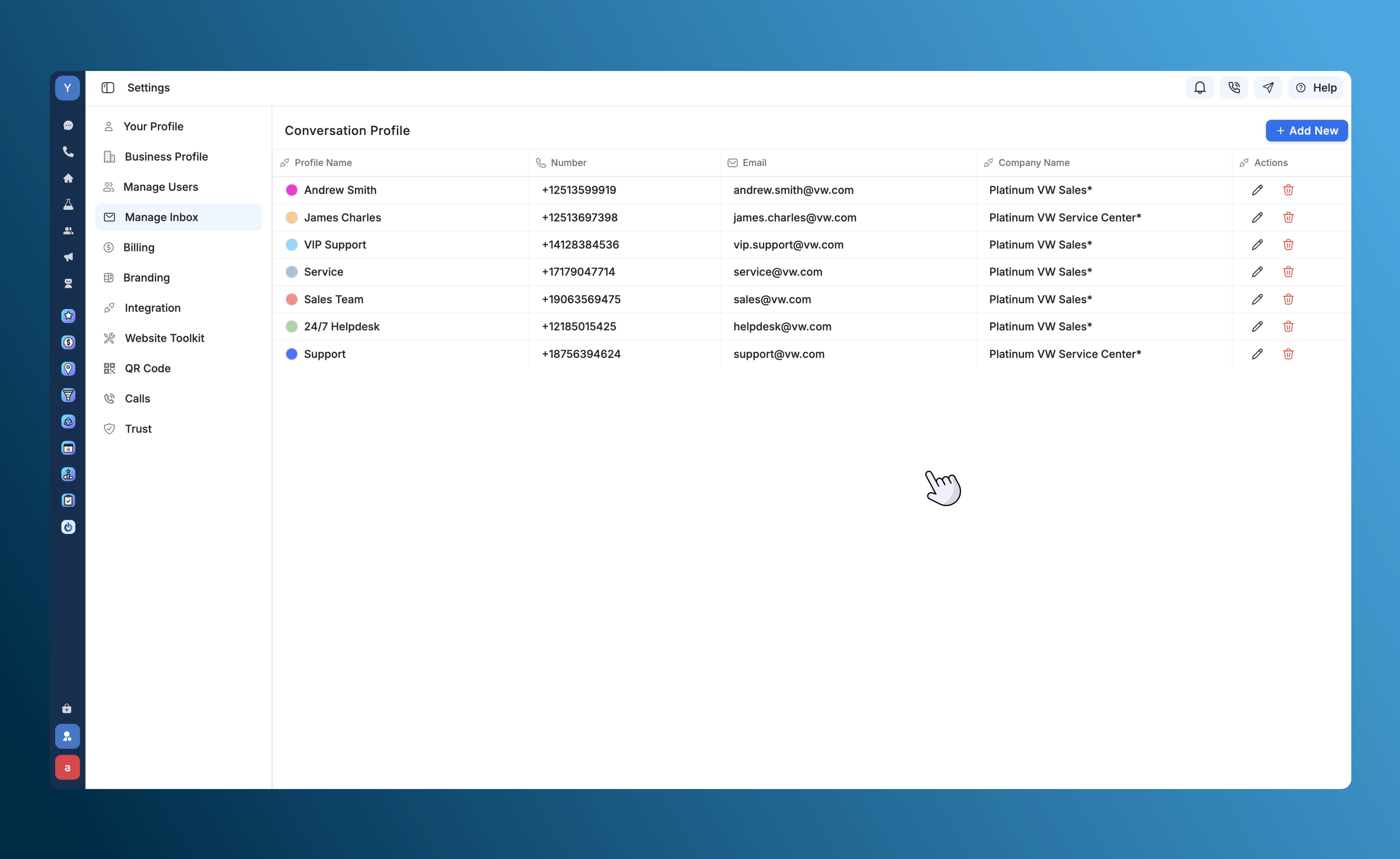 The goal is to decide exactly where conversations appear in the global inbox. By using profiles, you prevent critical support tickets from getting lost among sales inquiries, keeping your workspace organized and efficient.
## **How It Works**
Profiles are the destination for incoming traffic. When you connect an email address to SalesCaptain, you create a specific profile unique to that email.
### **Inbox Access and Visibility**
Security and relevance are handled by linking users to profiles. A conversation that lands in a specific profile is **visible only** to users who have been granted access to that profile.
You can connect existing phone numbers and SalesCaptain numbers to individual users. To get a new phone number or guidance on porting an existing number to SalesCaptain, please contact our support team at [support@salescaptain.com](mailto:support@salescaptain.com).
The goal is to decide exactly where conversations appear in the global inbox. By using profiles, you prevent critical support tickets from getting lost among sales inquiries, keeping your workspace organized and efficient.
## **How It Works**
Profiles are the destination for incoming traffic. When you connect an email address to SalesCaptain, you create a specific profile unique to that email.
### **Inbox Access and Visibility**
Security and relevance are handled by linking users to profiles. A conversation that lands in a specific profile is **visible only** to users who have been granted access to that profile.
You can connect existing phone numbers and SalesCaptain numbers to individual users. To get a new phone number or guidance on porting an existing number to SalesCaptain, please contact our support team at [support@salescaptain.com](mailto:support@salescaptain.com).
 This ensures that a Service technician sees service requests, but not sensitive billing emails intended for the Finance profile.
## **Setting up Gmail Integration**
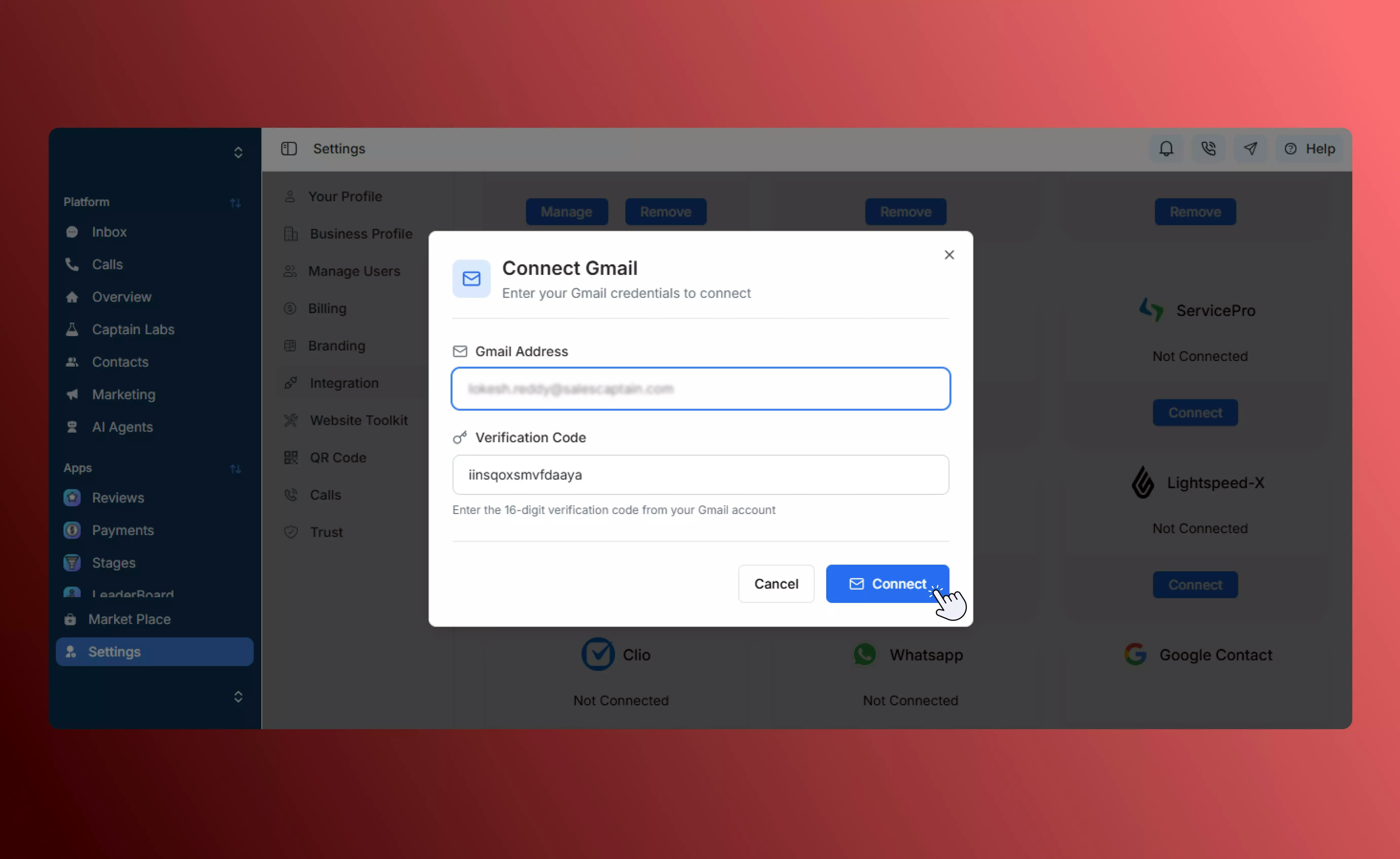
To fully utilize Conversation Profiles for email, you can connect specific Gmail accounts to specific profiles. Once connected, all incoming and outgoing emails from that address are automatically routed to the assigned profile in the SalesCaptain Inbox.
### **Prerequisite: Connect Email**
Before linking a profile, ensure you have already connected your Email account to SalesCaptain via **Settings → Integrations → Gmail/Outlook**
By default, users are provided with a [business-name@salescaptain.com](mailto:business-name@salescaptain.com) email.
This ensures that a Service technician sees service requests, but not sensitive billing emails intended for the Finance profile.
## **Setting up Gmail Integration**
To fully utilize Conversation Profiles for email, you can connect specific Gmail accounts to specific profiles. Once connected, all incoming and outgoing emails from that address are automatically routed to the assigned profile in the SalesCaptain Inbox.
### **Prerequisite: Connect Email**
Before linking a profile, ensure you have already connected your Email account to SalesCaptain via **Settings → Integrations → Gmail/Outlook**
By default, users are provided with a [business-name@salescaptain.com](mailto:business-name@salescaptain.com) email.
 ### **Connect Your Conversation Profile**
After connecting Gmail, you must link it to your conversation profile to start using email inside the Inbox.
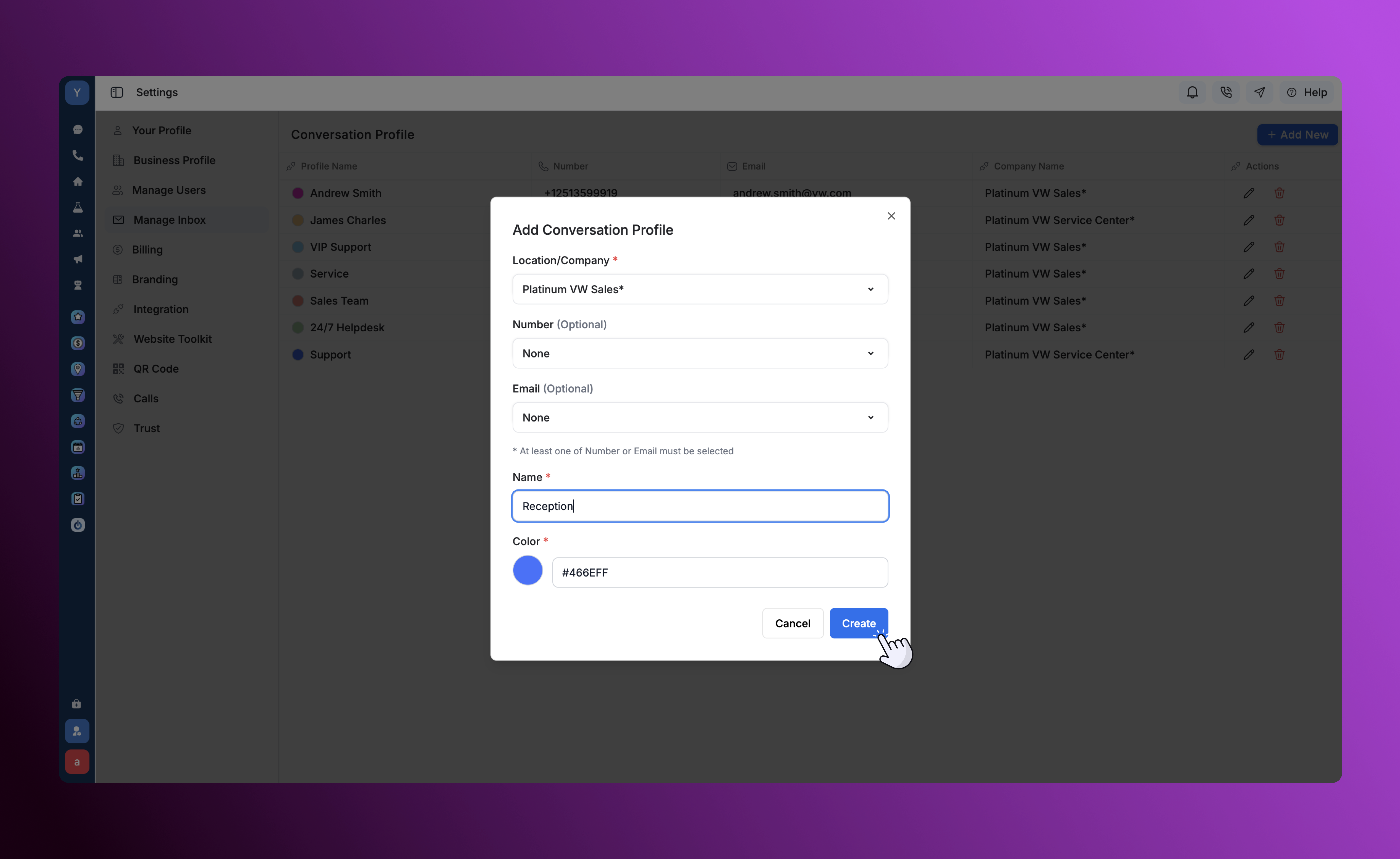
1. Navigate to **Settings → Manage Inbox**.
2. Select Add New, and enter the details linked to the Conversation Profile.
3. Assign the connected **Gmail account** to the profile.
4. Click **Save** to apply your changes.
Once this is done, you can start using the **email feature directly from the Inbox** for customer conversations. See our page for more details on [Gmail integration](https://docs.salescaptain.com/guides/getting-started/account-setup/gmail-integration) and setup.
To make Conversation Profiles usable, assign the profile to relevant user or group of users who can communicate with contacts using the specified profile.
You can manage multiple Gmail inboxes within SalesCaptain by assigning different accounts to different profiles (e.g., sales@ to the Sales Profile and support@ to the Support Profile).
## **User Roles & Permissions**
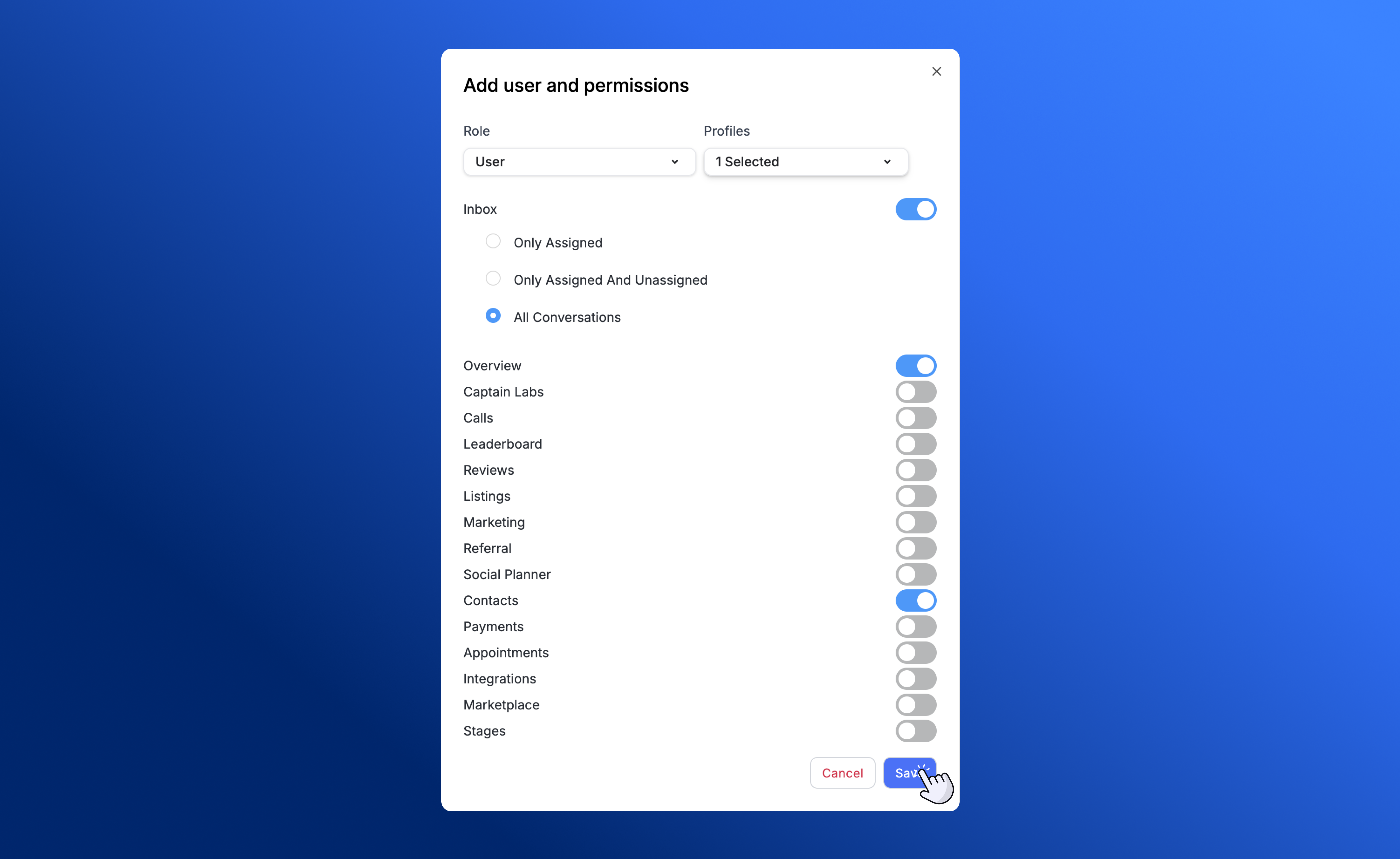
To fully utilize Conversation Profiles, it is important to understand how they interact with **User Roles**. While Profiles determine *what conversations* a user sees, **User Roles** determine *what actions* a user can take.
* **User Roles:** Define permissions for each individual user for features such as accessing the inbox, making calls, managing reviews, and changing settings.
* **Profile Association:** Each user is assigned a role but can be linked to one or multiple Conversation Profiles.
### **Connect Your Conversation Profile**
After connecting Gmail, you must link it to your conversation profile to start using email inside the Inbox.
1. Navigate to **Settings → Manage Inbox**.
2. Select Add New, and enter the details linked to the Conversation Profile.
3. Assign the connected **Gmail account** to the profile.
4. Click **Save** to apply your changes.
Once this is done, you can start using the **email feature directly from the Inbox** for customer conversations. See our page for more details on [Gmail integration](https://docs.salescaptain.com/guides/getting-started/account-setup/gmail-integration) and setup.
To make Conversation Profiles usable, assign the profile to relevant user or group of users who can communicate with contacts using the specified profile.
You can manage multiple Gmail inboxes within SalesCaptain by assigning different accounts to different profiles (e.g., sales@ to the Sales Profile and support@ to the Support Profile).
## **User Roles & Permissions**
To fully utilize Conversation Profiles, it is important to understand how they interact with **User Roles**. While Profiles determine *what conversations* a user sees, **User Roles** determine *what actions* a user can take.
* **User Roles:** Define permissions for each individual user for features such as accessing the inbox, making calls, managing reviews, and changing settings.
* **Profile Association:** Each user is assigned a role but can be linked to one or multiple Conversation Profiles.
 ## **Use Cases: Structuring Your Organization**
The most common way to utilize Conversation Profiles is to mirror your internal business structure. For example, having distinct profiles for sales, support and service.
### **1. Sales**
* **Focus:** Inbound leads and outbound prospecting.
* **Setup:** Contains sales phone lines and the primary sales email address.
* **Benefit:** Sales reps focus purely on closing deals without being distracted by technical support queries.
### **2. Support**
* **Focus:** Customer issues, tickets, and troubleshooting.
* **Setup:** Connected to the support email alias.
* **Benefit:** Ensures customer issues are centralized and addressed promptly by the support team.
### **3. Service**
* **Focus:** Field operations, scheduling, and existing client maintenance.
* **Setup:** Contains service dispatch lines.
* **Benefit:** Keeps logistical communication separate from initial sales conversations.
## **Best Practices**
* **Review Access Regularly:** Periodically check which users are assigned to which profiles to ensure data privacy.
* **Separate Functions:** Avoid combining distinct departments (like Sales and Support) into one profile to keep metrics and workflows clear.
* **Test Routing:** Send a test email to your connected Gmail account to verify it appears in the correct Conversation Profile inbox.
## **Use Cases: Structuring Your Organization**
The most common way to utilize Conversation Profiles is to mirror your internal business structure. For example, having distinct profiles for sales, support and service.
### **1. Sales**
* **Focus:** Inbound leads and outbound prospecting.
* **Setup:** Contains sales phone lines and the primary sales email address.
* **Benefit:** Sales reps focus purely on closing deals without being distracted by technical support queries.
### **2. Support**
* **Focus:** Customer issues, tickets, and troubleshooting.
* **Setup:** Connected to the support email alias.
* **Benefit:** Ensures customer issues are centralized and addressed promptly by the support team.
### **3. Service**
* **Focus:** Field operations, scheduling, and existing client maintenance.
* **Setup:** Contains service dispatch lines.
* **Benefit:** Keeps logistical communication separate from initial sales conversations.
## **Best Practices**
* **Review Access Regularly:** Periodically check which users are assigned to which profiles to ensure data privacy.
* **Separate Functions:** Avoid combining distinct departments (like Sales and Support) into one profile to keep metrics and workflows clear.
* **Test Routing:** Send a test email to your connected Gmail account to verify it appears in the correct Conversation Profile inbox.