> ## Documentation Index
> Fetch the complete documentation index at: https://docs.salescaptain.com/llms.txt
> Use this file to discover all available pages before exploring further.
# Gmail Integration
> The Gmail Integration in SalesCaptain allows you to connect your Gmail account securely so you can send and receive emails directly from your Inbox. This helps you manage customer conversations efficiently without switching between platforms.
## Before You Begin
Before connecting Gmail, make sure:
* You have access to the Gmail account you want to connect
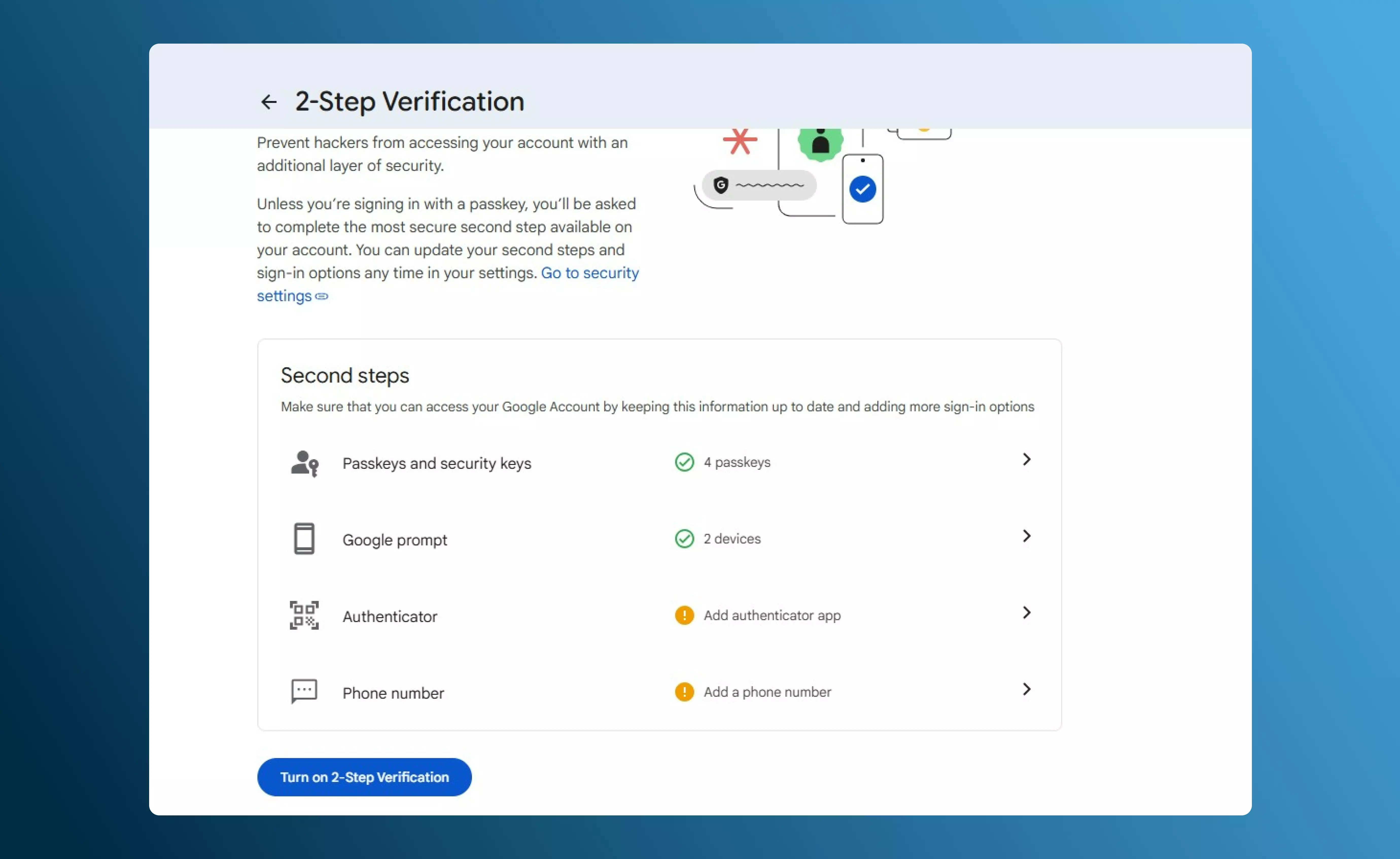
* **2-Step Verification** is enabled on your Google account (required to generate an App Password)
## Connect Gmail
Follow the steps below to connect your Gmail account to SalesCaptain.
### Step 1: Open Gmail Integration
1. Log in to your **SalesCaptain** dashboard.
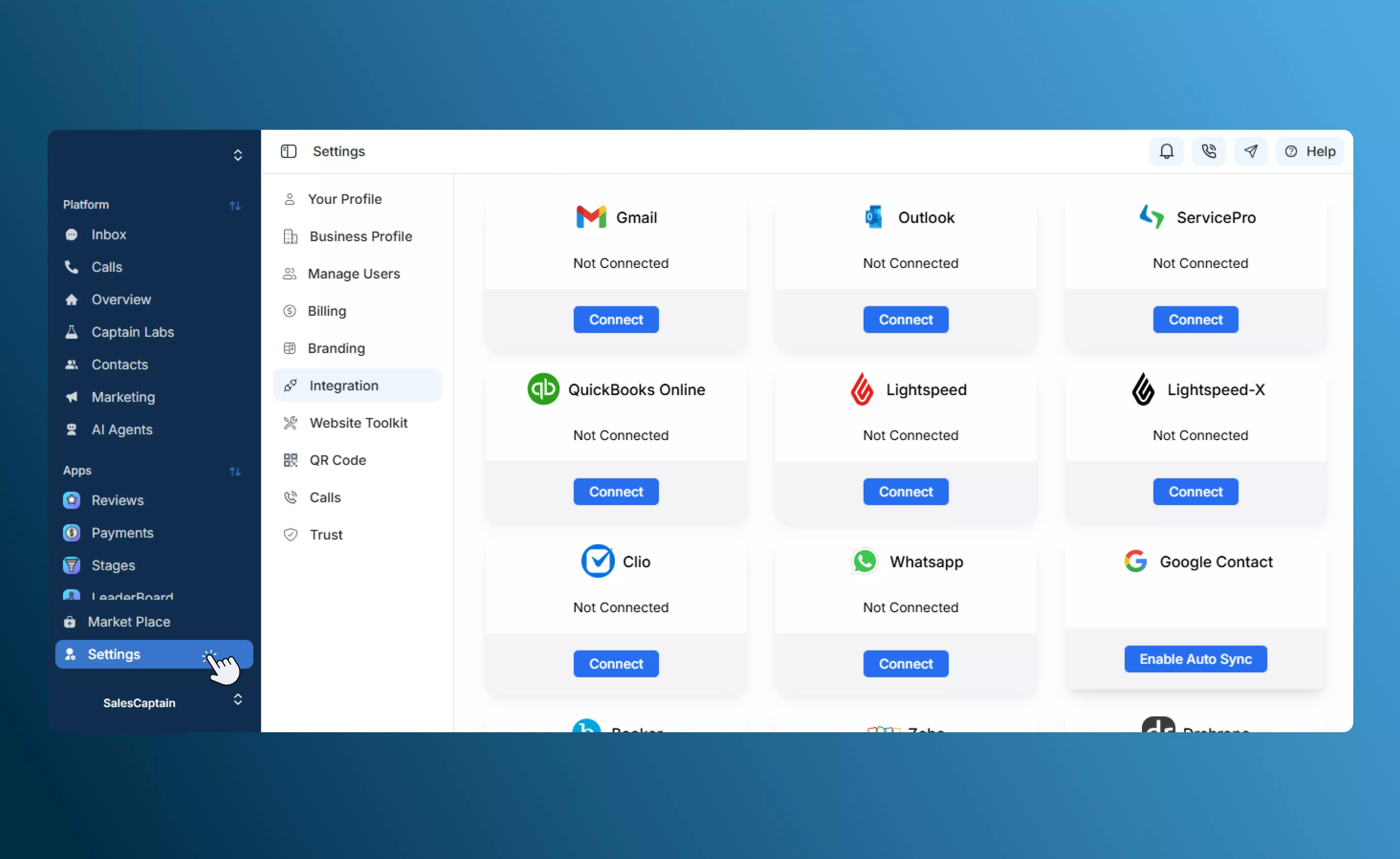
2. Go to **Settings → Integrations → Gmail**.
3. Select **Gmail** and click **Connect**.
A popup will appear asking for your Gmail address and a verification code.
 ### Step 2: Open Google Account Settings
1. Open a new browser tab.
2. Click on **Manage your Google Account**.
3. Ensure you are logged in with the same Gmail address you want to connect.
### Step 3: Generate an App Password
1. In your Google Account settings, search for **App passwords**.
### Step 2: Open Google Account Settings
1. Open a new browser tab.
2. Click on **Manage your Google Account**.
3. Ensure you are logged in with the same Gmail address you want to connect.
### Step 3: Generate an App Password
1. In your Google Account settings, search for **App passwords**.
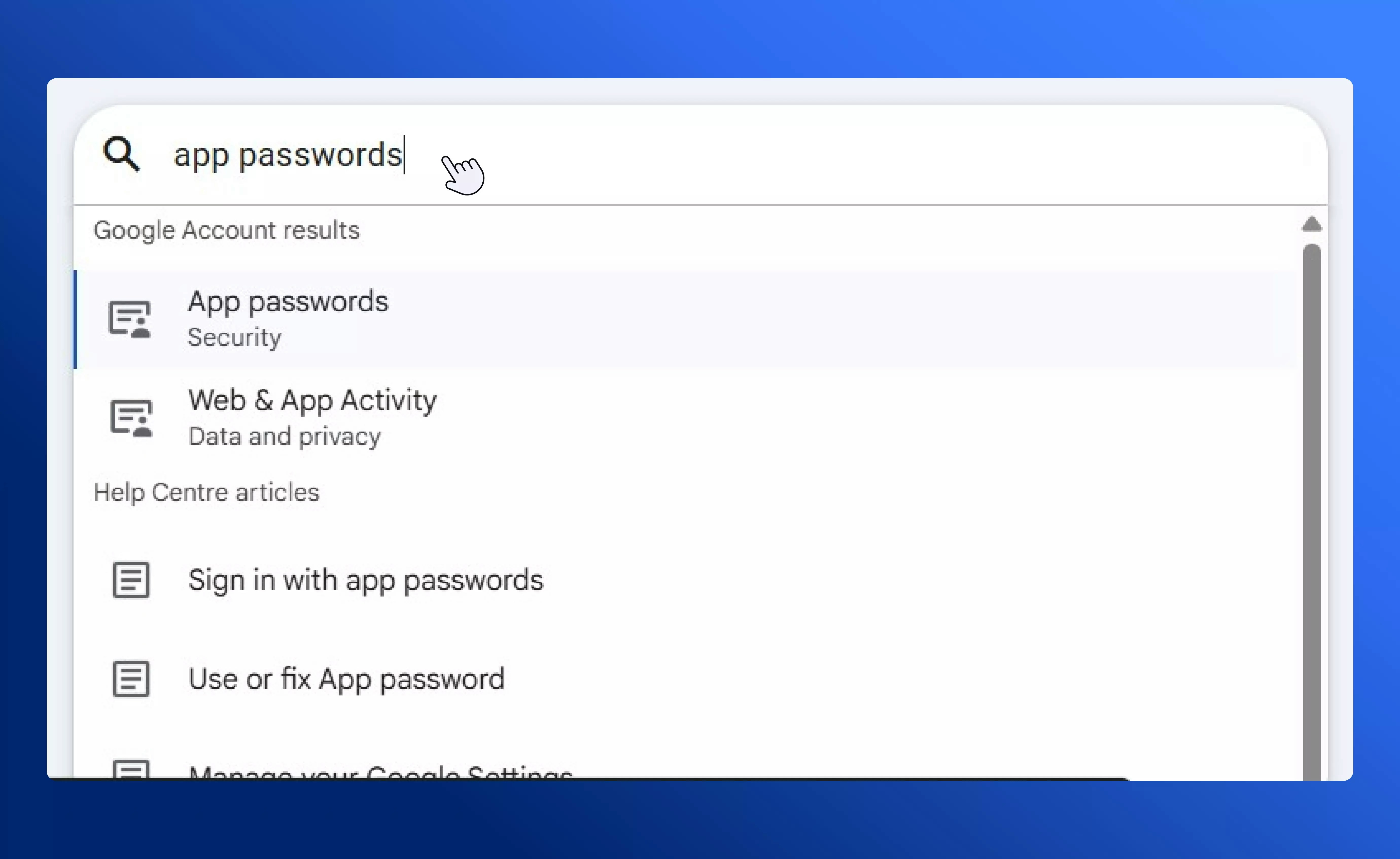 2. Open **App passwords** under the Security section.
**Note:** If the *App passwords* option is not visible, enable **2-Step Verification**, then search again.
2. Open **App passwords** under the Security section.
**Note:** If the *App passwords* option is not visible, enable **2-Step Verification**, then search again.
 3. Enter a custom name such as `SalesCaptain`.
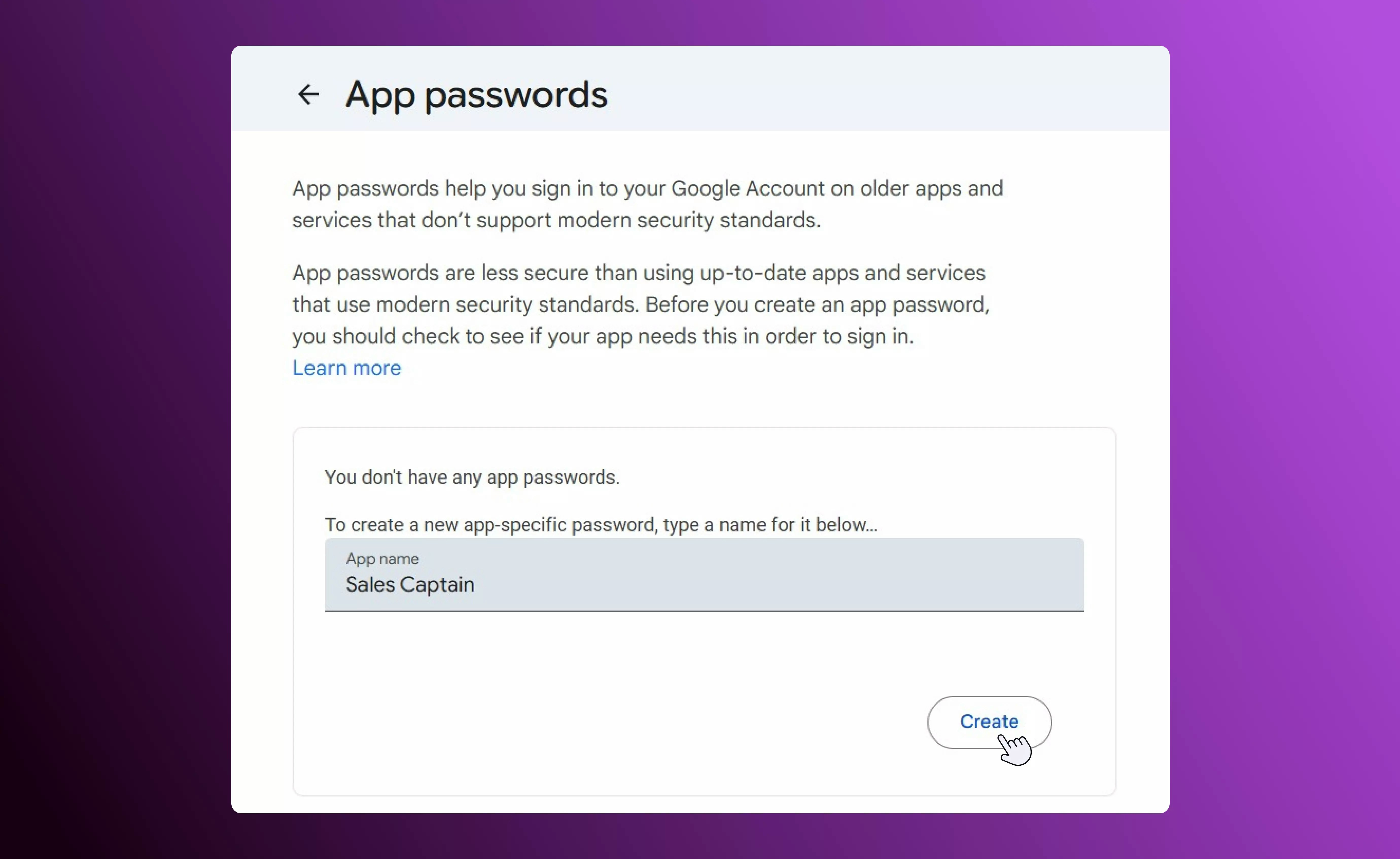 4. Click **Create**.
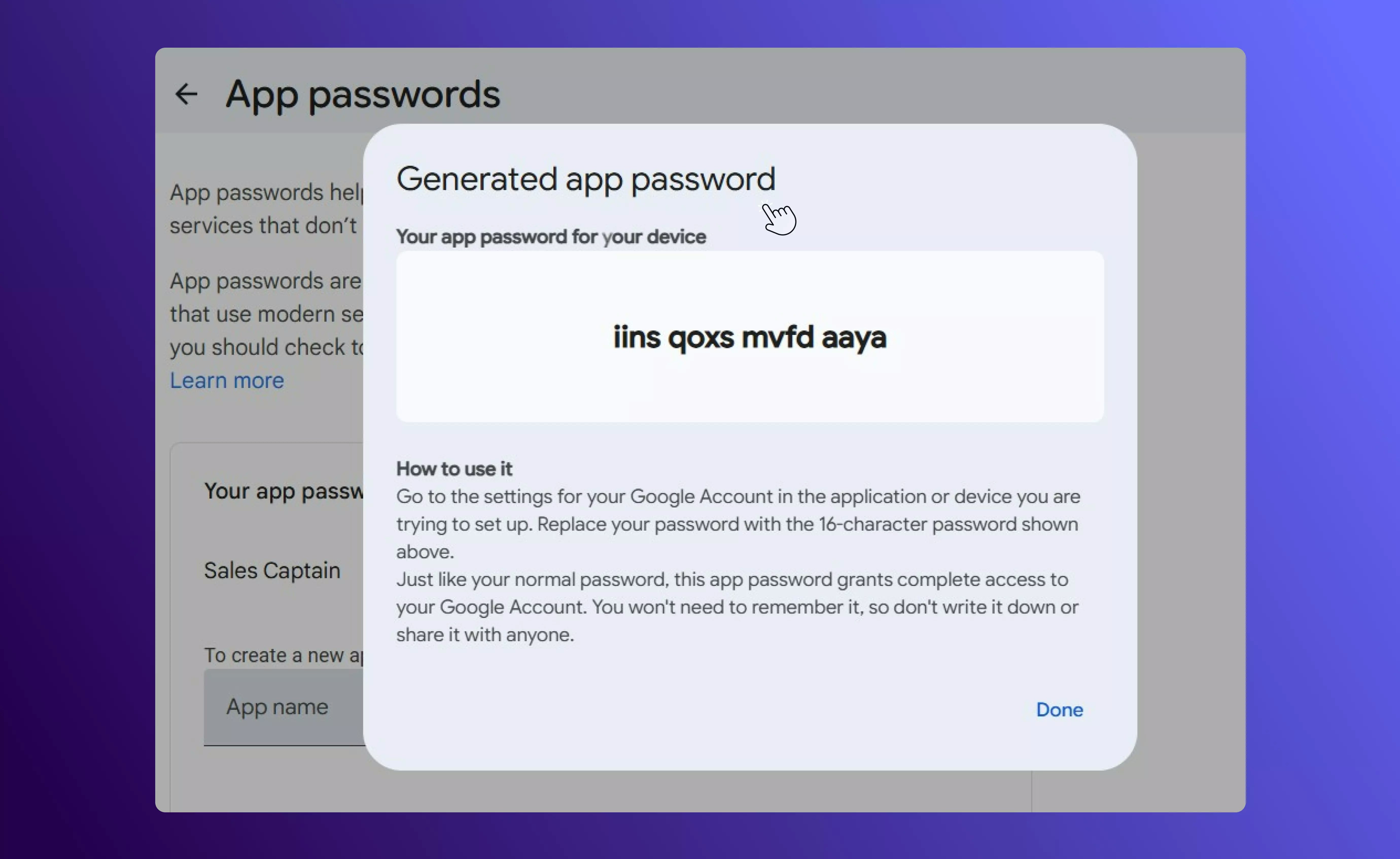
5. Google will generate a **16-character App Password**.
4. Click **Create**.
5. Google will generate a **16-character App Password**.
 ### Step 4: Complete the Connection
1. Copy the generated **App Password**.
2. Return to the **SalesCaptain – Connect Gmail** popup.
3. Enter:
* Your **Gmail address**
* The **16-character App Password** in the verification code field
### Step 4: Complete the Connection
1. Copy the generated **App Password**.
2. Return to the **SalesCaptain – Connect Gmail** popup.
3. Enter:
* Your **Gmail address**
* The **16-character App Password** in the verification code field
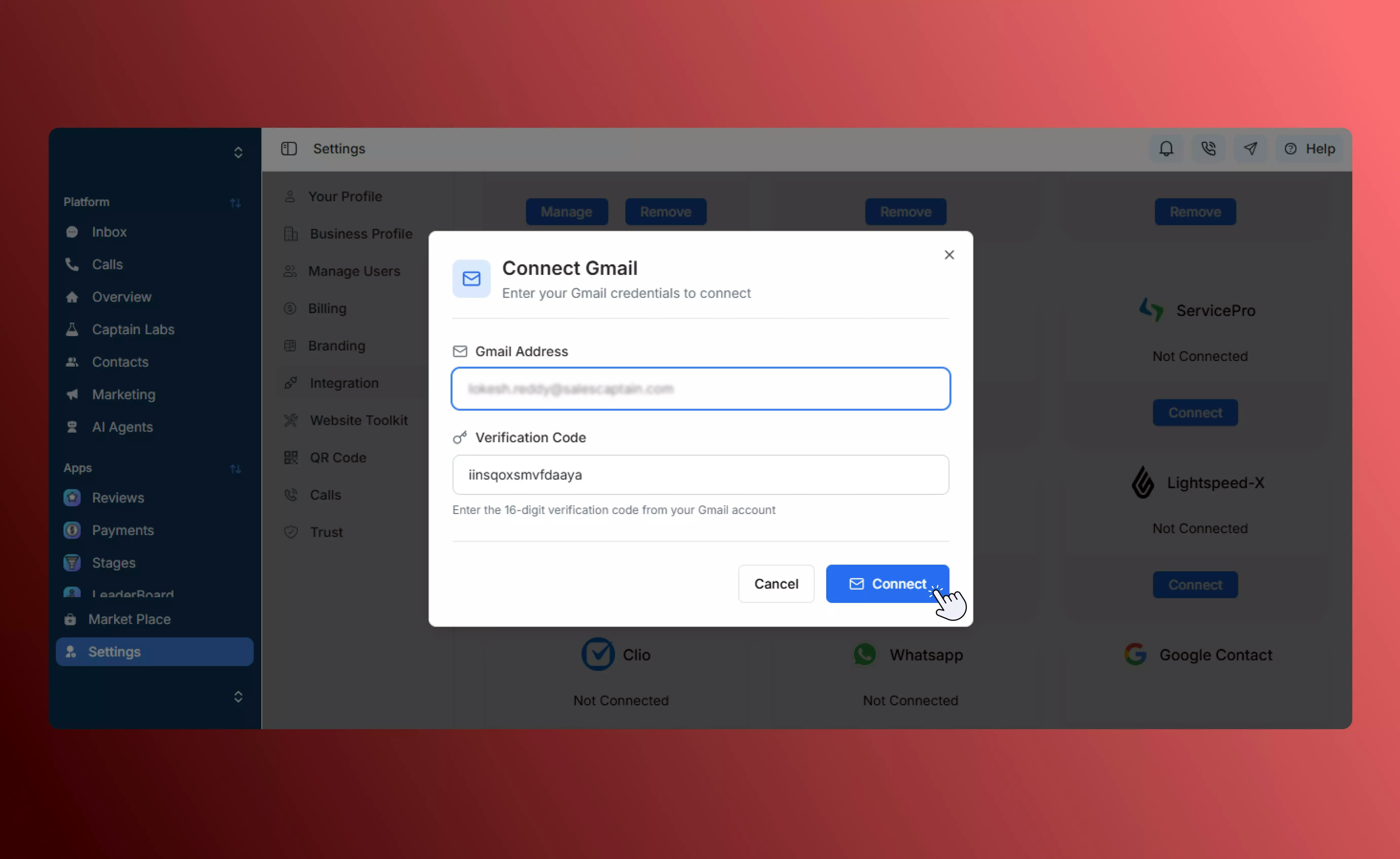 4. Click **Connect**.
Once verified, your Gmail account will be successfully connected to SalesCaptain.
### Step 5: Connect Your Conversation Profile
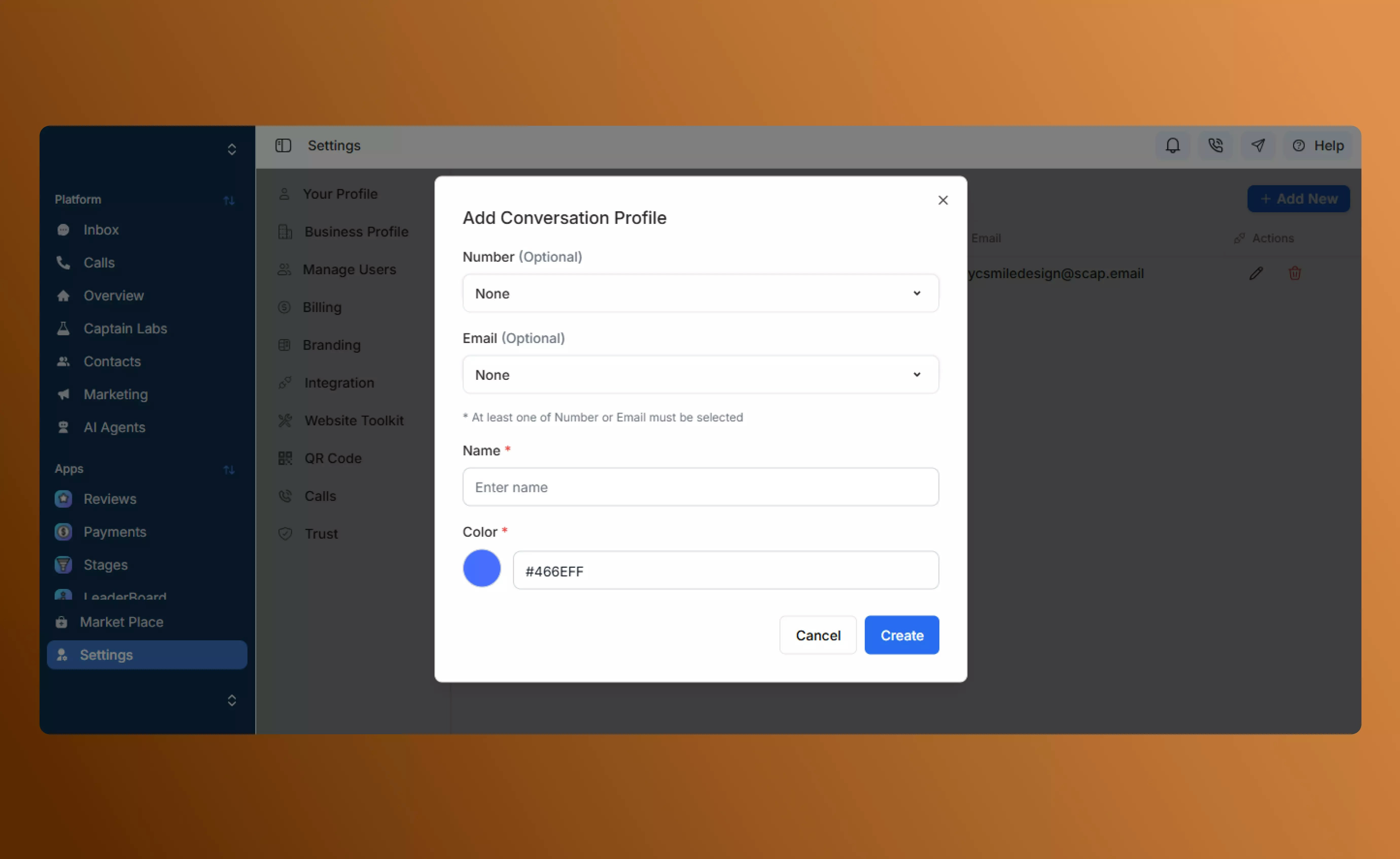
After connecting Gmail, you must link it to your conversation profile to start using email inside the Inbox.
1. Click the link below:
[https://app.salescaptain.com/dashboard/settings/conversation-profile](https://app.salescaptain.com/dashboard/settings/conversation-profile)
2. Select the conversation profile you want to use.
3. Assign the connected **Gmail account** to the profile.
4. Save your changes.
4. Click **Connect**.
Once verified, your Gmail account will be successfully connected to SalesCaptain.
### Step 5: Connect Your Conversation Profile
After connecting Gmail, you must link it to your conversation profile to start using email inside the Inbox.
1. Click the link below:
[https://app.salescaptain.com/dashboard/settings/conversation-profile](https://app.salescaptain.com/dashboard/settings/conversation-profile)
2. Select the conversation profile you want to use.
3. Assign the connected **Gmail account** to the profile.
4. Save your changes.
 Once this is done, you can start using the **email feature directly from the Inbox** for customer conversations.
## Best Practices
* Never share your App Password with anyone.
* You can revoke the App Password anytime from your Google Account settings.
* If you change your Google security settings, reconnect Gmail if required.
* Test sending and receiving an email after connection to ensure everything works correctly.
## You’re All Set
Your Gmail is now connected to SalesCaptain and ready for seamless email communication from your Inbox.
Once this is done, you can start using the **email feature directly from the Inbox** for customer conversations.
## Best Practices
* Never share your App Password with anyone.
* You can revoke the App Password anytime from your Google Account settings.
* If you change your Google security settings, reconnect Gmail if required.
* Test sending and receiving an email after connection to ensure everything works correctly.
## You’re All Set
Your Gmail is now connected to SalesCaptain and ready for seamless email communication from your Inbox.