

Why Time Rules Matter
Not every business keeps the same schedule every day. Time rules make it easy to adapt call routing to your hours—whether you’re operating on regular business hours, extended weekends, or special holiday times. By using time rules, you can:- Send calls to one destination during business hours and another after hours
- Set up special routing for weekends or holidays
- Ensure calls never go unanswered during off-hours
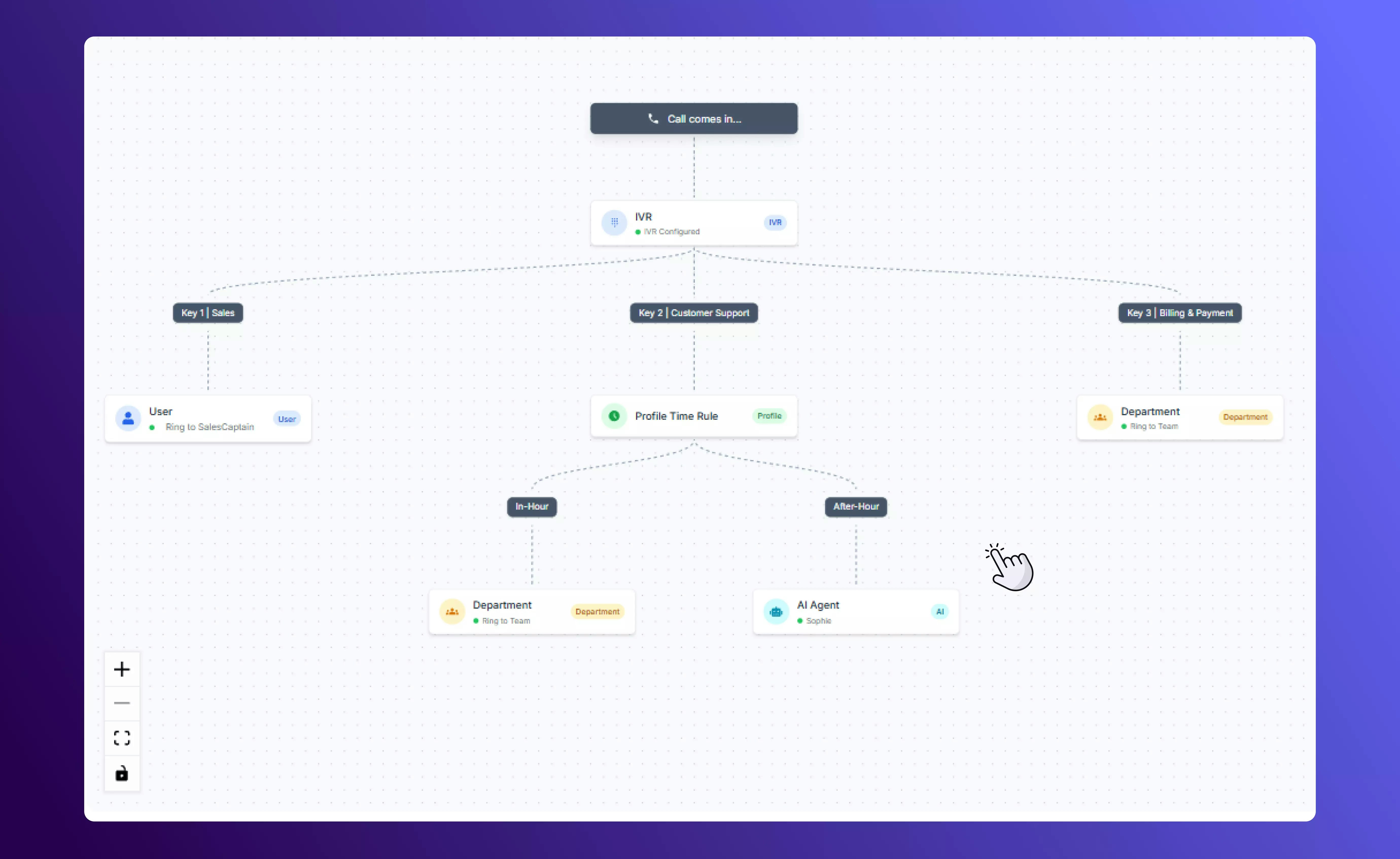
Example call flow using time rules
Types of Time Rules
SalesCaptain gives you two ways to handle time-based routing inside your call flows.1. Profile Time Rules
Profile time rules pull directly from your Business Profile settings.-
Go to Settings → Business Profile → Business Hours to set your standard working hours and any special hours (weekends, holidays, etc.).
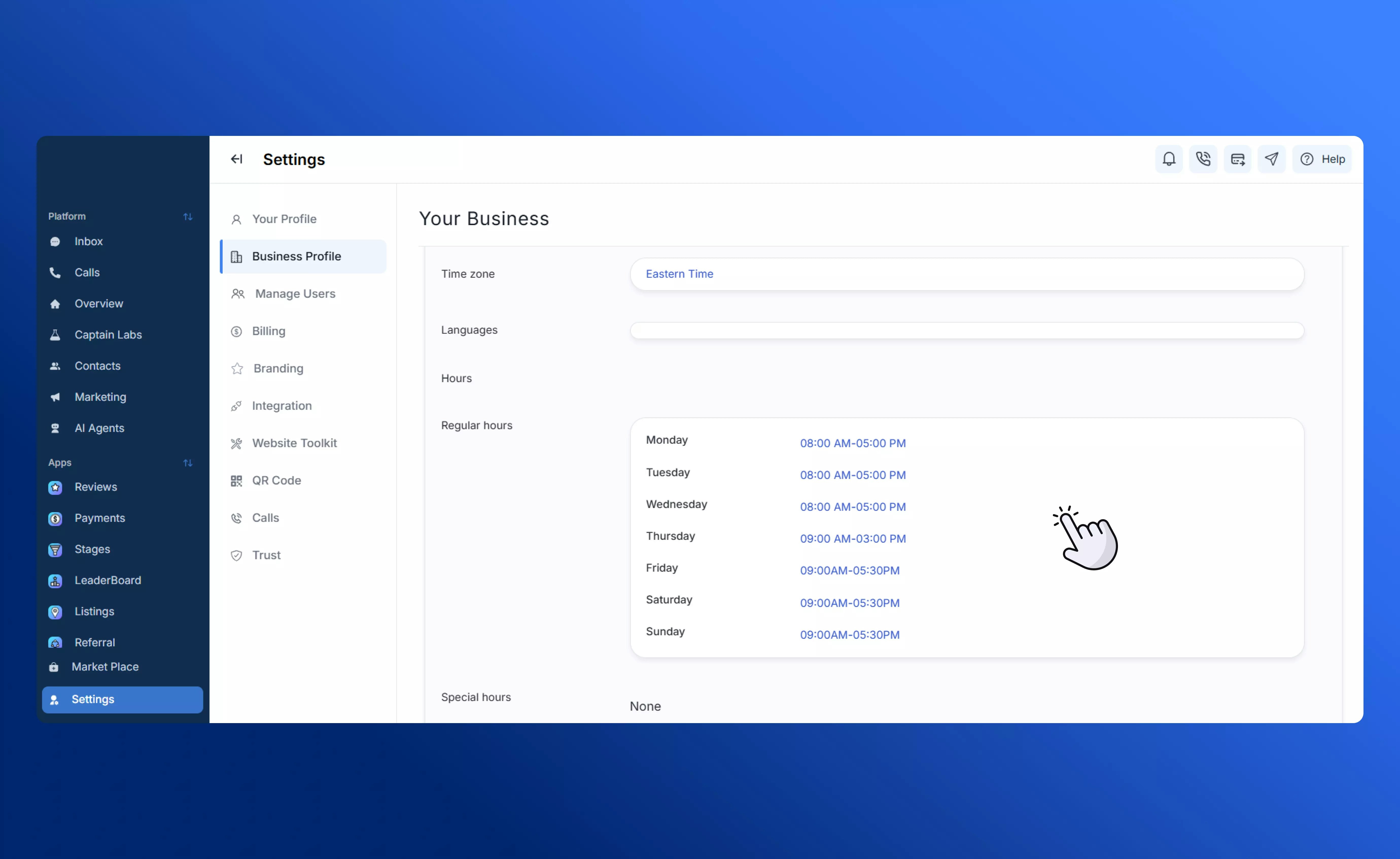
Defining Business Hours
-
When building a call flow, drag the Profile Time Rule element into your canvas.

Canvas view with Profile Time Rule
- Route calls to one branch during the hours you’ve set, and to a different branch outside of those hours.
- Business hours: 9:00 AM – 6:00 PM
- Special weekend hours: 10:00 AM – 4:00 PM
All other times: after hours routing
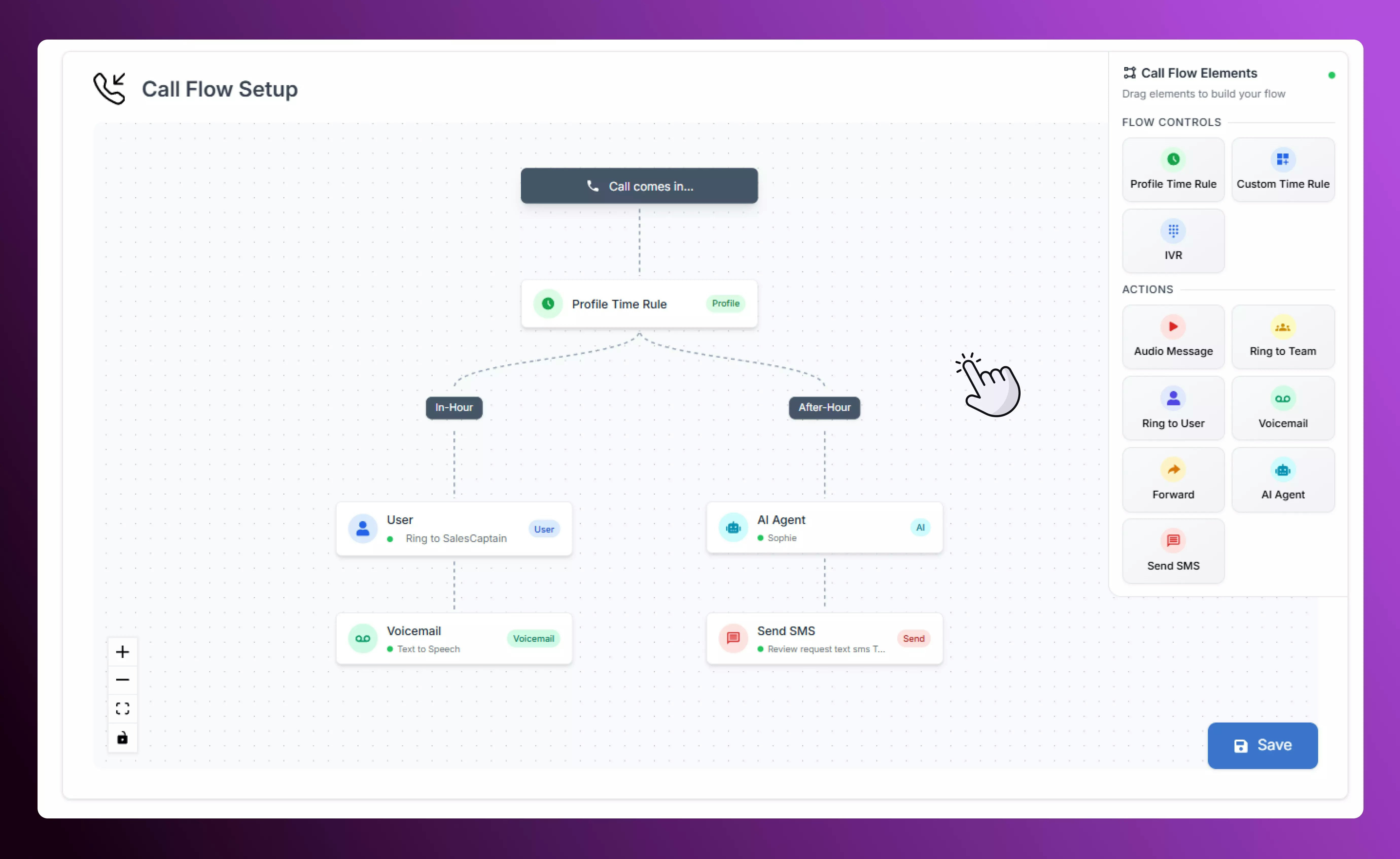
Example call flow using Profile Time Rule
2. Custom Time Rules
Custom time rules give you full control over scheduling directly in the call flow editor.-
Drag the Custom Time Rule element into your canvas.

Custom Time Rule on the Canvas
-
Specify the days of the week and time ranges you want this rule to apply.

Create a Custom Time Rule
- Add as many specific time windows as you need.
- First rule: Mondays, Wednesdays and Fridays from 9:00AM to 4:00PM
- Second rule: Tuesdays and Thursdays from 9:00AM to 4:00PM
- Third rule: Weekdays from 4:00PM to 6:00PM
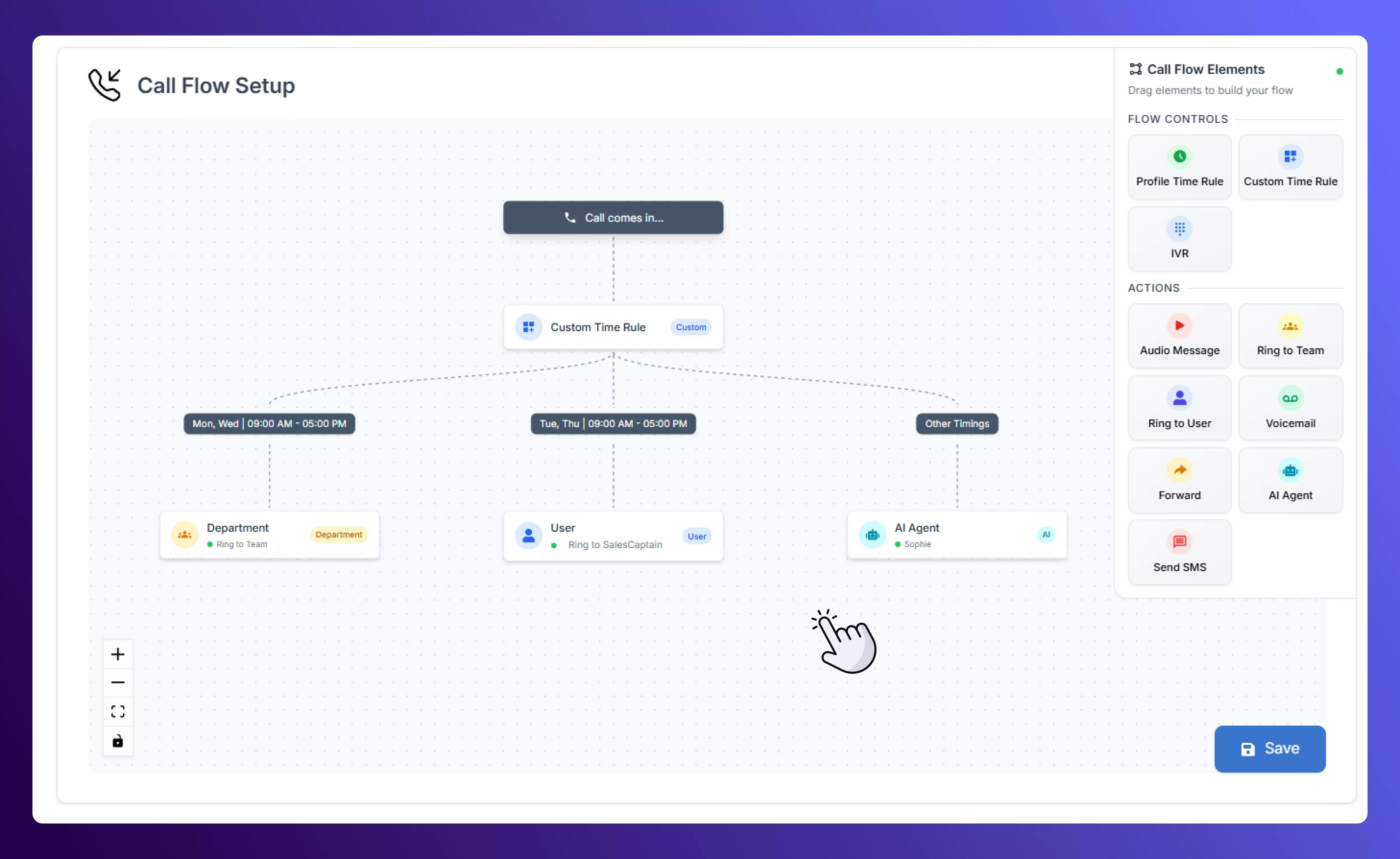
Example call flow using Custom Time Rule